Table of Contents
Content on YouTube is displayed as thumbnails for scrolling. However, if you stop scrolling, the video sometimes starts playing automatically.
Content on YouTube is displayed as thumbnails, and you can scroll to find what you're looking for. However, if you stop scrolling, videos sometimes start playing automatically, even if you haven't selected a video to watch. This is because autoplay previews are enabled by default on the app. Here's how to turn off autoplay previews on YouTube.
How to turn off autoplay previews on YouTube iPhone
Step 1:
On the YouTube app interface, users click on The gear To access the app settings. Next, click on Play To adjust the video playback mode on YouTube.
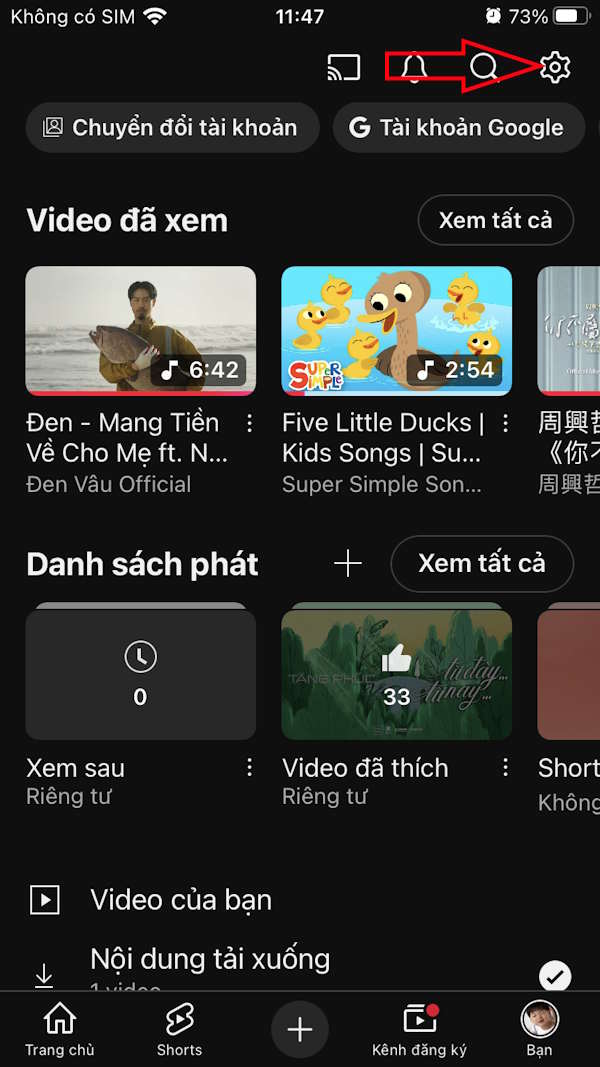
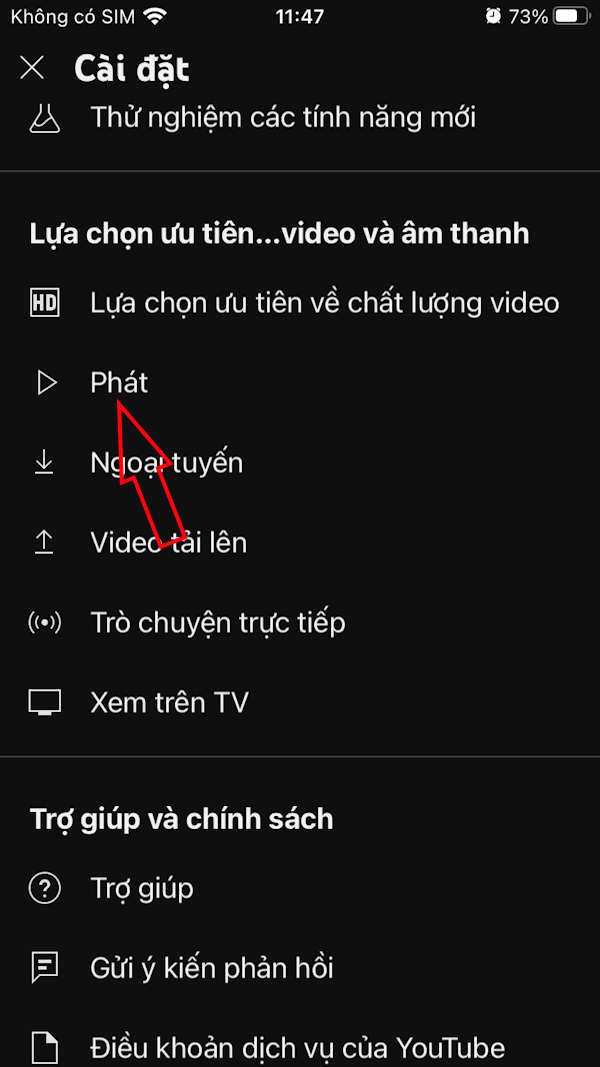
Step 2:
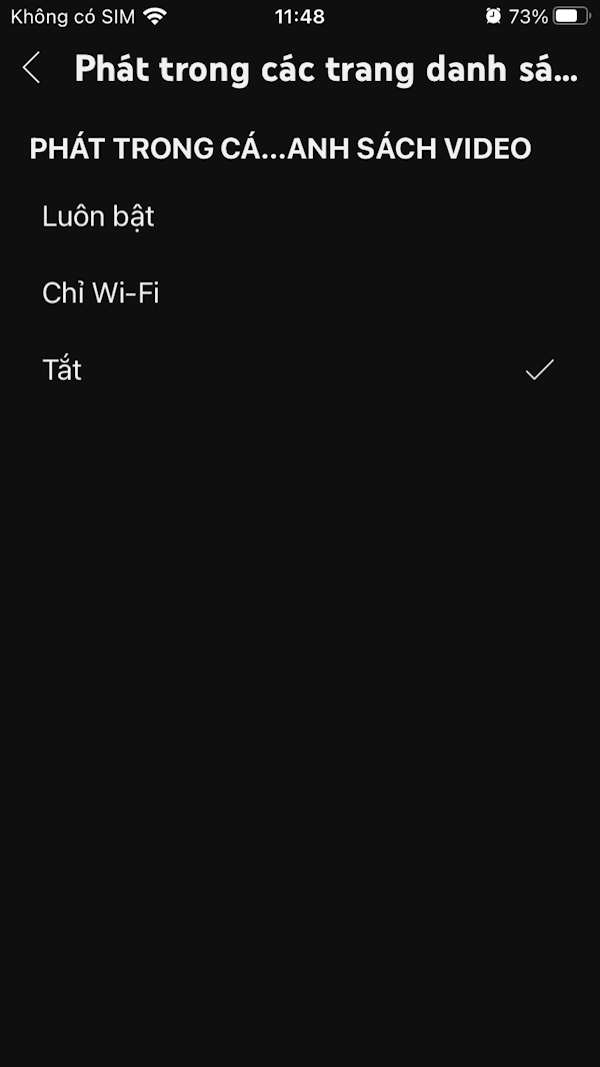
In the interface as shown, the user clicks on The Play item in the video listing pages . At this point, you will Switch to Off mode To turn off auto-play preview on YouTube.
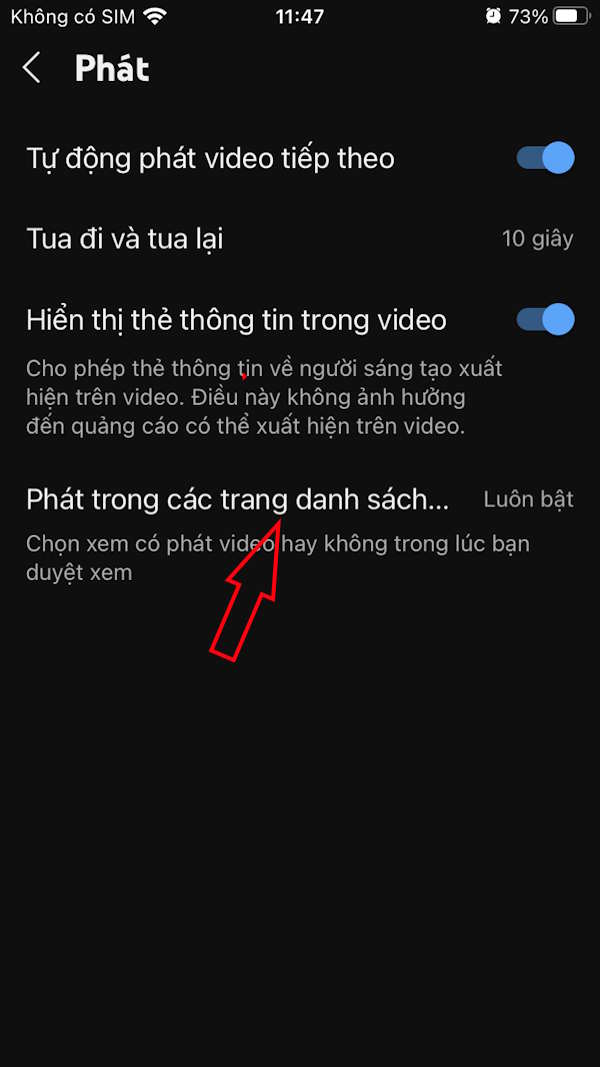
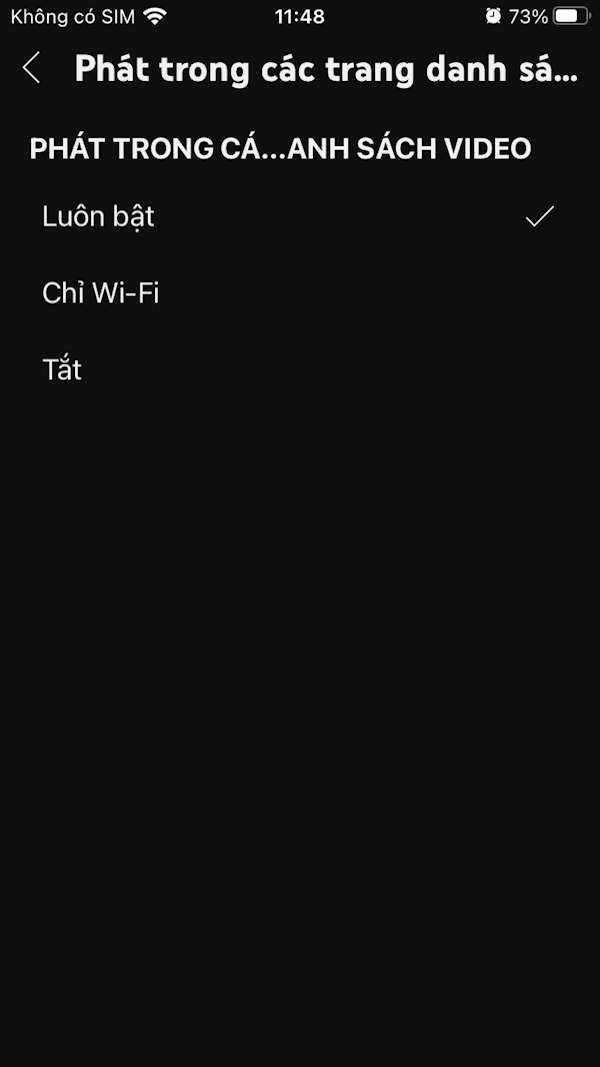
How to turn off autoplay YouTube previews on Android
Step 1:
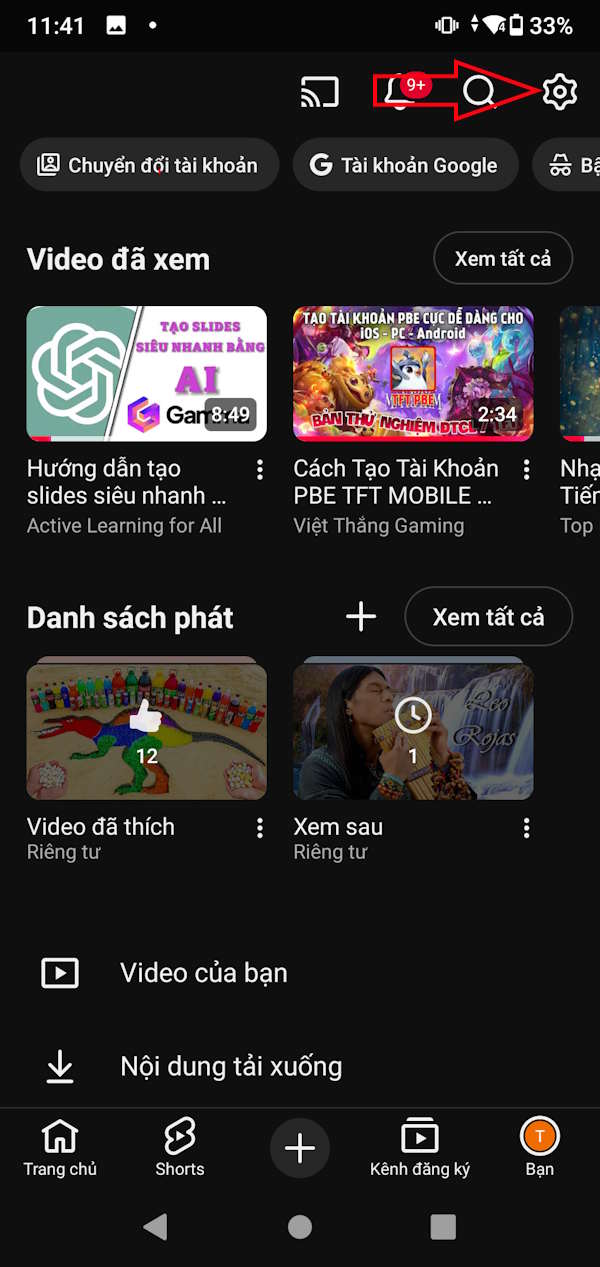
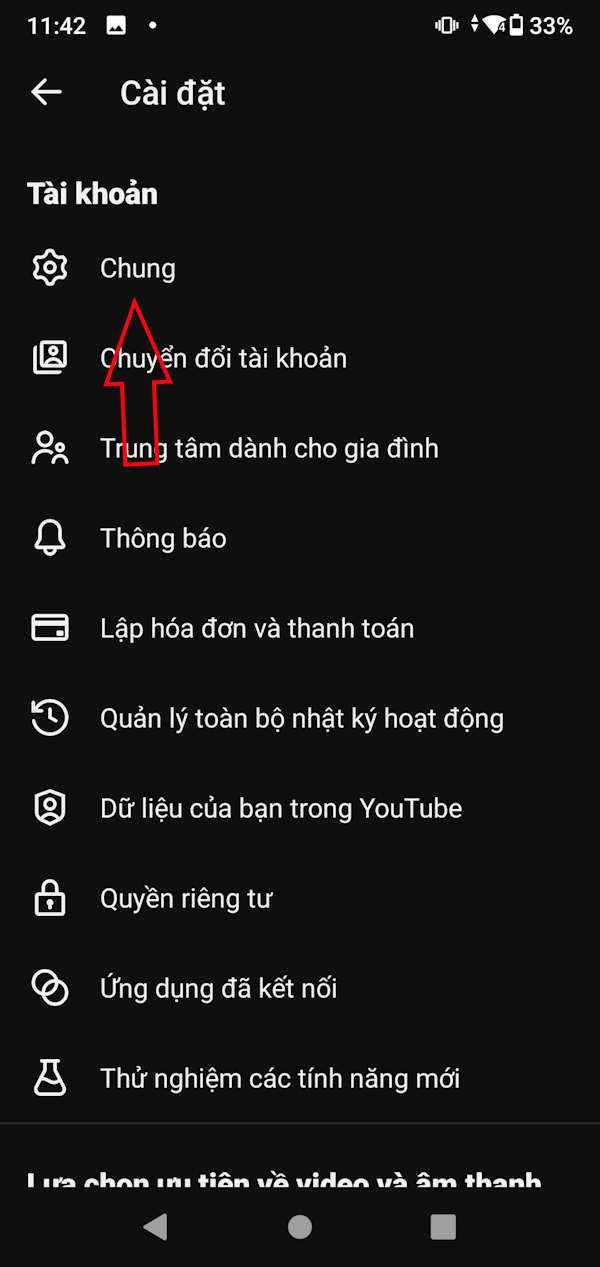
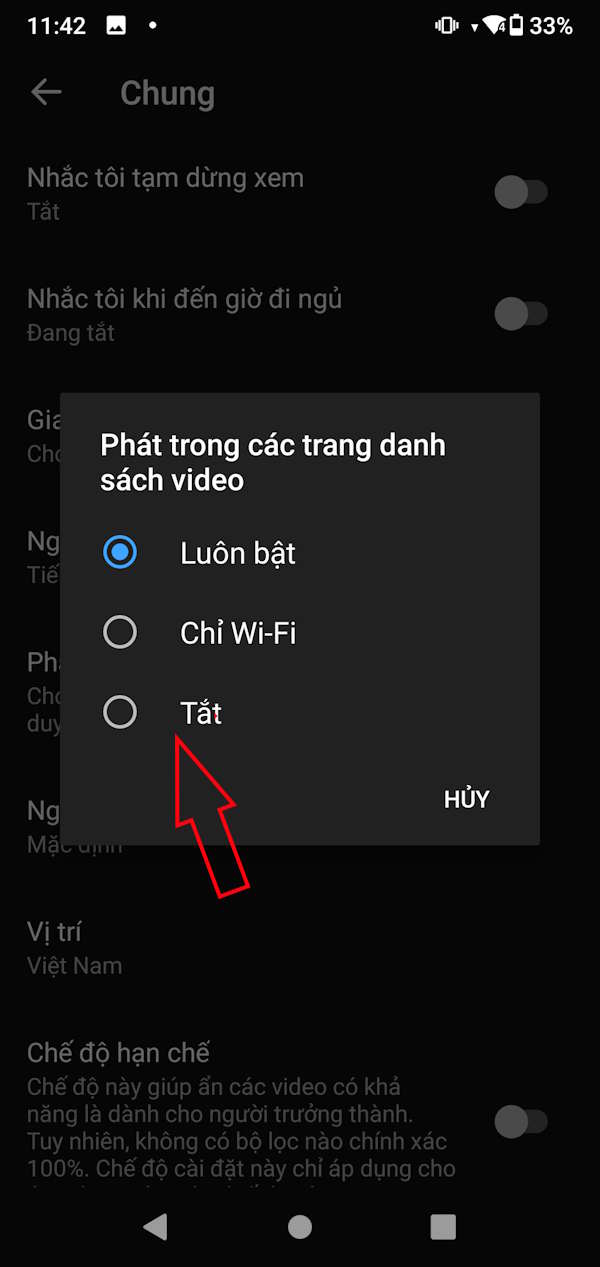
Also at the YouTube Android interface, you click on The gear icon . Then we click on General To adjust.
Step 2:
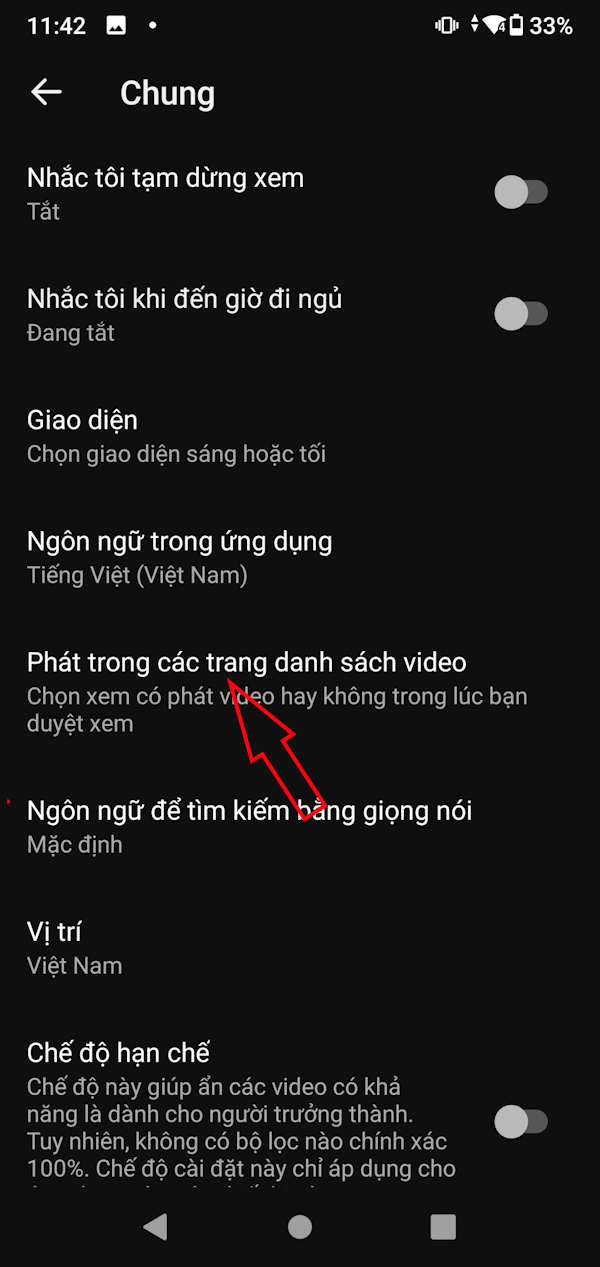
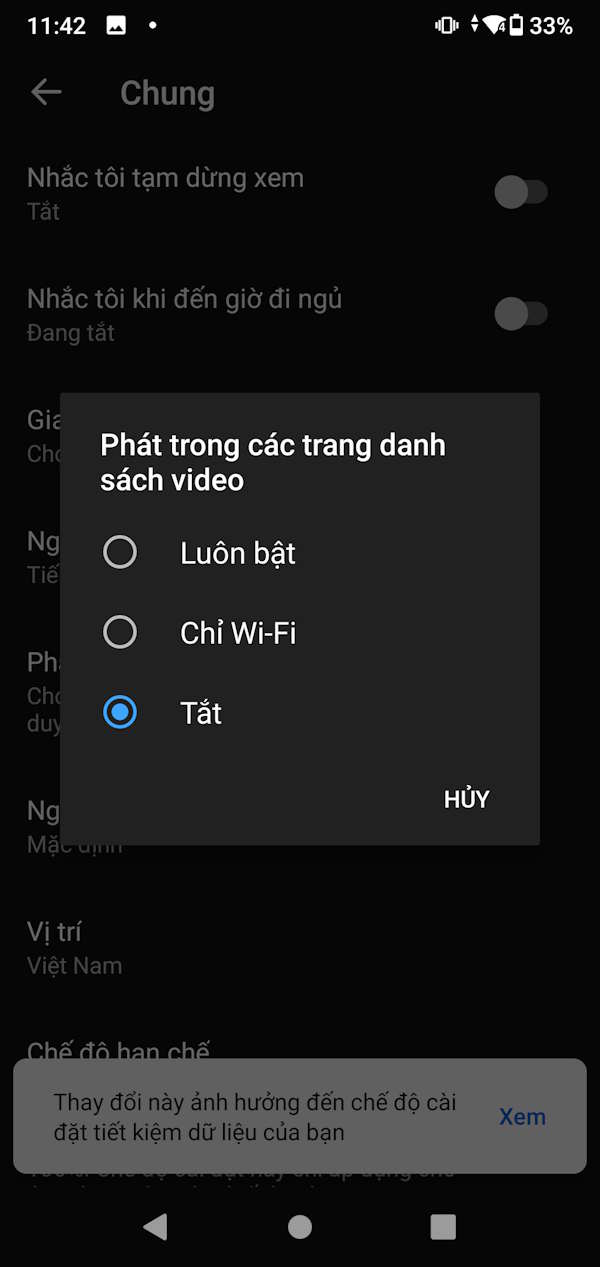
Continuing in the YouTube settings interface, you Click Play in the video list pages . Then the user also Clicks Off To not automatically play preview videos on YouTube.
Turn off autoplay YouTube preview videos on computer
Step 1:
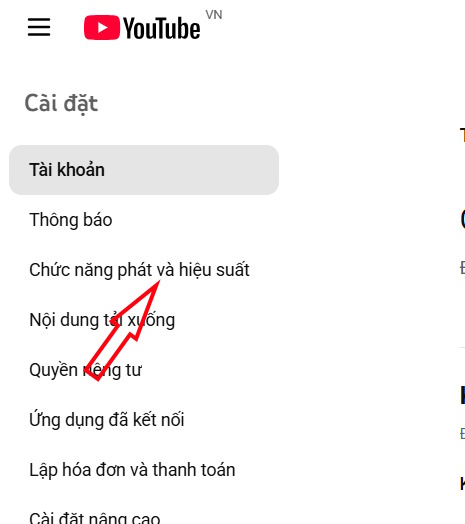
You Click on the YouTube avatar And then select Settings In the list. The user selects the Playback and Performance Section.
Step 2:
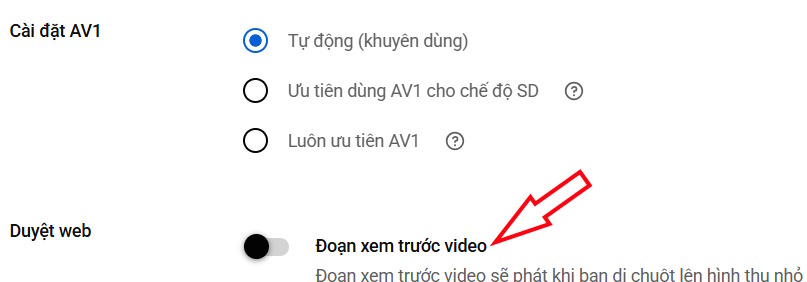
Now in The Browsing section You Turn off Video Preview mode .
FAQ
How do you turn off autoplay previews on YouTube: step-by-step guide?
In practical terms, content on YouTube is displayed as thumbnails for scrolling. However, if you stop scrolling, the video sometimes starts playing automatically.
What should you check before getting started?
Review the requirements, compatible device or software version, and any warnings described in the guide before making changes.
What should you do if the steps do not work?
Repeat the steps in order, confirm that your app or system is up to date, and review the troubleshooting details provided above.
Related Articles
 Trick to Insert Autoplay Code for YouTube Videos2 minutes read
 Turn Off Autoplay in Windows 10, XP3 minutes read
![[Question] How to Turn Off the Autoplay Function of Facebook Videos](/data/thumbs_200x120/[question]-how-to-turn-off-the-autoplay-function-of-facebook-videos-on-new-feed_thumbs_200x120_QrRKpZftj.jpg) [Question] How to Turn Off the Autoplay Function of Facebook Videos2 minutes read
[Question] How to Turn Off the Autoplay Function of Facebook Videos2 minutes read How to Set up or Turn Off the Autoplay Feature on Windows 115 minutes read
 Custom Instructions Turn on, Turn Off Autoplay in Windows 106 minutes read
 5 Simple Tweaks That Will Make YouTube on TV Better Instantly: Key Takeaways7 minutes read
Reader Comments 0
Sign in with email or Google to join the discussion.