Table of Contents
This updated guide explains how to Register Zalo Page to Sell through clear steps, practical examples, and important checks that help prevent common errors.

1. How to Register an Account Zalo Page
Step 1: You proceed to visit https://oa. zalo. me/ to register
Next, you select Create Official Account .
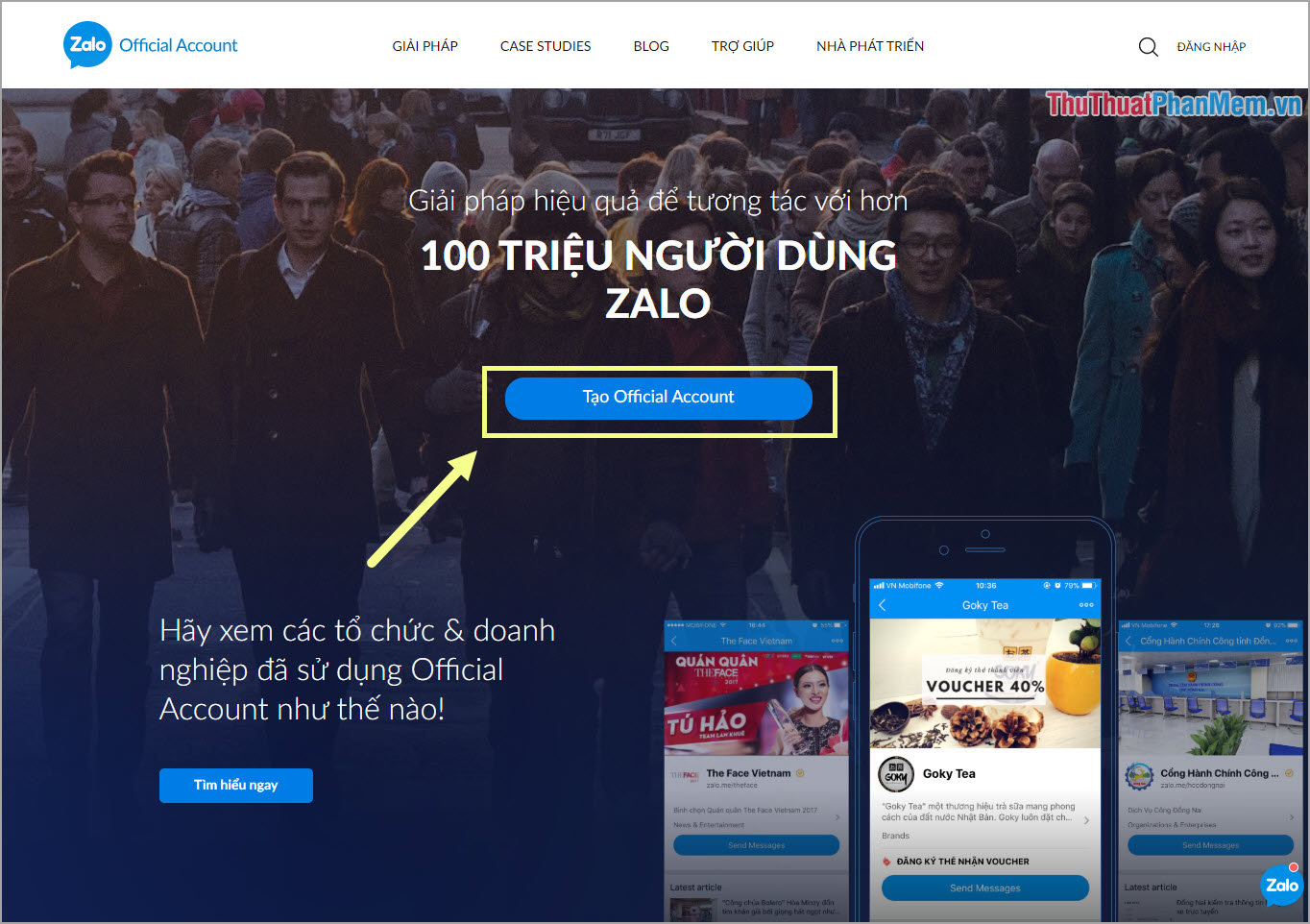
Step 2: If you do not have a Zalo account, please register. And you already have an account Zalo, please login directly always.

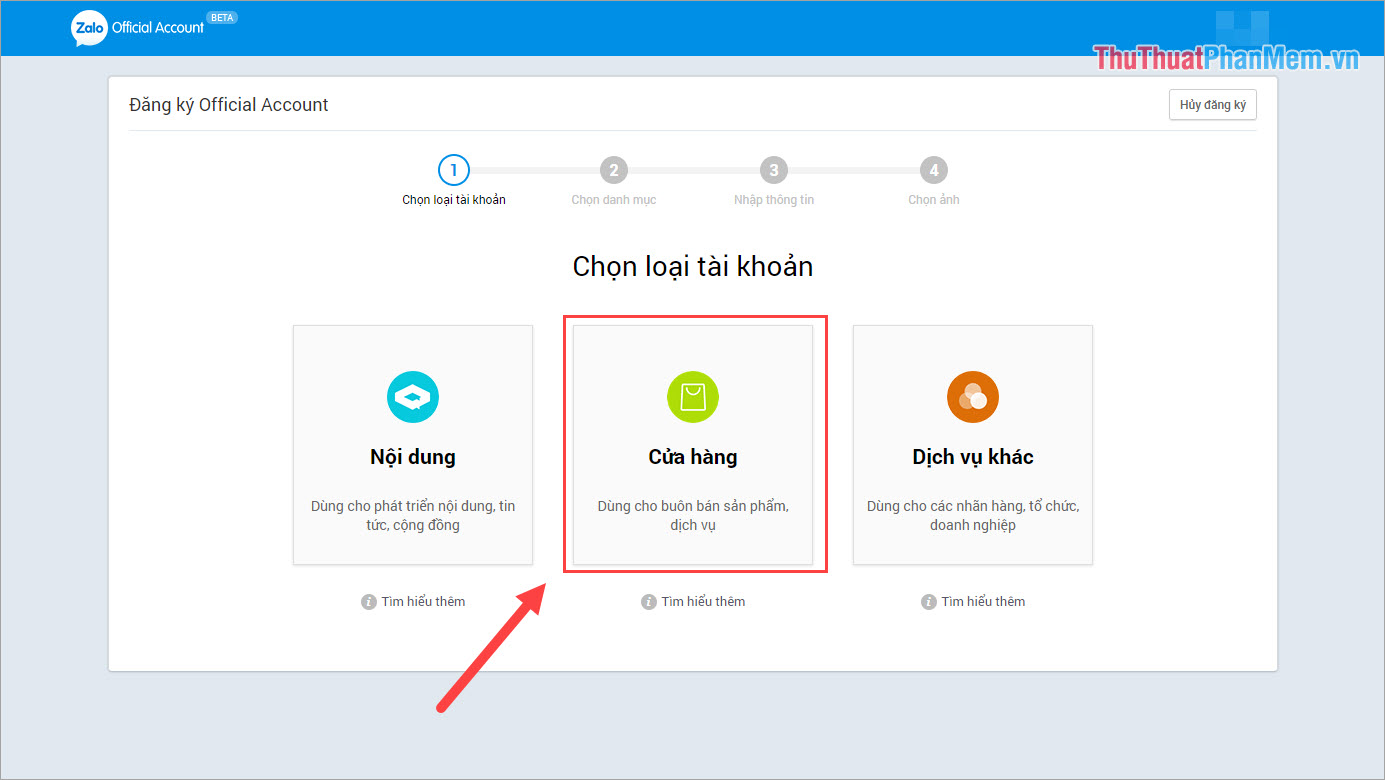
Step 3: Once you have logged in, you will be able to choose the type of content for your Page. Because we create Zalo Page sales, we will choose Store .
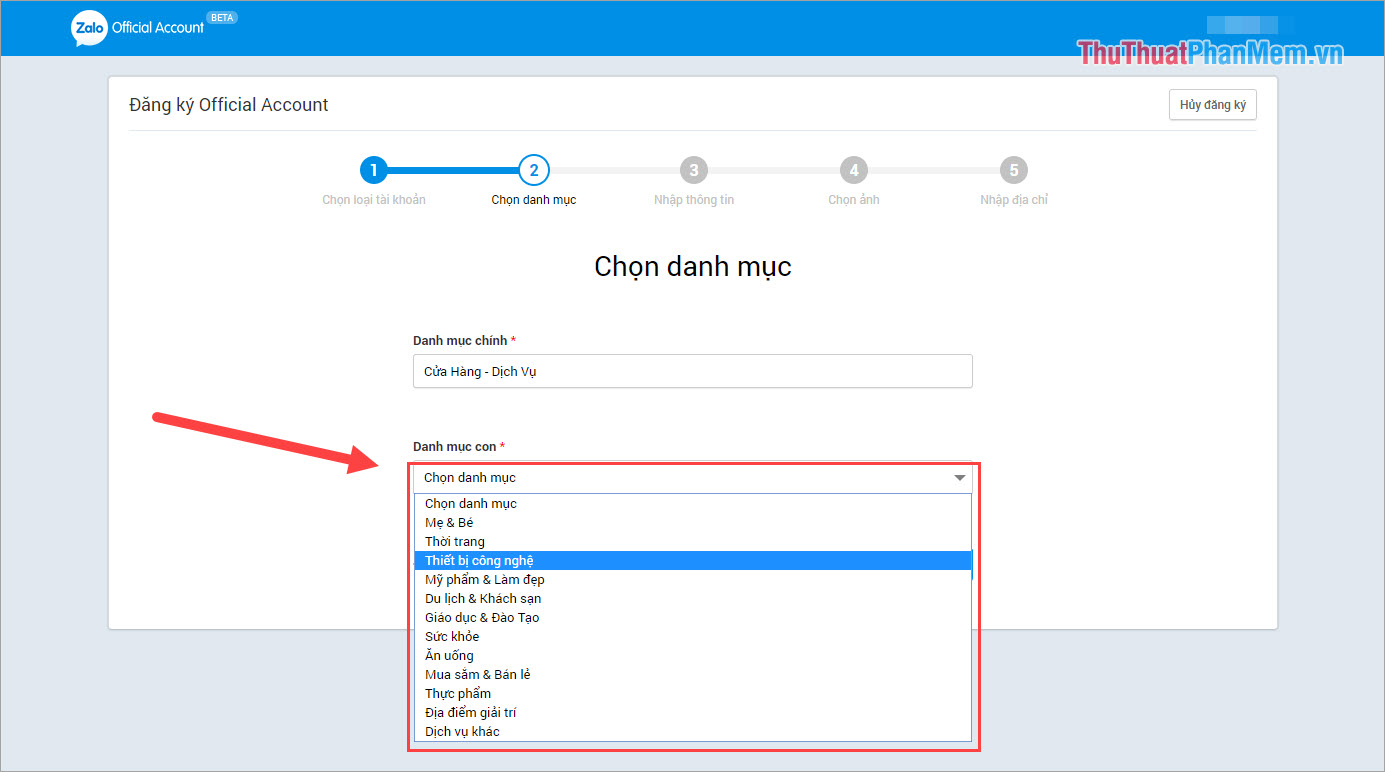
Step 4: In the Store - The service has a lot of subcategories, you need to choose a category that suits the products you sell to avoid being locked out of your account.
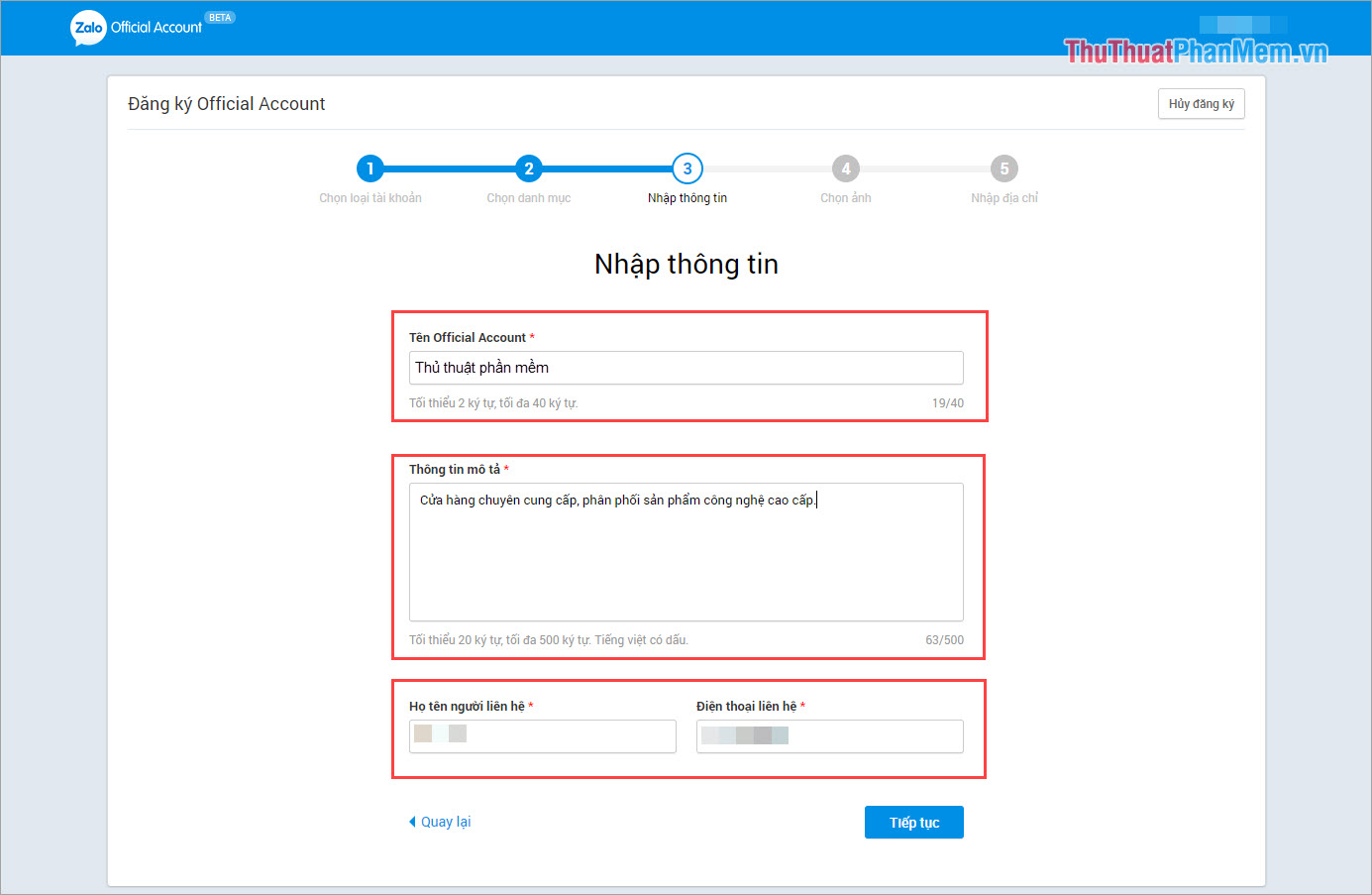
Step 5: Next, you enter the store name, description information, introduction and contact information . The contact information section is very important, it will help you solve the dispute later (if any) so please enter it carefully.
Step 6: Then, you proceed to add the avatar image and cover to make the page more lively.
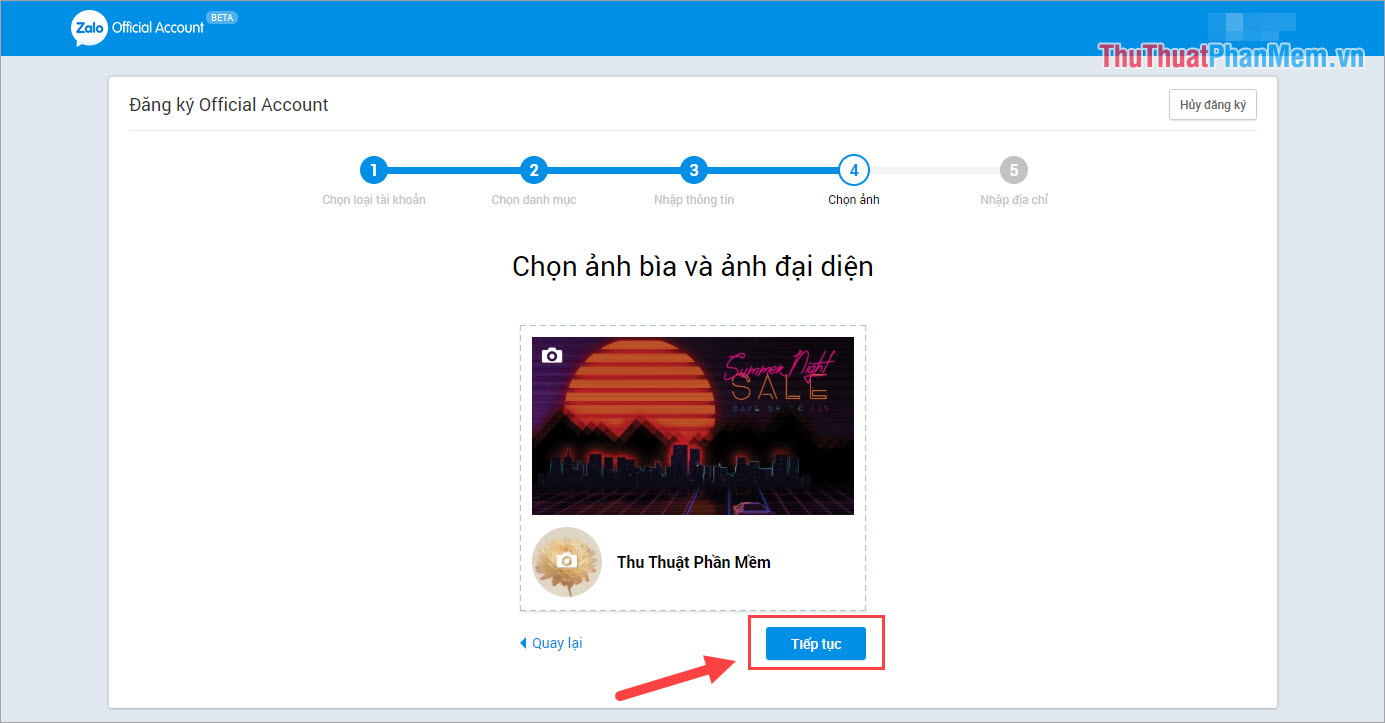
Step 7: You proceed to add address information and click Finish to complete all the settings for Zalo Page.
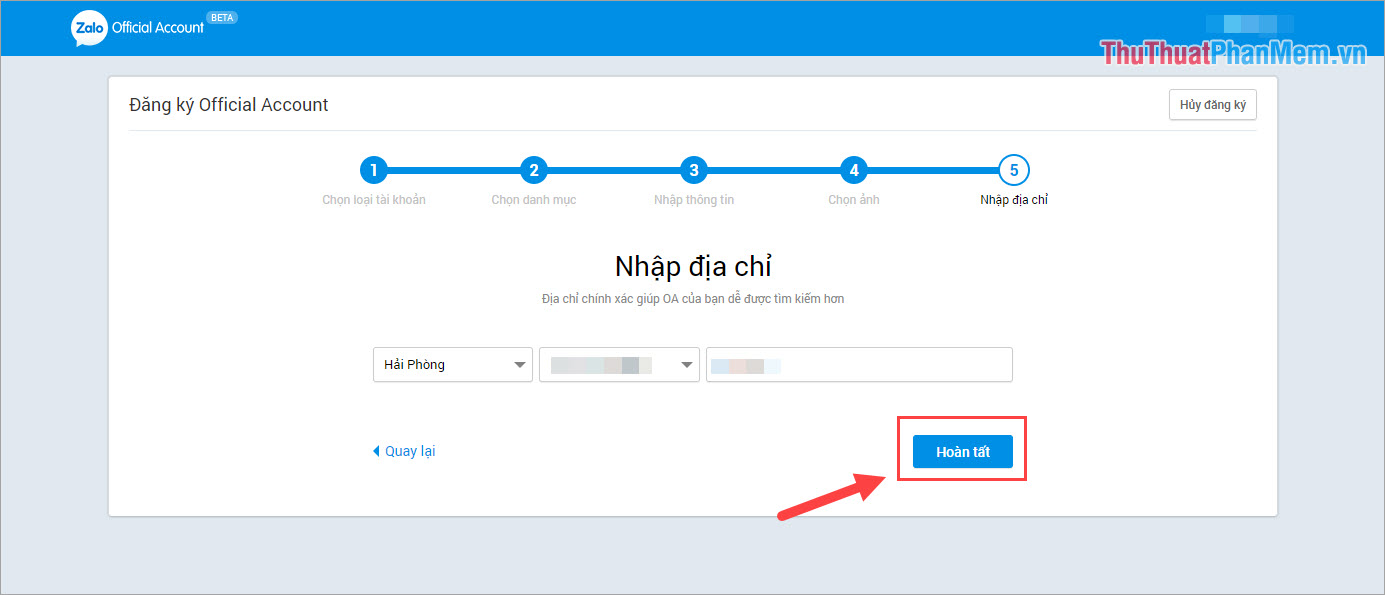
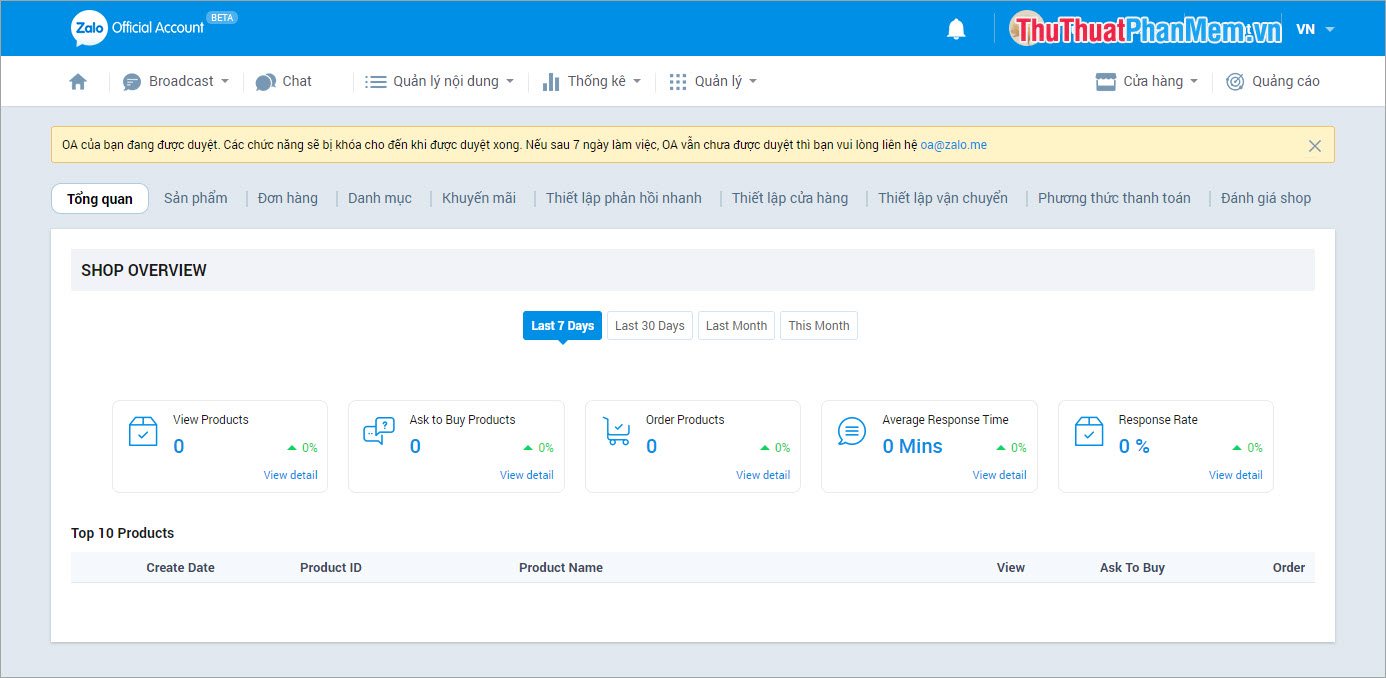
Note: After we have registered the booth on Zalo Page, your account will not be confirmed immediately. This means that only you (the admin) can see that Zalo Page and cannot be seen by others. The Zalo Page management will review and send notice to you that your Zalo Page is eligible to join the community or not. If not eligible you need to change some information according to their instructions to review again. Zalo Page browsing time will range from 1 to 7 days, if there is no notice please contact directly oa@zalo. me
2 . How to Add Products to Zalo Page
After registration is complete, you will automatically be transferred to Zalo Page management interface. Here, you can adjust all information of Page.
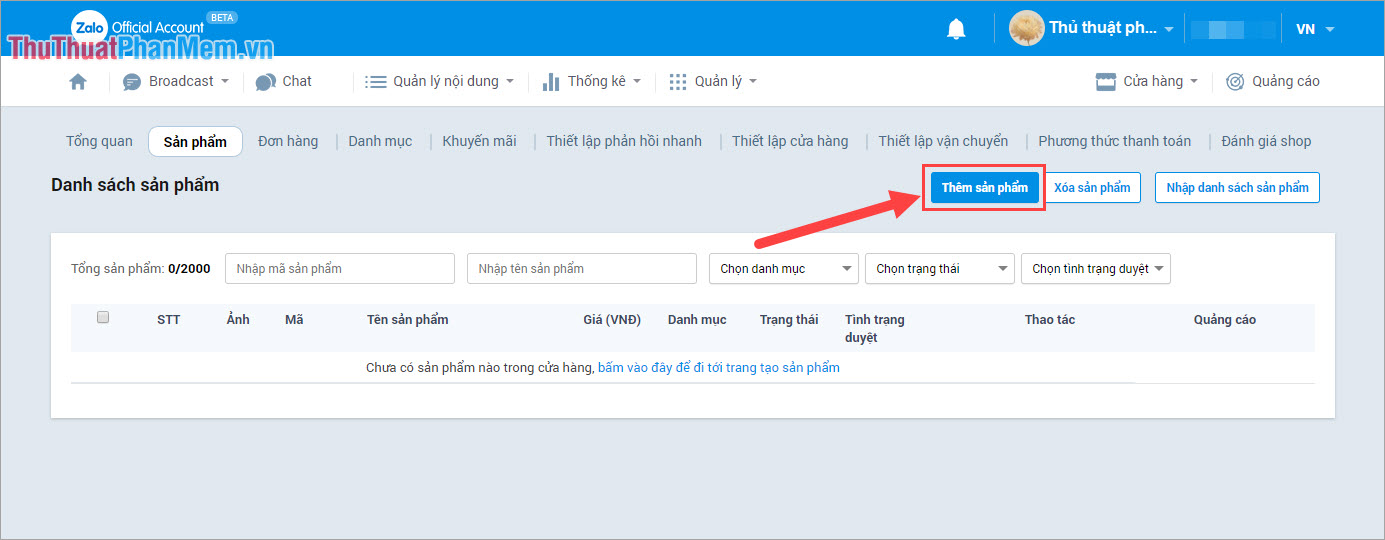
Step 1: You choose the Store and choose Products .
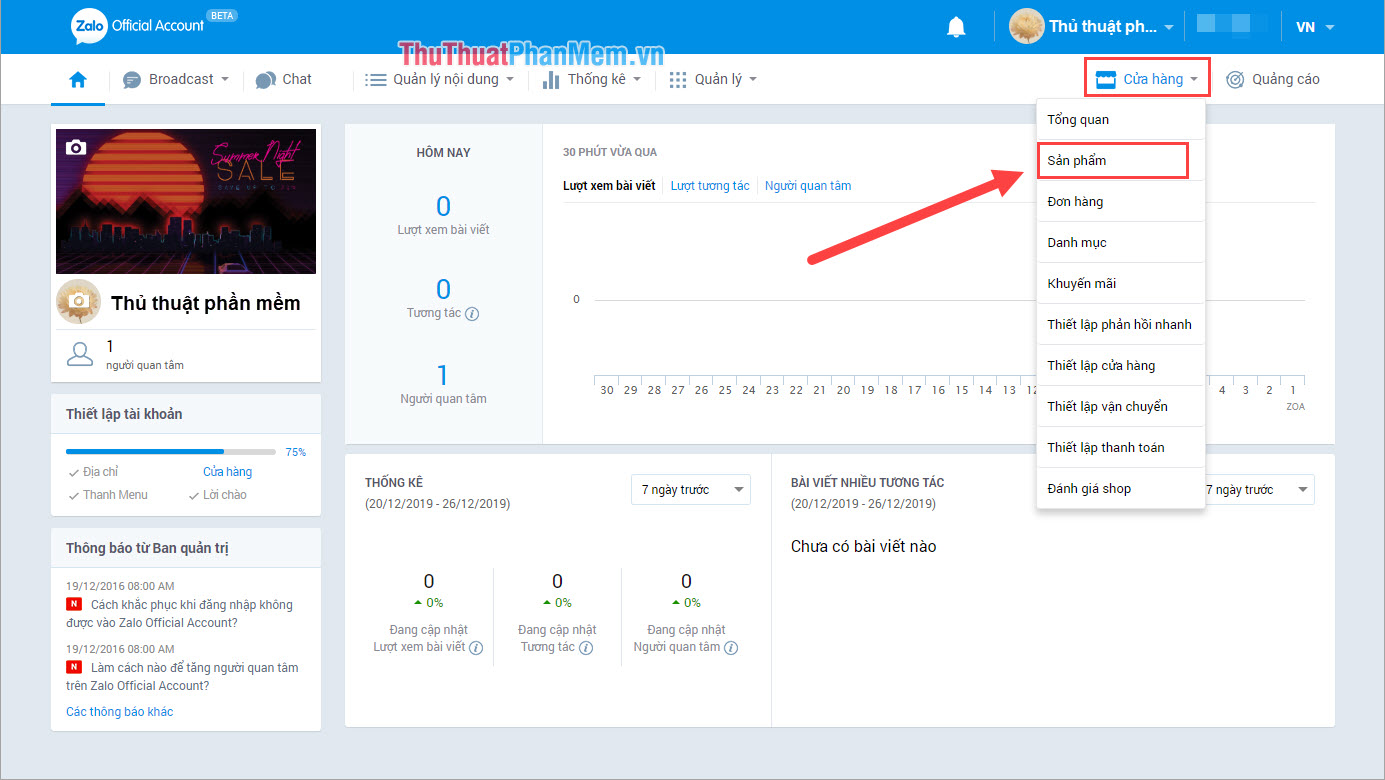
Step 2: Here, you can see all the products that are available in your store. To add products, select Add products .
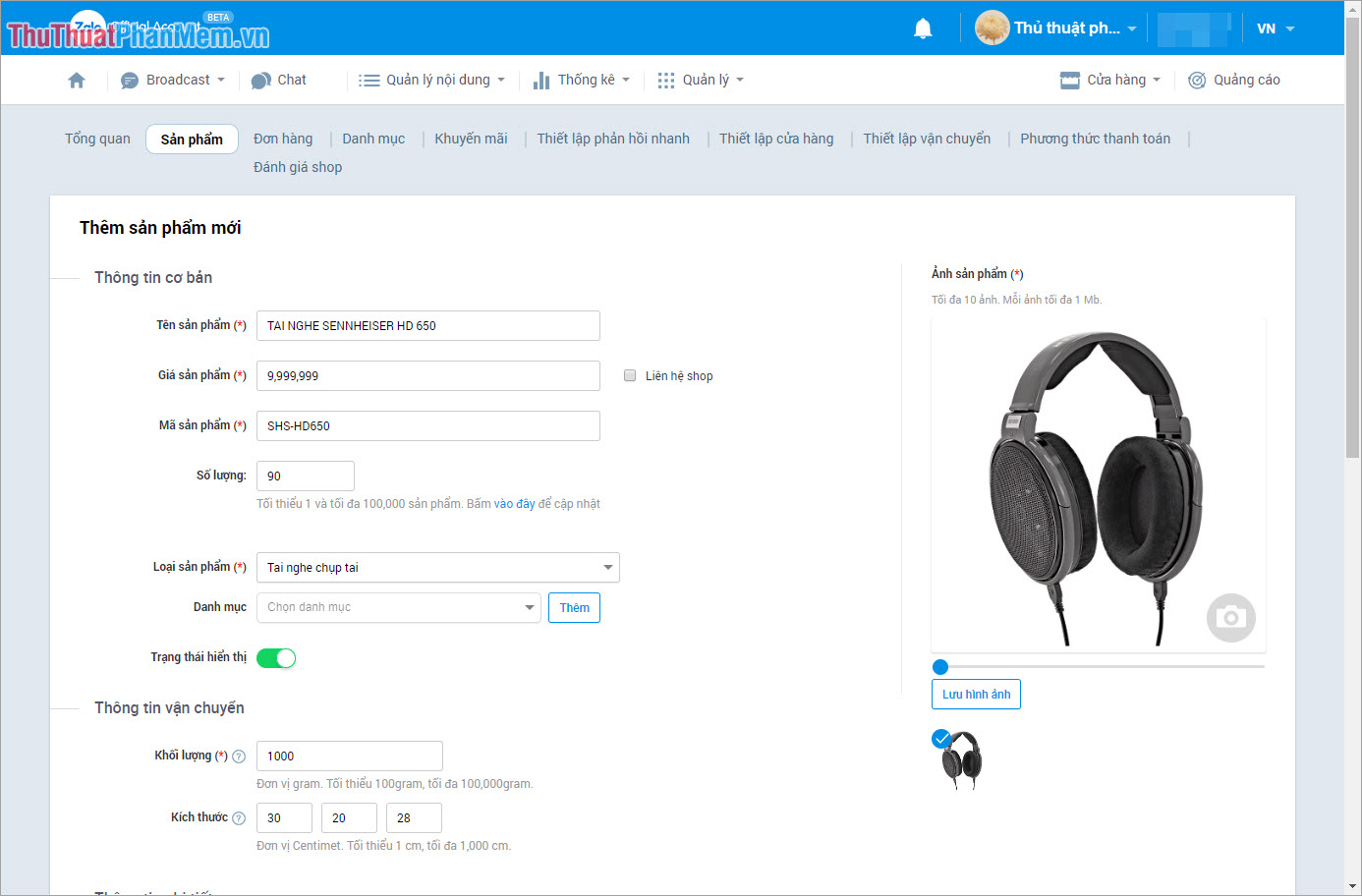
Step 3: You proceed to fill out the product information in the form of Zalo Page and click Confirm when completed.
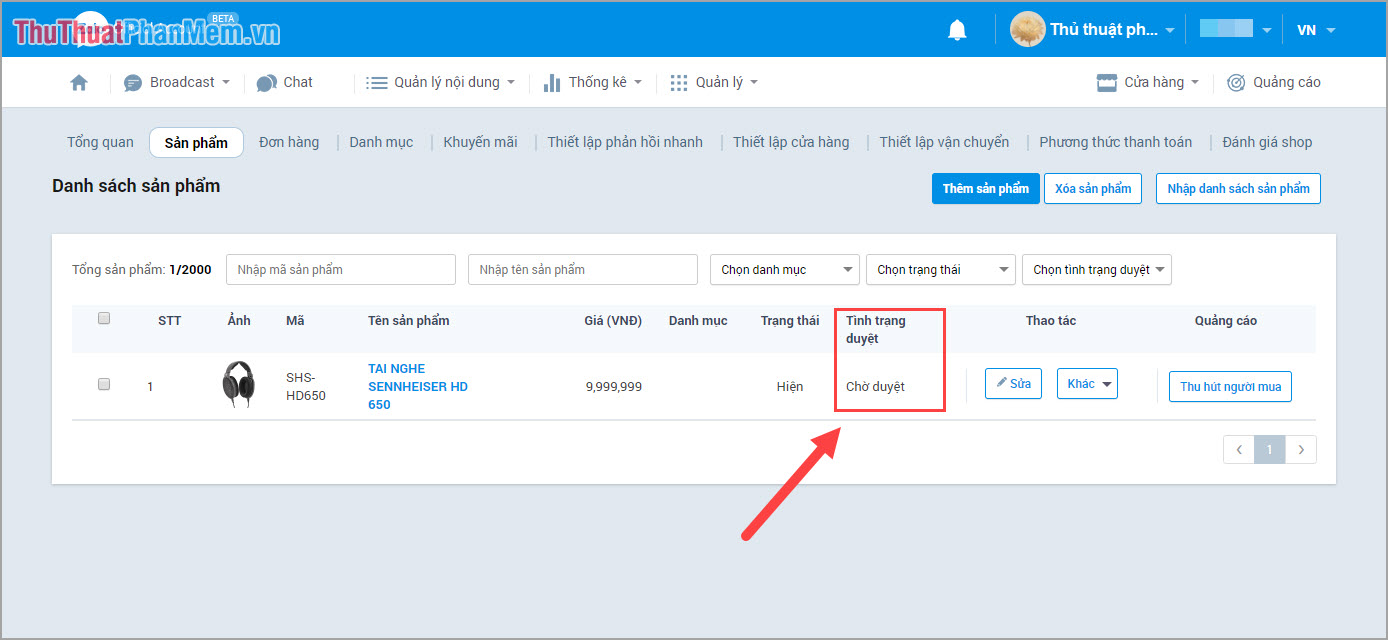
Step 4: When adding the product, we must also wait for the Zalo team to review the product. After the review is complete, people can see your product and can buy, sell and order.
In this article, Software Tips have shown you how to register a Zalo Page account for business and sales. Have a nice day!
FAQ
What is the easiest way to Register Zalo Page to Sell?
Start with the requirements in this guide, then follow each step in order. Check the result after every major change so problems are easier to identify.
Can beginners follow these instructions?
Yes. The process is organized into practical steps, and you can repeat any step before moving forward.
What should I check if the method does not work?
Confirm your software or device version, permissions, settings, file format, and internet connection when the task depends on online services.
Related Articles
 Instructions to Retrieve Password Zalo Pay3 minutes read
 Register Zalo, How to Create a Zalo Account on Your Computer4 minutes read
 Tips for Using Zalo Are Useful for Users8 minutes read
 Zalo Could Not Access It Again, the Entire VNG System Collapsed3 minutes read
 Instructions for Creating Online Business Shops on Zalo7 minutes read
 How to Read Newspapers on Mobile Using Zalo Channel4 minutes read
Reader Comments 0
Sign in with email or Google to join the discussion.