Table of Contents
Student information in vnEdu should be edited only by authorized school staff and only from verified records. Parents and students can report an error, but they normally should not change official profile data themselves. Menu names can vary by vnEdu version and the permissions configured by the school.
Before changing a student record
- Confirm that you are in the correct school year, grade, class, and student profile.
- Use the school’s approved source document for names, dates of birth, identity details, addresses, and guardian information.
- Check whether the change needs administrative approval or supporting documents.
- Avoid editing on a shared or public computer. Never share an administrator account.
- Record the reason for the correction according to school policy.
How teachers can edit an assigned student profile
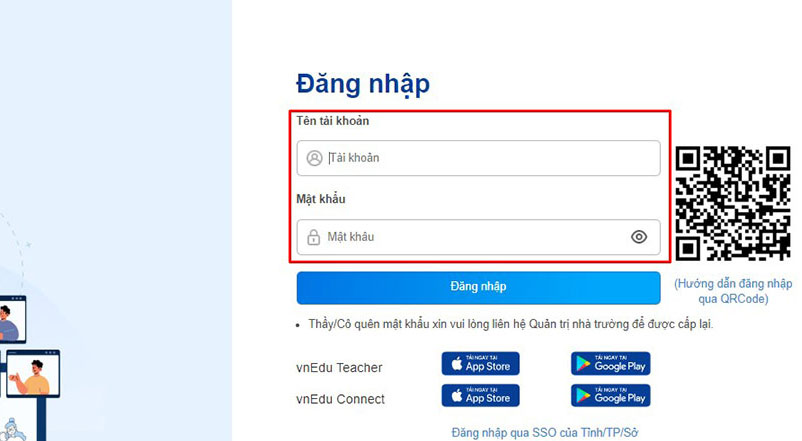
Step 1: Sign in to vnEdu with your own staff account through the school’s official address. If you cannot sign in, ask the school administrator to restore access rather than borrowing another user’s account.
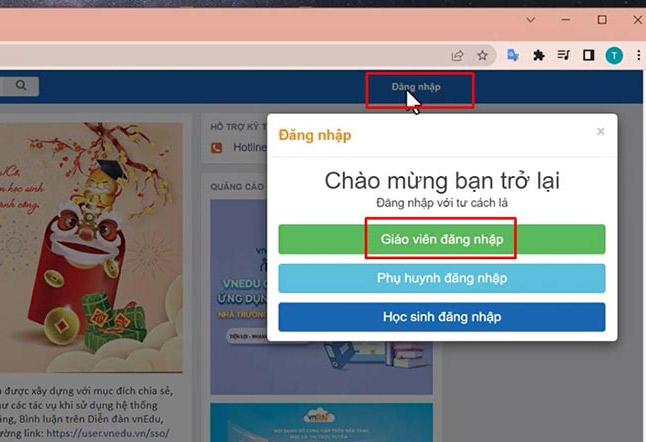
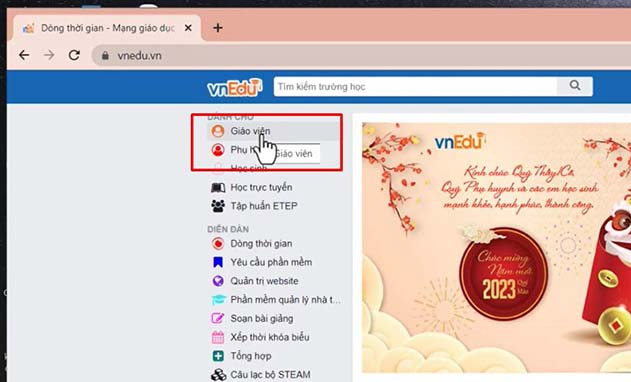
In the main navigation, open the area for teachers or staff. Older versions may label this section Teacher.
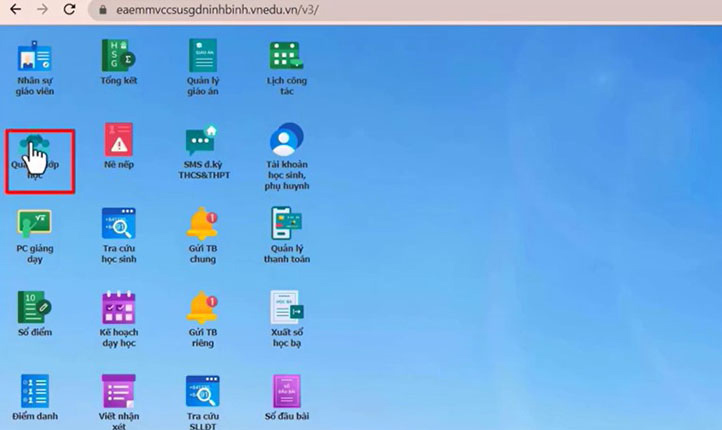
Step 2: Open Classroom Management or the equivalent class-management menu.
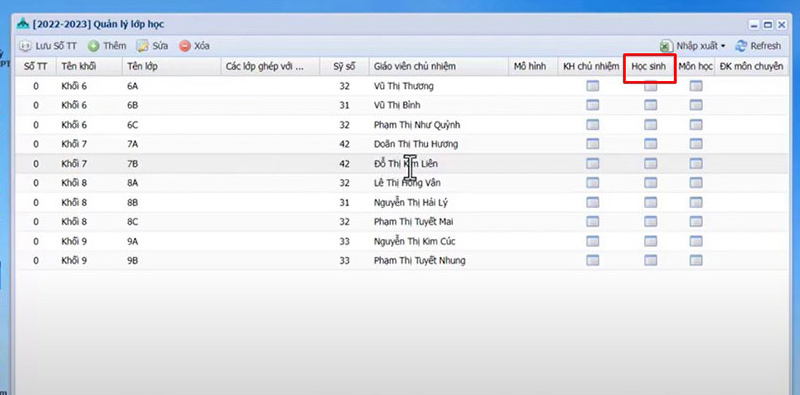
Step 3: Select the class you are responsible for, then open its Students list. A teacher should see and edit only the classes permitted by the school.
Search for the student by more than one identifier, such as full name and student code. Select the correct record and click Edit.
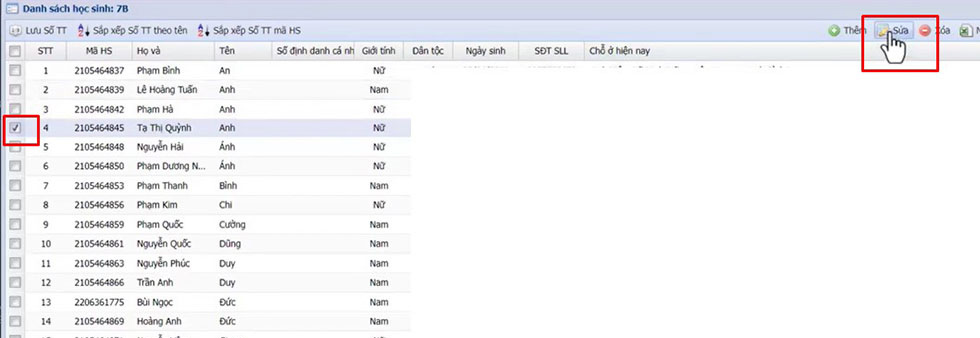
Step 4: Change only the fields supported by the verified record. Review spelling, diacritics, date format, guardian contact details, and class assignment before clicking Update or Save.
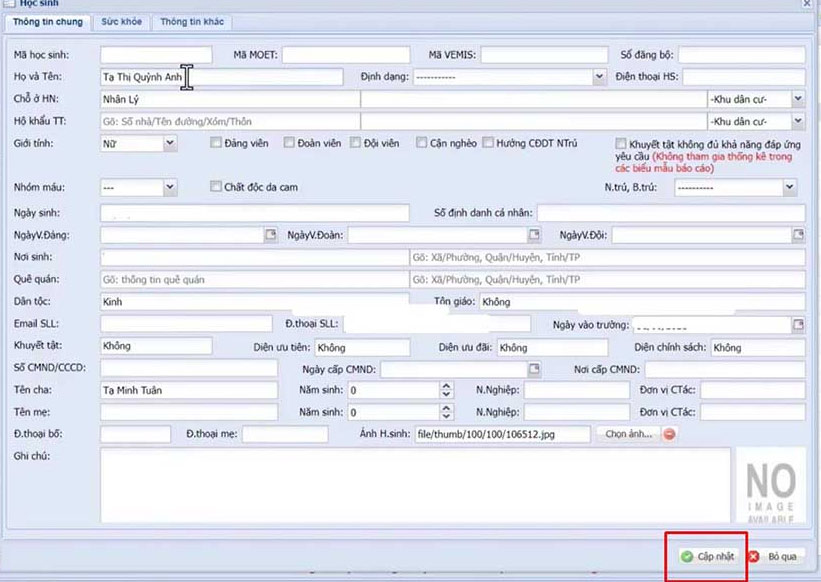
Verify the saved result
Reopen the profile and confirm that the new values appear correctly. If the information is synchronized to another school system, follow the school’s procedure for updating or checking that system as well. Do not repeatedly resave a record if the change does not appear; capture the exact error and ask an administrator to check permissions or synchronization.
How administrators grant editing permission
Use least privilege: grant a homeroom teacher only the actions needed for the assigned class and remove access when the assignment changes. Broad edit or delete rights should not be enabled simply to work around a configuration problem.
Step 1: Sign in with the administrator account used for school configuration.
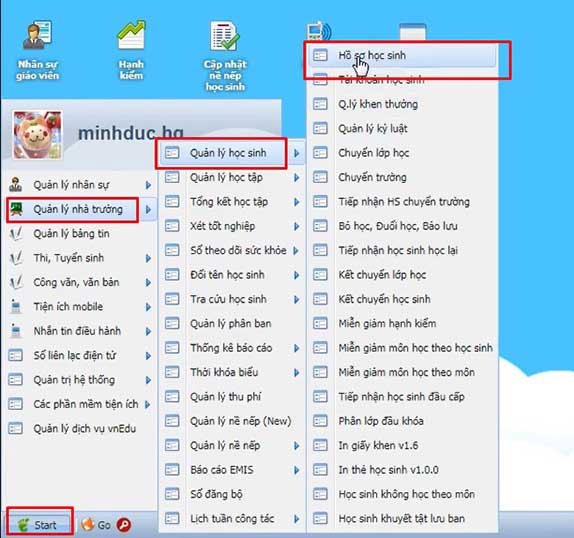
Step 2: Open School Management, then Student Management and Student Profiles. The exact path may differ in newer deployments.
Select the relevant student-profile permission group or staff role. In the older interface shown here, the blue cell in the Students column opens its settings.
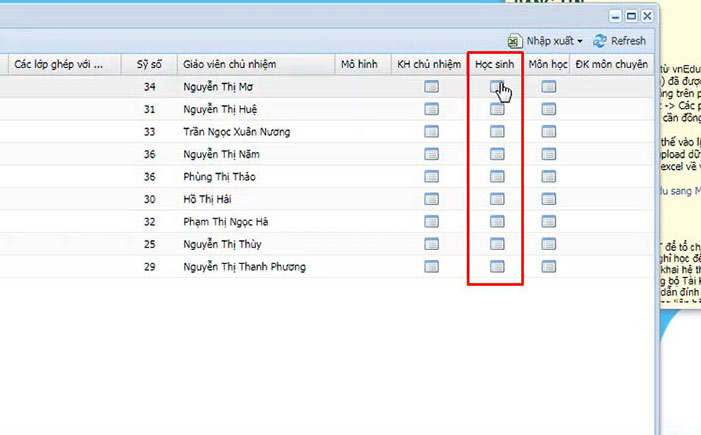
Step 3: Open Configuration and select only the permissions required for the homeroom teacher’s assigned class. Save the configuration, then test with a non-administrator teacher account.
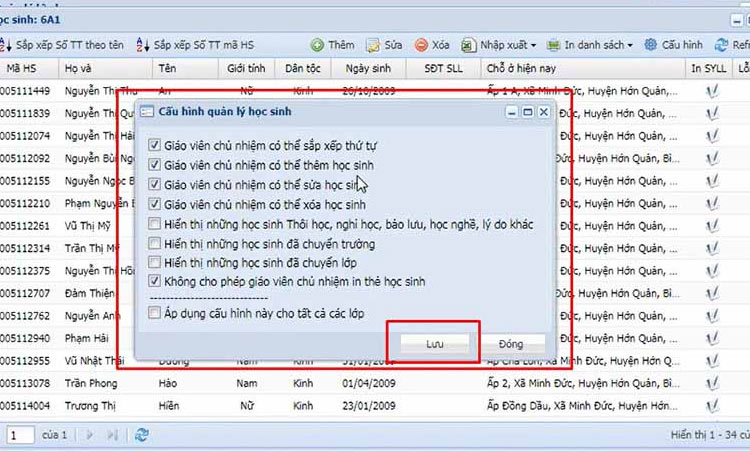
Recommended permission controls
- Limit access by school year, grade, class, and staff role where vnEdu provides those controls.
- Separate the ability to view, create, edit, and delete records.
- Reserve deletion, bulk import, transfers, and identity changes for designated staff.
- Review permissions when teachers change classes or leave the school.
- Use audit logs or change records when available.
If the Edit button is missing or disabled
- Verify that the account is assigned to the correct class and current academic year.
- Check whether the editing period or student record is locked.
- Ask an administrator to review the role configuration; do not request full administrator access for a single correction.
- If the configuration appears correct, consult the official vnEdu documentation or the vnEdu support page.
Protect student data
Student profiles can contain sensitive personal and family information. Share screenshots only through the school’s approved support channel, crop unrelated records, and never include passwords or OTP codes. After making a correction, sign out on shared devices and store supporting documents according to school policy.
Related Articles
 Errors Viewing Grades on VnEdu6 minutes read
 How to Retrieve the Simplest Vnedu Password6 minutes read
 Vietnam Education Network Vnedu: A Practical Guide7 minutes read
 How to Create Multiple Choice Questions on Vnedu6 minutes read
 Guide to Creating Multiple Choice Questions on Vnedu4 minutes read
 Instructions to Change Apple ID Account Information3 minutes read
Reader Comments 0
Sign in with email or Google to join the discussion.