Table of Contents
You can build and publish a basic Weebly website from an Android phone, iPhone, or iPad using Weebly's mobile app. The app provides responsive themes, a visual editor, pages, text, images, video elements, and publishing controls. A free site uses a Weebly-provided address; a custom domain and some features require an eligible paid plan.
Weebly is part of Square, and two editing systems may appear in related accounts. An existing site created with the classic Weebly editor continues to use that editor; a Square Online site uses the Square Online editor. The screens below show the Weebly mobile workflow and may look slightly different after app updates.
If you have not selected a platform yet, compare other CMS and website-building options. A dedicated campaign page may also be easier to create with one of these landing page builders.
Before you start
- Install the official Weebly app from your device's app store and confirm that the publisher is Weebly or Square.
- Prepare a short site outline: Home, About, Services or Products, and Contact.
- Resize and compress your images before uploading. Keep the original files backed up elsewhere.
- Write the page title, opening text, contact details, and calls to action in a notes app so mobile editing is easier.
- Use a stable connection and enough battery power; large image uploads can fail on an unreliable mobile network.
Create a Weebly website on your phone
1. Sign in or create an account
Open the Weebly app and tap Get Started if you need a new account, or sign in to an existing one. Depending on the current login options, you may be able to use an email address or a supported identity provider.
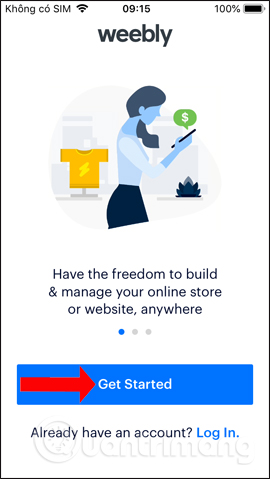
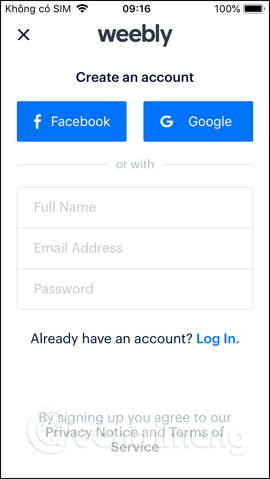
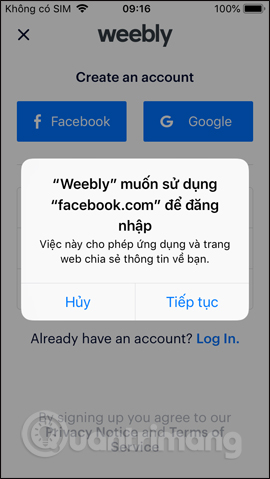
Use a unique password and enable any available account-security options. If the site is for a business, create the account with an address the organization controls instead of a former employee's personal login.
2. Decide whether to allow notifications
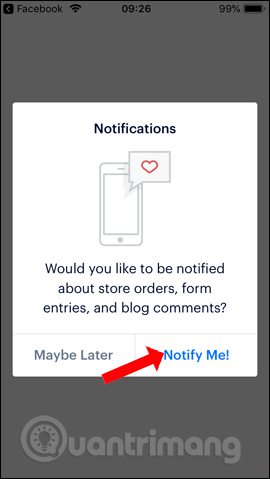
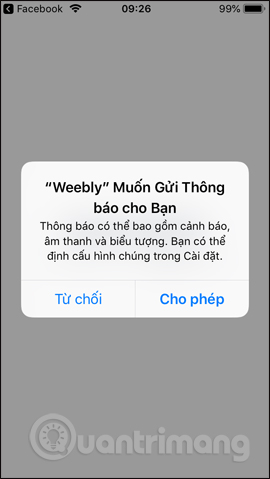
The app may request permission to send notifications about site activity, orders, forms, or product updates. Allow only the notifications you need; you can change the permission later in Android or iOS settings.
3. Select the site type and theme
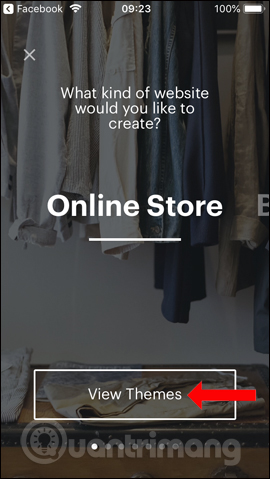
Choose the option closest to your goal, such as a personal site, business site, blog, or store. Tap View Themes or the equivalent option to preview available designs.
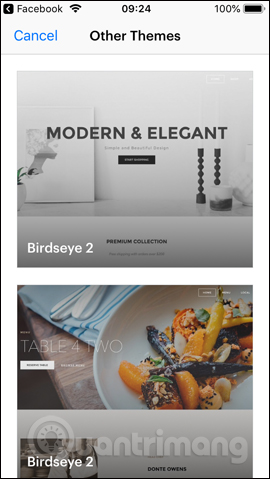
Select a theme for structure and readability, not just its sample photos. Check the navigation, heading hierarchy, body-text size, button contrast, product layout, and mobile menu. Replacing a theme later can require design work.
4. Open the editor and customize the header
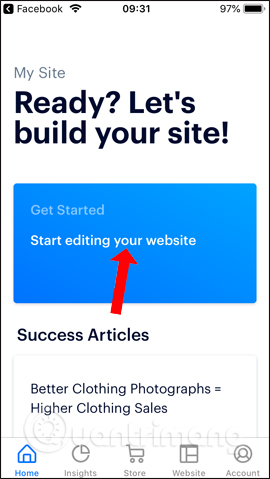
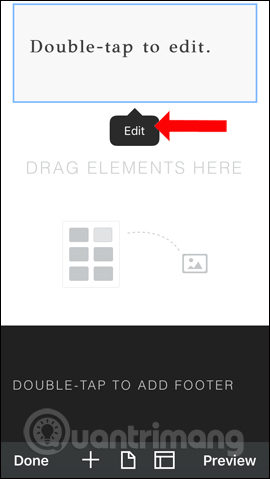
From the site dashboard, choose Start editing your website. Tap the header area and use Edit to replace the sample image, headline, and button. Menu labels can move between app versions, but the workflow remains: select an element, edit its settings, then preview the result.
5. Add an image from your phone
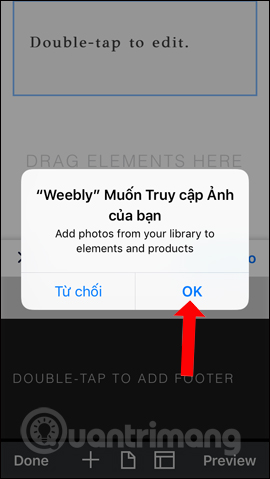
When Weebly requests access to your photo library, grant the narrowest permission that lets you choose the intended files. On supported versions of Android and iOS, selecting only specific photos is safer than allowing permanent access to the entire library.
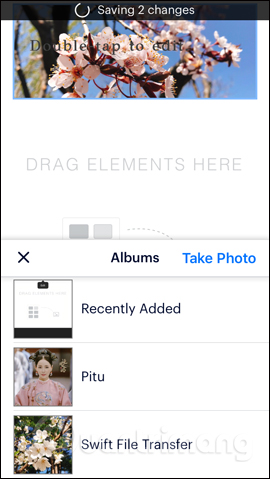
Use a sharp image that matches the visible space. Avoid uploading camera originals when a smaller web image will look identical; oversized files slow the page and consume mobile data. Add descriptive alternative text where the editor provides that field.
6. Replace the sample text
Tap a text block and choose Edit. Replace placeholder language with a direct answer to the visitor's question. Use the formatting controls for headings, alignment, size, and color, but keep the design consistent across the site.
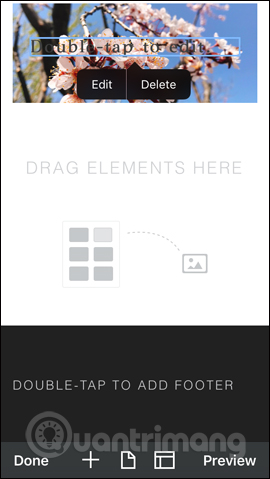
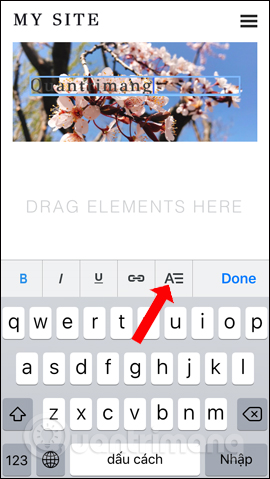
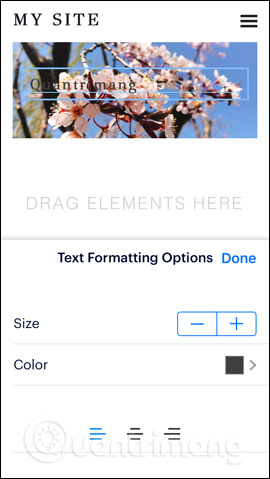
Do not simulate a heading by making body text large and bold. Use real heading elements in a logical order so visitors and assistive technology can understand the page.
7. Add and arrange page elements
Tap the plus button to open the list of elements. Depending on the theme and plan, this can include text, images, buttons, galleries, forms, maps, files, and YouTube video. Press and drag an element to the highlighted page area, then edit its content.
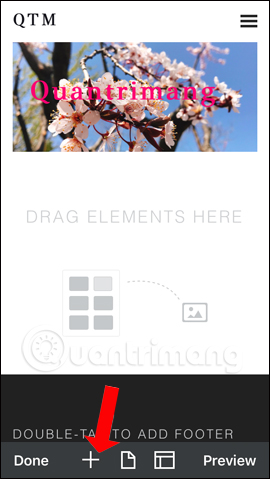
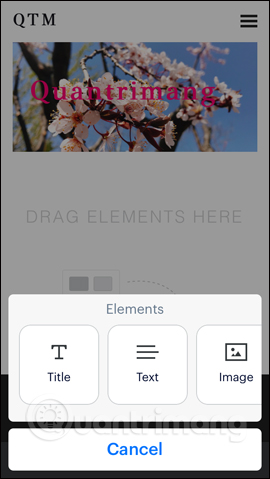
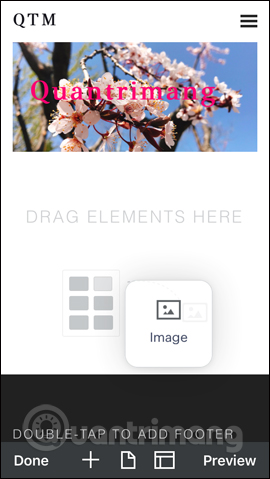
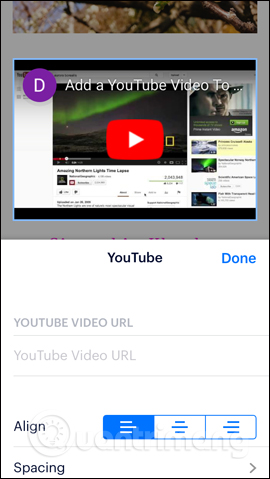
Each section should serve a purpose. A useful home page usually needs a clear promise, proof or examples, the main service or product choices, and one obvious next step. Remove template sections that do not support that goal.
8. Create pages and edit page settings
Open the Pages area to add, rename, reorder, or hide pages from navigation. Select a page such as Home to review its settings. The app version shown below includes SEO settings in this area.
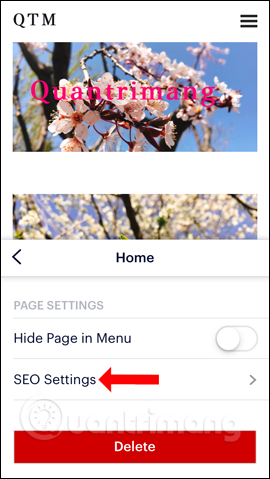
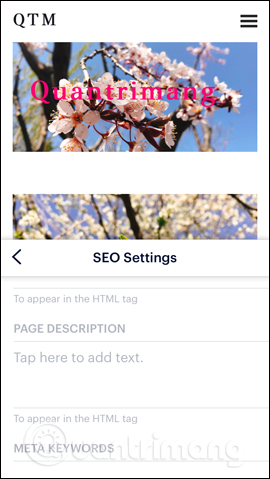
Write a unique, descriptive page title and a concise search description. Use a short page address where it can be edited. These fields help search engines understand the page, but they cannot compensate for thin, copied, or unhelpful content.
9. Preview and publish
Tap Preview and inspect both mobile and desktop layouts. Test every menu item, button, form, phone number, email link, embedded video, and store action. If the design is ready, select Publish.
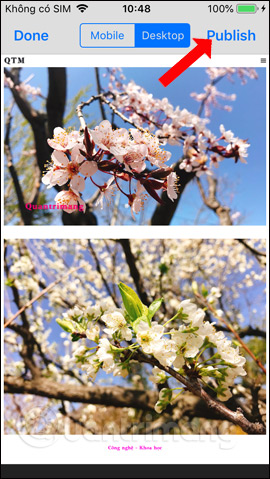
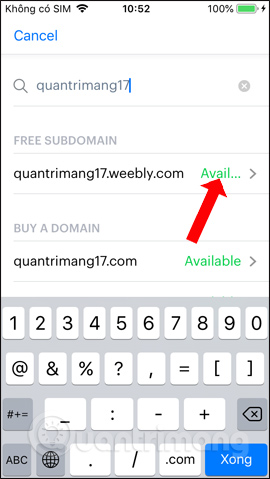
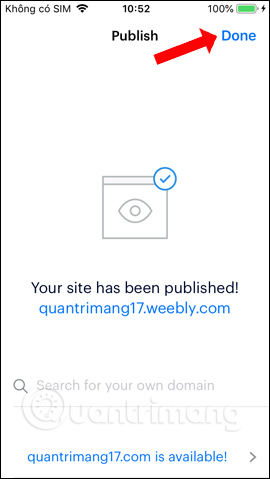
A free site normally uses an available Weebly subdomain. Connecting a custom domain requires the feature offered by your current plan and access to the domain's DNS settings. Confirm spelling before publishing and keep domain ownership in an account you control.
10. Manage activity, store data, and site settings
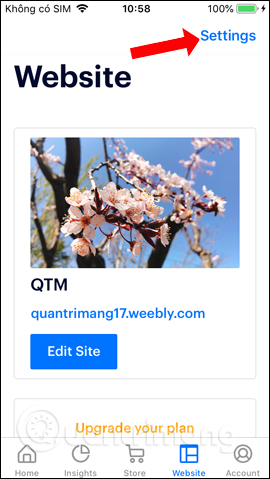
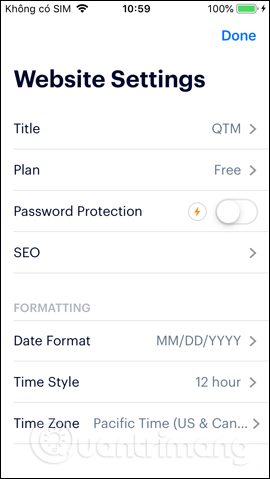
The dashboard can expose areas such as Insights, Store, and Website. Analytics depth, password protection, ecommerce, and other capabilities depend on the site type and plan, so check the current feature table instead of assuming an older screenshot reflects today's subscription.

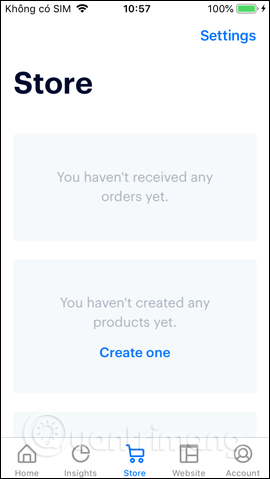
Use the Website area to switch between sites and open site settings. Review contributors, forms, domains, privacy, cookies, and any paid feature before launch.
What is practical to do on a phone?
A phone is convenient for drafting pages, replacing text and photos, publishing a small update, checking orders, and responding to form activity. It is less efficient for building a large navigation structure, editing code, comparing desktop spacing, managing many products, writing long policies, or diagnosing a broken integration.
For a new small site, you can complete most of the build on mobile. Before launch, open the editor on a larger screen if possible and test the public site on several real devices.
Launch checklist
- Replace every sample image, placeholder sentence, and default button.
- Make the business name, purpose, contact method, and primary action obvious on the home page.
- Check color contrast, text size, keyboard focus, headings, labels, and image alternative text.
- Submit every form and confirm where the message arrives.
- For a store, test inventory, tax, shipping or pickup, payment, confirmation, cancellation, and refund steps.
- Publish privacy, return, shipping, and terms pages when applicable.
- Open the live URL after publishing and check HTTPS.
- Keep copies of important text and original media outside Weebly.
Weebly's mobile app is a capable way to launch a straightforward responsive site. Treat the free plan as a starting point, verify current plan limits, and move complex design or troubleshooting work to a desktop when the smaller screen becomes an obstacle.
Related Articles
 How to Use Weebly to Create a Website on Your Phone7 minutes read
 How to Create a Free Website Simply and Quickly on6 minutes read
 Guide: Build a Professional Website with Weebly4 minutes read
 Anyone Can Create a Small and Simple Website with These 10 Websites10 minutes read
 4 Tools to Help Build a Website for Beginners: Best Options Compared9 minutes read
 How to Use Google Sites to Create a Free Website: Practical Guide5 minutes read
Reader Comments 0
Sign in with email or Google to join the discussion.