Table of Contents
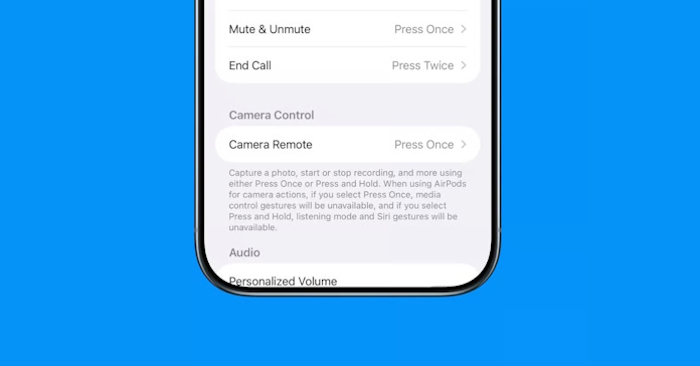
Compatible AirPods can take a photo or start and stop video on an iPhone or iPad. Turn on Camera Remote in AirPods settings first, then use the same gesture with the Camera app open. This is useful when your phone is on a tripod or just out of reach.
Check which AirPods you have
Apple lists AirPods 4, AirPods 5, AirPods Pro 2, AirPods Pro 3, and AirPods Max 2 as compatible. The feature requires iOS 26 or iPadOS 26 or later. If you are unsure which pair you own, check your AirPods model number before looking for the setting.
Turn on Camera Remote
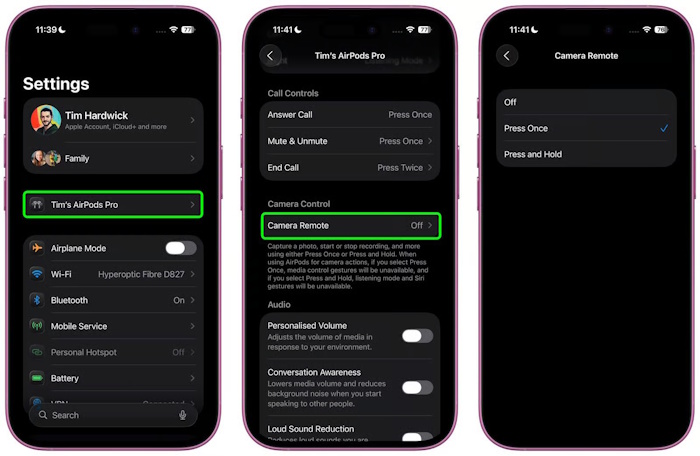
- Wear or put on your AirPods and connect them to the iPhone or iPad.
- Open Settings and tap your AirPods name near the top.
- Tap Camera Remote. On some versions it appears under Controls & Gestures.
- Choose Press Once for a quick shutter or Press and Hold if you tend to trigger a single press accidentally.
While using a supported camera app, Press Once temporarily replaces media gestures. Press and Hold temporarily replaces listening-mode and Siri gestures. You can return to the same settings page to change your choice.
Take a photo or record a video
Open Camera and frame the shot. In Photo mode, perform your chosen gesture on the earbud stem or, on AirPods Max 2, on the Digital Crown. Give the phone a moment to capture the image. Apple says the three-second timer and feedback tone vary by region, and the tone is silent when the ringer is off or Live Photos is on.
For moving footage, select Video and use your chosen gesture to start. Repeat it to stop. Check the on-screen recording indicator if you are unsure whether it started.
If the camera does not respond
Test in Apple’s Camera app first to rule out third-party app compatibility. Then confirm your AirPods are connected to that iPhone or iPad and check the gesture you selected. If other controls also fail, see how to check the connection and firmware. Apple’s AirPods camera guide also covers using the earbuds as a microphone in supported apps.
Related Articles
 New feature turns AirPods into a remote camera control device for iPhone
 How to control iPhone camera with Apple Watch
 Apple puts cameras on Airpods
 How to add more gesture controls to AirPods
 Why Do Some People Hate the iPhone 16's Camera Control Button?
 Instructions on how to control iPhone, iPad remotely with a computer or Macbook
Reader Comments 0
Sign in with email or Google to join the discussion.