Table of Contents
This practical guide explains how to uninstall and reinstall Google play store on Android. Follow the steps in order, review the requirements first, and use the troubleshooting notes when a setting or option does not work as expected.
How to uninstall Google Play Store
You can't uninstall the Google Play Store directly from your phone. However, you can disable it or remove recent updates, similar to uninstalling the Play Store. Let's look at both methods for uninstalling the Play Store from your Android phone or tablet.
Disable Play Store
When you disable the Google Play Store, its icon will disappear from your Android phone's home screen and app drawer. You also won't be able to update or install apps using the Play Store. However, nothing will happen to your existing apps. They won't be deleted from your phone. You'll need to enable the Play Store again to use it.
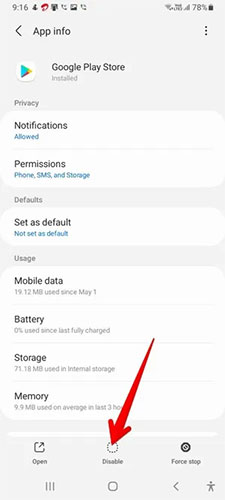
1. Open 'Settings' on your phone or tablet.
2. Go to 'Apps' (or 'App & notifications' on some phones) and under 'All apps' , tap 'Google Play Store' .
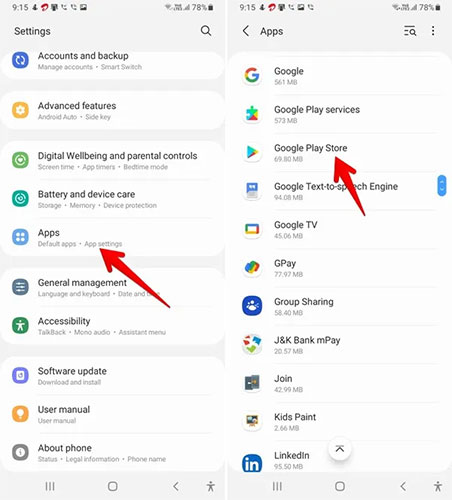
3. Click the 'Disable' button. A confirmation window will appear. Confirm the action when prompted.
Uninstall Google Play Store updates
Uninstalling Play Store updates will restore the Play Store app to its original version, fixing any issues it may have caused. The Play Store app will still be on your phone and you can use it as normal. You can also install and update apps from the Play Store. Your existing apps will also be safe.
You can technically continue using the Play Store app by leaving it on after uninstalling the updates. However, your phone will then automatically update it in the background. You can also update it manually as outlined in the reinstalling the Play Store section. Follow these steps to uninstall the Google Play Store:
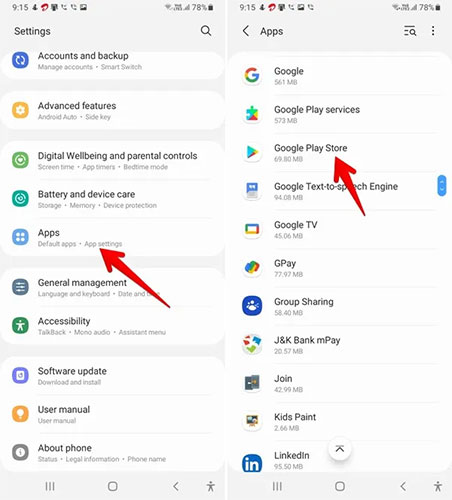
1. Open 'Settings' on your Android phone.
2. Tap 'Apps', then select Google Play Store under 'All apps'.
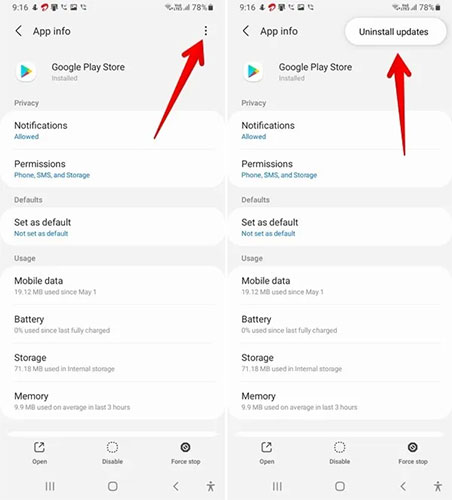
3. Tap the three dots icon at the top and select 'Uninstall updates' from the menu.
How to reinstall Google Play Store
After uninstalling the Play Store app, you can reinstall it in one of the following four ways.
Enable Google Play Store
If you have disabled Google Play Store using method number 1 above, You only need to enable it to be able to start using it again.
To enable the Play Store, go to Settings > Apps > Google Play Store . Tap Enable.
Let Play Store update automatically
By default, the Google Play Store will automatically update in the background, as long as it is connected to the Internet after you uninstall its updates. Just leave the Google Play Store open for a few minutes and it will update itself.
Update Play Store manually
If the Google Play Store doesn't update automatically or you want to check for new updates manually, your Android phone offers a hidden way to do this.
1. Open the Google Play Store app on your phone.
2. Tap on the profile picture icon at the top and select 'Settings' from the menu.
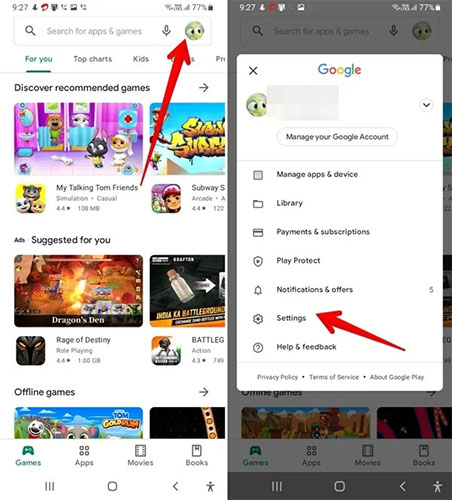
3. Click 'About' to expand this section.
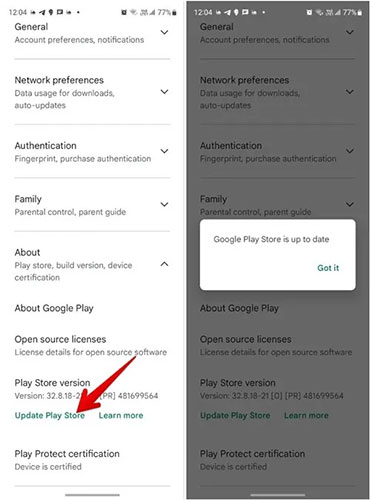
4. Tap the "Update Play Store" button in the Play Store version. If an update is available, the Play Store will start updating. If not, you will receive a notification that the Play Store is up to date.
Tip : If you don't see the 'Update Play Store' button, tap on 'Play Store version' to update manually.
Install or update Play Store manually using APK
Finally, you can manually install the updated version of the Play Store on your Android phone using its APK. Follow the steps below.
1. Open APKMirror.com, one of the trusted sites to download APKs.
2. Search for Google Play Store on the website.
3. Tap the latest version of Google Play Store.
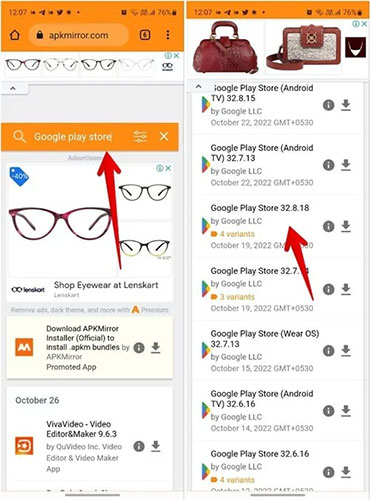
4. On the next screen, scroll down to find the current version variants. Find the version compatible with your phone and tap the 'Download APK' button.
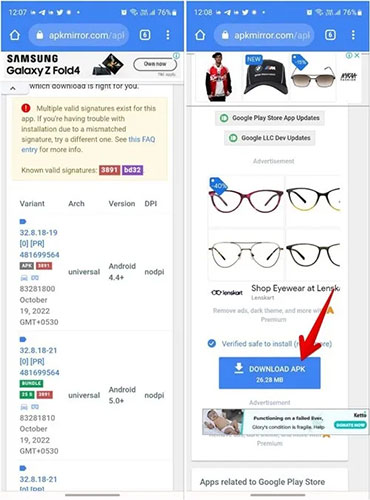
5. Once the APK file is downloaded, tap on it to install it. You may be asked to grant permission to install apps from unknown sources. Do so to allow the app to install on your device.
Tip : If you are facing any problem while installing Play store from APK, read TipsMake.com guide to learn how to install apps from unknown sources on Android.
FAQ
How to uninstall Google Play Store?
You can't uninstall the Google Play Store directly from your phone. However, you can disable it or remove recent updates, similar to uninstalling the Play Store. Let's look at both methods for uninstalling the Play Store from your Android phone or tablet.
What should you know about disable Play Store?
When you disable the Google Play Store, its icon will disappear from your Android phone's home screen and app drawer. You also won't be able to update or install apps using the Play Store. However, nothing will happen to your existing apps. They won't be deleted from your phone. You'll need to enable the Play Store again to use.
What should you know about uninstall Google Play Store updates?
Uninstalling Play Store updates will restore the Play Store app to its original version, fixing any issues it may have caused. The Play Store app will still be on your phone and you can use it as normal. You can also install and update apps from the Play Store. Your existing apps will also be safe.
How to reinstall Google Play Store?
After uninstalling the Play Store app, you can reinstall it in one of the following four ways.
Related Articles
 The Best Google Play Store Tips and Tricks for Android Users9 minutes read
 What to Do When Google Play Store Is Not Working?10 minutes read
 Download Google Play 24.2.15-166 minutes read
 5 Alternatives to Google Play Store Can Be Installed on Android5 minutes read
 Google Tightens Android: Complete Guide4 minutes read
 How to Reinstall Google Chrome: Step-by-Step Guide11 minutes read
Reader Comments 0
Sign in with email or Google to join the discussion.