Table of Contents
To type Vietnamese with the VNI method in Windows, open a Vietnamese input tool such as UniKey, choose Unicode as the character set, and choose VNI as the input method. You then use number keys to add tones and form letters such as â, ă, ê, ô, ơ, ư, and đ.
VNI input method and VNI Windows encoding are not the same thing. For new documents, websites, email, and messaging, Unicode is normally the correct encoding. Use legacy VNI Windows encoding and VNI-prefixed fonts only when editing an old document created that way.
Configure UniKey for modern VNI typing
Step 1: Install or open UniKey. Under Character set, select Unicode for normal modern text.
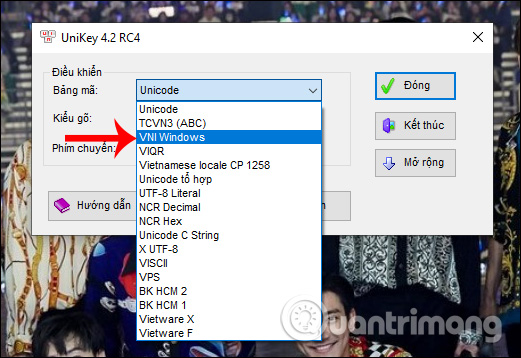
Step 2: Under Input method, select VNI.
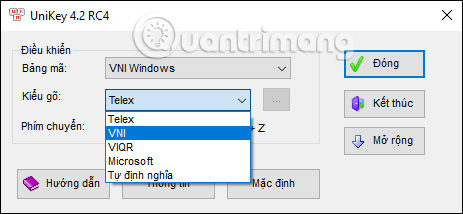
Step 3: Make sure Vietnamese mode is active. UniKey normally shows V in its taskbar icon for Vietnamese and E for English. Use the program's configured shortcut to switch modes.
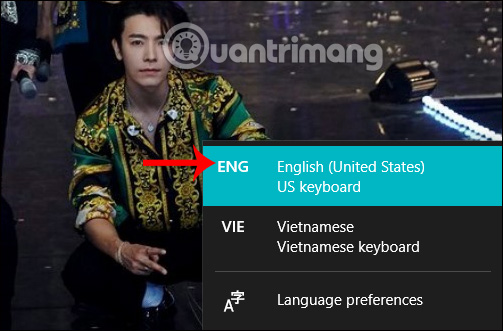
You do not need to change the Windows display language to English. If Windows has more than one keyboard layout, check the taskbar language indicator so that an unexpected layout does not interfere with number keys or punctuation.
VNI number-key reference
| Number | Function | Example input | Result |
|---|---|---|---|
| 1 | Dấu sắc (acute tone) | ma1 | má |
| 2 | Dấu huyền (grave tone) | ma2 | mà |
| 3 | Dấu hỏi (hook tone) | ma3 | mả |
| 4 | Dấu ngã (tilde tone) | ma4 | mã |
| 5 | Dấu nặng (dot tone) | ma5 | mạ |
| 6 | Circumflex for â, ê, ô | a6, e6, o6 | â, ê, ô |
| 7 | Horn for ơ, ư | o7, u7 | ơ, ư |
| 8 | Breve for ă | a8 | ă |
| 9 | Stroke for đ | d9 | đ |
| 0 | Remove a Vietnamese mark | Use after the converted letter | Returns toward the unmarked form |
You can usually enter the tone number after finishing the syllable. The input tool places the tone on the appropriate vowel. For example, tie6ng1 produces tiếng with common UniKey settings.
Use Unicode fonts for new documents
In Word and other modern programs, use a Unicode font such as Arial, Calibri, Times New Roman, Tahoma, or another font that includes Vietnamese characters. The font does not have to begin with “VNI.”
Unicode keeps the text readable across Windows, macOS, phones, browsers, and current office applications. It also makes copying, searching, and publishing text much more reliable.
When to use VNI Windows encoding and VNI fonts
Some old documents store Vietnamese text with the legacy VNI Windows character set. To display or edit one correctly, the encoding selected in the input tool must match the document, and the font usually begins with VNI-, such as VNI-Times.
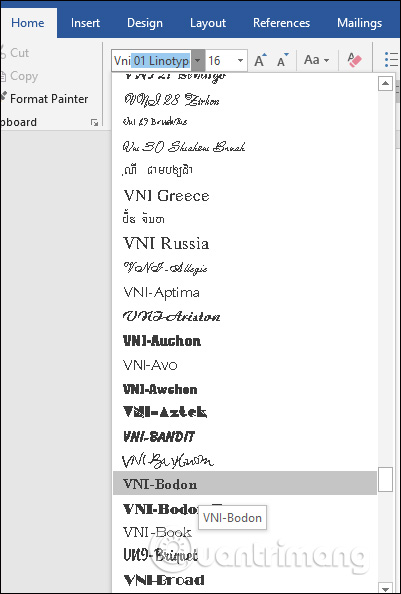
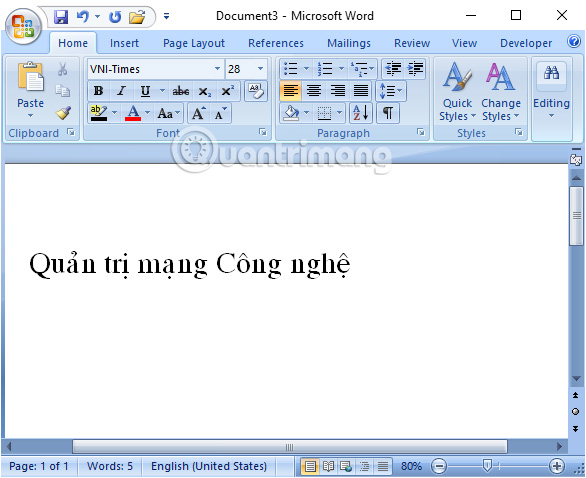
Do not choose VNI Windows merely because you prefer the VNI number-key method. The two settings are independent:
- Input method: how you press keys, such as VNI or Telex.
- Character set: how characters are encoded, normally Unicode today.
- Font: how those characters look on screen.
The guide to Telex, VNI, and VIQR in UniKey explains these distinctions in more detail.
If VNI typing does not work
- Confirm that UniKey is running and its icon shows Vietnamese mode.
- Check that the input method is VNI and the character set is Unicode.
- Close any second Vietnamese input tool to prevent conflicts.
- Test in Notepad. If it works there, review the target application's keyboard or language settings.
- For a legacy file, match its encoding and font before assuming the text is corrupted.
If Word, Excel, or a browser shows incorrect marks, the troubleshooting steps for Vietnamese input and encoding errors can help isolate the setting. Frequent UniKey users may also want the common UniKey shortcuts.
Related Articles
 How to Install and Uninstall Fonts on Windows 11: Step-by-Step Guide5 minutes read
 How to Install (and Uninstall) Fonts on Windows 114 minutes read
 How to Install and Remove Fonts on Mac: Install Fonts on Mac11 minutes read
 How to Download Fonts7 minutes read
 Steps to Install Fonts for Windows 116 minutes read
 How to Add Fonts to Microsoft Paint: Step-by-Step Guide4 minutes read
Reader Comments 0
Sign in with email or Google to join the discussion.