Table of Contents
The process for turn on developer mode on galaxy s9 / galaxy s9 + is straightforward once you know where to find the right controls. The steps below explain what to do and what to check.
By default the developer mode on the Android device will be hidden on the device to avoid changes that affect the system. However for those with technical knowledge, the options in developer mode will be very helpful for the device.
On the Galaxy S9 / Galaxy S9 + duo, when you turn on developer mode, you will have more useful options for your device such as fixing USB error, using ADB, changing DPI to be more suitable,. Article below This will show you how to enable developer mode on Galaxy S9 / Galaxy S9 +.
- Download a beautiful set of wallpapers for the Samsung Galaxy S9 and S9 + duo
- 5 ways to take screenshots Samsung Galaxy S9 / S9 +
- Create unique Emoji shapes on Samsung Galaxy S9
Instructions for enabling developer mode Galaxy S9 / S9 +
Step 1:
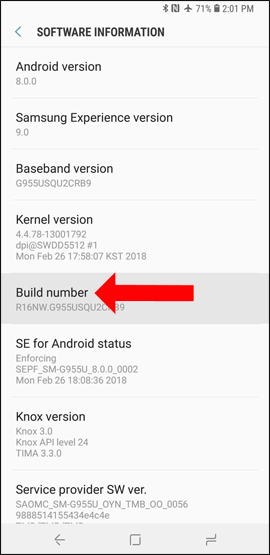
Click The Settings icon On the main interface of the device. In the Settings interface, scroll down and click About Phone . Then click Software information .


Step 2:
At the new interface, Click Build Number 7 times In a row. When the Developer mode Message Has been Displayed, the Turne Appears. If there is a device, it will require a pin code.
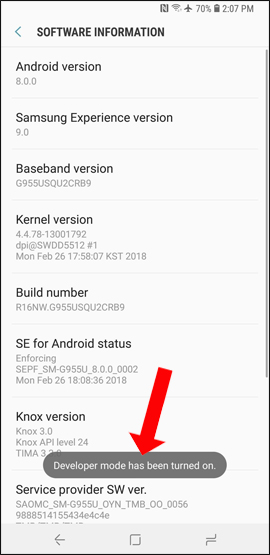
When you return to the Settings interface, the device will see the Developer options Section at the bottom of the list. Clicking on users will see there are many options to further refine the system.

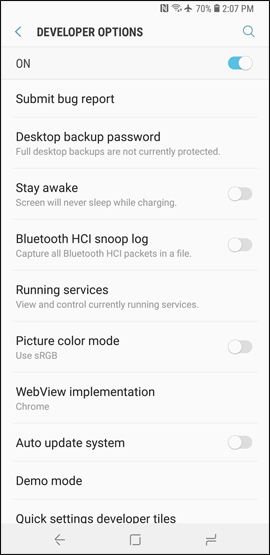
Enabling developer mode on Galaxy S9 / Galaxy S9 + will help technicians, or technology savers, be more customizable. However, this mode should not turn on if you do not know how to use it, if you do not know how to use it, it will affect the system.
Add:
- Galaxy S9 and S9 +: Things to know about this latest flagship of Samsung
- 6 tools to 'play' with super-toxic emoji that you never knew
- This is all you can do with enhanced virtual reality (AR) in Samsung Galaxy S9 and S9 +
I wish you all success!
FAQ
What should I prepare before I turn on developer mode on galaxy s9 / galaxy s9 +?
Review the requirements in the guide, confirm that your device or software is compatible, and save important work before changing settings related to turn on developer mode on galaxy s9 / galaxy s9 +.
Why might turn on developer mode on galaxy s9 / galaxy s9 + not work as expected?
The most common causes are incompatible versions, missing permissions, incorrect settings, or an interrupted internet connection. Recheck each step and restart the app or device when appropriate.
Can beginners follow these turn on developer mode on galaxy s9 / galaxy s9 + steps?
Yes. Follow the steps in order, avoid skipping confirmation screens, and compare your interface with the screenshots because labels may differ slightly between versions.
Related Articles
 How to Accelerate Galaxy S9 Extremely Simple4 minutes read
 How to Speed up Galaxy J7 Pro, J7 Plus4 minutes read
 What Is Developer Mode on Windows 10? How to Activate This Mode?4 minutes read
 How to Enable Developer Options and Disable It on Android5 minutes read
 How to Enable Night Mode on Samsung Galaxy S85 minutes read
 How to Turn on Recovery Mode and Download Mode on Galaxy S9 / S9 +5 minutes read
Reader Comments 0
Sign in with email or Google to join the discussion.