Table of Contents
This updated guide explains how to share files wirelessly between Android devices and PC with clear steps, practical tips, and useful context. Google has renamed Nearby Share to Quick Share in partnership with Samsung, making wireless file sharing on Android faster and more user-friendly. Quick Share now supports file transfers between Android phones, as well as Android to Windows PCs and Chrome OS devices.
What Is Quick Share on Android?
Google and Samsung teamed up in 2024 to streamline their file sharing tools by combining Nearby Share and Quick Share into a cross-platform solution called Quick Share. This feature combines the best of everything to deliver a unified sharing experience.
Android's wireless sharing feature allows Android users to exchange files, apps, and even long videos with one or more nearby devices.
The feature is similar to Apple's AirDrop in that it is a cross-platform file-sharing mechanism that includes Android smartphones and tablets, as well as Windows PCs and Chrome OS devices. naturally, it is exclusive to Android phones and isn't compatible with Apple's iPhones or iPads (at least for now) and vice versa.
Set Up Quick Share on Android
Before starting a new Quick Share session, first ensure Bluetooth and location are enabled on your Android phone. The recipient's device must also have Bluetooth and location enabled for the app to work.
Now, open the Settings app on your phone and navigate to Connected Devices .
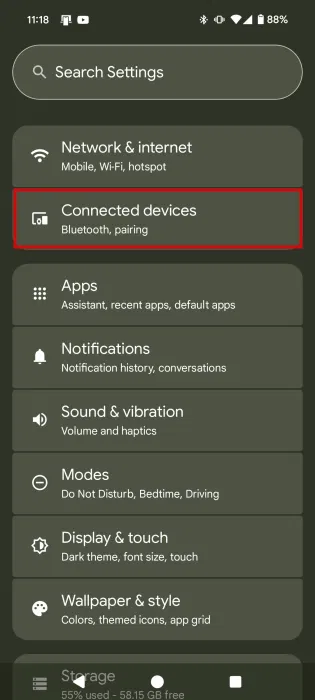
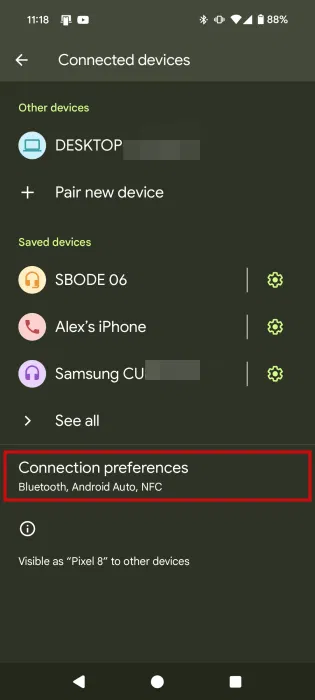
Tap Connected preferences .
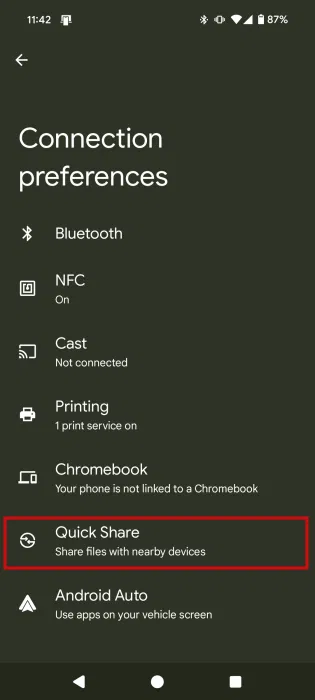
Select Quick Share .
Here you can configure a few things. for instance, you can change the device name or choose which Google account you want to start the transfer from.
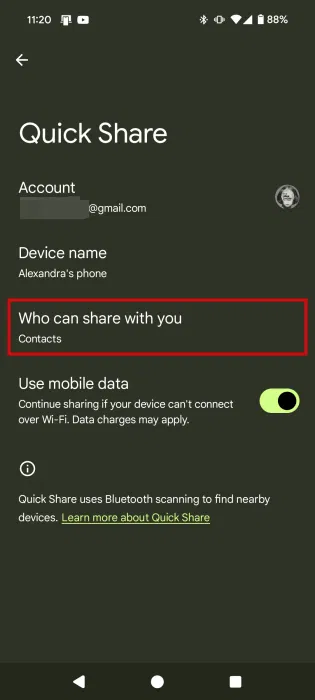
Most importantly, Still, you can choose who can share with you .
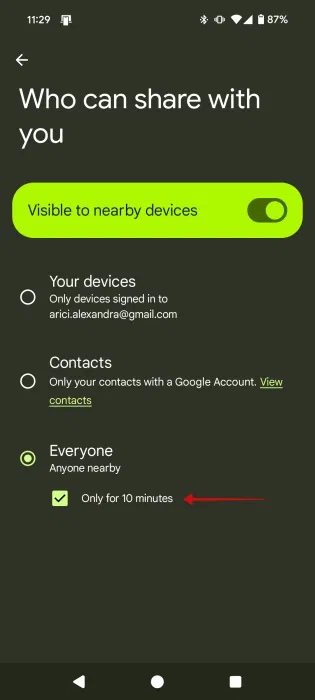
Here you have 3 options:
- Your devices : lets you share with other devices you own when you are signed in with the same Google account.
- Contacts : lets you share only with contacts who have a Google account (contacts associated with the Google account you're currently signed in to on your Android device).
- Everyone : Share with anyone nearby. because of privacy concerns, if you decide to use this option, do not forget to check the Only for 10 minutes option.
Android's Quick Share also recently added the option to continue an ongoing file transfer even if the sending or receiving device cannot connect to Wi-Fi. To take advantage of this feature, turn on the Use mobile data toggle.
Send Files Between Android Devices
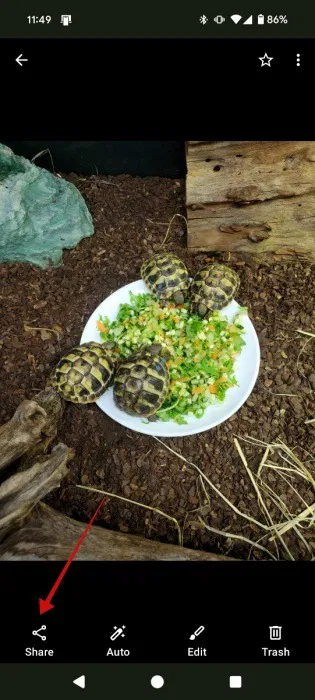
Now you're ready to start sending your first files using Quick Share. Find something you want to transfer, like a photo or document. This tutorial will send a photo.
Open the photo in the gallery app and tap the Share button.
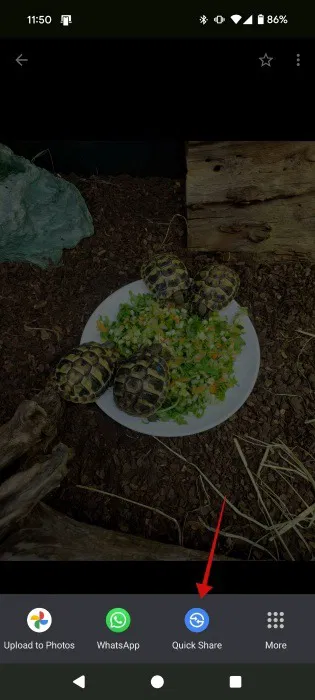
Select Quick Share . If you do not see the option right away, tap the More button.
On the next screen, select the device you want to share with from the Send to Nearby devices section. The other device should be visible here, but if not, instruct the other party to turn on their device screen and move closer. Also, ask them to toggle the Quick Share setting to allow sharing from Everyone .
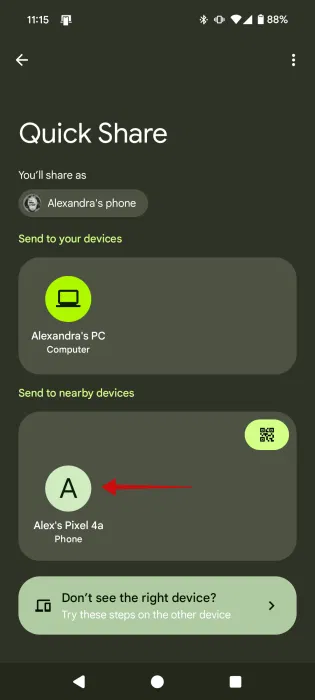
If the device is visible, tap it. The sharing screen will appear immediately.
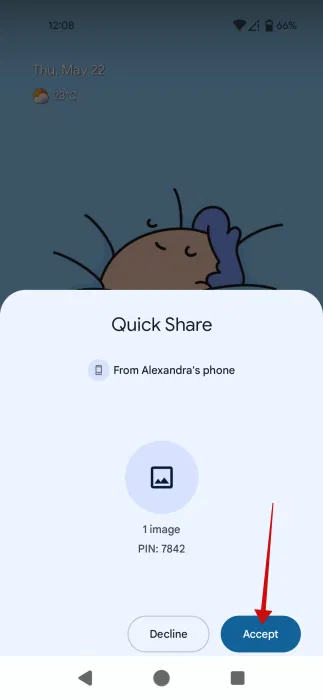
On the receiving device, a Quick Share pop-up will appear at the bottom, alerting you that another device wants to share with you. Tap Accept to receive the file. If you find the request suspicious, you can always decline (tap Decline ).
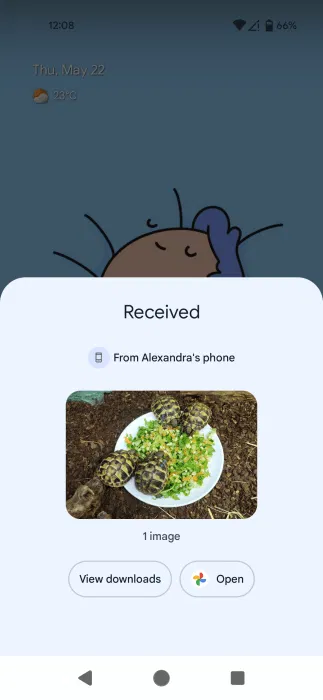
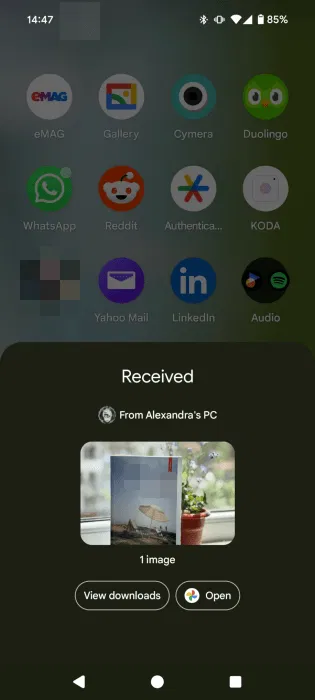
Once the file is downloaded on the receiving device, you will see a Received notification with the options Open and View downloads .
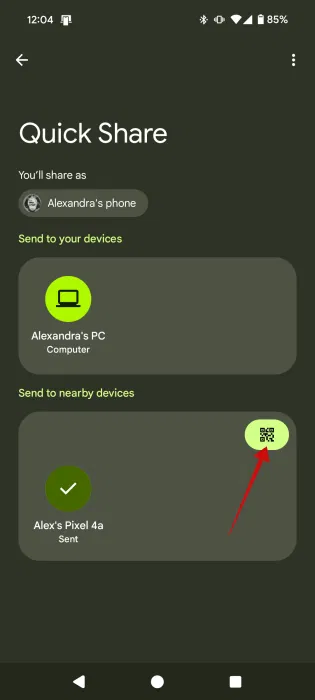
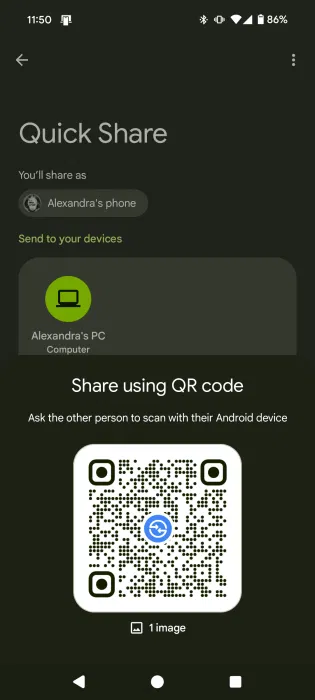
There is the option to generate a QR code for the file you want to share.
The other person simply needs to scan the QR code with their device to start transferring files between the two Android phones.
Send Files Between Android and Windows
Quick Share also makes it easy to transfer files between Android and Windows. To do so, you'll need to download Quick Share for Windows (10 and 11) on your PC. Unfortunately, Quick Share isn't officially available on Mac or Linux at the moment. Although Google is reportedly working on expanding Quick Share's availability on Mac. In the meantime, Mac and Linux users may want to check out RQuickShare – a Rust implementation of Quick Share for their operating systems.
Go ahead and install Quick Share on your laptop. Launch the program and sign in with your Google account. for instance, I chose to use the same account on my main phone.
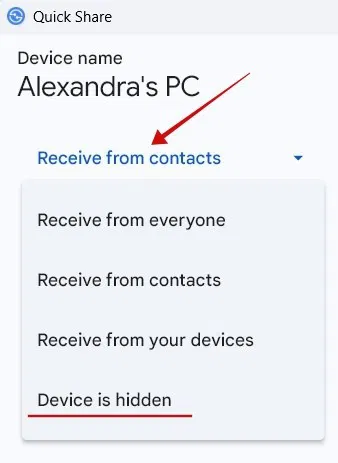
On the 'Set Up Quick Share' screen, go ahead and select who can share with you under Receiving . The options are the same as above, with an additional option called Device is hidden . choose the arrow to toggle between options.
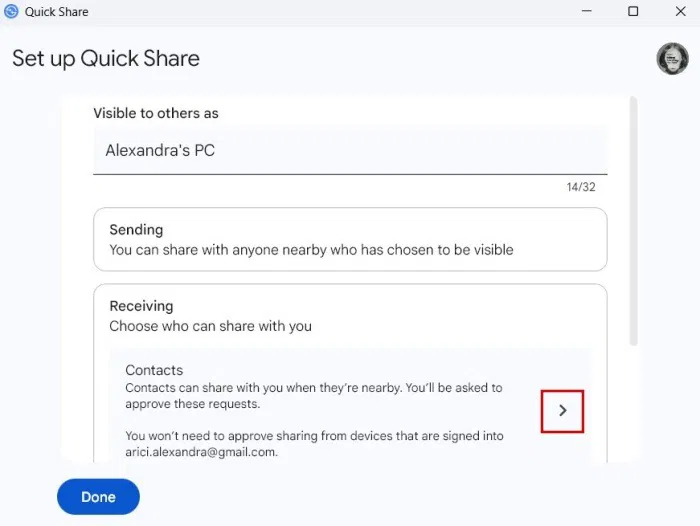
You can rename your device if you want, then tap Done .
Next, you'll be taken to the main Quick Share screen. Your PC is now ready to receive files.
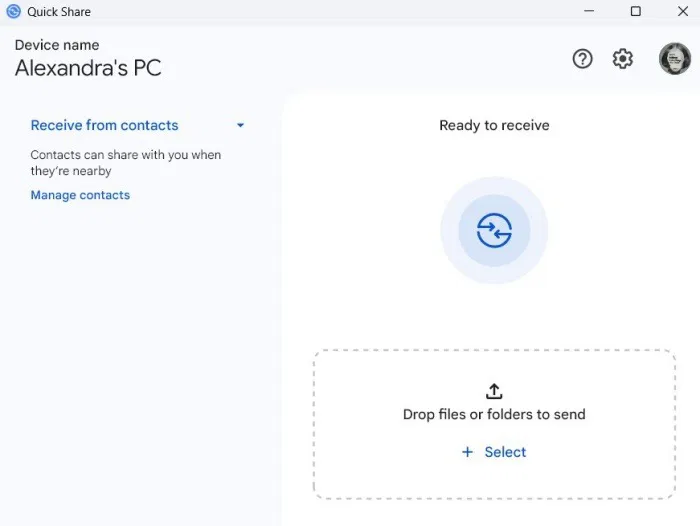
On your Android phone, open the file. In this case, let's say you opened a GIF file. Tap the Share button as before and select Quick Share .
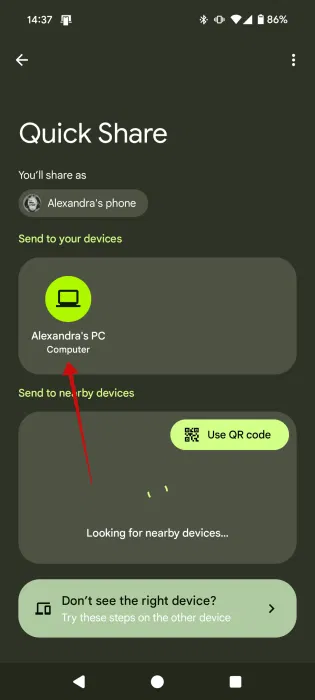
On the next screen, tap PC when you see it. Since you're signed in with the same Gmail account on both your phone and PC, you'll see your computer under Send to your devices .
You'll immediately see in Quick Share on your PC that you've received the file. You can open it from there.
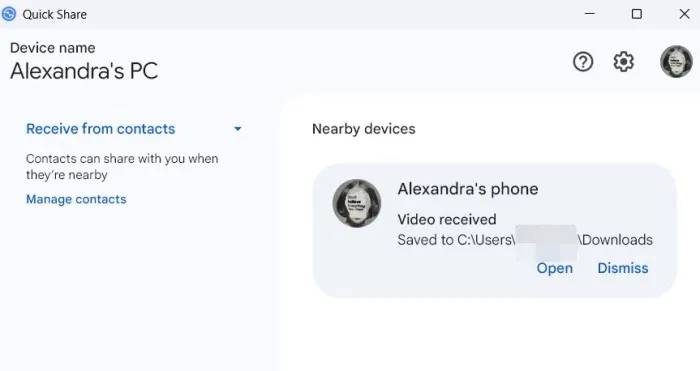
On the other hand, to send something from your PC to your Android phone, that is also easy to do. Find the file you're looking for and right-choose it to bring up the context menu. Select Send with Quick Share .
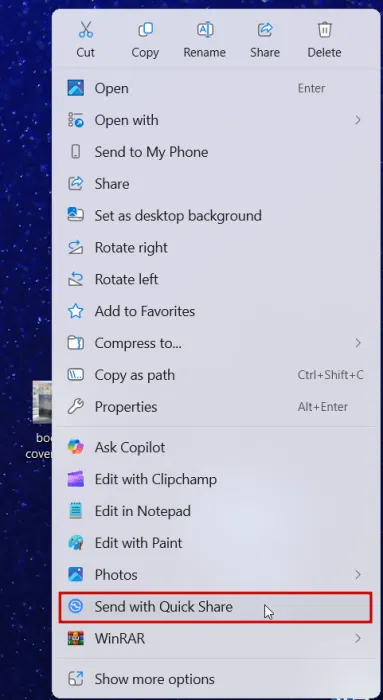
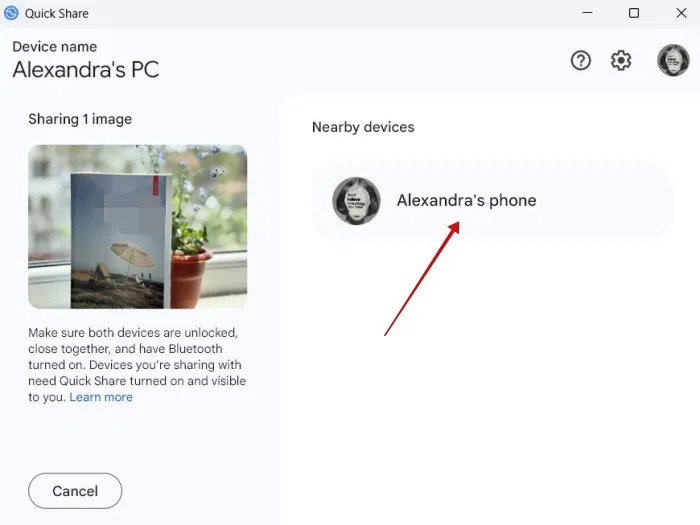
In Quick Share on PC, select your phone to start the transfer session.
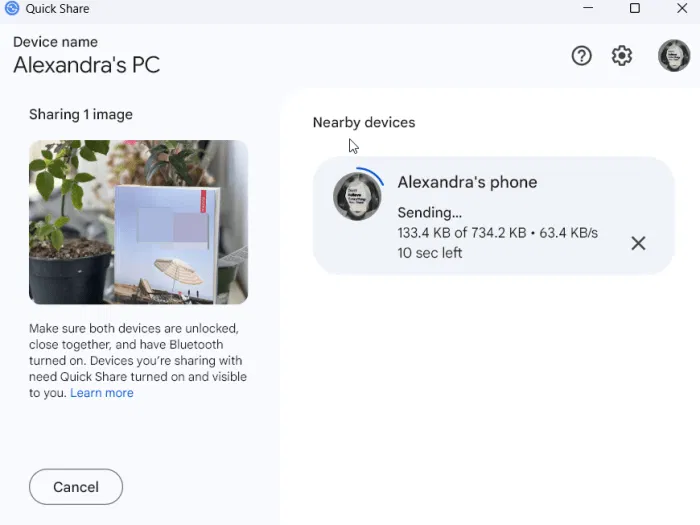
Wait for the process to complete.
You will see the Recieved window appear at the bottom of your Android screen.
Also, you can drag-and-drop fields into Quick Share on PC.
Once you're done transferring files, choose below your PC's name and change the status to Device is hidden .
Send Files Between Android and Chrome OS
Quick Share is available on ChromeOS laptops. Before you start transferring, you'll need to choose the time in the lower right corner of your Chromebook to open quick settings.
From there, It is best to enable the Quick Share tile.
Now, when you try to share a file from your Android device, the option to send to your Chromebook will be available.
Also, when sharing from Chromebook to Android, the Quick Share option will appear in the context menu after you right-select a file.
If you regularly need to send files between your Android phone and Windows device, you might consider installing Microsoft's own Phone Link solution. It also gives you access to SMS messages, all photos, and calls. On the other hand, if you're trying to send files between Android and iPhone, check out these app solutions.
FAQ
What should I prepare before I share files wirelessly between android devices and pc?
Review the requirements and options in the guide first. Having the correct device, app version, account access, or materials ready helps prevent avoidable errors.
How long does it take to share files wirelessly between android devices and pc?
The time depends on the task and your setup. Most basic steps can be completed quickly, while downloads, updates, scans, or troubleshooting may take longer.
What should I do if the steps do not work?
Repeat the instructions in order, confirm that your software or device is supported, and check permissions, connectivity, and available updates before trying again.
Related Articles
 Share Files Wirelessly on Windows: Key Features and Practical Tips3 minutes read
 Share Files Between Your PC and Smartphone Android Effectively with7 minutes read
 Top 5 Screen Sharing Applications Between Two Android Devices10 minutes read
 How to Use Files Go to Manage Files, Share Data on Android9 minutes read
 How to Connect Android Wirelessly to the Projector5 minutes read
 How to Use Xender to Share Multi-Platform Files7 minutes read
Reader Comments 0
Sign in with email or Google to join the discussion.