Table of Contents
This practical guide explains how to set a song as an iPhone ringtone without any supporting. Follow the steps in order, review the requirements first, and use the troubleshooting notes when a setting or option does not work as expected.
How to setting iPhone ringtone from any song
Step 1:
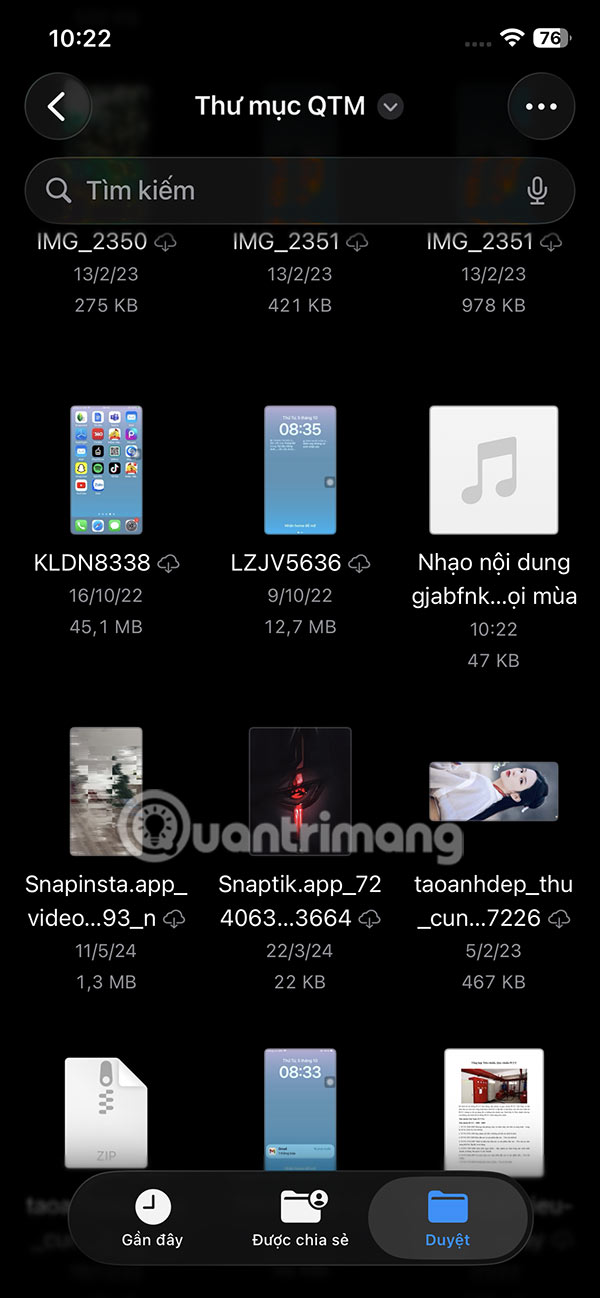
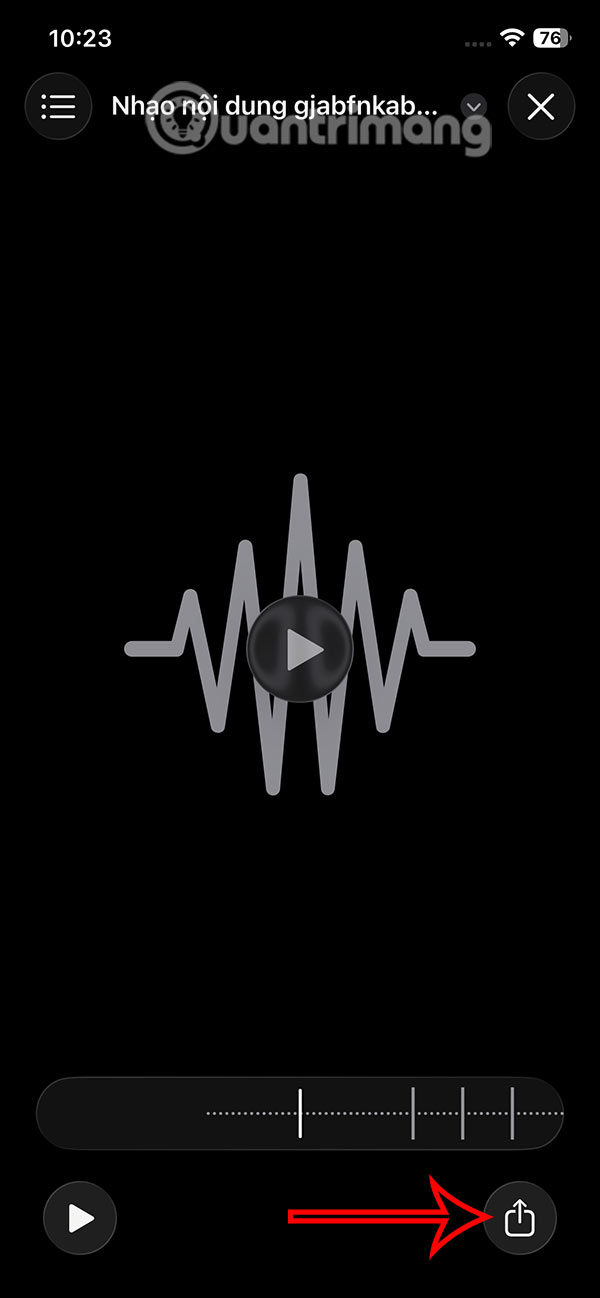
Go to the song file in the Files app , or a third-party file manager app, then find the song you want to set as a ringtone in MP3, WAV, M4A, M4R, FLAC, AIFF, AAC, AMR format. Next, tap on the audio file and select the share icon .
Step 2:
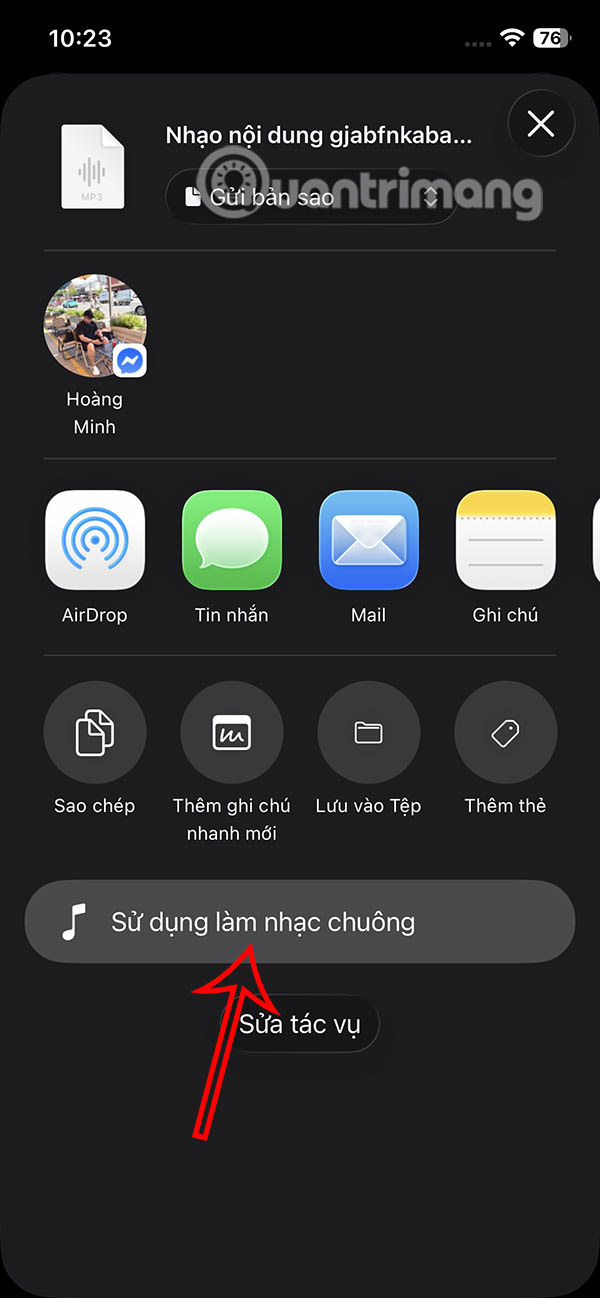
Now the interface with options to share this audio file appears, select Use as ringtone . Now you will immediately see the audio file set as iPhone ringtone.
So you have set iPhone ringtone using any music file without any supporting application or software.
Step 3:
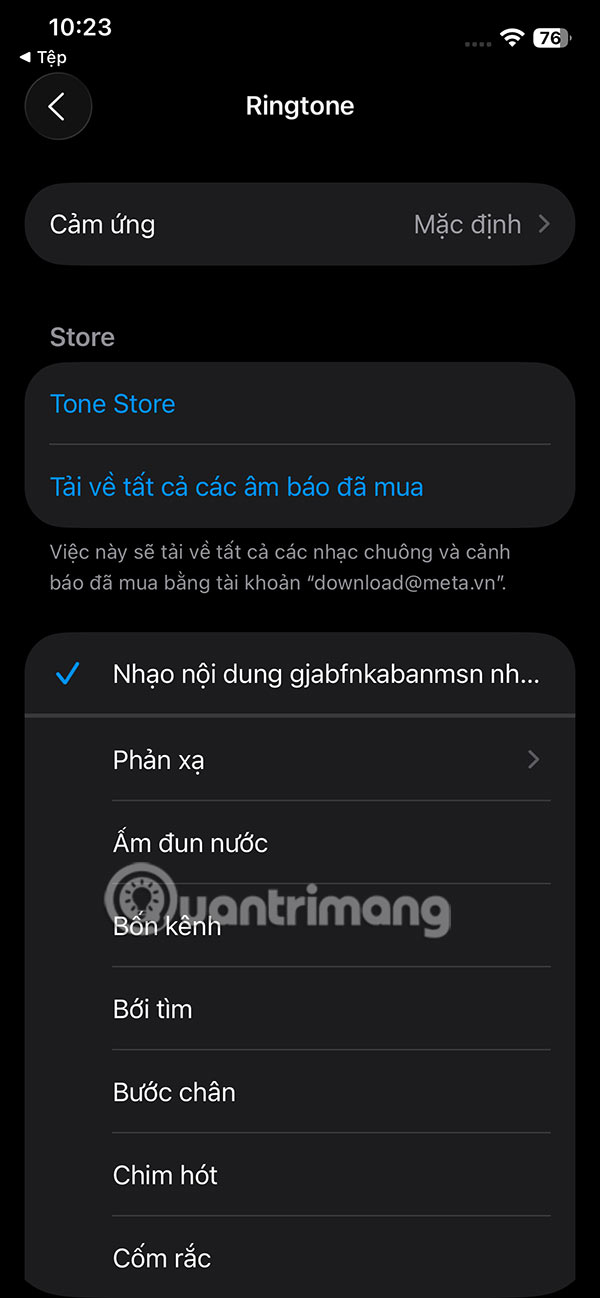
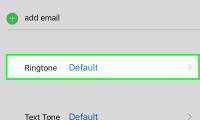
To manage ringtones, change or delete ringtones on iPhone, go to Settings and select Sounds & Haptics . Switch to the new interface and tap on the Ringtone item to adjust.
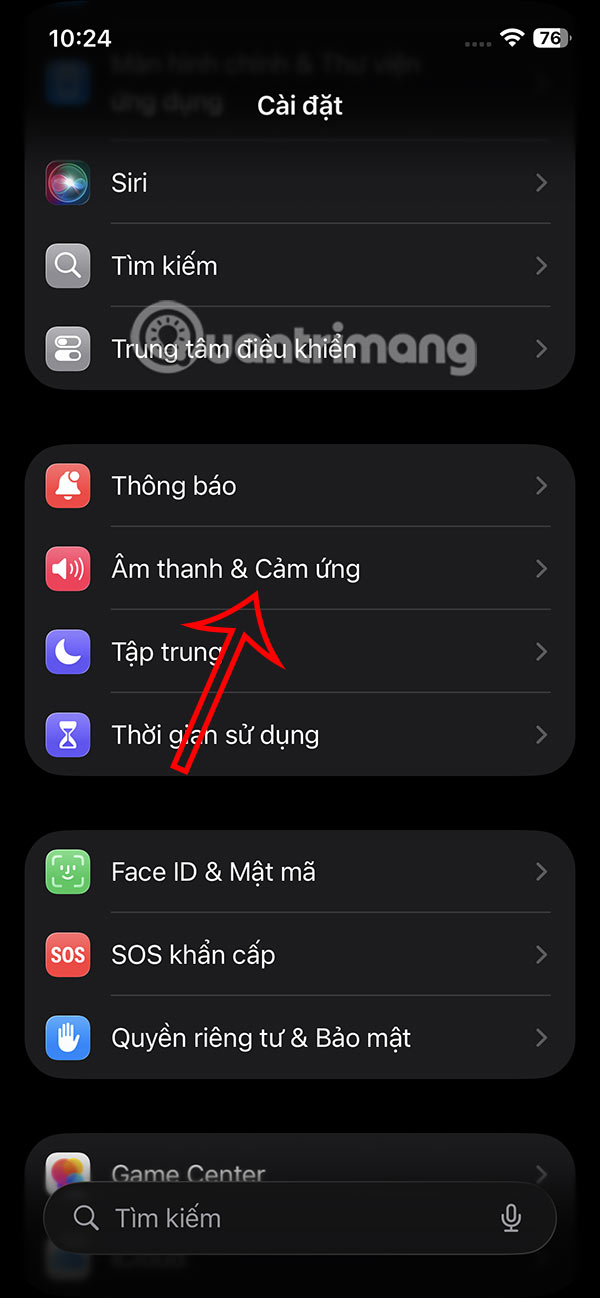
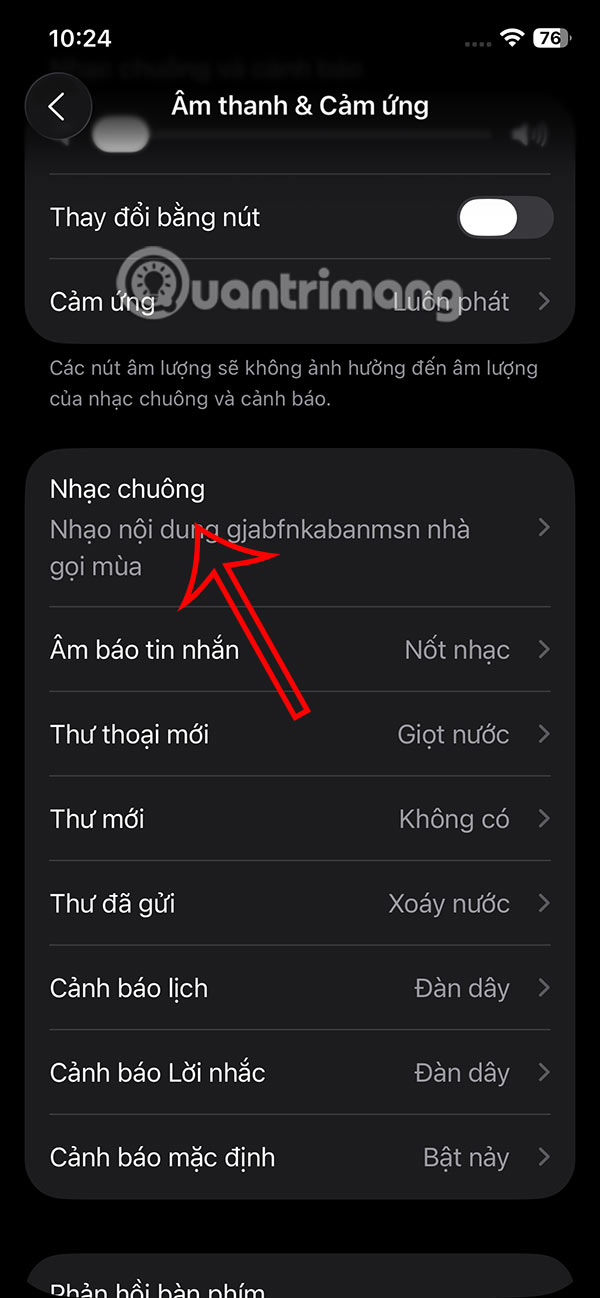
Step 4:
Now you will see that the current iPhone ringtone is the song you selected. If you want to delete this ringtone, just swipe to the left.
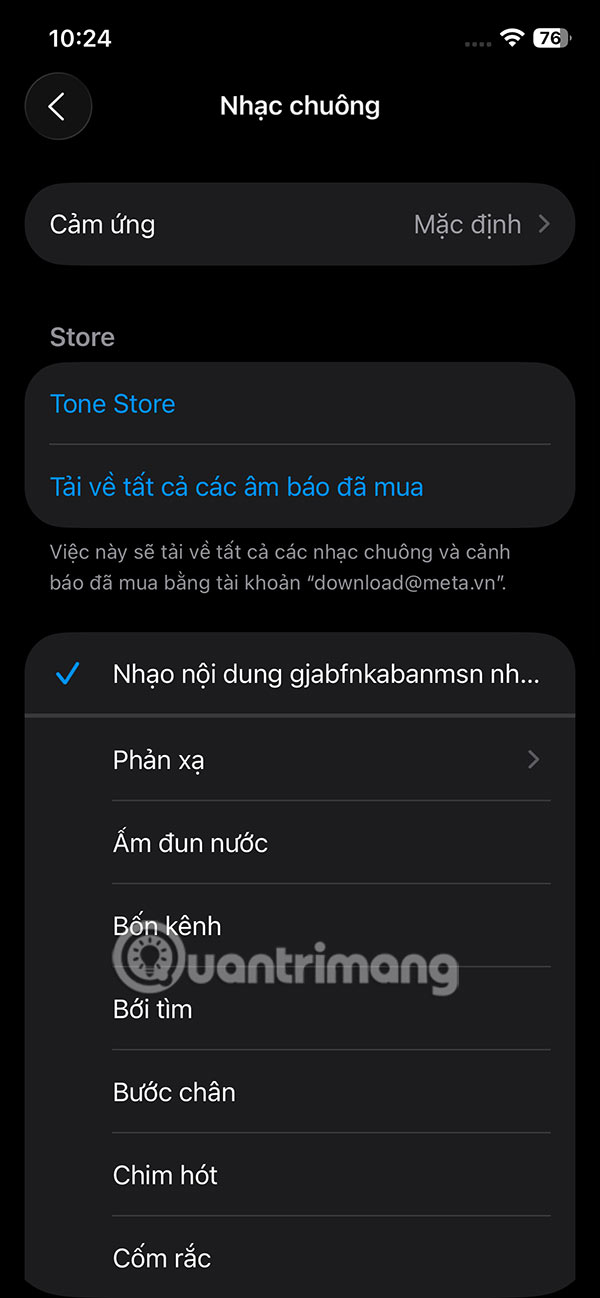
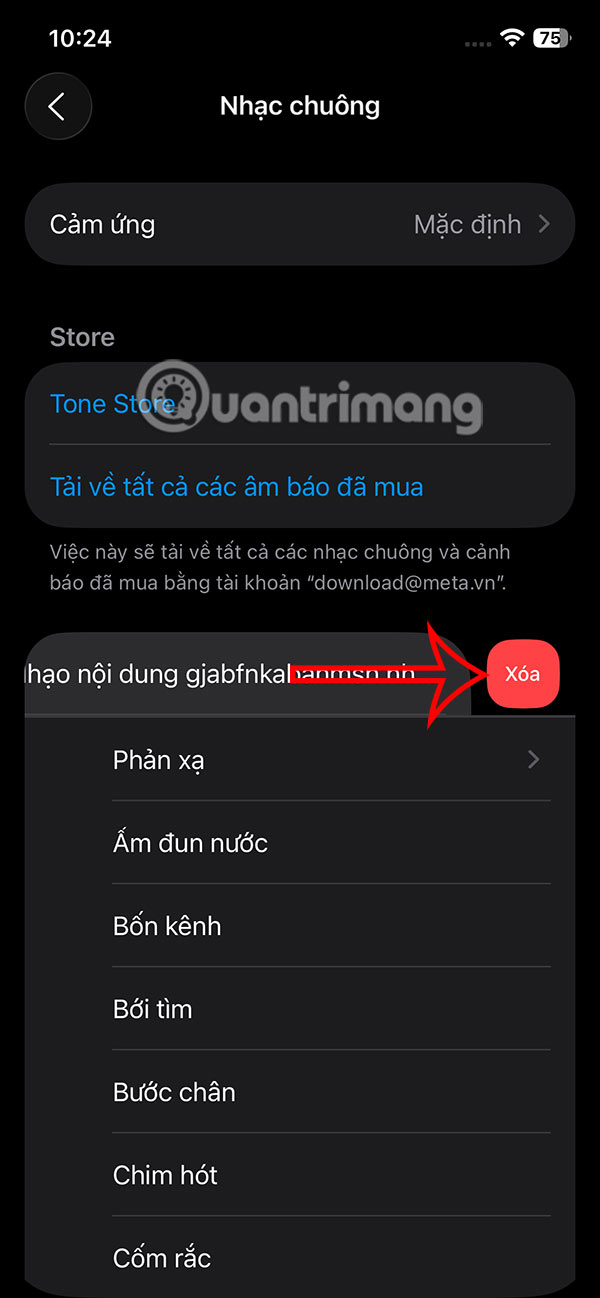
FAQ
How to setting iPhone ringtone from any song?
Go to the song file in the Files app, or a third-party file manager app, then find the song you want to set as a ringtone in MP3, WAV, M4A, M4R, FLAC, AIFF, AAC, AMR format. Next, tap on the audio file and select the share icon.
What does this guide cover?
This guide explains set a song as an iPhone ringtone without any supporting, including the main steps, important details, and practical considerations.
Who is this guide for?
It is designed for readers who want a clear, practical overview and a reliable process they can follow without unnecessary complexity.
Related Articles
 How to Set a Song as an iPhone Ringtone: Practical Guide10 minutes read
 Click: How to Make a Ringtone on Itunes8 minutes read
 How to Install Songs as iPhone Ringtones4 minutes read
 Set a Message Ringtone, Call for Each Person on iPhone5 minutes read
 IPhone Ringtones Are Attractive Because They Create4 minutes read
 How to Set Different Ringtones for Each SIM on iPhone: Step-by-Step Guide4 minutes read
Reader Comments 0
Sign in with email or Google to join the discussion.