Table of Contents
This practical guide explains how to repair smart tv with just a USB. Follow the steps in order, review the requirements first, and use the troubleshooting notes when a setting or option does not work as expected.
USB Format
In order for your Smart TV to recognize your USB, it needs to be formatted to a file system that your TV can read. You should also check to see if your USB contains any important files. Formatting will erase those files, so make sure you move them to a safe location, such as your desktop.
Format USB on Windows
- Plug the USB into your computer.
- Open File Explorer, right select the USB located on the left and select Format.
- Change the File system to FAT32 , then click Start . If it is already FAT32, your USB is ready!
Format USB on MacOS
- Plug the USB into your computer.
- Open Finder > Utilities > Disk Utility . You'll find your USB on the left, under External . select it!
- At the top, click Erase . Change the Format to FAT32 , then finish by clicking Erase .
Manually update Smart TV using USB
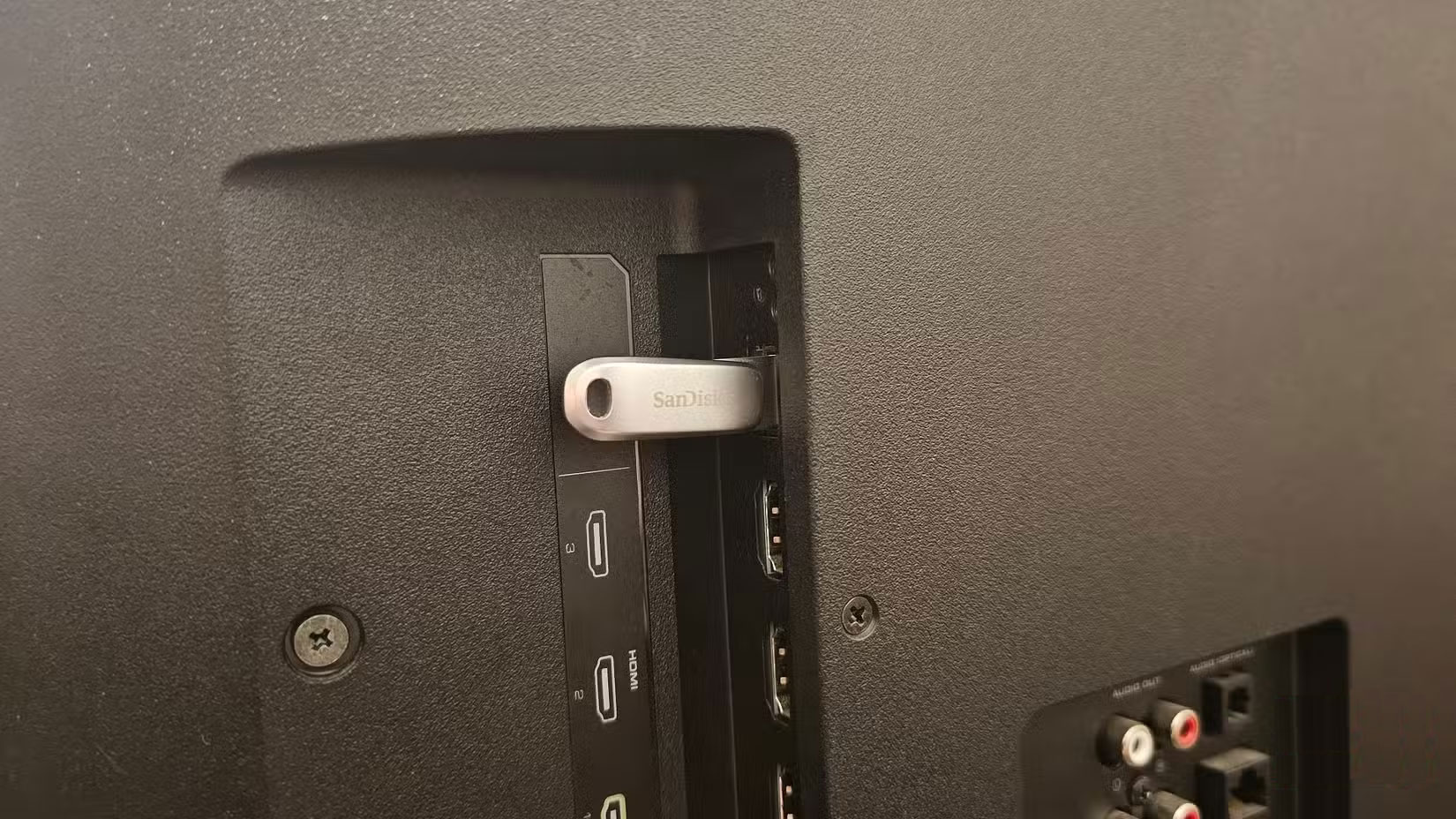
With your newly formatted USB drive and large storage capacity, you'll need to download your Smart TV's firmware update and transfer it to the USB. This is where knowing your TV's model number is important, as firmware updates are unique to a specific model or group of models. Most brands will have a downloadable version of that firmware update on their website if you do a quick search for your model number, then type in 'manual firmware download' or something similar. The file will be in the form of a ZIP file.
Once downloaded, extract the ZIP file to a folder on your USB, as follows:
- On Windows, right-click the ZIP file and select Extract All. , then select your USB as the destination. Do not place the file in a separate folder.
- On a Mac, simply double-click the ZIP file, then drag the contents onto your USB drive. Don't put the file in a separate folder.
- Turn on your Smart TV, plug the USB into the service port, and leave it alone while it updates. Don't turn off the TV, but don't worry if it reboots.
There is a caveat to this last step, however. For the Vizio Smart TV in the example, the author had to open the TV menu and scan for updates, just like you would if you were updating over the internet. This may apply to you as well, so if you don't see any signs that it's updating, such as a progress bar, check your TV settings. There may be a specific menu you need to navigate to to initiate the update.
FAQ
What should you know about uSB Format?
In order for your Smart TV to recognize your USB, it needs to be formatted to a file system that your TV can read. You should also check to see if your USB contains any important files. Formatting will erase those files, so make sure you move them to a safe location, such as your desktop.
What should you know about format USB on Windows?
Open File Explorer, right select the USB located on the left and select Format.
What should you know about format USB on MacOS?
Open Finder > Utilities > Disk Utility. You'll find your USB on the left, under External. select it!
What should you know about manually update Smart TV using USB?
With your newly formatted USB drive and large storage capacity, you'll need to download your Smart TV's firmware update and transfer it to the USB. This is where knowing your TV's model number is important, as firmware updates are unique to a specific model or group of models. Most brands will have a downloadable version of.
Related Articles
 Software Review -- Stellar Repair for MS SQL7 minutes read
 Fix Windows Startup Errors with Startup Repair6 minutes read
 Fast Fix Computer Repair on Windows16 minutes read
 Top 5 Best Kits for Professional Car Mechanics6 minutes read
 Fsutil Repair Command in Windows: Tips and Examples5 minutes read
 Repair-bde Command in Windows: What You Need to Know7 minutes read
Reader Comments 0
Sign in with email or Google to join the discussion.