Table of Contents
This updated guide examines How to Install Steam on a Chromebook and organizes the essential facts, background, and practical takeaways in clear American English.
Begin
A question that many people are probably wondering is why install Steam on Chromebooks. The answer is why not. Chromebooks are the simplest computing device. As a technical enthusiast, many people want their devices to be able to do things that seem impossible.
While not all games can be played on the desktop, you can bring this highly portable platform with you on your travels. Now with that in mind, there are some limitations beyond the usual hardware specs you should keep in mind.
First, you will have to determine if your device is really supported or not. For now, in most cases this may not be a problem, since if Chrome OS is up to date, it's likely that the device will be supported. For information on whether your device is supported, refer to the following website:
https://www.xda-developers.com/chromebooks-linux-app-support/Install Linux (Beta)
Obviously, to install Steam for Linux, you need to enable Linux App Mode on your Chromebook. If you haven't done this already, follow the instructions in the article: How to turn on Linux App Mode on a Chromebook.
Install Steam
Once you've successfully fulfilled the requirements, you're now ready to install Steam on your Chromebook. To do this, you will have to follow these steps.
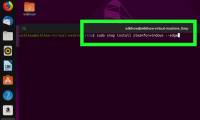
1. From a Chromebook, pressCtrl+Alt+TThis string of shortcuts will launch Linux Terminal properly without searching.
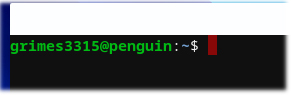
2. Enter the following commands:
echo 'deb http://httpredir.debian.org/debian/ jessie main contrib non-free' | sudo tee -a /etc/apt/sources.list sudo dpkg --add-architecture i386 sudo apt update sudo apt install steamWhen the last command has been executed, you will need to pressY(Yes) to complete the required settings.

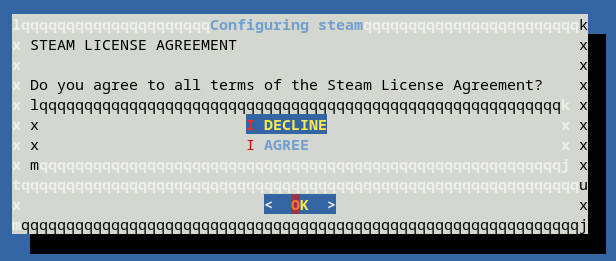
During this process, you will also be prompted to accept the Steam system's licensing agreement. Do this by navigating down to the 'I Agree' option and pressingEnter.
3. To launch Steam, run a simple command:
steam
You have completed all necessary operations! Now you can play games on Steam whenever you want with your Chromebook. Perhaps in the future, Steam support will be enhanced with options for hardware acceleration or graphics card. However, the biggest question at the moment is: Which game will you play first?
Wishing you success and have a good time playing game!
FAQ
What is How to Install Steam on a Chromebook about?
It provides a structured overview of Steam, explains the main context, and highlights practical takeaways for readers.
Why does this topic matter?
Understanding the main concepts helps readers evaluate the issue, avoid common mistakes, and make better-informed decisions.
How should readers use this information?
Use the guidance as a practical starting point, confirm details that may have changed, and follow current product, safety, or security recommendations.
Related Articles
 Google Officially Kills Steam on Chromebooks4 minutes read
 Install on Ubuntu: How to Install Steam in Ubuntu5 minutes read
 How to Install Kodi on a Chromebook6 minutes read
 How to Install Steam on Linux6 minutes read
 How to Install Itunes on a Chromebook3 minutes read
 How to Install Desktop Widgets on Chromebook4 minutes read
Reader Comments 0
Sign in with email or Google to join the discussion.