Table of Contents
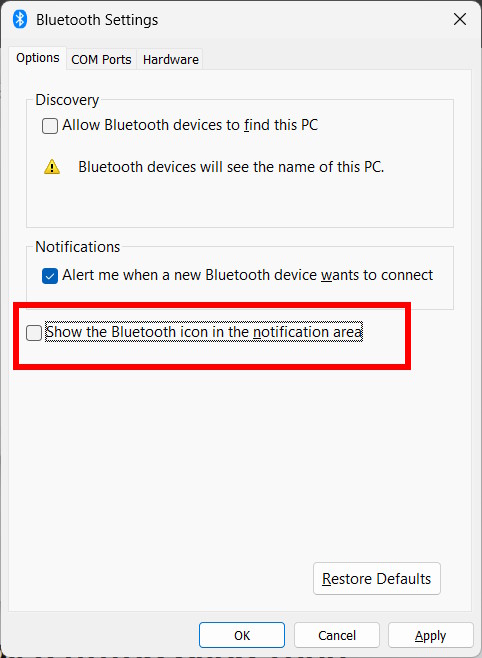
You can hide the Bluetooth icon without disabling Bluetooth. On Windows 11, open Settings > Bluetooth & devices > Devices > More Bluetooth settings, then clear Show the Bluetooth icon in the notification area. Select the same checkbox to restore it.
If you only want a cleaner taskbar, move the icon into the hidden-icons menu instead. That keeps the Bluetooth shortcut available without removing it from the notification area settings.
Hide the Bluetooth icon from its menu
When the Bluetooth icon is visible near the clock, right-click it and select Remove Icon. This hides the shortcut; it does not turn off the Bluetooth radio or disconnect devices that are already paired.
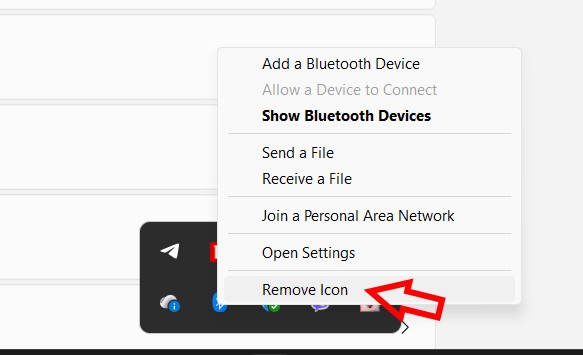
If the icon is not beside the clock, select the upward chevron to check the hidden-icons menu. On Windows 11, you can usually drag an icon between the visible tray and that menu. TipsMake's guide to useful Windows 11 taskbar features explains this organization method.
Show or hide the icon through Windows 11 Settings
- Press Windows + I to open Settings.
- Select Bluetooth & devices in the left column.
- Select Devices.
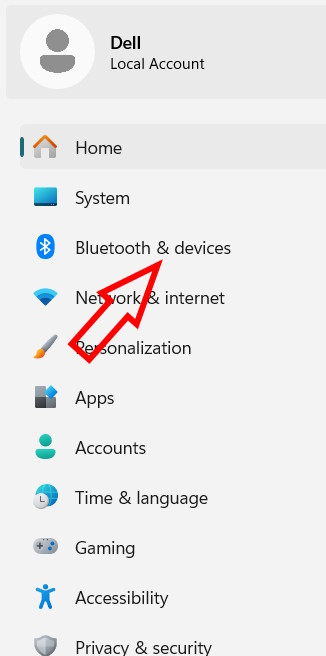
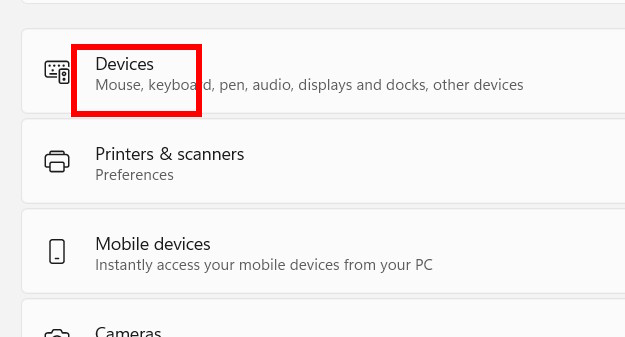
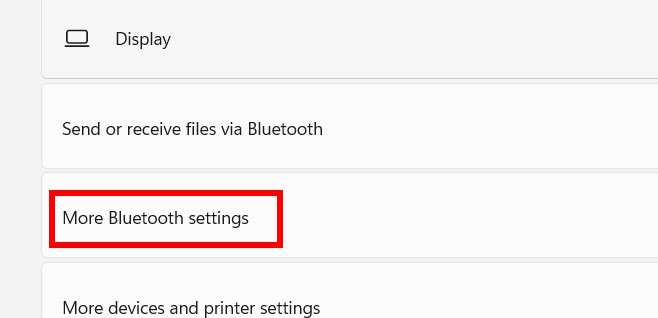
- Scroll to Related settings and select More Bluetooth settings. Depending on the Windows build, the link may be labeled More Bluetooth options.
- On the Options tab, select Show the Bluetooth icon in the notification area to display it, or clear the checkbox to hide it.
- Select Apply, then OK.
Windows 10 steps
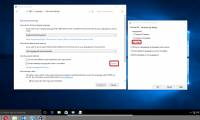
On Windows 10, open Settings > Devices > Bluetooth & other devices, select More Bluetooth options, and use the same Show the Bluetooth icon in the notification area checkbox. The surrounding Settings page looks different, but the classic Bluetooth Settings dialog is similar.
For other notification-area items, see TipsMake's guide to showing and hiding Windows 10 system tray icons.
If the Bluetooth icon or setting is missing
- Check the hidden-icons menu: press Windows + B, then press Enter to open the tray overflow and use the arrow keys to inspect its icons.
- Confirm Bluetooth exists: open Settings and look for the Bluetooth on/off control. A desktop without a Bluetooth adapter will not gain Bluetooth by displaying an icon.
- Check Device Manager: expand Bluetooth and confirm the adapter is enabled. If the category is absent, use View > Show hidden devices and check for hardware or driver problems.
- Restart after a driver change: install a compatible driver from Windows Update or the computer manufacturer's support page. Microsoft's Bluetooth driver guide covers update and reinstall steps.
- Reopen More Bluetooth settings: a Bluetooth service or driver restart can make the checkbox available again.
If several tray icons are missing rather than Bluetooth alone, troubleshoot the notification area first. TipsMake's missing Wi-Fi icon guide shows the same hidden-icon and taskbar checks.
Avoid the Registry unless Settings is unavailable
The graphical setting is safer and easier to reverse. Older instructions sometimes recommend changing the Notification Area Icon Registry value, but that value is undocumented for current Windows builds, may not exist until the setting has been changed, and does not repair a missing adapter or driver. There is no practical reason to edit the Registry when the Bluetooth Settings checkbox works.
Hiding the icon changes only the shortcut in the notification area. To actually disable Bluetooth, use the Bluetooth control in Settings or Quick Settings; to remove a device, select that device under Bluetooth & devices and choose Remove device.
Related Articles
 How to Turn Off, Turn on, Hide, Icon Icon on the Taskbar in Windows 102 minutes read
 How to Remove the 'Chat' Icon on the Windows 11 Taskbar3 minutes read
 How to Display the Missing Bluetooth Icon on the Windows Taskbar4 minutes read
 How to Hide or Show Windows Security Icon on Taskbar Windows 107 minutes read
 How to Hide the Search Button on the Windows 11 Taskbar4 minutes read
 How to Delete / Hide the Language Icon on the Windows 10 Taskbar4 minutes read
Reader Comments 0
Sign in with email or Google to join the discussion.