This guide explains how to resolve the Insufficient Memory Error on the Printer the Easiest, starting with the most likely causes and moving through practical troubleshooting steps.
However, in addition to the above way, in this article, I will introduce you to more methods to fix the error of not enough simple memory that I will guide below.
I. Change the feature Download TrueType font
First, try to apply the method of changing the Download TrueType font feature on the printer with the following steps:

Step 1: You press Windows + R key combination to open the Run dialog box. Then enter the control term and click OK to open the control panel.
Step 2 : Here, you click on Hardware and Sound -> Devices and Printers.
Step 3: Right-click the name of the printer you are using and select Properties , then click Printing Preferences.
Step 4: Next, click Layout -> Advanced . Here, double-click on the PostScript option.
Step 5 : Click the TrueType Font Download Options option. There, click the Auto button.
If the Auto option is already selected, click the Outline or Bitmap option.
Step 6: Now save your changes and close the Printer Properties and Control Panel dialog boxes, then check if the error has been fixed.
II. Reset the printer to factory settings
With this method, I will apply on all HP brand printers.
The steps are as follows:

Step 1: From the main screen on the Printer Control Panel, swipe down until the Setup menu is displayed and then click the Setup icon.
Step 2: Scroll down the menu and select Service → Restore Defaults.
Step 3: Now click OK to confirm the operation above. Now the printer will reset to default and reboot.
Printer settings
Step 1: Click the Start menu and select Settings -> Devices.
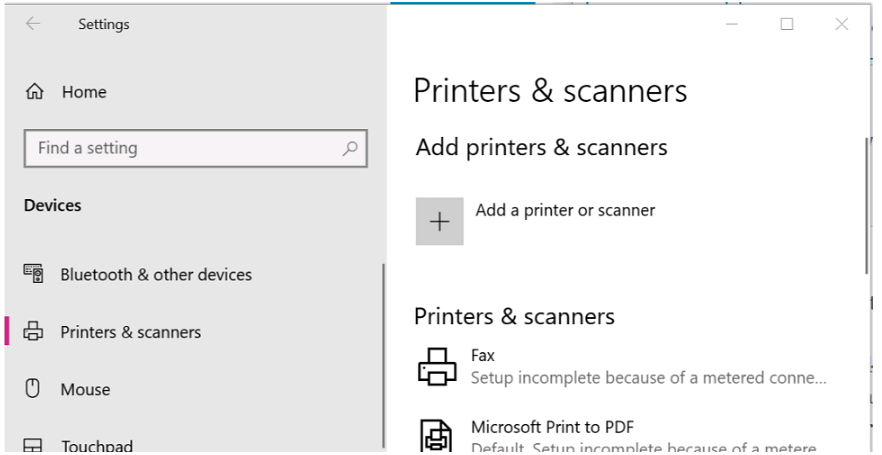
Step 2: From the menu in the left pane, click on the Printers and Scanners line .
Step 3: Click Next to add a printer and scanner. You then continue with the on-screen instructions to complete this setup.
After completing the steps above, try reprinting and checking if the error is resolved.
III. Change the printer driver
To change the printer driver, visit the HP printer support software site here to search and download the PCL5 / HP Driver for Windows computers.
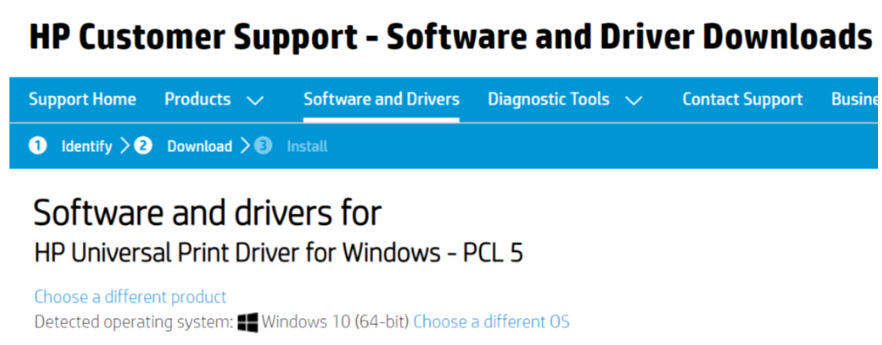
After downloading, please install the driver and try to use the printer to check for errors.
If your printer is using the PCL6 driver, use the PostScript or PCL5 driver version . By doing this, some users have reported that changing the printer driver has helped them resolve this error already.
IV. Remove and reinstall the printer driver
The process of removing and reinstalling the printer driver will include the following steps:
1. Delete the connection with the printer
Step 1: Click the Start menu and select Settings → Devices.

Step 2: Select the Printers and Scanners tab from the menu on the left.
Step 3: Now select the printer you are using from the list of connected devices and click the Remove Device button to remove the device.
2. Uninstall the printer software
Step 1: Click the Start menu and select Settings → Apps.
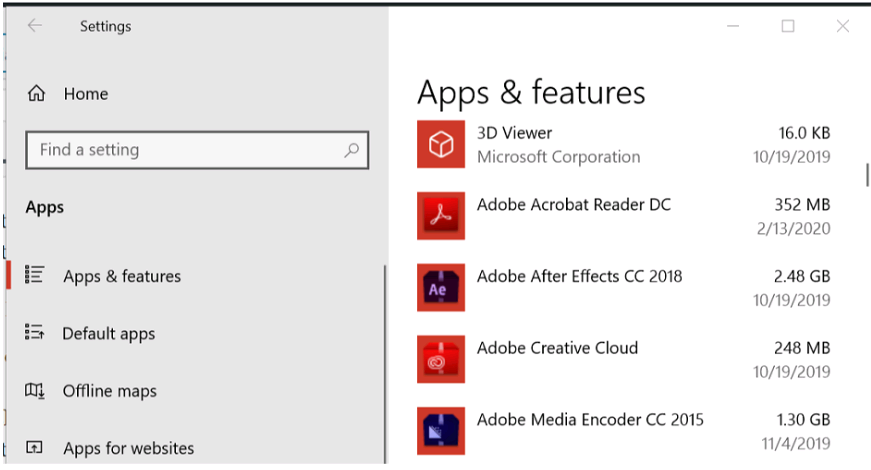
Step 2: Here, search for your printer or application name. Then, click on the printer's software and click on Uninstall button. Then click the Yes button to confirm this action.
Note: This method only works best when you perform a complete uninstall of the printer software. Therefore, if possible, use a third-party uninstaller to best remove any leftover data from those settings.
3. Remove the printer driver from Printer Server Properties
Step 1: Click the Start menu and select Settings → Devices.
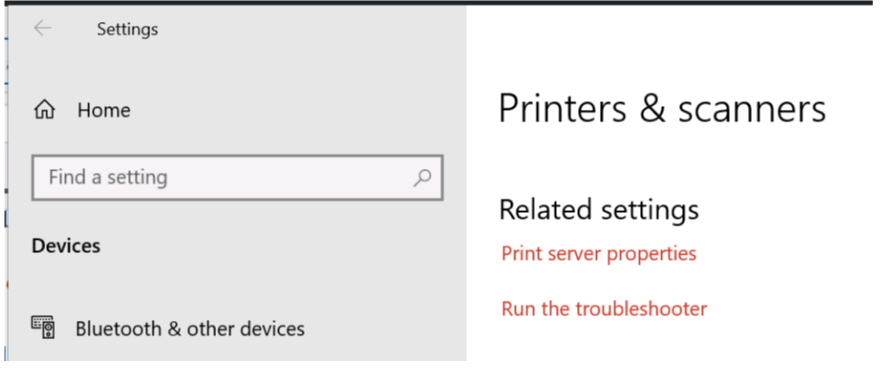
Step 2: Scroll down the menu below and select the Related settings section, then click Printer server properties.
Step 3: In the new window, select the Drivers tab. Then select the printer you want to remove from the list and click the Remove button.

Step 4: In the box Remove Driver And Package, click on the line Remove driver and driver package and click OK to continue.
Step 5: Click the Delete button to confirm this operation.
4. Reinstall the printer driver
Error of insufficient memory on the printer can be handled by resetting the printer to factory defaults. However, if you've done the above methods and the problem persists, try changing the driver or resetting the printer.
Try downloading the latest driver version for your printer by visiting the manufacturer's software support website.
Then download and install the driver and check for new updates and see if the error is resolved.
So I have shown you how to fix the error of insufficient memory on the printer the easiest way. Hopefully this article will be helpful to you. I wish you successful implementation!



Reader Comments 0
Sign in with email or Google to join the discussion.