Table of Contents
To fix common errors on galaxy s9 / s9 plus successfully, begin with the right preparation and follow each step carefully. The guide also covers common issues you may encounter.
Galaxy S9 / S9 Plus duo launches users to bring advanced technology products, with unique designs and attractive features. However, in the process of using the device, users will also encounter some errors. These errors often relate to the app of the machine and are easily corrected through customization on the system, or through updates. The following article will summarize some common errors on Galaxy S9 / S9 Plus as well as how to fix these problems.
- 5 settings you should change on Galaxy S9 / S9 +
- How to turn on Recovery Mode and Download Mode on Galaxy S9 / S9 +
- Summarize interesting tips on Galaxy S9 users should not ignore
Fix errors on Galaxy S9 / S9 Plus
1. Touch screen is paralyzed
Many users reflect the touch screen on Galaxy S9 / S9 Plus often at "dead" times, not working, making it difficult to control, such as touch or swipe, or a strip from the side one to the other.
The only solution is to contact the vendor's warranty center to find a solution for the device.

2. Samsung Pay application does not work
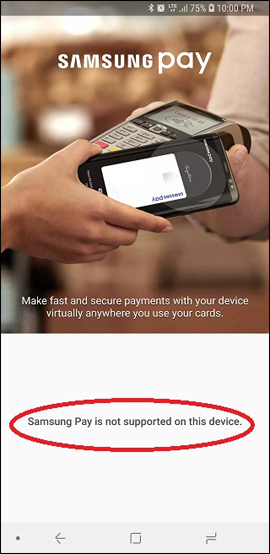
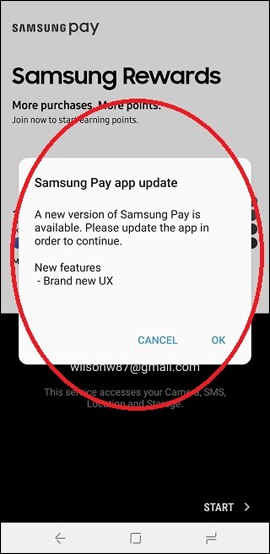
Samsung Pay is an application to pay by phone and e-wallet on high-end Samsung models. However, when using Samsung Pay on S9, some users should use the unused application status with the app notification that is not compatible with the device.
To fix this Samsung Pay application error on Galaxy S9, please update Samsung Pay application to the latest version. If not, or uninstall the app, then reinstall Samsung Pay.
3. Error recording video with Slow-Motion mode
- How to create slow-motion video with Super Slow Motion on Galaxy S9
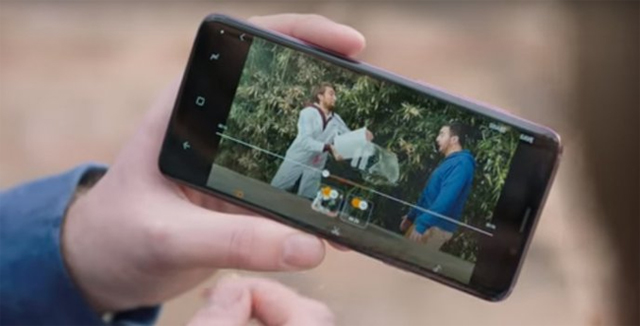
The Slow-Motion mode on Galaxy S9 when recording video reflects a light error, the screen becomes darker than other shooting modes. Currently, light errors on Slow-Motion mode do not occur frequently but will also affect device experience.
Currently, Samsung still has no direction to fix the Slow-Motion mode when recording video. The advice for users is to choose where to shoot with sufficient lighting conditions. Hopefully in the near future, manufacturers will quickly find remedies.
4. Error recording call
Currently, according to many records, the call recording error only occurs with the Galaxy S9 international version with Exynos 9810 processor. This error occurs so that users cannot record the voice of the enemy but can only record sound your voice.
This is not a serious error related to software or hardware, but is due to limited functionality under Google's privacy policy and EU law. Hope Samsung will quickly solve this problem.
5. Error blurring with black background
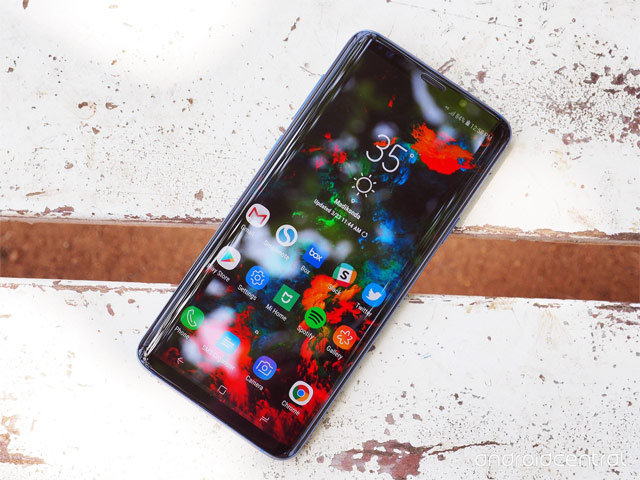
When you open or access the black background interface, the screen will be blurred due to the mismatch of colors with the image. This phenomenon occurs more frequently on Galaxy S9 Plus and only occurs when the screen light is below 40%.
To improve this error, users can install Screen Balance app to balance colors on the screen.
- Download the Screen Balance app
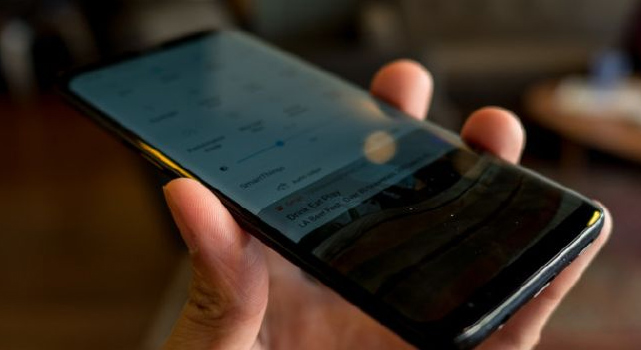
Above are some common errors that occur on Galaxy S9 / S9 Plus device. If you are unable to fix these problems, or are not familiar with the technology, it is best to bring the device to Samsung service centers.
- Galaxy S9 and S9 +: Things to know about this latest flagship of Samsung
- Create unique Emoji shapes on Samsung Galaxy S9
- These are opponents of Galaxy S9 and their weapons
Hope this article is useful to you!
FAQ
What should I prepare before I fix common errors on galaxy s9 / s9 plus?
Review the requirements in the guide, confirm that your device or software is compatible, and save important work before changing settings related to fix common errors on galaxy s9 / s9 plus.
Why might fix common errors on galaxy s9 / s9 plus not work as expected?
The most common causes are incompatible versions, missing permissions, incorrect settings, or an interrupted internet connection. Recheck each step and restart the app or device when appropriate.
Can beginners follow these fix common errors on galaxy s9 / s9 plus steps?
Yes. Follow the steps in order, avoid skipping confirmation screens, and compare your interface with the screenshots because labels may differ slightly between versions.
Related Articles
 The 5 Most Common Errors on Galaxy S7 / Galaxy S7 Edge and How to10 minutes read
 Summary of 18 Common Errors on Samsung Galaxy S5 and How to Fix16 minutes read
 How to Fix Charging Samsung Galaxy S21 Not on Battery7 minutes read
 Tips to Fix Common Errors on Galaxy Note 206 minutes read
 Summary of Common Errors on iPhone 6, 6 Plus and How to Fix Errors17 minutes read
 Common HTML Mistakes That You Should Avoid for Better Web Programming4 minutes read
Reader Comments 0
Sign in with email or Google to join the discussion.