Table of Contents
How to Enter the Mocha Music Room: Go to Mocha Music Room covers the essential facts behind the topic, including what changed, why it mattered, and how it affected users.
- How to invite friends to use Mocha
- How to send HD photos on Mocha
- How to turn off the 'viewed' message on Mocha
Guide to the Music Room Mocha
Step 1:
You start the Mocha application on the device, make sure the current version has been updated to the latest version. If not, update according to the link below.
- Download Mocha for Android
- Download Mocha for iPhone
- Download Mocha for Windows Phone
Step 2:
At the main working interface of the application, to enter the music room Mocha you click on Music item (dot question icon) below. Then, click on the 3 dots icon in the right corner of the screen.
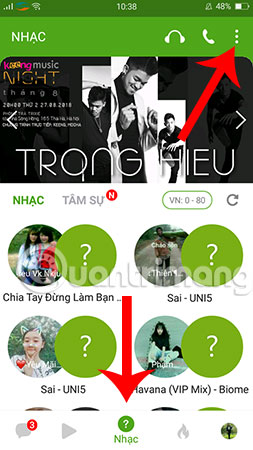
Step 3:
You will see the Music room section like the one below, click it to get the program to bring us into the interface of the room.
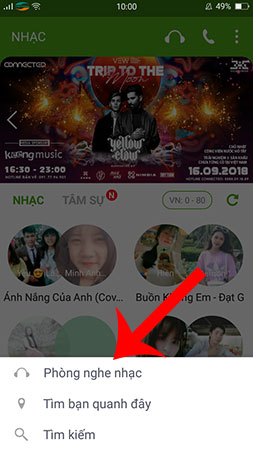
Step 4:
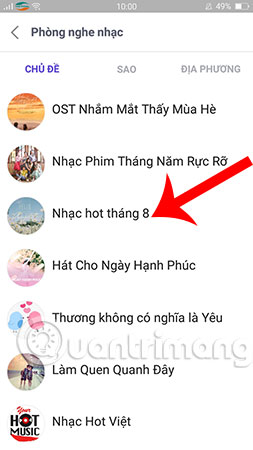
Here, Mocha offers many different topics for you to freely choose the topic you like best when you go to the Mocha music room.
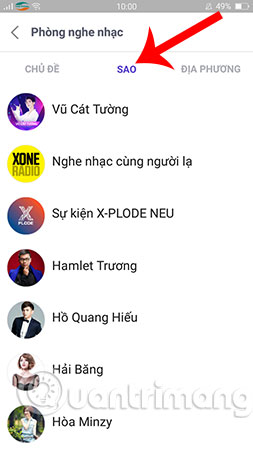
Besides, you can choose Star and choose your idol singer or select Local if you want to listen to songs about your homeland.
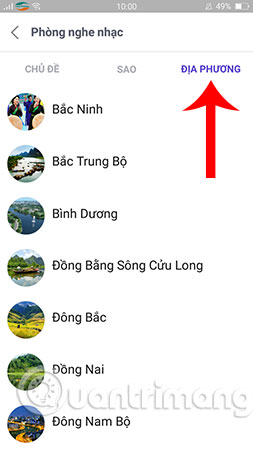
As in this example, we will enter the music room with the August Hot Music theme to enjoy the best songs today.
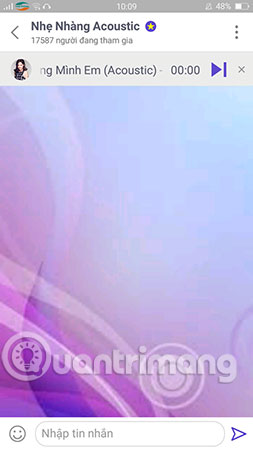
Step 5:
If you just want to go back to the Mocha messaging interface to chat with friends, just want to listen to music in the Mocha music room, click select the arrow icon to return as shown below. Soon after, the program will issue a notice asking if you want to stay in the Mocha music room, click Yes to agree.
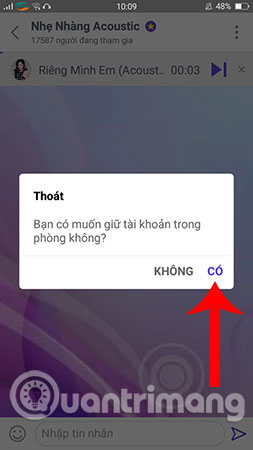
Above is how to access the music room on Mocha, hopefully this trick will be useful to you whenever you want to visit the chat room to listen to your favorite songs and get to know new friends. In addition, Mocha has many other attractive features that you may not know, please refer to how to use Mocha on the phone to discover!
Hope you are succesful.
- Instructions on how to join the chat room on Zalo
- Instructions for setting up chat groups on Facebook
- Guide to join chat rooms on TalkTV (ccTalk)
FAQ
How does Go to Mocha music room work?
How to Enter the Mocha Music Room: Go to Mocha Music Room covers the essential facts behind the topic, including what changed, why it mattered, and how it affected users.
What should you prepare before using this method?
How to invite friends to use Mocha How to send HD photos on Mocha How to turn off the 'viewed' message on Mocha Guide to the Music Room Mocha Step 1: You start the Mocha application on the device, make sure the current version has been updated to the latest.
What should you do if the process does not work as expected?
If not, update according to the link below.
Related Articles
 Instructions for Using Mocha on the Phone7 minutes read
 How to Set the Mocha Key on the Phone4 minutes read
 How to Invite Friends to Use Mocha: Invite Mocha4 minutes read
 Instructions to Delete Mocha Account on the Phone4 minutes read
 How to Create Mocha Account on the Phone3 minutes read
 How to Post Videos on Mocha5 minutes read
Reader Comments 0
Sign in with email or Google to join the discussion.