Table of Contents
This updated guide explains how to enable low power mode on iPhone with clear steps, practical tips, and useful context. Low Power Mode on your iPhone is a handy feature that helps extend your battery life, but it automatically turns off when your battery level goes above 80%. If you're traveling or just want to extend the battery life on your older iPhone, there's a way to keep it on. Here's how.
Manually Turn on Low Power Mode on iPhone
Under normal circumstances, you'll see a notification when your iPhone's battery level drops below 20% asking to turn on Low Power Mode. Still, you can manually turn on Low Power Mode at any time.
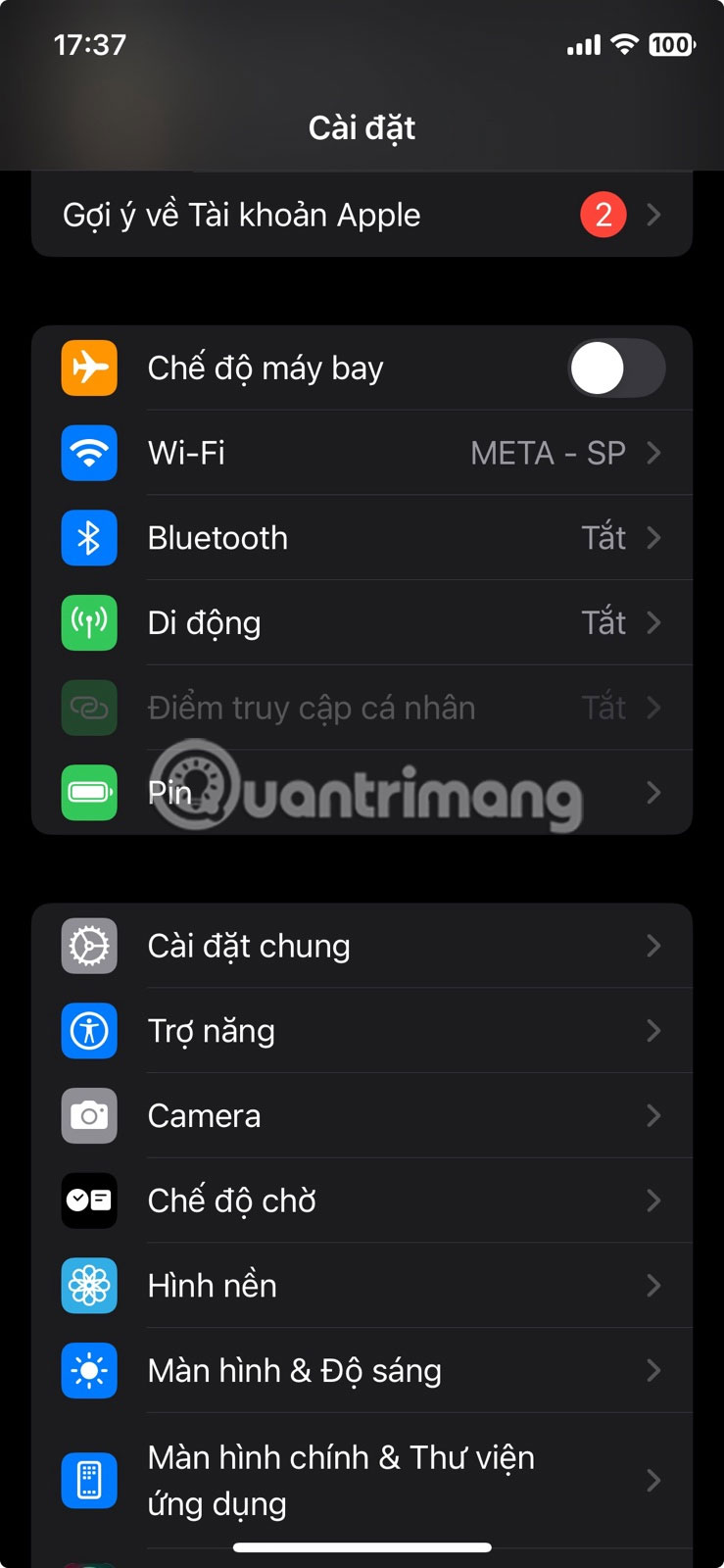
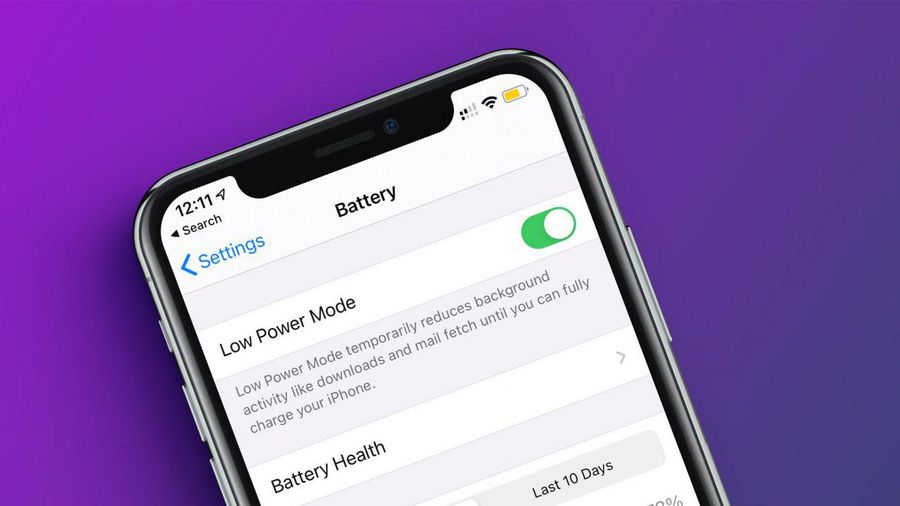
Open the Settings app on your phone and navigate to Battery .
Turn on the switch for Low Power Mode from there.
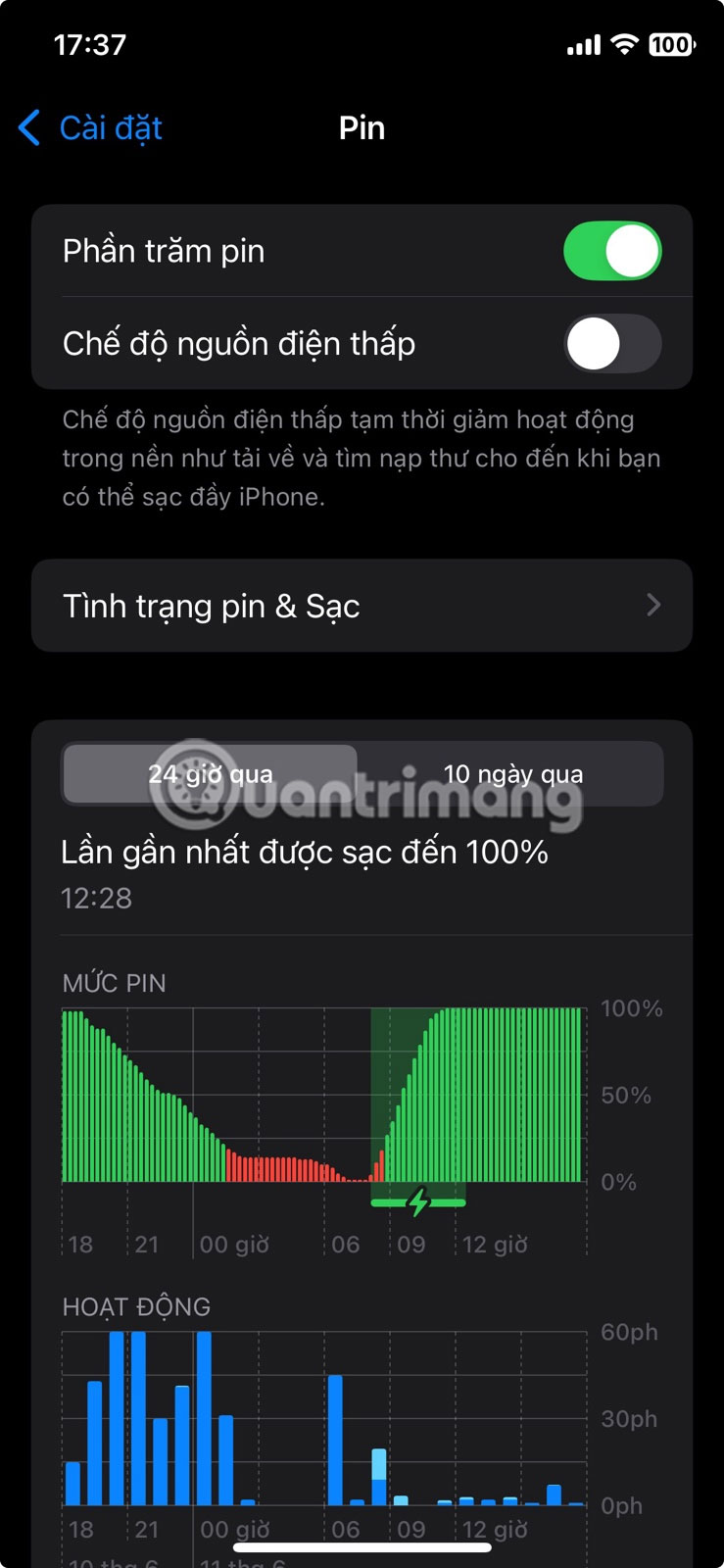
When you do so, the battery indicator light at the top will turn yellow.
After you turn on Low Power mode, iPhone automatically makes several changes to save power, including:
- Disable 5G on most models
- Lock iPhone screen after 30 seconds of inactivity
- Reduce screen brightness
- Remove some visual effects
- Limit screen refresh rate to 60 frames per second (on iPhone models with ProMotion display)
- Pause iCloud Photos Sync
- Turn off automatic downloads
- Turn off email fetching
- Turn off background app refresh
Together, these changes will help reduce the iPhone's power consumption, helping extend battery life.
Turn on Low Power Mode from Control Center on iPhone
If you need to constantly switch between Low Power Mode and normal mode on your iPhone, you can easily add a Low Power Mode shortcut to Control Center and activate it from there.
Step 1:
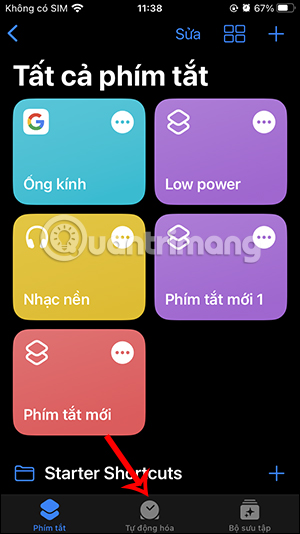
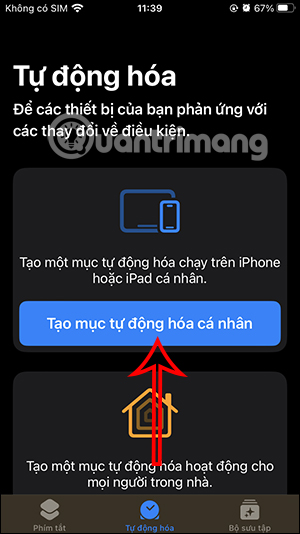
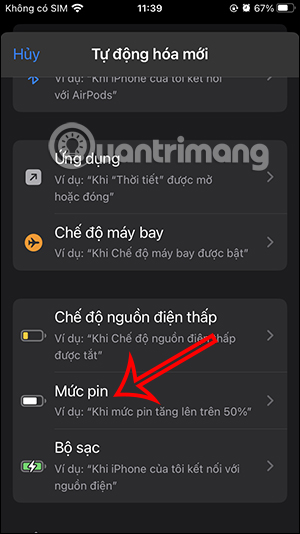
In the Shortcuts app on iPhone, users tap Automation below. Next, users tap Create personal automation .
Step 2:
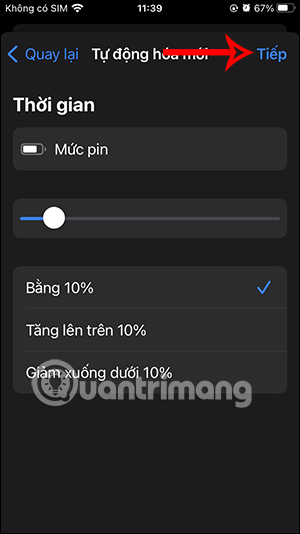
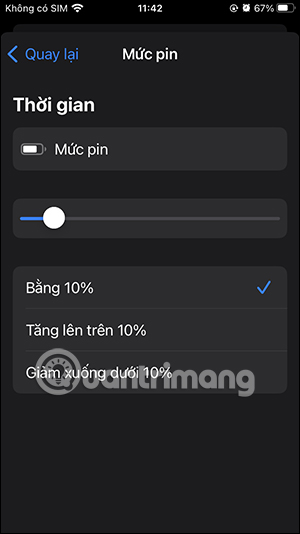
Now you search below the task list Battery Level to adjust. Here the user will see the battery level adjustment bar to automatically turn on low power mode. You adjust the white circle button to the battery % level you want. Then choose Next in the top right corner.
Step 3:
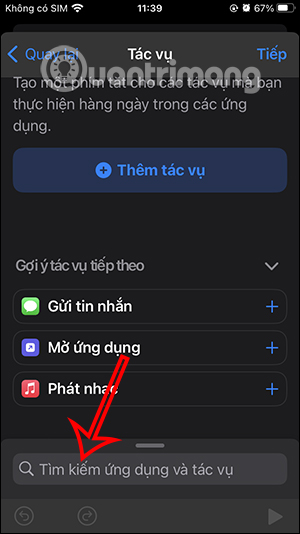
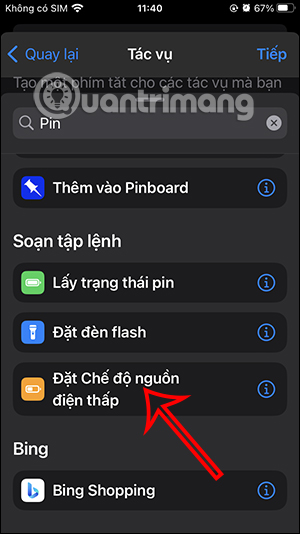
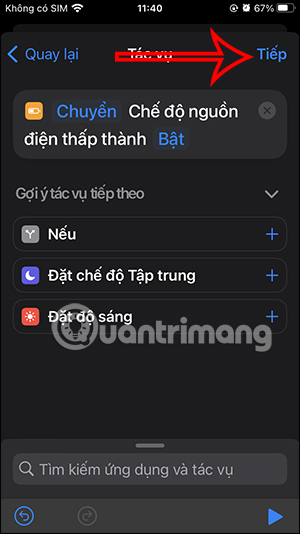
Now you enter the keyword battery in the search bar at the bottom of the list, then select the Set low power mode task .
Step 4:
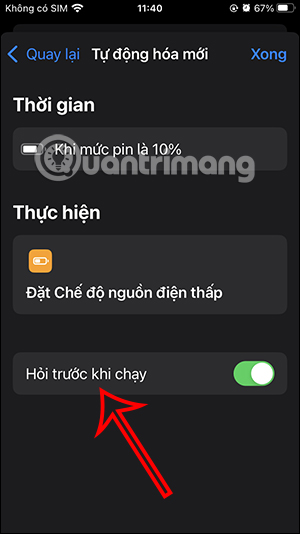
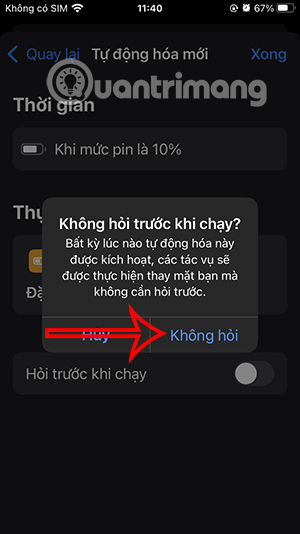
So you have finished creating the task, choose Next to move to the new interface. Here you need to turn off Ask before running mode to automatically enable low power mode.
Step 5:
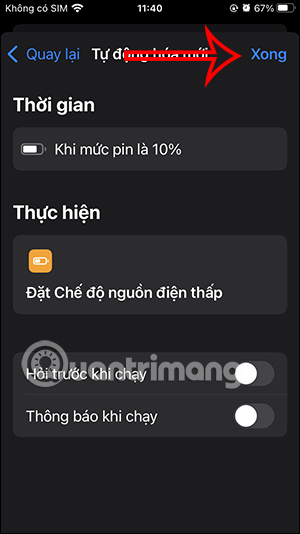
Finally, tap Done to save. The result of the task is to automatically turn on low power mode when the battery % is at a certain level that has been set. Now when the iPhone battery drops to that %, you will see low power mode is turned on.
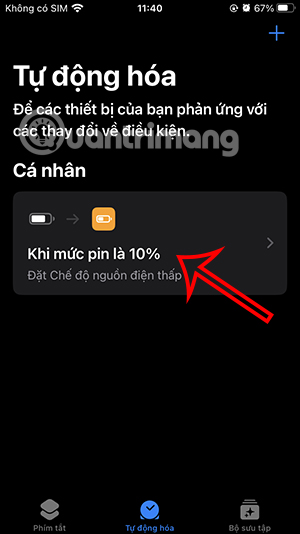
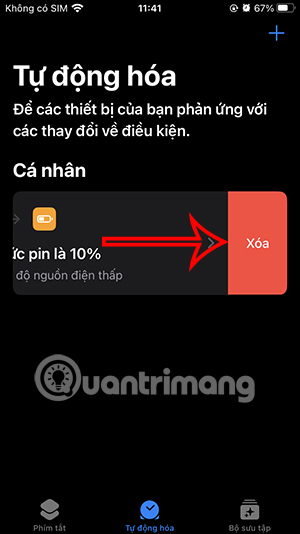
Step 6:
If you want to delete this task , swipe left and select Delete .
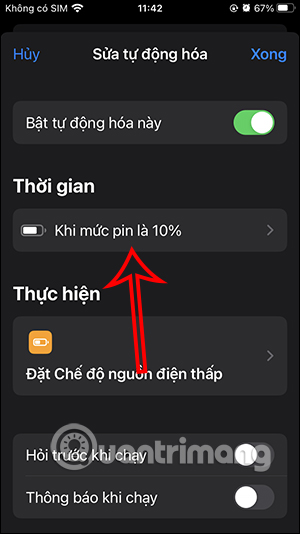
If you want to change the battery % level to automatically enable low capacity, select the task and adjust the % again , press Done to save.
Video tutorial on automatically turning on battery saving on iPhone
FAQ
What should I prepare before I enable low power mode on iphone?
Review the requirements and options in the guide first. Having the correct device, app version, account access, or materials ready helps prevent avoidable errors.
How long does it take to enable low power mode on iphone?
The time depends on the task and your setup. Most basic steps can be completed quickly, while downloads, updates, scans, or troubleshooting may take longer.
What should I do if the steps do not work?
Repeat the instructions in order, confirm that your software or device is supported, and check permissions, connectivity, and available updates before trying again.
Related Articles
 What Is Low Power Mode on iPhone?5 minutes read
 Adaptive Power and Low Power: Which iPhone Battery Saving Mode Should5 minutes read
 How Often Do You Turn on 'Low Power Mode' When Your iPhone6 minutes read
 Use Low Power Mode to Save Battery on iOS8 minutes read
 Enable Smart Rotation of iPhone Standby Mode Utility: How-To Guide2 minutes read
 How to Enable Adaptive Power on iOS 262 minutes read
Reader Comments 0
Sign in with email or Google to join the discussion.