Table of Contents
This practical guide explains how to enable dark mode for Google Calendar. Follow the steps in order, review the requirements first, and use the troubleshooting notes when a setting or option does not work as expected.
Instructions to enable Dark Mode for Google Calendar web
Step 1:
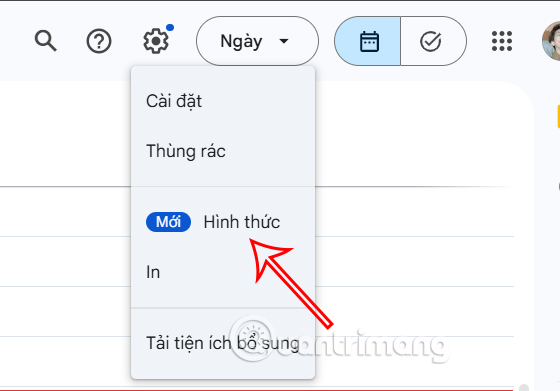
At the Google Calendar interface, users select the gear icon at the top. Then select Display format in the menu as shown below.
Step 2:
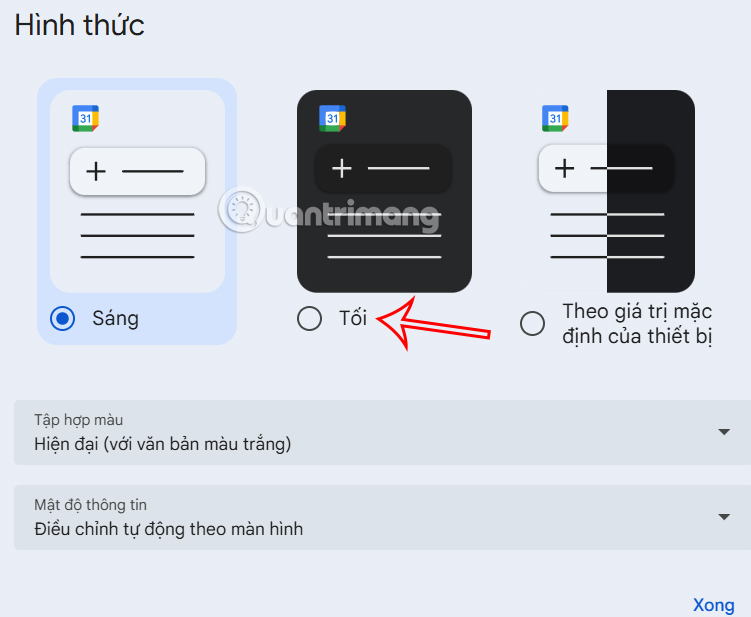
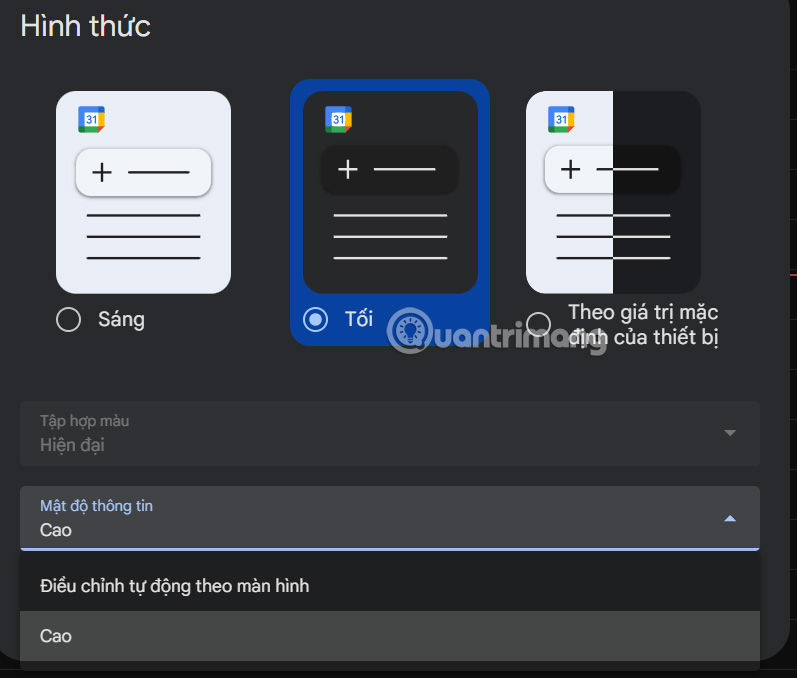
Next, we will see the interface setting option for Google Calendar web platform. By default, Google Calendar is set to Light background. We will select Dark to enable Dark mode for Google Calendar.
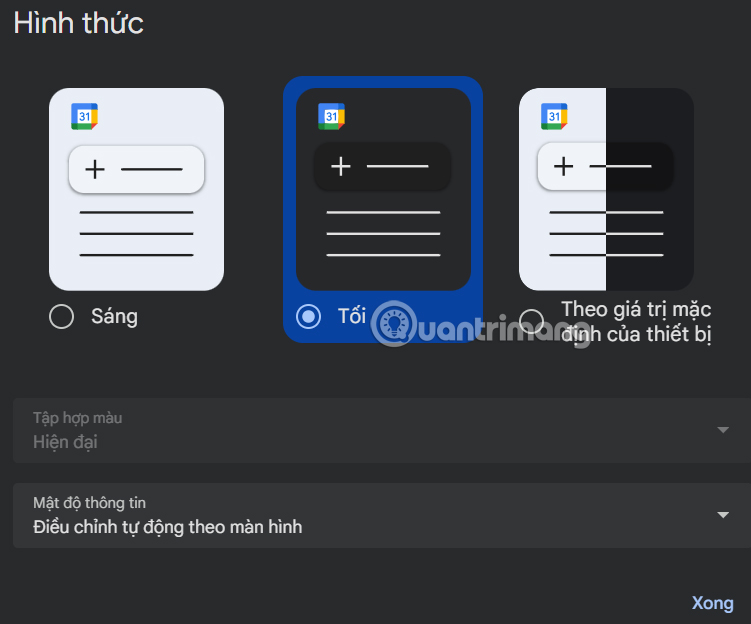
Immediately after that, the Google Calendar interface switched to a dark background as shown below.
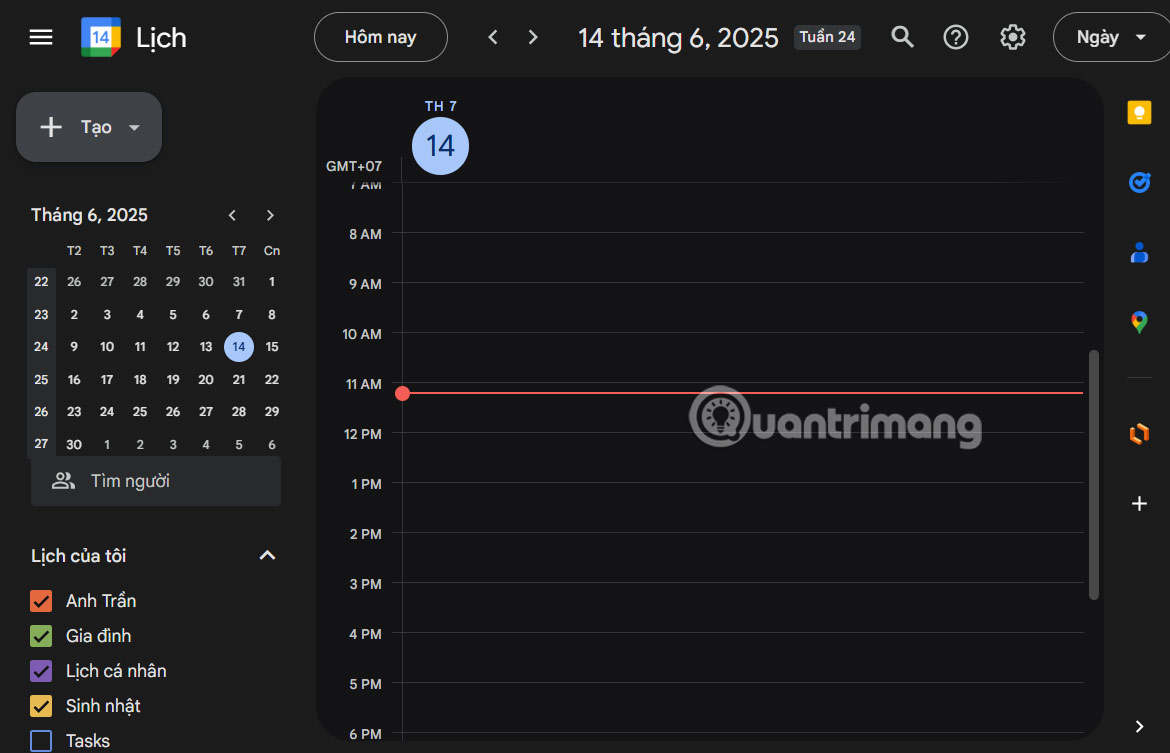
Overall, the dark background interface of Google Calendar is relatively easy to see, beautiful and not too confusing. Text content is displayed in white.
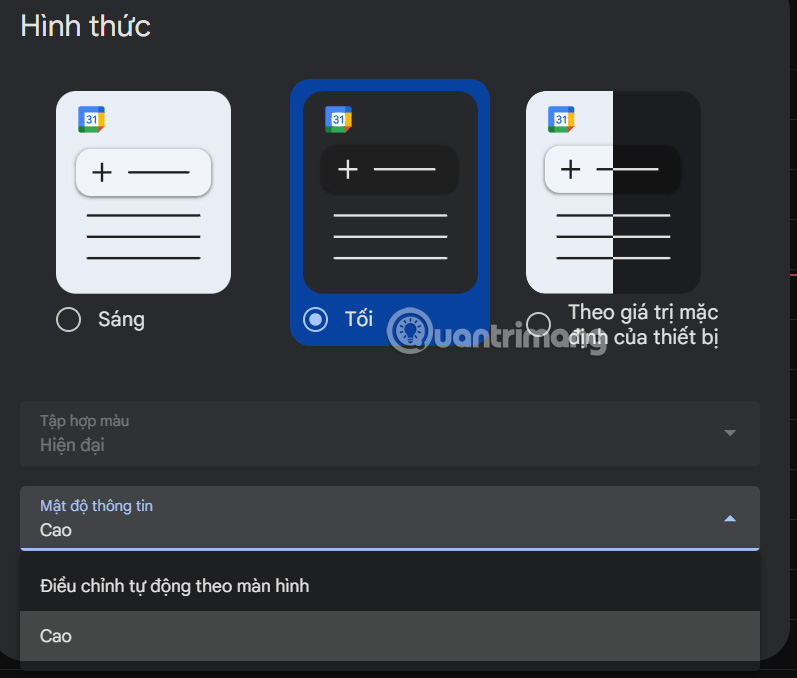
You can also adjust the Information Density if needed.
Step 3:
Google Calendar also supports you to set the interface according to the default of the device. If you turn on the black background for your computer, the Google Calendar interface will also change.
Instructions to enable Google Calendar for Android
Step 1:
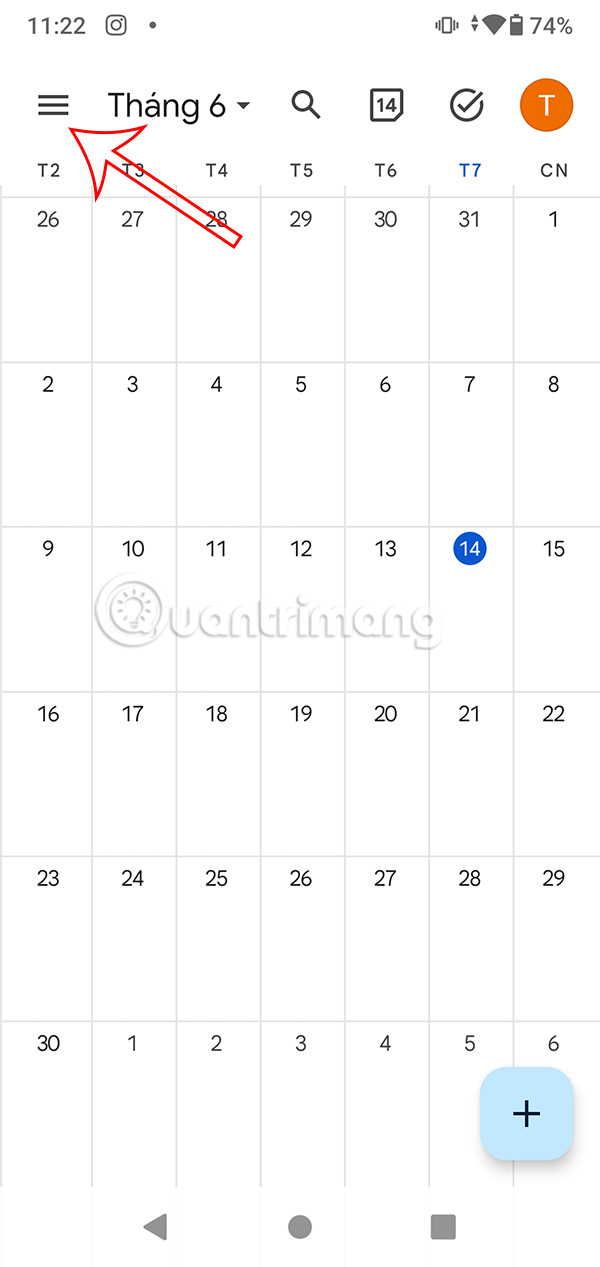
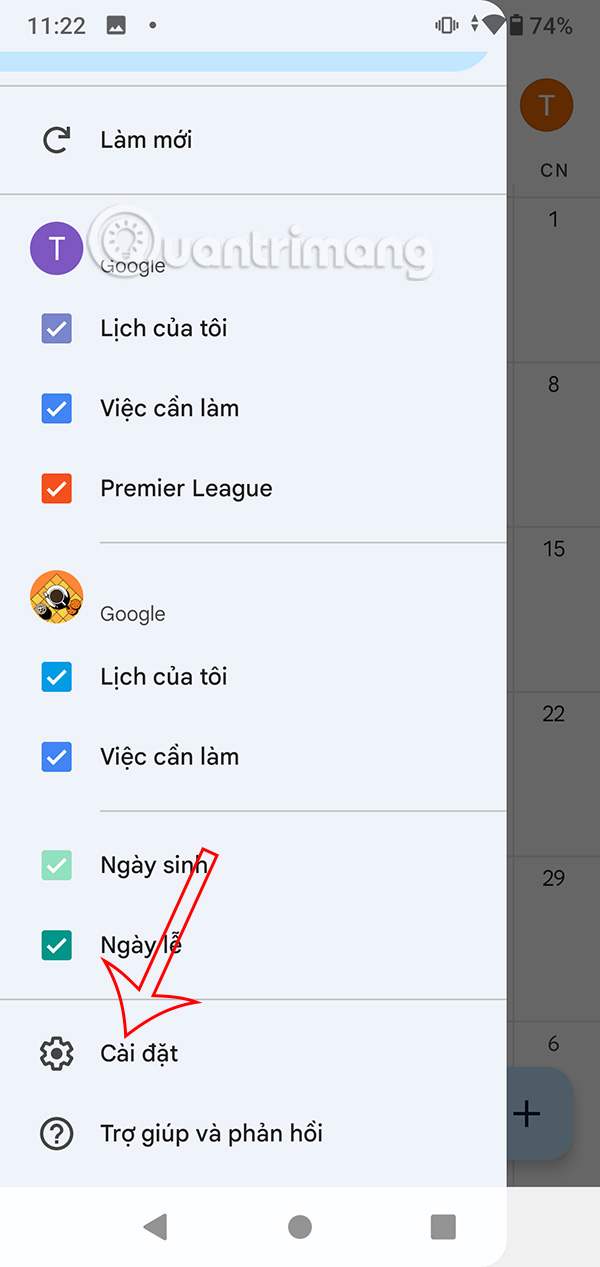
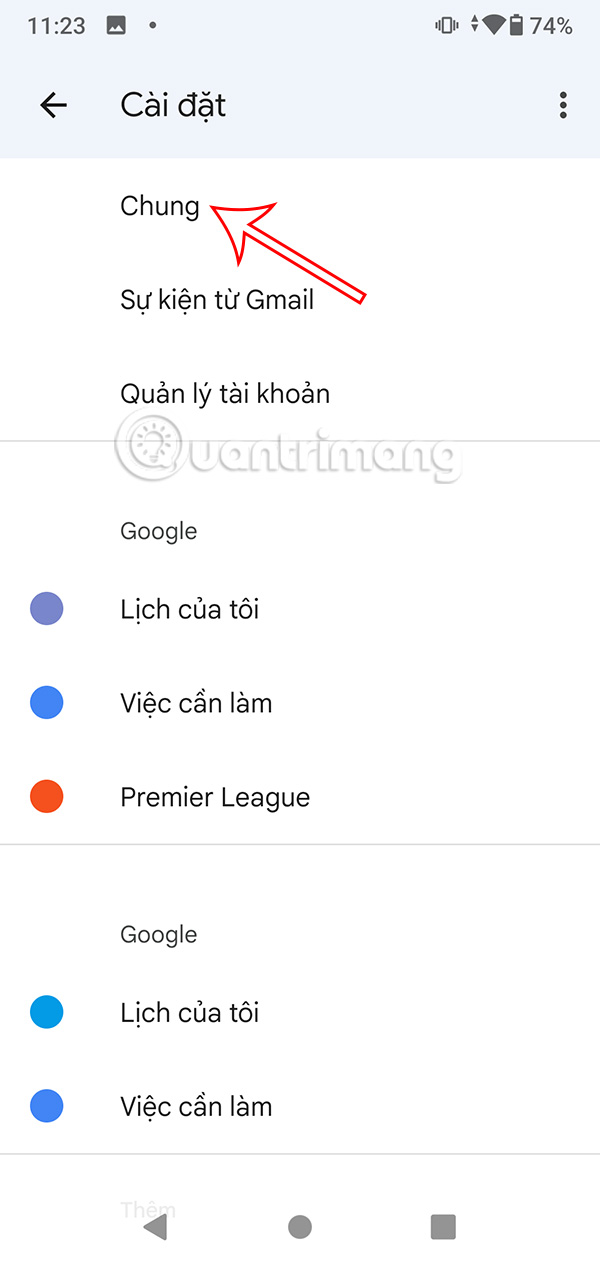
At the Google Calendar application interface on Android, users select the 3-dash icon , then select Settings in the displayed menu.
Step 2:
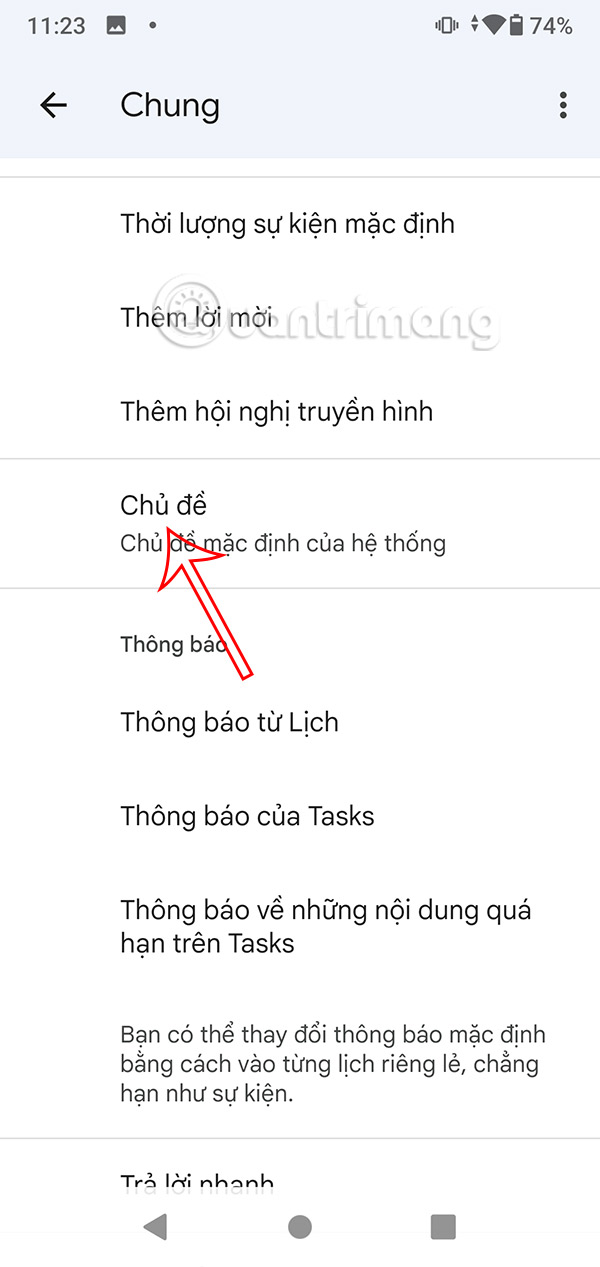
Switch to the setup interface for the Google Calendar application, select General . Continue to select the Theme item to make changes.
Step 3:
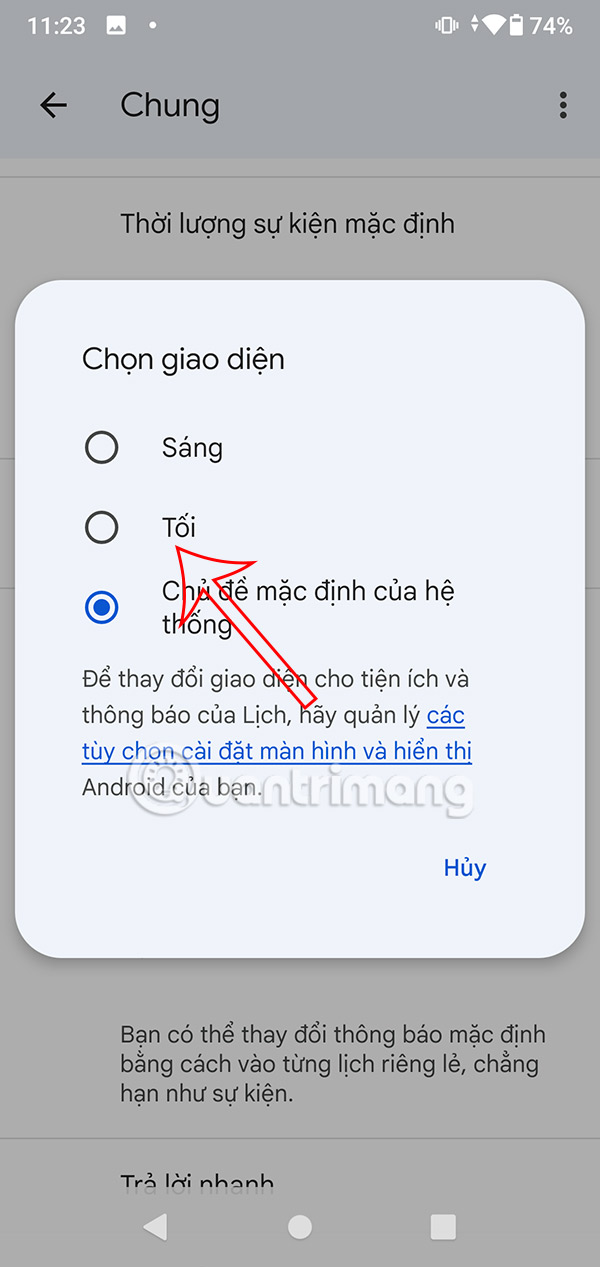
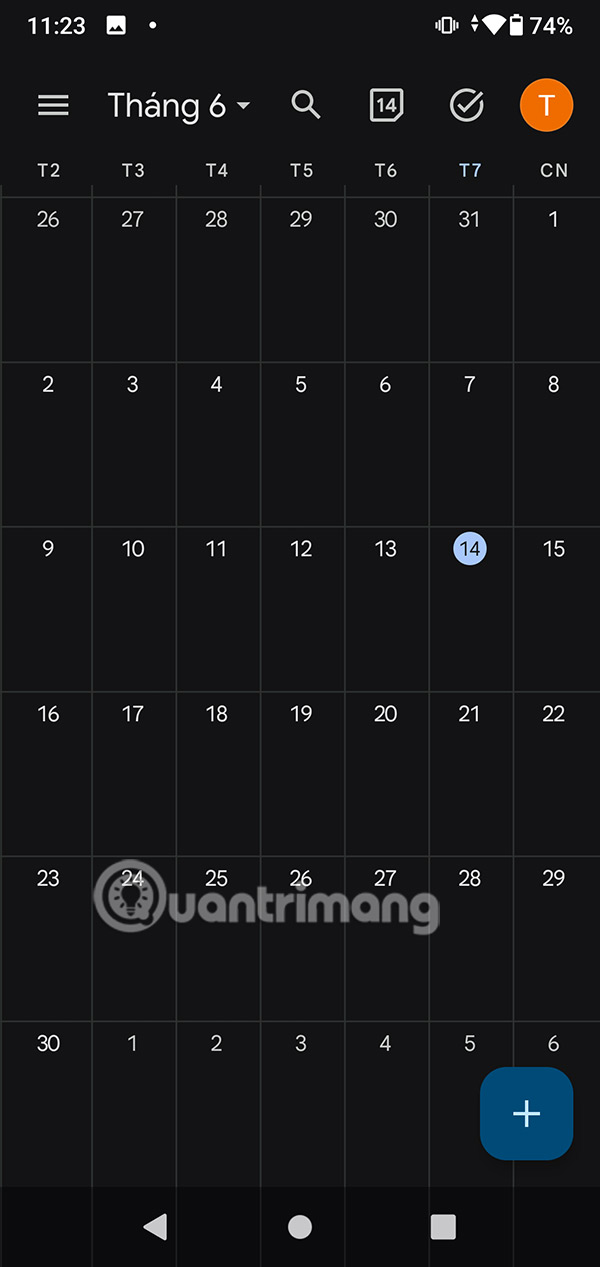
At this time, users also see the interface option for the Google Calendar application. You select the Dark item . As a result, the Google Calendar interface has changed to a dark background as shown.
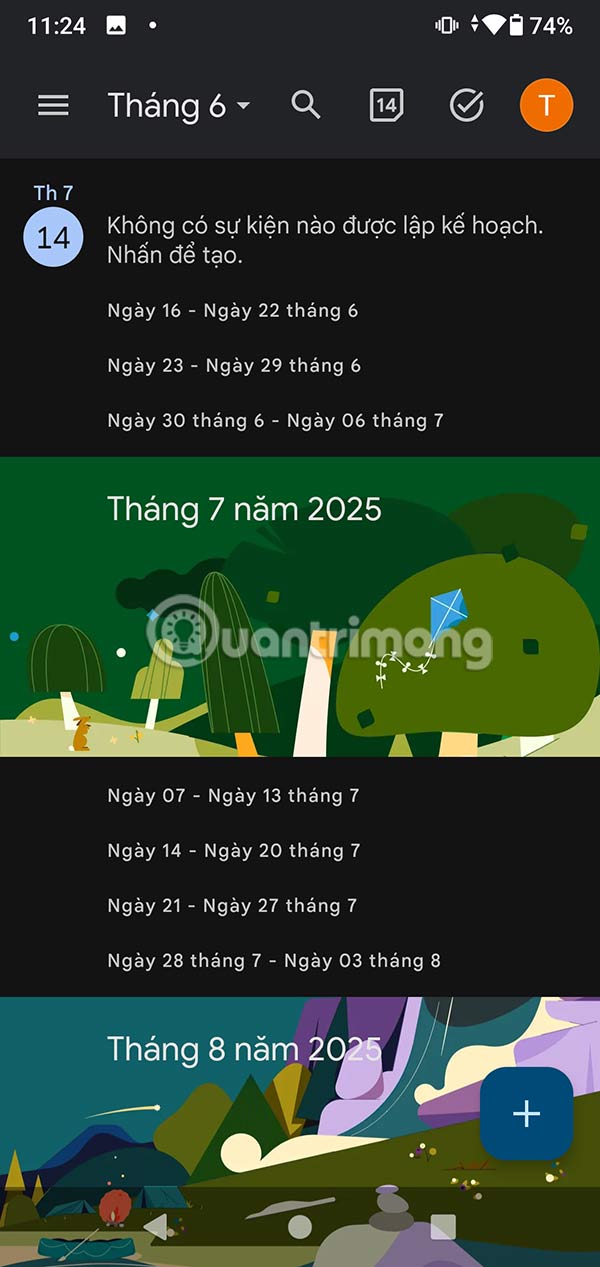
Step 4:
In addition, users can select the system's default theme to change the Google Calendar interface to the phone's interface.
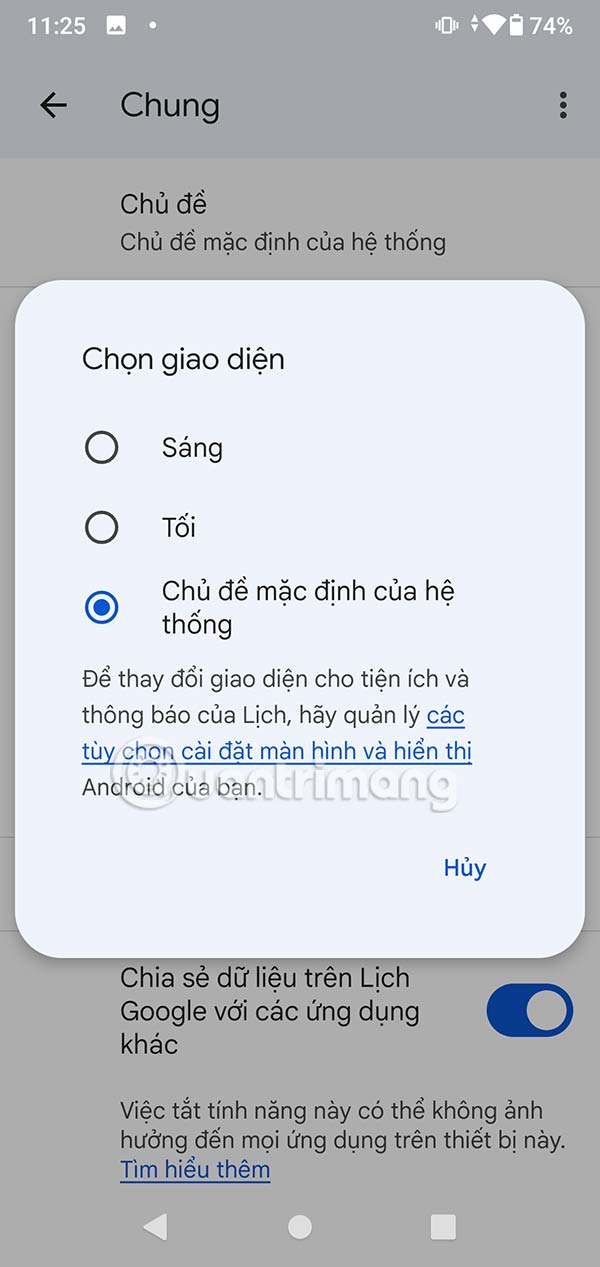
FAQ
What should you know about instructions to enable Dark Mode for Google Calendar web?
At the Google Calendar interface, users select the gear icon at the top. Then select Display format in the menu as shown below.
What should you know about instructions to enable Google Calendar for Android?
At the Google Calendar application interface on Android, users select the 3-dash icon, then select Settings in the displayed menu.
What does this guide cover?
This guide explains enable dark mode for Google Calendar, including the main steps, important details, and practical considerations.
Related Articles
 How to Turn on Dark Mode on Google Keep and Google Calendar3 minutes read
 Google Officially Supports the Dark Background Mode for the3 minutes read
 How to Enable Dark Mode in Ubuntu 20.04 LTS5 minutes read
 How to Enable Dark Mode in Notepad on Windows 10/117 minutes read
 How to Enable Dark Mode for Gmail4 minutes read
 How to Enable Dark Mode for File Explorer, Open Dark Mode4 minutes read
Reader Comments 0
Sign in with email or Google to join the discussion.