Table of Contents
“Hey Copilot” is an optional wake phrase for starting a Copilot Voice conversation on Windows 11. It works only while the PC is on and unlocked, the Copilot app is running, and an internet connection is available for the voice conversation. Wake-word detection occurs locally, while the conversation uses Microsoft's online Copilot service.
Before you enable the wake phrase
- Install or update the Microsoft Copilot app.
- Confirm that Copilot and voice features are available for your account and region.
- Connect a working microphone and allow the app to use it.
- Be aware that any nearby voice can activate the phrase while the PC is unlocked.
The feature is opt-in. Microsoft notes that accents and language variation can also cause accidental activation, so it may not suit a shared workspace.
Enable “Hey Copilot”
- Open the Microsoft Copilot app.
- Open the account or sidebar menu. In versions that show a compact window, select Open sidebar.
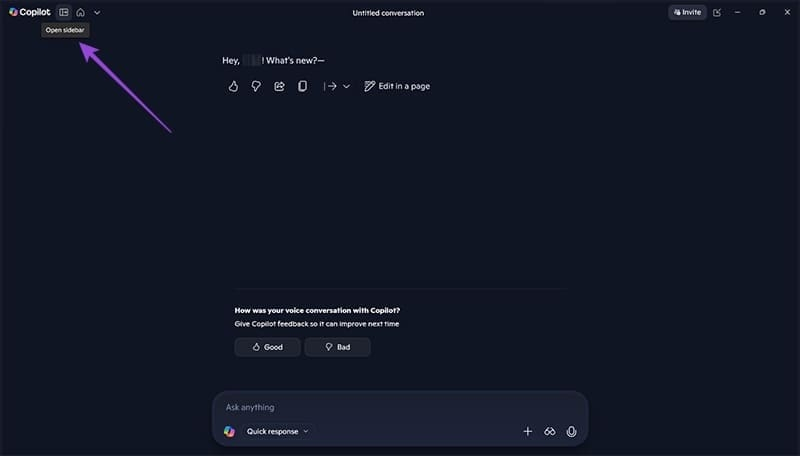
- Select Settings.
- Turn on Listen for “Hey, Copilot” to start a conversation. On Microsoft 365 work or school accounts, the setting may appear under Quick View.
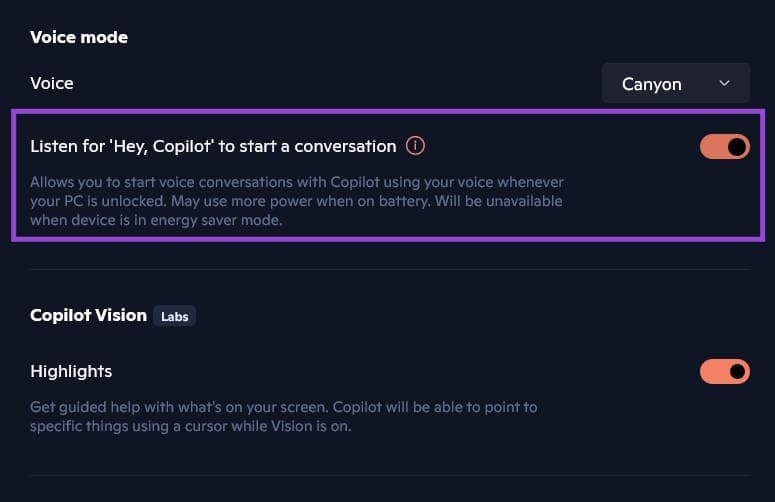
Keep the Copilot app open, minimized, or allowed to run in the background. Say “Hey Copilot,” wait for the chime or floating voice controls, then ask the question. The Windows system tray shows when Copilot is using the microphone.
Microsoft's wake-word guide lists the current requirements and setting path.
What happens after the wake word
The device listens locally for the wake phrase. When it is detected, Copilot opens a voice session and sends the relevant audio to the cloud so it can respond. If the computer is offline, the wake phrase may be recognized but the voice call cannot continue.
Use voice chat for questions, explanations, brainstorming, drafting, or follow-up discussion. Copilot's ability to work with files, apps, calendars, or account data depends on the specific Copilot product, connected services, permissions, and subscription. Do not assume that a spoken request has edited or sent something until the app shows a result or asks for confirmation.
Fix “Hey Copilot” when it does not respond
1. Check Windows microphone permissions
Press Windows + I, then open Privacy & security > Microphone.
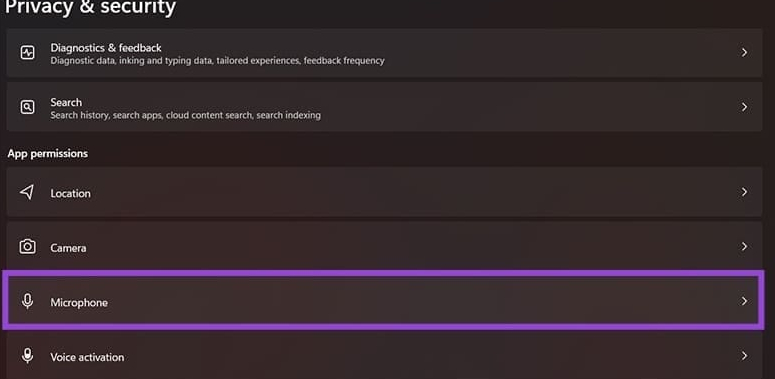
Turn on Microphone access and Let apps access your microphone. If Copilot is listed as a Microsoft Store app, enable its individual switch. If it behaves as a desktop app and does not appear individually, turn on Let desktop apps access your microphone.
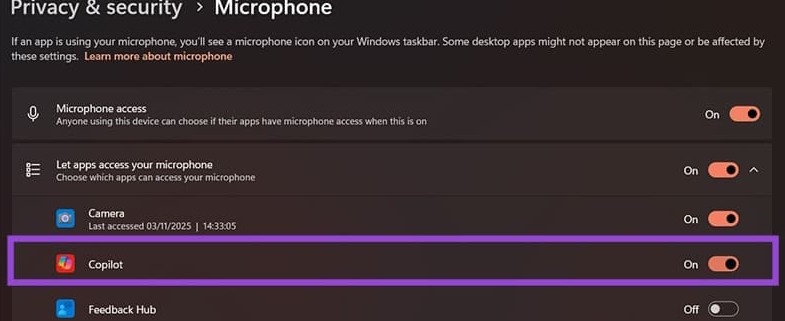
Microsoft explains the difference between Store and desktop app controls in its Windows microphone-permissions guide.
2. Test Copilot Voice manually
Open Copilot and select the microphone icon in the prompt box. If manual voice chat also fails, the problem is likely the microphone, permission, account, service, or connection rather than wake-word recognition.
3. Check the input device
Open Settings > System > Sound > Input, select the intended microphone, and run the available input test. Disconnect unused headsets or webcams if Windows selected the wrong microphone. TipsMake's guide to fixing Windows 11 microphone volume problems covers another common failure mode.
4. Confirm app and background status
The Copilot app must be running. Reopen it after an update, verify that the wake-word toggle remains enabled, and check whether Windows battery or background-app controls are suspending it.
5. Check language and network
Wake-word language support may be narrower than Copilot's typed or spoken conversation languages. Try the phrase clearly in a supported language, minimize background noise, and confirm that the PC can reach Copilot online.
Turn the feature off
Return to Copilot Settings and disable the Listen for “Hey, Copilot” switch. This stops the background wake-phrase behavior; it does not uninstall Copilot or prevent you from starting voice chat manually.
Copilot Voice is not Windows Voice Access
Copilot Voice is designed for conversations with the assistant. Windows Voice Access is the accessibility feature for controlling the PC and dictating text by voice. Choose the feature that matches the task. For a broader comparison of assistants, see ChatGPT versus Microsoft Copilot.
Related Articles
 Instructions to Enable Hey Copilot Command Windows 113 minutes read
 How to Enable Copilot Actions on Windows 11: Step-by-Step Guide3 minutes read
 How to Enable and Disable Copilot in Outlook2 minutes read
 How to Activate Windows Copilot with Vivetool5 minutes read
 How to Turn Off Copilot in Windows 11: Step-by-Step Guide4 minutes read
 These Major Updates Enable Users to Utilize Copilot for Research and Analysis5 minutes read
Reader Comments 0
Sign in with email or Google to join the discussion.