Table of Contents
This practical guide explains how to create slideshow on TikTok. Follow the steps in order, review the requirements first, and use the troubleshooting notes when a setting or option does not work as expected.
What is TikTok Slideshow?
A TikTok Slideshow is a collection of photos that can be posted to your feed or as a Story on the app. This option can be quite useful when you want to post multiple shots from an event or trip.
Just like a regular video, you can edit your slideshow by adding things like filters, stickers, and music before posting it to your TikTok profile.
How to create slideshow on TikTok
To start your first video or photo slideshow, you'll need to use the TikTok app.
Upload Options
This method will create a standard TikTok photo slideshow, one that you can swipe through to see all the photos.
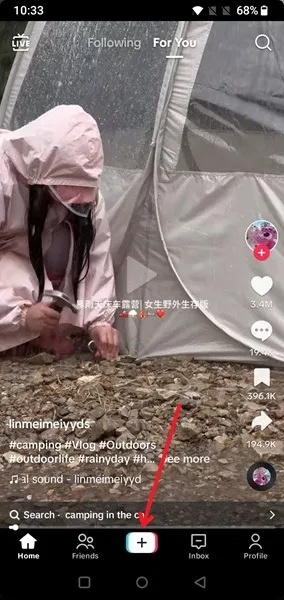
Open the app and tap the + button at the bottom.
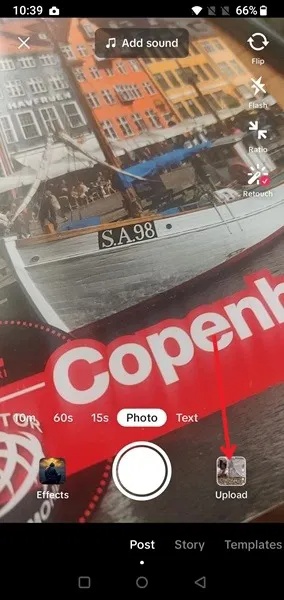
Make sure the next screen shows Photo above the shutter button, then tap Upload .
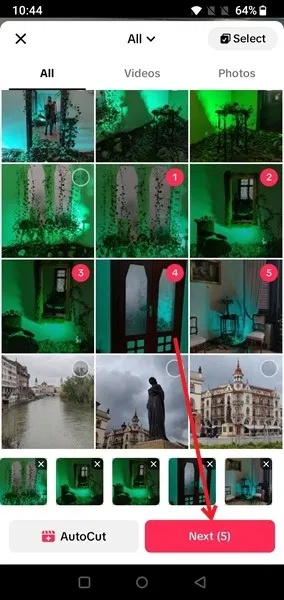
Select all the pictures to include in the slideshow, then click the Next button at the bottom.
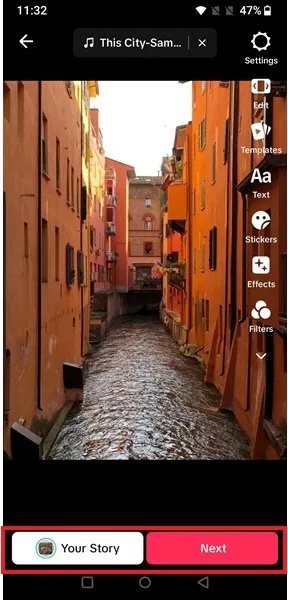
Use the menu in the top right corner of the screen to add stickers, filters or text and customize your image.
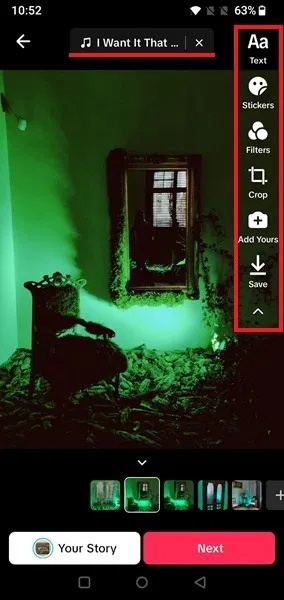
Tap the music note at the top to replace the default song TikTok uses for your photo slideshow. Search the TikTok audio library for a better match.
If you want to add more photos, add them by pressing the + button at the bottom.
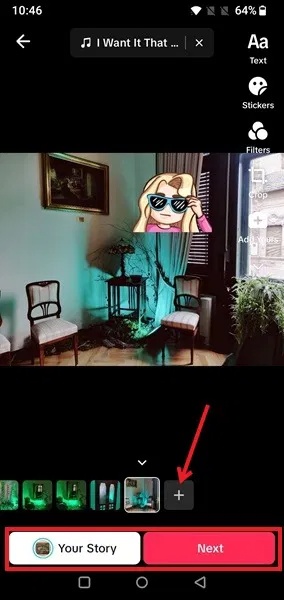
When it's time to post your slideshow, tap the Your Story button. If you want your slideshow to appear on your TikTok profile grid, tap Next .
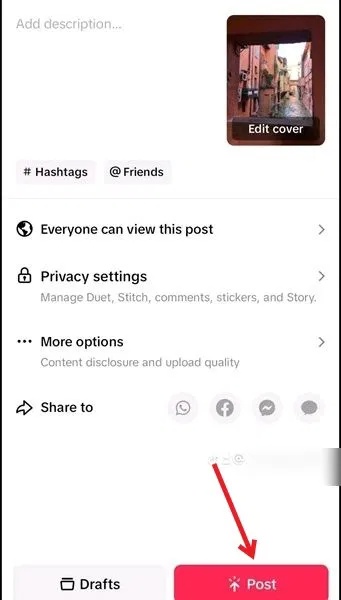
Add a cover photo, description, and #hashtags. Don't forget to choose whether the slideshow is visible to everyone and whether you want to allow comments.
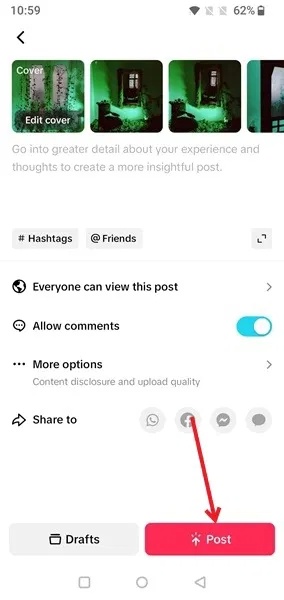
Click Post below to go live with the TikTok photo slideshow.
Effect Options
You can also create a TikTok slideshow via the Effect option. This will create a video slideshow containing multiple images, which will be shuffled when you open the video.
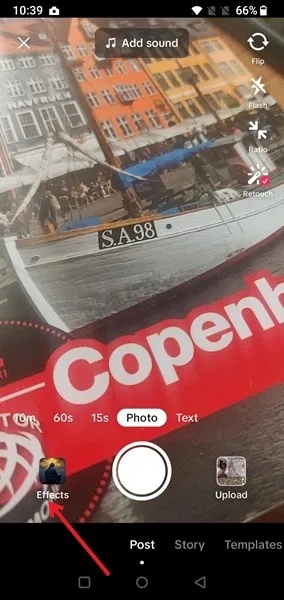
Open TikTok and tap the + button at the bottom, then tap Effect .
Click the magnifying glass icon to search the Effects library.
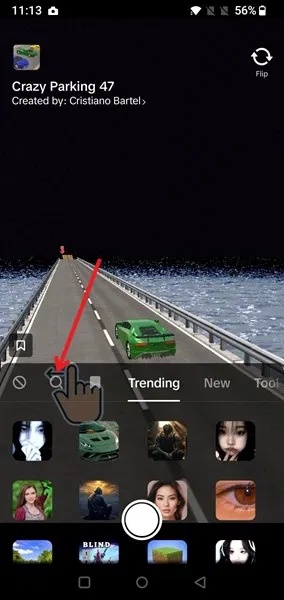
Type "slideshow" and click the video button next to the first result.
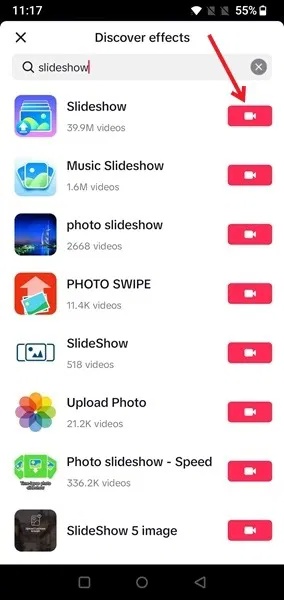
You'll be prompted to add photos to your TikTok slideshow. If the photos are new, you can swipe through the thumbnails at the top. If you need to dig into your library, tap the + button.
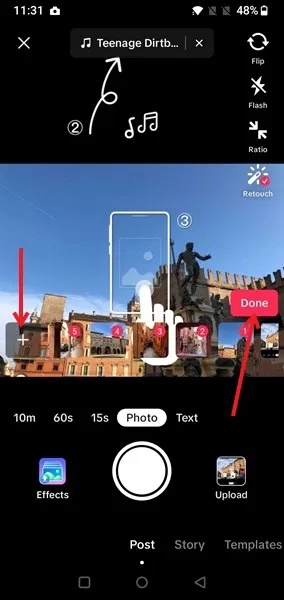
Once you've selected your photos, you can add a song (even to individual slides) by tapping the music note at the top, then tapping Done . Select a timer. In this example, I've selected 15 seconds. Then, tap the red shutter button.
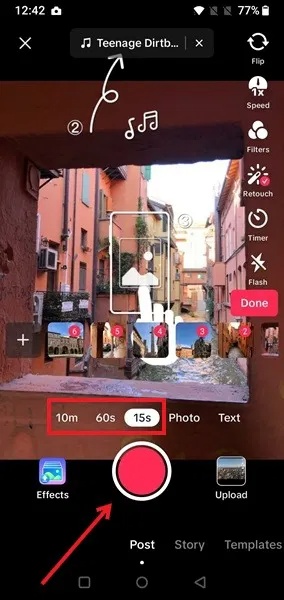
Once the video starts, tap once to skip to the next photo, then tap again to skip to the next photo, and so on.
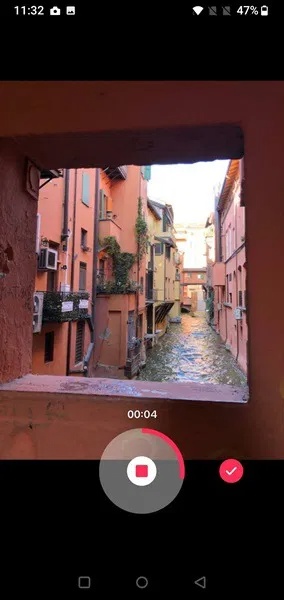
Add filters, stickers, and more on the next screen. Tap Next or Add to Story .
If you selected the previous option, press the Post button after choosing a cover photo, adding a description, etc.
FAQ
What is TikTok Slideshow?
A TikTok Slideshow is a collection of photos that can be posted to your feed or as a Story on the app. This option can be quite useful when you want to post multiple shots from an event or trip.
How to create slideshow on TikTok?
To start your first video or photo slideshow, you'll need to use the TikTok app.
What should you know about upload Options?
This method will create a standard TikTok photo slideshow, one that you can swipe through to see all the photos.
What should you know about effect Options?
You can also create a TikTok slideshow via the Effect option. This will create a video slideshow containing multiple images, which will be shuffled when you open the video.
Related Articles
 Create Photo Slideshow: Complete Guide12 minutes read
 How to Create a Slideshow: Step-by-Step Guide16 minutes read
 How to Create AI Group Photos in TikTok: Step-by-Step Guide4 minutes read
 Instructions for Running Photo Slideshow from File Explorer on4 minutes read
 7 Top TikTok Alternatives to Create and Share Videos: Top Picks and Buying Guide7 minutes read
 TikTok Outro Video: How to Create a Check Mark Outro Video on TikTok3 minutes read
Reader Comments 0
Sign in with email or Google to join the discussion.