Table of Contents
In this guide, users will learn how to find the purchase date of an iPhone or other Apple devices. Knowing this information can be useful for warranty claims, reselling the device.
Want to know the exact purchase date of your iPhone, iPad, Mac, Apple Watch, or even AirPods? In this guide, you'll learn how to find the purchase date of your iPhone or other Apple devices. Knowing this information can be useful for making warranty claims, reselling your device, or simply keeping track of the Apple products you own.
Instructions for checking iPhone purchase date via Apple website
Step 1:
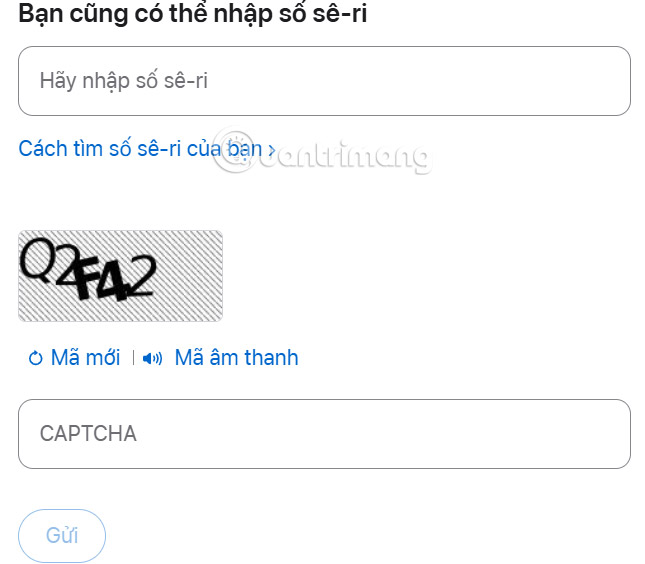
You access the AppleCare and warranty website below of Apple. Then Enter the iPhone serial number Or Apple device into the interface and enter the code displayed to verify and Press Submit Below.
- Visit the AppleCare and warranty page
Step 2:
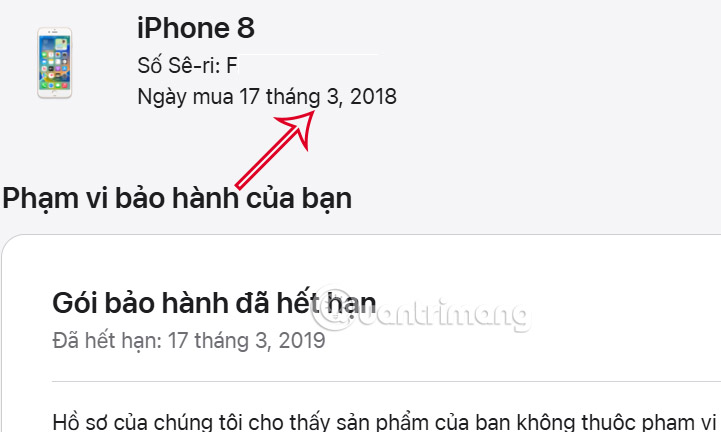
You will then receive the device purchase date along with warranty information.
How to check iPhone purchase date via Apple ID
You can also check the exact purchase date of your Apple device through your Apple ID, using the Apple website or the Apple Store app.
Open The Apple Store And Tap your profile picture In the right corner. Then Tap Orders To find a list of your Apple orders and their dates.

If you purchase your Apple device from a third-party retailer like Amazon or a carrier, you'll only find the expected purchase date on Apple's website.
FAQ
What should you know about check the purchase date of iPhone, iPad, mac, and apple watch?
In practical terms, in this guide, users will learn how to find the purchase date of an iPhone or other Apple devices. Knowing this information can be useful for warranty claims, reselling the device.
Why does check the purchase date of iPhone, iPad, mac, and apple watch matter?
The article highlights that in this guide, you'll learn how to find the purchase date of your iPhone or other Apple devices.
What is the main takeaway?
The main takeaway is that how to check iPhone purchase date via Apple ID You can also check the exact purchase date of your Apple device through your Apple ID, using the Apple website or the Apple Store app.
Related Articles
 How to Check the Original Purchase Date of the IPhone/iPad on Apple's Website?3 minutes read
 How to Check the Purchase History in the App on iPhone, iPad4 minutes read
 Apple Acquired the iPhone and iPad with Water3 minutes read
 How to Ping Apple Watch from iPhone4 minutes read
 Instructions on 4 Ways to Check Apple Warranty Accurately3 minutes read
 How to Take Screenshots on Apple Watch2 minutes read
Reader Comments 0
Sign in with email or Google to join the discussion.