Table of Contents
Use this guide to understand cut music with mp3 splitter & joiner and the factors that affect it. The information is organized to make the topic easier to apply in practice.
MP3 Splitter & Joiner Cuts music On a computer to help users get quality audio files, create fast phone ringtones, support WAV, MP3, MPA, WMA, OGG, AIF formats. Especially the app allows downloading audio files up to 4GB.
How Cut Music with MP3 Splitter & Joiner Works
Along with many software to cut music, edit popular audio files such as Format Factory, Mp3splt or Online Audio Cutter services, MP3 Splitter & Joiner also helps users to cut quality audio files with specialized features. career. In addition to the ability to cut audio files, the app also features the ability to merge audio files into a single file, without sound quality being changed. In particular, the tool supports downloading audio files up to 4GB, which quite a few software is available.
The steps below explain how to read music by MP3 Splitter & Joiner software.
Step 1:
Click the link below to download MP3 Splitter & Joiner software for your computer.
- Download MP3 Splitter & Joiner Windows
Step 2:
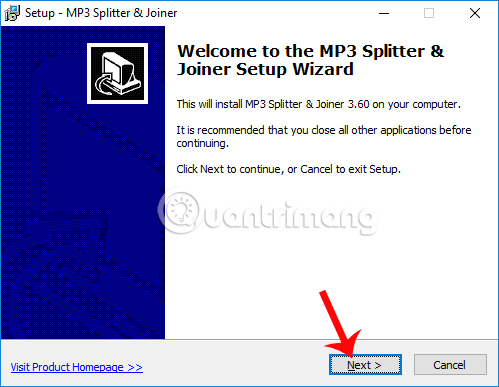
At the first installation interface, users Clicks Next To continue.
Step 3:
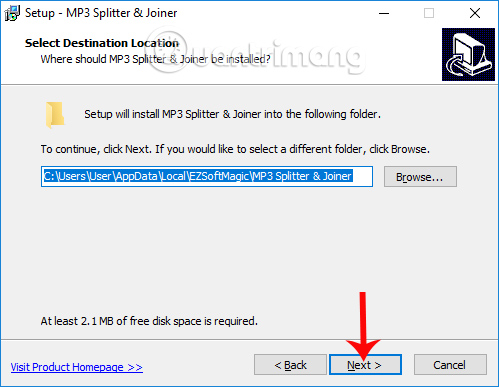
Next, when needed to change the app installation directory, click the Browse button, or do not click The Next button To move to the next step.
Step 4:
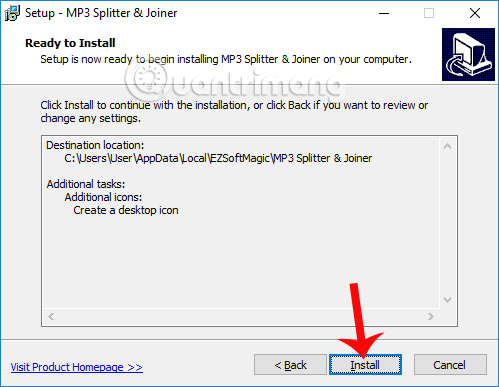
Click Install To install the app on the computer.
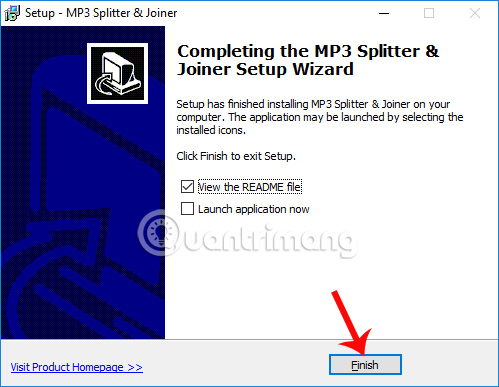
We wait for the installation of MP3 Splitter & Joiner to finish on the computer and then Click Finish To turn off the installation interface.
Step 5:
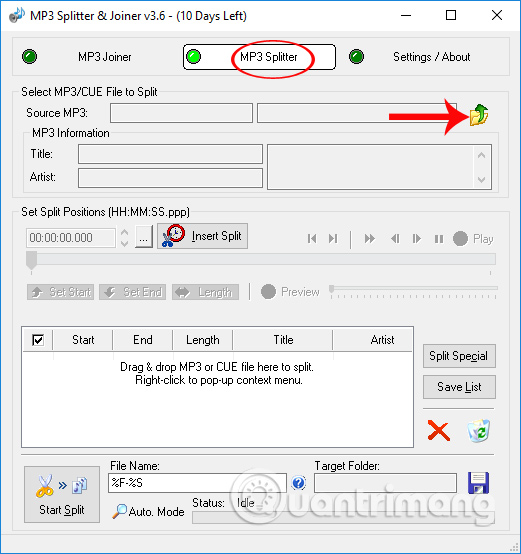
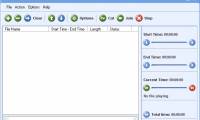
Start the app after the installation is complete. To then cut music you click MP3 Splitter , then click The folder icon with the blue arrow To upload the file to the app. Or you can press Alt + A to quickly open the computer folder.
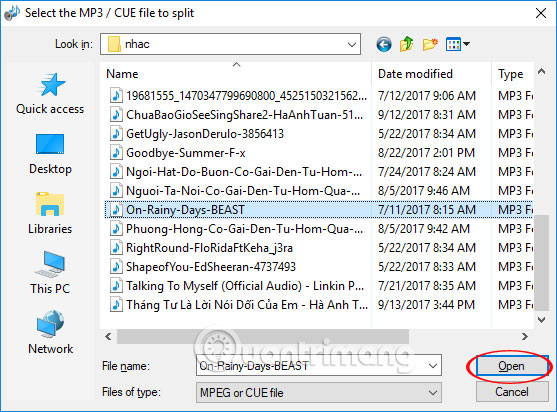
The computer folder appears, navigate to the Audio file you want to cut In MP3 Splitter & Joiner and Click Open To open it.
Step 6:
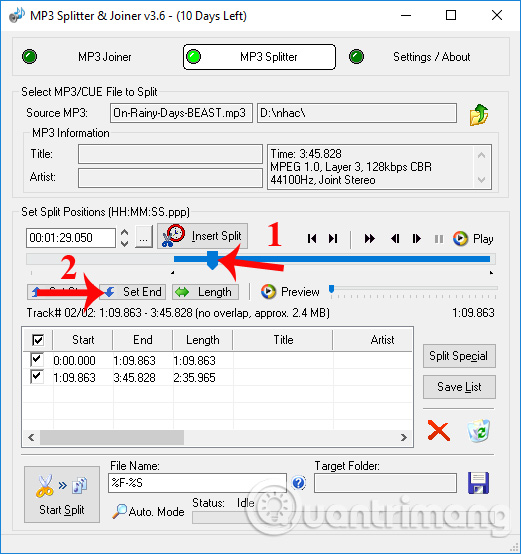
Next you will select the time frame at the beginning and end to cut the audio file. At The blue horizontal bar , move The mold button to the first point you want to cut . To check the correct point to cut, click the Play icon as shown below.
A quick way to select that time is to enter the time directly into the time frame within the interface. Finally Click Set Start To select this cut point.

Step 7:
We then move the landmark to The end of the song we want to cut , then Press Set End To select this end point.
Step 8:
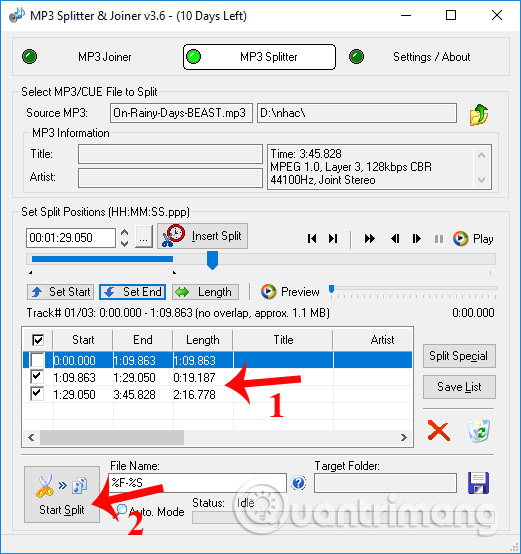
Soon we will see the time frame of the music file with 3 different segments, showing the detailed time for each piece. The time segment that users proceeds to cut above will be in the 2nd position. when needed to change it, click the beginning and the end time and then edit again. Or if you do not want to export any paragraph, leave the volume at that time.
After completing the time editing, as well as selecting the music you want to use, Press Start Split To perform the audio cut.
Step 9:
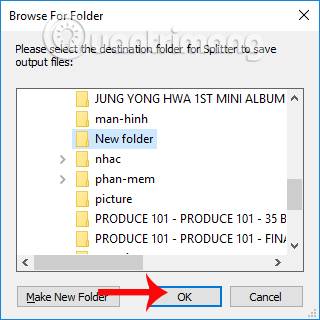
A folder to save audio files appears after cutting. Click the folder to save the output file and then select The OK button .
Step 10:
The audio file will be cut immediately afterwards. the app interface will display the Success notification Interface as shown below. We can click Open Folder To immediately access the folder to save music files after cutting is finished.

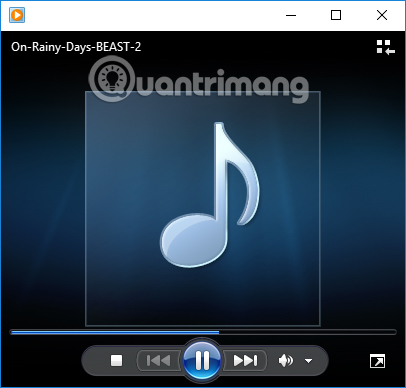
Audio files can be opened with popular audio playback software, such as Windows Media Player, VLC,. Sound quality has not been changed and remains the same.
Above is the instruction to use MP3 Splitter & Joiner to cut music, audio files with the same sound quality. Operation is quick, not time consuming. Besides, the app also allows users to select the music tracks they want to cut to convert them into separate audio files, based on the time frame you set yourself.
I wish you all success!
FAQ
What is the main benefit of cut music with mp3 splitter & joiner?
The main benefit is a clearer understanding of the topic and a practical way to apply the information covered in this guide.
What should I check before using cut music with mp3 splitter & joiner?
Confirm compatibility, review the required settings, protect important data, and use the latest supported version whenever possible.
What should I do if the result is different?
Repeat the steps carefully, verify permissions and version differences, and consult the product's official support documentation for changes not shown in the article.
Related Articles
 Using MP3 Splitter & Joiner to Merge Audio Files6 minutes read
 What Is FFSJ? Instructions on How to Use FFSJ File Splitter Software5 minutes read
 The 5 Top HDMI Splitters of 2023: Recommended Choices7 minutes read
 Instructions for Checking MD5 Code When Downloading Files2 minutes read
 Instructions for Cutting MP3 Files6 minutes read
 How to Combine Audio and Mp3 Music into a Single Post5 minutes read
Reader Comments 0
Sign in with email or Google to join the discussion.