Table of Contents
Have you ever had to use manual methods to find your phone number? With a Samsung Galaxy, you don't have to, because the device itself provides several simple and easy ways to check your phone number .
Knowing how to check your phone number on a Samsung Galaxy will help you manage your device more proactively and become familiar with the Samsung Galaxy system. For example, the Samsung Galaxy S8, S8 Plus, and Note 8 are all flagship devices with many attractive features such as 4K video recording on the Samsung S8 or facial recognition unlocking. These are just a few of the features you need to know when using this phone, as shown in TipsMake. But before delving into these features, let's first check your phone number on your Samsung Galaxy with TipsMake.
1. Check the phone number on your Samsung Galaxy using your phone information.
The phone information section is where you get the most comprehensive overview of your Samsung Galaxy, including where you can check and view your phone number .
Step 1
To check your phone number on a Samsung Galaxy, simply go to Settings . Here you can configure and view many things, not just your phone number.
Step 2
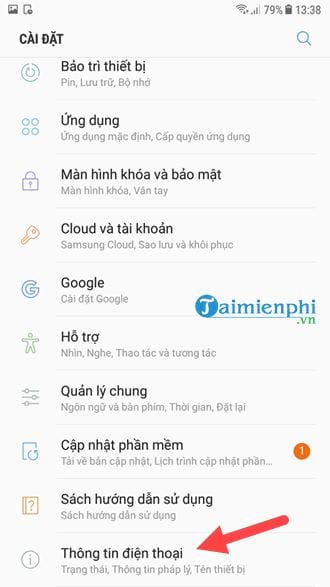
Then simply scroll down to the bottom, where you will find the phone information section . Tap on it to check your phone number on your Samsung Galaxy.
Step 3
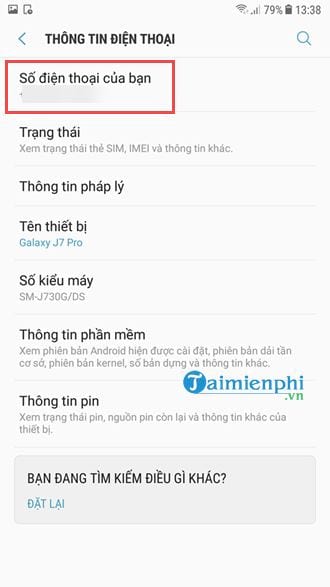
Right on the first line, you will see your phone number displayed, and that is the phone number you are looking for.
2. Check your phone number on your Samsung Galaxy in SIM Management.
Every phone has a SIM management section, and that's where you can view your phone number on Samsung Galaxy phones.
Step 1
To access SIM management on your Samsung Galaxy, you need to go to Settings .
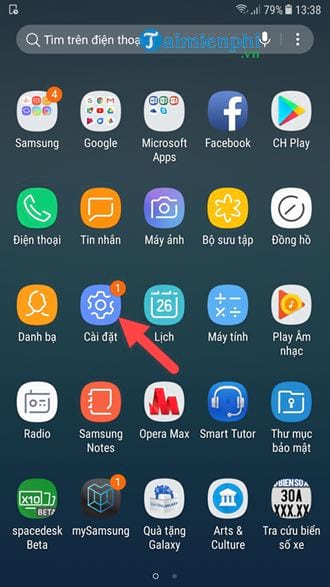
Step 2
Right on the first line you will see a connection option ; click on it.
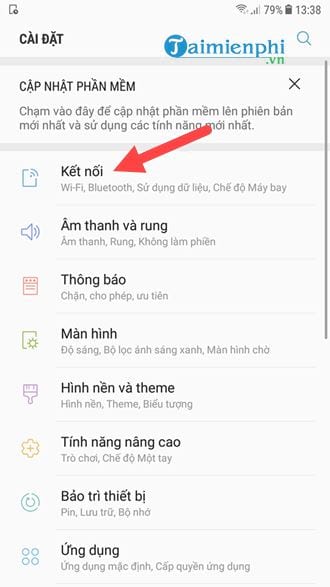
Step 3
In the Connections section, select SIM Management , where you can check your phone number on your Samsung Galaxy.
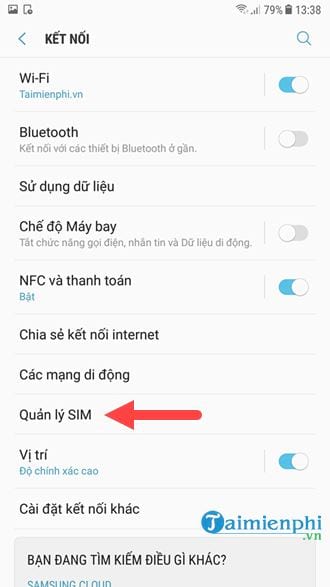
Step 4
Here you will see SIM 1 and SIM 2 if you have inserted both SIMs; there you will see your Samsung Galaxy phone number.
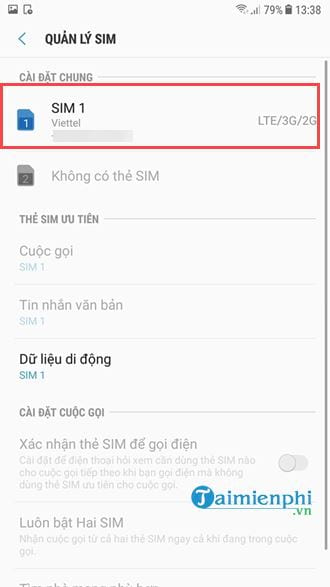
With the two methods above, you can easily check your phone number on your Samsung Galaxy. Simply insert your SIM card into your Samsung Galaxy phone, and the system will immediately recognize your phone number.
For those using a Samsung Galaxy S8 or S8 Plus, you're probably aware that it has many battery-draining features, and battery saving is crucial on the Samsung Galaxy S8 and S8 Plus. Therefore, you should use them carefully and turn them on and off appropriately to save battery life on Samsung, not only the Samsung Galaxy S8 and S8 Plus but also similar Samsung Galaxy products.
Related Articles
 How to How to View Phone Number on Samsung Galaxy Device: Clear Instructions5 minutes read
 The Easiest Way to View My Phone Number6 minutes read
 Review Samsung Galaxy S20: First 5g Phone in 20207 minutes read
 Should You Buy the Samsung M51 Phone?5 minutes read
 Galaxy S20 and S20 +:+: Snapdragon 865 // Exynos 990, 8 // 12gb4 minutes read
 How to Connect Your Phone to a Samsung TV: Practical Guide8 minutes read
Reader Comments 0
Sign in with email or Google to join the discussion.