Table of Contents
Explore 4 settings to make your pixel phone smarter, including the key concepts, practical examples, important considerations, and useful guidance.
These settings include faster app launch times and quicker AI activation (even faster than using ShareSheet to send content directly to Gemini).
Customize shortcuts on the lock screen
Select two apps you want quick access to
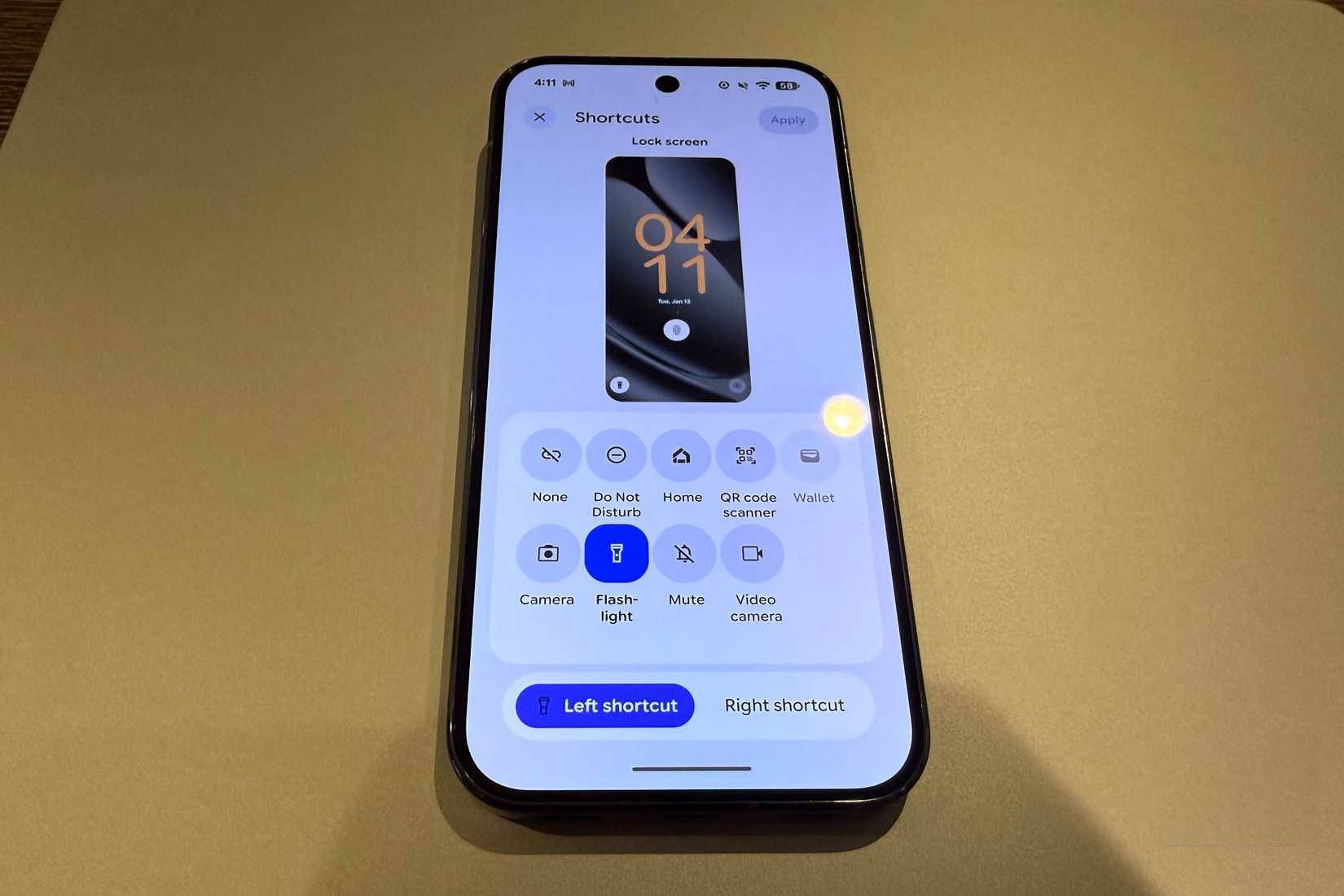
Pixel lets you select two shortcuts on the lock screen; tapping and holding these shortcuts will give you instant access to the app. Think of this space as your toolkit: Some people like to put Flashlight and Do Not Disturb on the lock screen.
The flashlight is obvious: Sometimes you need a quick light. Quick access to Do Not Disturb (DND) mode is useful when you need to mute everything on your phone, for example, when you're at a movie theater or in other places where you don't want your phone making noise. To customize lock screen shortcuts, go to Settings > Display and Touch > Lock Screen > Shortcuts .
Unfortunately, the Pixel doesn't allow you to add other apps to the lock screen through this interface. This is quite a shame, as tools like the calendar or calculator would be very useful here. Instead, you can add shortcuts for any app to the Quick Settings panel.
To do this, pull down twice from the top of the screen to open Quick Settings. Tap the pencil icon to edit this panel, then find Calculator (or any other option you want to add) and tap the plus sign.
Enable fingerprint unlock when the screen is off
Faster unlocking, especially when the phone is on a table
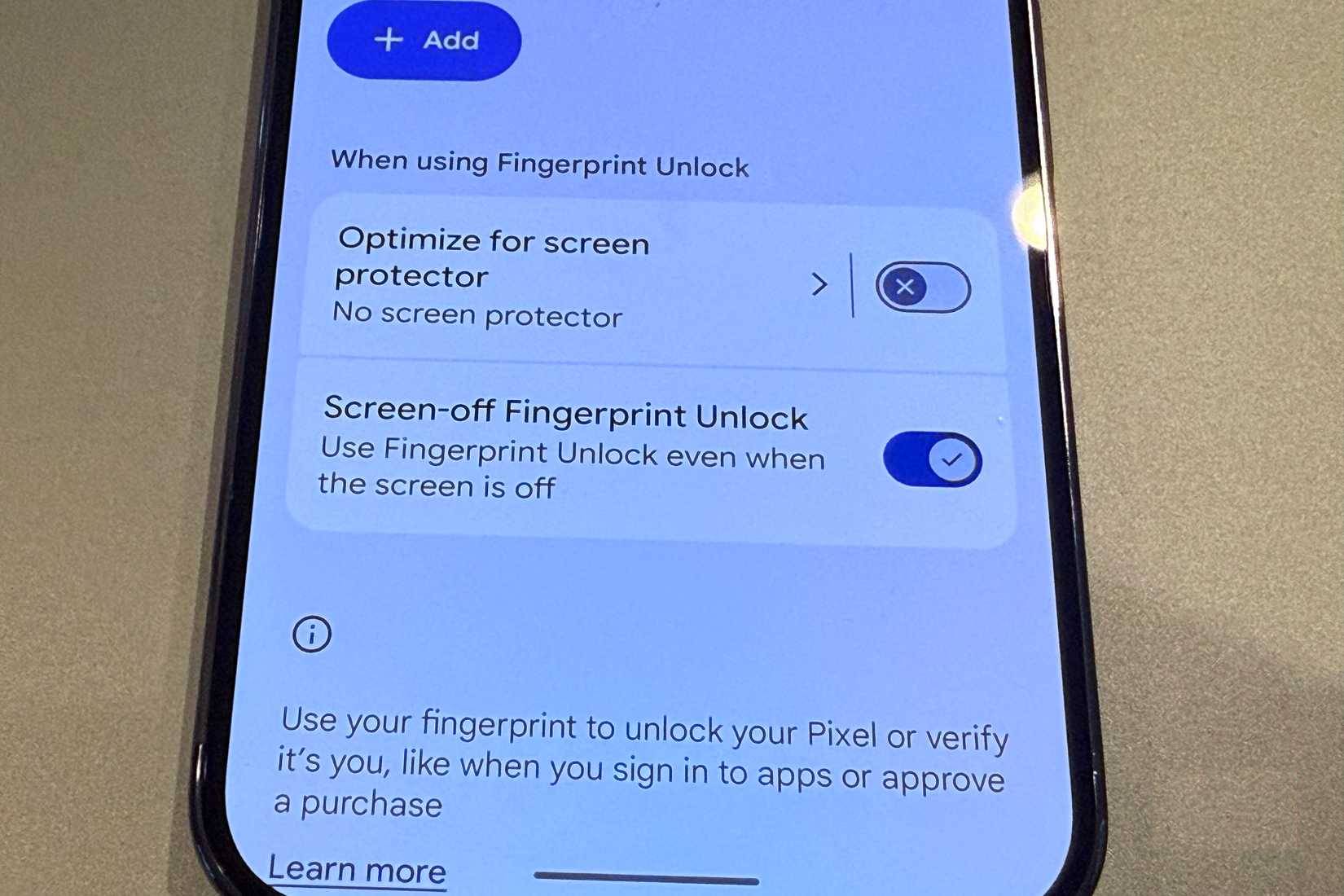
The latest Pixel models feature ultrasonic fingerprint scanners, which are faster than optical ones. By default, you first have to tap the screen to wake the device, then authenticate with your fingerprint. But a small setting in the Security & Privacy menu allows you to unlock the device even when the screen is off – ideal for unlocking at a table.
The key is that you have to estimate the location of the fingerprint sensor, as there are no visual cues to indicate its position when the screen is off. But after some practice, it will become familiar.
To do this, go to Settings > Security & privacy > Fingerprint > Enable Screen-off Fingerprint Unlock . While you're here, you can also double-check your registered fingerprints.
Activate Gemini with a simple gesture
The quickest way to activate AI
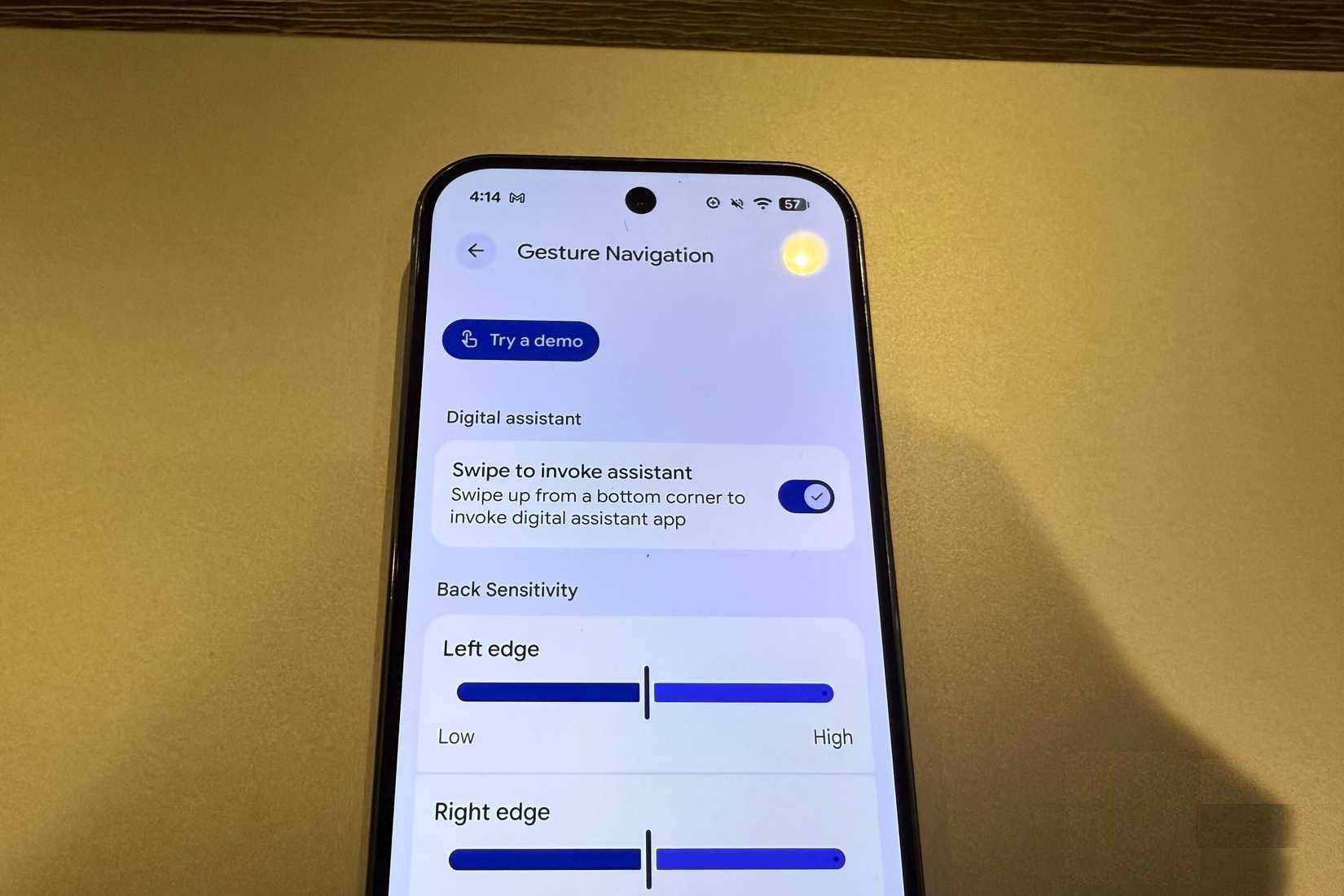
There's another quick way to activate Gemini hidden within the device's settings. This setting allows you to activate Gemini with a swipe gesture from either of the bottom corners of the phone. People like this because the swipe gesture before asking Gemini about the on-screen content feels very natural.
For example, if you're reading an article, you can make gestures and say, "What are the main points of this article?" or if you're looking at a picture of a beautiful car, you can say, "How much does this car cost? How many horsepower does it have?", etc.
Of course, you can also activate Gemini by pressing and holding the power button, or by directly opening the app, but this gesture is even faster. To enable it, go to Settings > System > Gestures > Navigation Mode and turn on Swipe to invoke assistant .
Turn on maximum screen resolution
The default resolution is 1080p
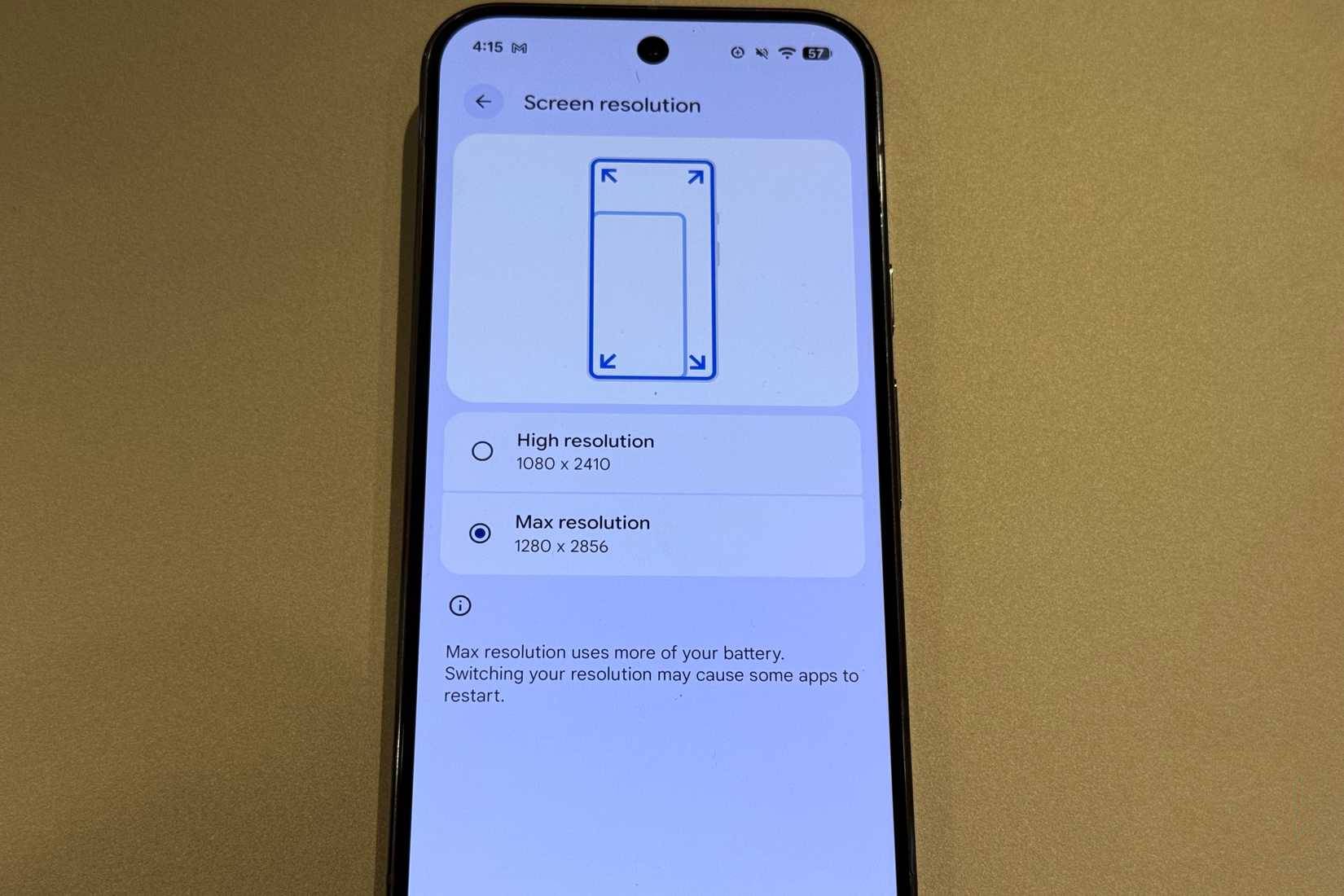
From the factory, most Pixel phones aren't set to use their maximum screen resolution. On the Pixel 10 Pro (which has a lot of time-saving features), the screen has a resolution of 1280 x 2856. But to save battery and improve performance a bit, the resolution is set at 1080 x 2410.
If you want to get the most out of your phone, setting the resolution to maximum will help you do just that. Tests show that setting the resolution to maximum doesn't significantly affect performance or battery life, but results can vary depending on how you use your phone. For example, if you play a lot of games, battery life might decrease when using maximum resolution.
However, for web browsing and productivity applications, a higher resolution makes text and images sharper and easier to read. To change this, go to Settings > Display and Touch > Screen Resolution .
Final Thoughts
Understanding 4 settings to make your pixel phone smarter makes it easier to evaluate the information and apply the most relevant recommendations. Focus on the key points above and verify details that may change over time.
FAQ
What is 4 settings to make your pixel phone smarter?
Explore 4 settings to make your pixel phone smarter, including the key concepts, practical examples, important considerations, and useful guidance.
What key points does this article cover?
The article focuses on Customize shortcuts on the lock screen, Select two apps you want quick access to, Enable fingerprint unlock when the screen is off, with practical explanations and examples.
How can you use this information in practice?
Use the explanations to compare options, verify important details, and make a more informed decision. Apply the recommendations that best match your goals and situation.
Related Articles
 Google Is About to Launch Pixel 3 in October, the XL Version Will Have Rabbit Ears5 minutes read
 Compare Nothing Phone 1 and Google Pixel 6a9 minutes read
 9 iPhone Settings to Change for Privacy and Convenience9 minutes read
 If You Ignore This Feature, You're Not Using Your Pixel Phone Properly.7 minutes read
 Compare Google Pixel 6 and Pixel 6 Pro8 minutes read
 Google Stops Production of Pixel 53 minutes read
Reader Comments 0
Sign in with email or Google to join the discussion.