Table of Contents
This updated guide compares best new features of one UI 7 on galaxy z flip 6 and highlights the details that matter most. The long-awaited One UI 7 update is slowly rolling out to more devices, including the Galaxy Z Flip 6. In the meantime, refreshed features and a polished user interface have made the foldable phone noticeably faster, smoother, and more intuitive.
1. Now Bar Brings Notifications Directly to Android
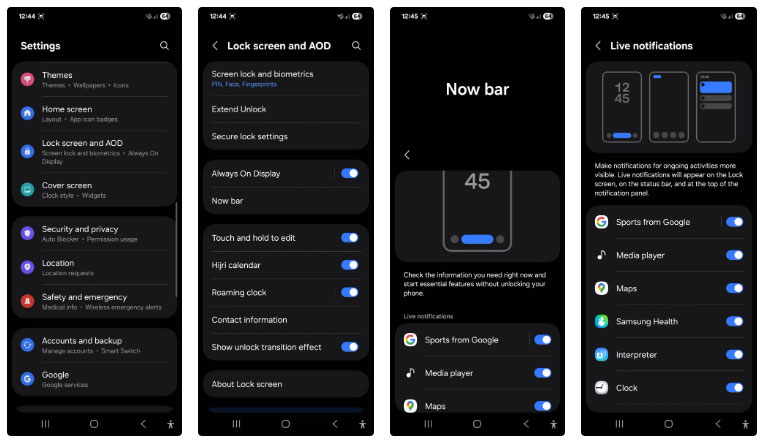
One UI 7 brings a number of small but meaningful changes that improve day-to-day usability. One of my favorite additions is the Now Bar, a pill-shaped overlay that displays contextual information from background apps, allowing you to interact with them without unlocking your device.
When playing music on YouTube Music, the Now Bar will show playback controls. During a morning run, it will show your Samsung Health progress alongside what's playing through your Galaxy Buds. For navigation, it will show turn-by-turn directions from Google Maps without unlocking your phone.
You can customize the Now Bar from the Lock Screen and AOD settings page. open Settings > Lock Screen and AOD > Now Bar . You can turn on the toggles for Media Player, Maps, Samsung Health, and Clock, and turn off the other options.
If you use Always On Display , open Lock Screen and AOD , tap Always On Display , then turn on the Show Now bar option.
Mini Lock Screen Widget
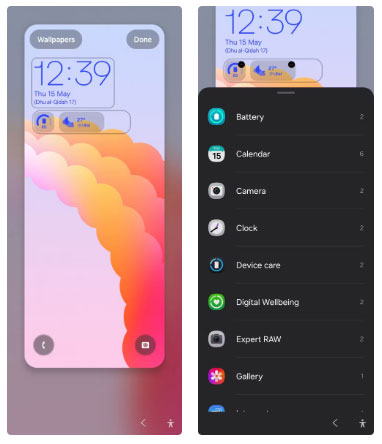
Lock screen widgets have also been completely redesigned. Unlike previous full-screen widgets, new mini widgets are always visible on the lock screen. Mini widgets give you access to the information you need at a glance. The Galaxy Z Flip 6 already supported widgets on the cover display, but this new implementation is useful when the device is unfolded.
To add a mini widget, press and hold on the lock screen with One UI 7 and unlock your device if prompted. Then tap Add widgets and choose from the list of widgets you can add, including battery status, weather, calendar, and gallery. Tap Done to apply the changes.
2. Split Notification Panel and Quick Settings
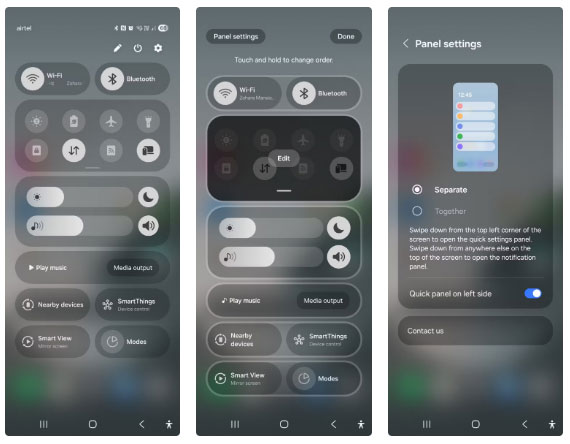
One UI 7 introduces a split notification system, inspired by iOS, but with a different implementation. The notification panel and Quick Settings are now separate by default; swipe down from the top left or center to access notifications, and swipe down from the top right corner to open Quick Settings.
If you like the unified look of classic One UI, you can undo changes from Panel settings . To do this, swipe down to access the Quick Settings panel, tap the Pencil icon, then select Panel settings . Now, select Together to see notifications and settings collapsed together.
The new Quick Settings panel includes a convenient volume slider next to the brightness control and shows more toggles in a cleaner layout. Just below that, you'll find a media panel with the option to play the last song without having to switch between different apps. You can rearrange the Quick Settings panel layout to prioritize the most frequently accessed controls at the top.
3. Finally a Vertical App Drawer
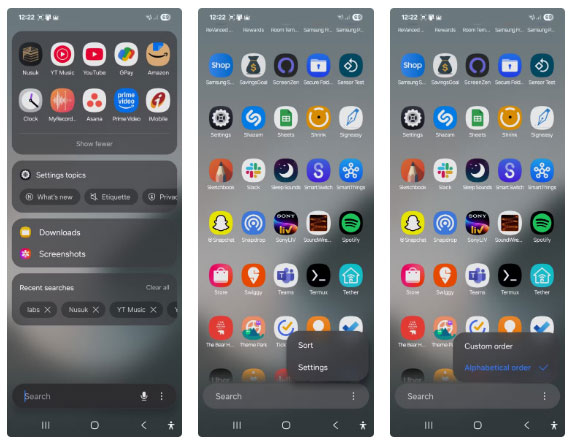
The vertical app drawer is another great addition to One UI 7. While many people like to group their apps into app drawer tabs, having a vertical app drawer makes it easier and faster to browse through a large collection of apps. Previously, Samsung offered the option to sort apps alphabetically, but then removed the feature.
By default, One UI 7 still uses the traditional horizontal layout, so you'll need to enable the vertical app drawer for it to work. To do this, swipe down from the home screen to open the app drawer, then tap the three-dot menu icon in the search bar. Tap Sort and select Alphabetical order to change the app drawer to a vertical scrolling layout.
Speaking of the search bar, it is now at the bottom of the app drawer and for one-handed phone users, this placement is much more convenient for searching.
4. Improvements in Camera App
One UI 7 brings a redesigned camera interface. The main shooting mode settings are now placed near the zoom controls, improving one-handed usability. While the Samsung Ultra series benefits from new Log video recording support for wider dynamic range and editing flexibility, the update also brings 10-bit HDR video support to videos shot in Video and Pro video modes.
In terms of quality, the Z Flip 6 camera is noticeably better than the original release. The camera is able to capture more detail, likely because of the post-processing effects that are happening in the background. Colors and contrast aren't as strong, making photos look natural, and portrait mode now does an excellent job of keeping the subject in focus and blurring the background.
Another addition to the Camera app is Motion photos, which is similar to Apple's Live Photos. You can enable Motion photos from the top menu, and when enabled, it will record a short video before and after you take a photo, just like the iPhone's Live Photos. Then, in the Gallery app, tap View motion photo to view the video.
5. Customize Good Lock Further
The biggest gripe people have had with Samsung's Z Flip has always been the lack of app support for the external display. Sure, Samsung's Labs panel lets you launch a few apps, but they're often not ones you'll actually use. Sure, WhatsApp p is handy, but what to quickly search for a product on Amazon, check the score on a sports app, or get instant insights from Perplexity or ChatGPT without opening your phone?
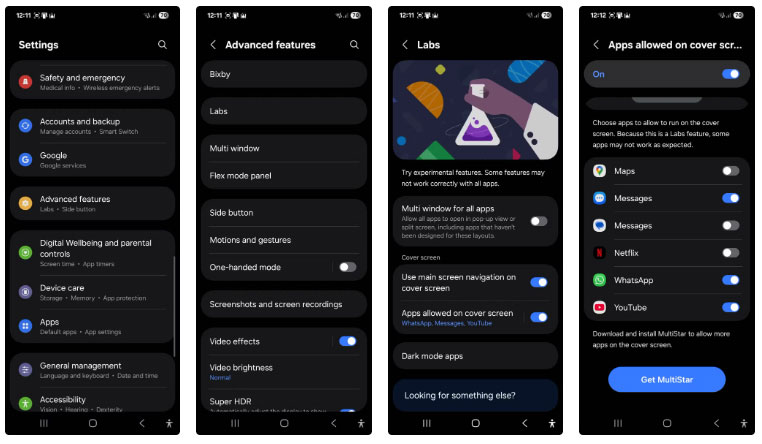
With One UI 7, Samsung prominently displays a Get MultiStar button on the Labs panel. This button takes you directly to the widget launcher interface, where you can add almost any app to the front screen. For those unfamiliar, MultiStar is a custom module in Samsung's Good Lock customization suite that enhances the device's multitasking and multi-window functionality.
To add more apps to your cover screen, first install the Good Lock app from the Galaxy Store. Then, open Settings > Advanced features > Labs > Apps allowed on cover screen . At the bottom of the list, tap Get MultiStar and install the MultiStar app if you haven't already.
In Launcher Widget, select the apps you use most often, such as WhatsApp, ESPN, Perplexity, ChatGPT, Notes, and Pomodoro Timer. Once you've selected your favorite apps, tap Enable Launcher Widget . Then, open MultiStar and select Good Lock . Now you can access your selected apps directly from the home screen.
Getting a stable release of One UI 7 is really exciting, and Samsung has really exceeded expectations with Android 15. As Android smartphones continue to converge in terms of hardware, design, and build quality, the user experience makes all the difference. With One UI 7, Samsung shows how powerful that difference can be.
FAQ
How were the best new features of one ui 7 on galaxy z flip 6 options evaluated?
The comparison focuses on practical features, ease of use, limitations, compatibility, and the type of user each option is most likely to help.
Which option is best for beginners?
Beginners should prioritize a clear interface, useful documentation, reliable support, and the core features needed for their first project.
Should I choose a free or paid option?
Start with a free option when it covers your needs. A paid plan may be worthwhile when you need advanced tools, commercial rights, collaboration, or professional support.
Related Articles
 5 Best Features of Samsung Galaxy Z Flip 55 minutes read
 7 Features That Make Galaxy Z Flip 6 Worth Buying6 minutes read
 What Makes Galaxy Z Flip 6 Better Than Z Flip 5?7 minutes read
 The Galaxy Z Flip Is Out of Stock in Korea 'in a Single Note'4 minutes read
 What Is the True Durability of Samsung Galaxy Z Flip After This4 minutes read
 Gsmarena Reporter Tells of the Troubled Journey to Repair Galaxy10 minutes read
Reader Comments 0
Sign in with email or Google to join the discussion.