This guide provides a practical overview of 4 Ways to Check Laptop Configuration from Basic to Full Details, including its main features, benefits, limitations, and important considerations.
1. The easiest way to check laptop configuration with Computer Properties
Using the default Computer Properties feature on Windows is undoubtedly the simplest, quickest and easiest way. If you only need to check basic and understandable information, you can directly use Computer Properties. With Windows 7 and below, go to Star> select My Computer> right click, go to Properties. For Windows 8 and above, click This PC> right-click Properties.
The system will show you basic information of the computer, including: Supported operating systems, CPU chip, RAM, Windows activation status, laptop name, computer running Windows 32-bit or Windows 64 -bit.
 The system will provide the most basic basic information about the computer
2. View laptop information with the dxdiag command
Dxdiag is a Windows command that has been around for a long time and still works today. It also returns similar information to Computer Properties but is wider. Specifically, there is information about the screen and audio, support devices (keyboard, mouse, printer. ). To do this, just open the Run box with the key combination Windows + R. Then type 'dxdiag' in the blank and press Enter.
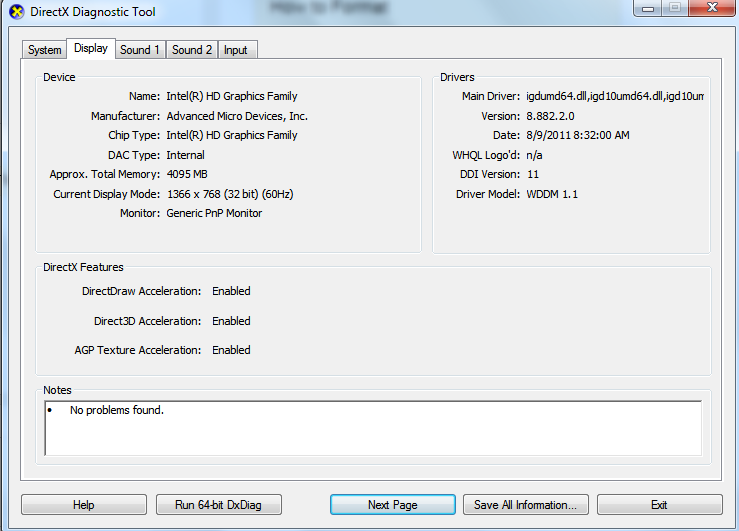 Lenh Dxdiag is a method of checking the configuration familiar to many people for a long time
3. How to check the laptop configuration with the command msinfo32
The msinfo32 command is also a command performed in the Run section similar to the above. But this is a fairly new command, only appears in the new Supported operating systems life is Windows 8.1 and 10. In addition to the same information as the above two ways, this command also gives more information. Specifically, the following parameters will be available:
- The Supported operating systems is running
- Windows 32bit or 64bit version
- Information about CPU
- RAM specifications
- Detailed information about hardware, software, and other components
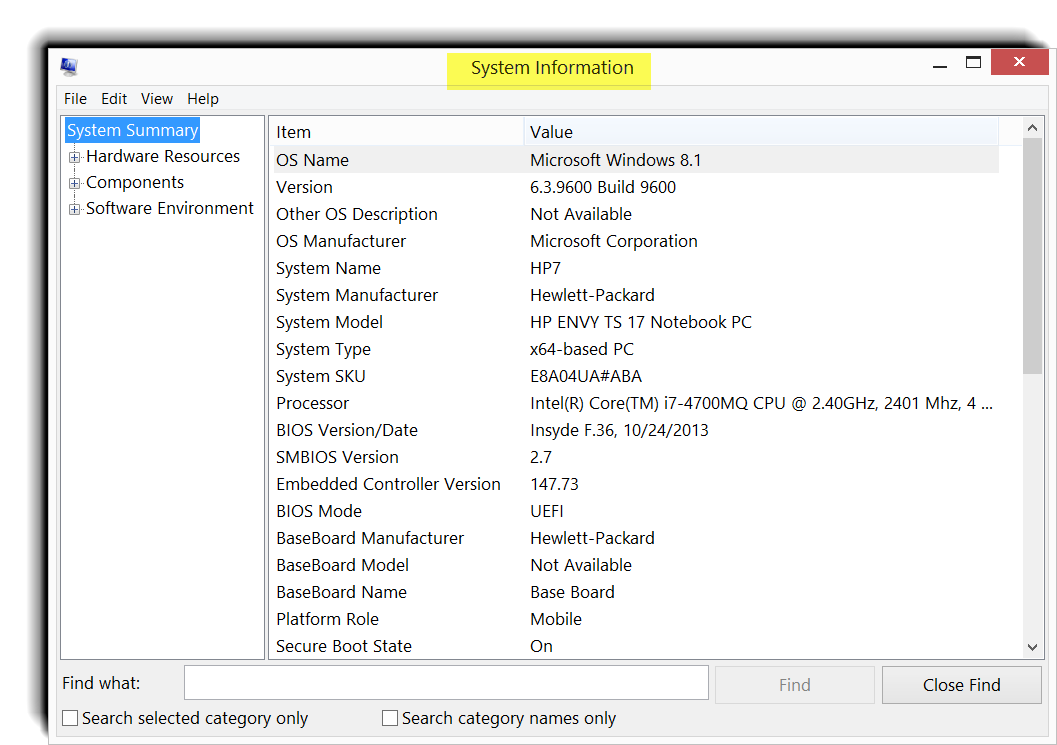 If you are using a newer Supported operating systems or use this new command for more information
4. Check laptop configuration using CPU-Z software
All three methods suggested above are the default presets on the system, very simple and easy to implement. But if you need to check specifications in detail, specific, complete in all aspects, especially hardware, they can not meet. At this point, you need to download software from a third party, such as CPU-Z.
This is a free and guaranteed software. CPU-Z can check almost all computer configuration information. Specifically, there will be details:
- Information about the Supported operating systems
- CPU: CPU name, multiplier, processor thread, etc.
- Information about Caches caching
- Information about mainboard motherboard: manufacturer name, model, version
- Memory information: how much RAM, type of RAM, RAM speed, specific parameters of each RAM slot. These detailed data will be very helpful when you buy new RAM to upgrade.
- Graphics card specifications: Lists available cards (both default and discrete onboard cards). Also when clicked, the system will show the parameters of each card.
- Check the health of the processor when running in modes
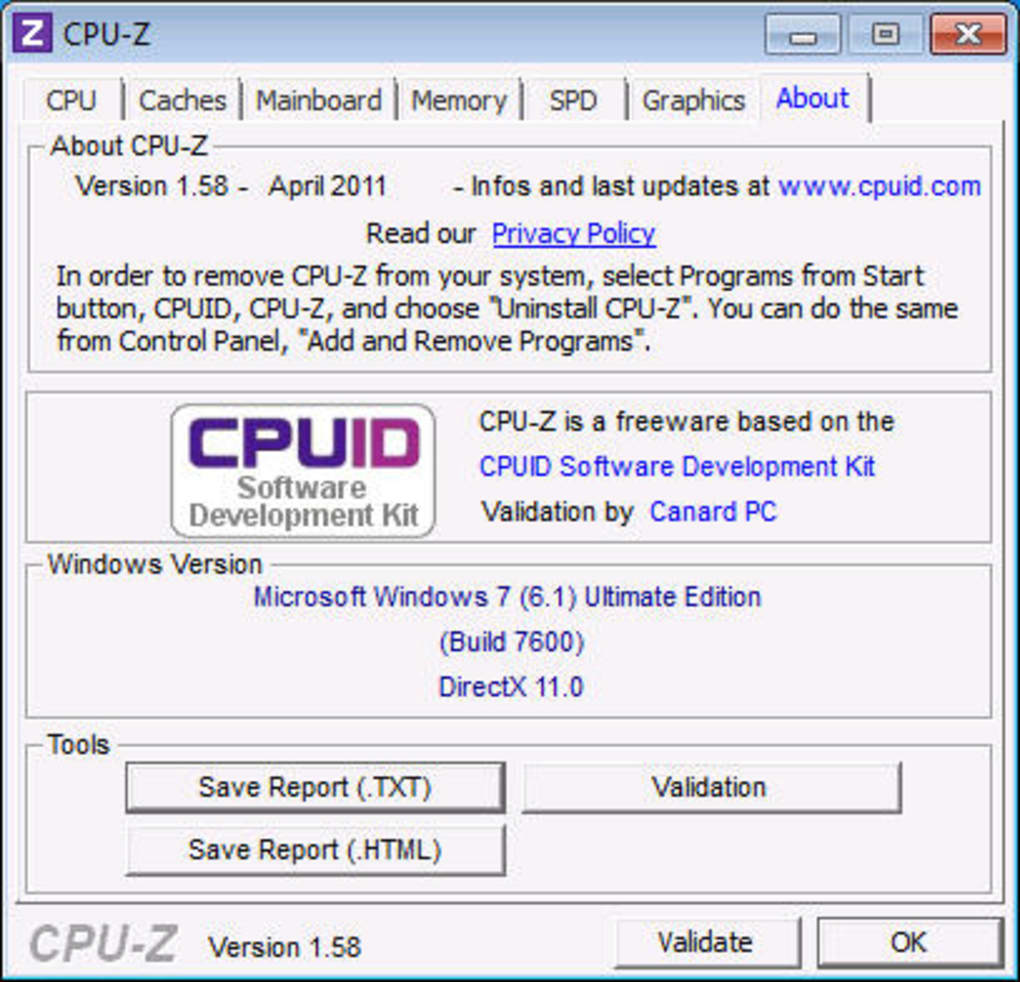 CPU-Z is completely free and gives very detailed information
Whatever option you choose to check your laptop's configuration, you won't be hard on it. Please double check each time you buy a new laptop, especially used ones!






Reader Comments 0
Sign in with email or Google to join the discussion.