Table of Contents
If your laptop touchpad will not move or click, first make sure it has not been disabled by a keyboard shortcut. If it is enabled, check Windows touchpad settings and update or reinstall the touchpad driver. The steps below start with the quickest, safest fixes and finish with checks for a possible hardware fault.
 Why isn't my laptop touchpad moving?
Before changing any settings
Connect a USB or Bluetooth mouse if you have one. This makes it easier to navigate while the touchpad is unavailable. Then restart the laptop and disconnect any unnecessary USB devices. A temporary driver or input-device conflict may clear after a restart.
Also check whether the touchpad works on the Windows sign-in screen. If it works there but stops after you sign in, a Windows setting, driver, or startup application is the more likely cause. If it never responds, continue with the checks below.
1. Re-enable the touchpad
Many laptops have a function key that turns the touchpad on and off. Look along the top row for a key with a touchpad icon, then press it once. On some models you must hold Fn while pressing that key. The exact key varies by manufacturer, so do not assume it is always F9.
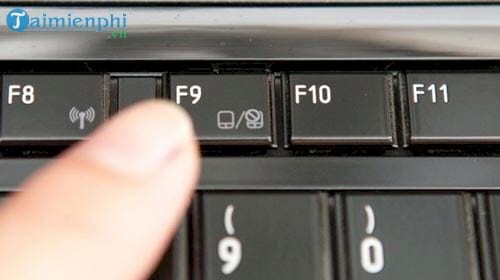
For more model-specific options, see how to activate a touchpad without a mouse. Some laptops also have a small indicator light or a corner of the touchpad that can be double-tapped to enable it.
2. Check Windows touchpad settings
Open Settings and search for Touchpad settings. In Windows 11, the page is normally under Bluetooth & devices > Touchpad; in Windows 10, it is under Devices > Touchpad. Turn the main Touchpad switch on.
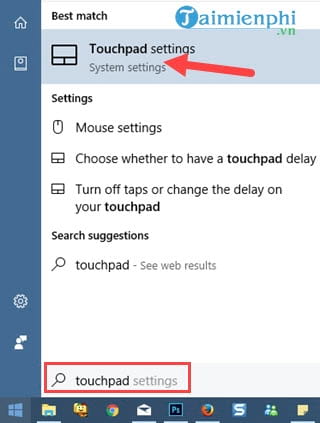
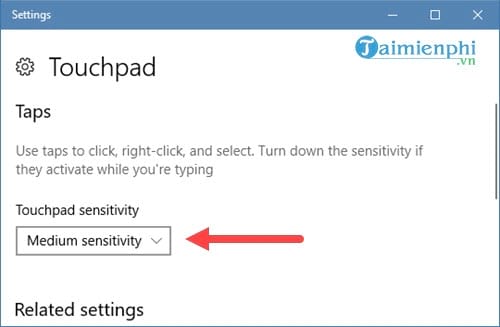
If the pointer moves but taps or clicks are unreliable, expand the tap and sensitivity options. Start with Medium sensitivity. A very low sensitivity setting can make the pad feel unresponsive, while a very high setting may register accidental input.
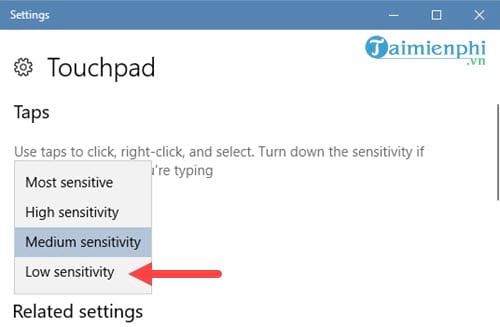
If available, check the option that controls whether the touchpad remains active when a mouse is connected. A laptop may automatically disable its touchpad while an external pointing device is plugged in.
3. Update the touchpad driver
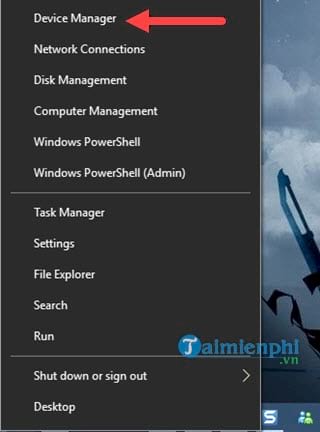
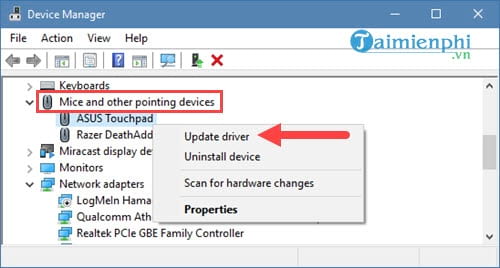
Windows may list the touchpad under Mice and other pointing devices or Human Interface Devices in Device Manager.
- Press Windows + X and select Device Manager.
- Expand the relevant device category, right-click the touchpad or compatible pointing device, and select Update driver.
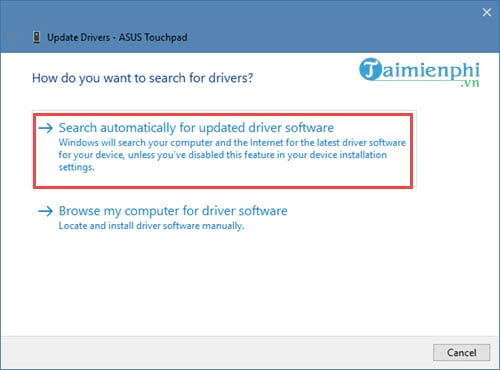
- Select Search automatically for drivers. If Windows finds nothing, check the laptop manufacturer's support page for a driver made for your exact model and Windows version.
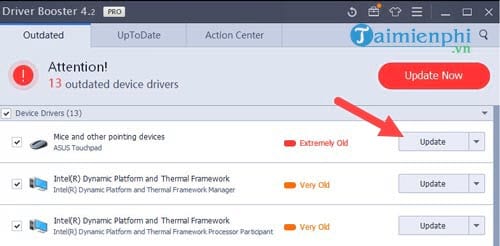
See how to use Windows Device Manager if you need help identifying the device. Prefer Windows Update or the laptop manufacturer's driver over an unknown third-party driver updater.
4. Reinstall or roll back the driver
If the problem started immediately after a driver update, open the touchpad device's Properties, select the Driver tab, and use Roll Back Driver if the option is available.
If the driver appears corrupted, right-click the device and choose Uninstall device, then restart Windows. Windows should detect the device and reinstall a compatible driver. Do not select an option to delete the driver package unless you already have the correct replacement from the laptop manufacturer.
5. Decide whether the problem may be hardware-related
A hardware issue is more likely if the touchpad is missing from both Windows Settings and Device Manager, fails even before Windows loads, or has been affected by a drop or liquid spill. A raised or bulging touchpad can also indicate a swollen battery underneath it. Shut the laptop down and arrange professional inspection rather than pressing on the area.
If the device still appears in Windows, check the laptop manufacturer's diagnostics or firmware settings before assuming the touchpad has failed. Keep an external mouse available until the cause is confirmed.
Related Articles
 What Is Touchpad? How to Use Touchpad Simply4 minutes read
 Touchpad Freezes: Causes and Effective Solutions8 minutes read
 What Is Multi Touchpad on Laptop?3 minutes read
 How to Activate Touchpad Without a Mouse6 minutes read
 Instructions for Activating and Customizing Virtual Touchpad on6 minutes read
 How to Fix Touchpad Error on Windows 10 Does Not Work9 minutes read
Reader Comments 0
Sign in with email or Google to join the discussion.