Table of Contents
This guide provides a practical overview of VAR. P Function, including its main features, benefits, limitations, and important considerations.

Description: The function performs calculation of variance based on the entire population, ignoring logical values and text. Support functions from Excel 2010 onwards.
Syntax: VAR. P (number1, [number2]. )
Inside:
- number1, [number2]. ): The arguments in the whole need to calculate the variance, where number1 is the required argument, the next arguments are optional and contain up to 254 number arguments .
Attention:
- The VAR. P function assumes that its arguments are whole.
- Arguments can be numbers, names or arrays that contain numbers.
- If the argument is an array or a reference, only values in that array are used.
- When typing logical values and presenting numeric values into function arguments -> these values are still calculated.
- Function error occurs when arguments are text or error values cannot be converted.
- If you want to calculate both logical values and text -> use VARPA function .
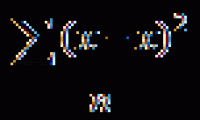
- The equation to calculate the VAR. P function is:
[frac {{sum {{{left ({x - overline x} right)} ^ 2}}}} {n}]
Inside:
+ x is the sample mean AVERAGE (number1, number2. )
+ n is the sample size.
For example:
Calculate variance based on the entire set of number values in the following data table:

- In the cell to calculate enter the formula : = VAR. P (D6: D10)

- Press Enter -> variance based on the entire set of number values is:

-Where the values are text or logic -> the function ignores these values:

Above are instructions and some specific examples when using VAR. P function in Excel.
Good luck!
FAQ
What does the VAR. P Function function do in Excel?
The VAR. P Function function performs the calculation described in this guide. Use the correct arguments and compatible data types for reliable results.
How do I enter the VAR. P Function function correctly?
Start with an equals sign, enter VAR. P Function, add the required arguments inside parentheses, and confirm that cell references and separators are correct.
Why does the VAR. P Function function return an error?
Common causes include missing arguments, invalid data types, incorrect cell references, unsupported values, or regional separator settings.
Related Articles
 VAR. S Function in Excel3 minutes read
 How to Use the VARPA Function in Excel3 minutes read
 VARA - Function That Calculates Variance Based on a Sample3 minutes read
 How to Use the VARP Function in Excel3 minutes read
 How to Use the STDEVPA Function in Excel3 minutes read
 STDEV. P Function in Excel3 minutes read
Reader Comments 0
Sign in with email or Google to join the discussion.