Table of Contents
This guide explains how to use VARPA Function in Excel, including its syntax, required arguments, practical examples, and common errors.

Description: The function performs calculation of variance based on the entire population, including logical values and text.
Syntax: VARPA (value1, [value2]. )
Inside:
- value1, [value2]. : The arguments in the whole need to calculate the variance, where value1 is the required argument, the next arguments are optional and contain up to 254 value arguments .
Attention:
- The VARPA function assumes that its arguments are an entire population.
- Arguments can be numbers, names or arrays that contain numbers.
- If the argument is an array or a reference, only values in that array are used.
- When typing logical values and presenting numeric values into function arguments -> these values are still calculated.
- True value is 1 default, false value is 0 default.
- Function error occurs when arguments are text or error values cannot be converted.
- If you do not want to calculate both logical values and text -> use the VARP function .
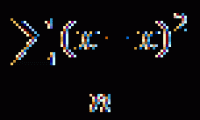
- The equation to calculate the VARA function is:
[frac {{sum {{{left ({x - overline x} right)} ^ 2}}}} {n}]
Inside:
+ x is the sample mean AVERAGE (number1, number2. )
+ n is the sample size.
For example:
Calculate variance based on the entire set of number values in the following data table:

- In the cell to calculate enter the formula : = VARPA (D6: D10)

- Press Enter -> variance based on the entire set of number values is:

- Here the calculated logical values correspond to its default values.
-Where all numeric values are text or logic -> the function still calculates and returns the result:

Above are instructions and some specific examples when using VARPA function in Excel.
Good luck!
FAQ
What does the VARPA function do in Excel?
The VARPA function performs the calculation described in this guide. Use the correct arguments and compatible data types for reliable results.
How do I enter the VARPA function correctly?
Start with an equals sign, enter VARPA, add the required arguments inside parentheses, and confirm that cell references and separators are correct.
Why does the VARPA function return an error?
Common causes include missing arguments, invalid data types, incorrect cell references, unsupported values, or regional separator settings.
Related Articles
 VAR. P Function in Excel3 minutes read
 VARA - Function That Calculates Variance Based on a Sample3 minutes read
 VAR. S Function in Excel3 minutes read
 How to Use the VARP Function in Excel3 minutes read
 How to Use the STDEVPA Function in Excel3 minutes read
 How to Use the STDEVA Function in Excel3 minutes read
Reader Comments 0
Sign in with email or Google to join the discussion.