Table of Contents
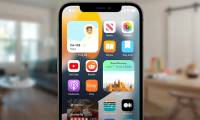
Just press and hold an icon, select Edit home screen in the context menu, then press the big plus button that will appear in the top left corner of the screen. Users will be provided with a list of all available widgets, including scrollable smart stacks. Click on any of these, then select your preferred size and finally click 'Add widget'. After that, users can freely rearrange gadgets on their iOS 14 home screen.
Cleaning the home screen on iOS 14 will also be simple. Instead of deleting an application, users can submit it to the new App Library by pressing and holding the application's icon and clicking Remove. A popup context menu will ask for confirmation of removal or submission of the application to the App Library instead.
Smart stack
Users can easily customize the predefined widget stacks that iOS creates by pressing and holding a widget stack on the home screen and clicking Edit stack and selecting all widgets in the desired way. Users can also delete widgets and create a new widget if needed.
Security
The Passwords app now provides security suggestions for compromised passwords that have been leaked as part of data breaches, passwords that are reusable and easy to guess. Once inside the application, users will see actions that can be taken, with the most common action being to change a password.

This guide provides a practical overview of Speed up Your iOS 14 Experience with the Home Screen and Widgets, including its main features, benefits, limitations, and important considerations.
Gesture back
Users can press and hold the back button in the Settings app and choose a hierarchy to return to on iOS 14 by performing a few levels in the iOS 14 menu and holding down the back button. At this point a short list of possible locations will appear below the user's fingertip.
Touch later
iOS 14 lets users touch the back of a phone two or three times and quickly launch a predefined function. Just access the Accessibilities, then find Touch and scroll all down to press Back. You can now customize two or three clicks and assign a number of key functions, as well as use custom shortcuts or automation created in the Shortcut app.

The following touch feature opens up new interoperability
Camera
With iOS 14, the selfie camera application can choose to automatically flip the image to display in the viewfinder, helping users to take selfies in the desired direction. It's easy, just go to the Camera menu in the Settings app, then switch the Mirror front camera under Composition to the on state.
End Dable In_article Widget / For inquiries, visit http://dable. ioFAQ
What should I know about Speed up Your iOS 14 Experience with the Home Screen and Widgets?
Focus on the key features, requirements, limitations, and practical use cases explained in this guide.
How do I get the best results with Speed up Your iOS 14 Experience with the Home Screen and Widgets?
Follow the recommended steps, use current software or information, confirm compatibility, and review settings before major changes.
Are there any risks or limitations?
Potential limitations depend on compatibility, data quality, cost, privacy, support, and how the product or method is used.
Related Articles
 Widgets: What Is a Widget on Android?4 minutes read
 How to Disable Widgets on iOS 10 Lock Screen?4 minutes read
 How to Move Widgets Below iPhone Lock Screen: Step-by-Step Guide3 minutes read
 The iOS Concept with Widgets on the Home Screen: Resembles3 minutes read
 How to Stack Widgets on iPhone to Compact the Screen4 minutes read
 9 Best Iphone Widgets5 minutes read
Reader Comments 0
Sign in with email or Google to join the discussion.