Table of Contents
Learning how to how to use the grep command in linux doesn't have to be complicated. This updated guide presents a clear workflow, practical checks, and troubleshooting advice you can use while completing the process.
Key Takeaways
- Review overview of the grep command in linux.
- Understand what is the structure of the grep command.
- Understand some options available in the grep command.
Overview of the Grep Command in Linux
Grep stands for "Global Regular Expression Print", which is a command in Unix/Linux used to search for lines of text in a regular expression pattern. Grep will be the most useful tool, helping to shorten the search time when you need to search for a specific string of characters in a series of files and folders.
What Is the Structure of the Grep Command?
The structure of the Grep command in Linux is as follows: grep [options] pattern [FILE].
In there:
● [options]: Grep command options.
● pattern: search pattern
● [FILE]: file to perform search.
Some Options Available in the Grep Command
Each option will have a different function, below are some Grep command options and their uses:
● i: Search is not case sensitive.
● v: Display lines that don't contain the search pattern.
● r or R: Search recursively in directories but R follows symbolic links.
● l: Displays the names of the files containing the search pattern.
● n: Displays the number of lines matching the search pattern.
● c: Count the number of occurrences of the search pattern in each file.
● w: Search only for results that are exactly identical to the pattern.
● H: Display the file name for each result line.
● o: Show only the part that matches the search pattern.
● A [number]: Displays additional [number] lines after the result line.
● B [number]: Displays additional [number] lines before the result line.
● C [number]: Display additional [number] lines before and after the result line.
● q: Do not display any output.
● L: Displays file names that don't contain the search pattern.
● m [number]: Limit the number of search results.
● color: Color the search results.
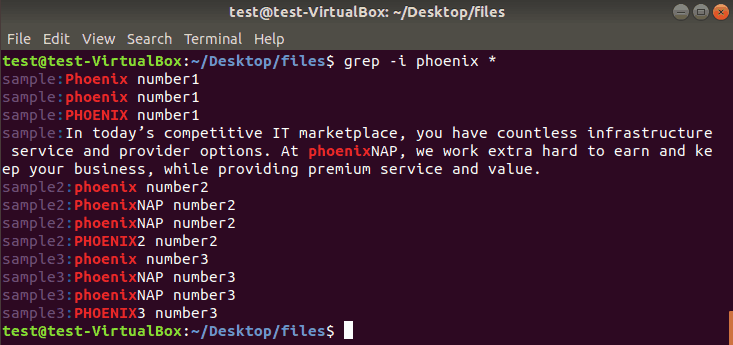
Grep Command in Linux
Ways to Use the Grep Command in Linux
1. Case-insensitive Search
Use the -i option of the Grep command when you need to search for a string of characters without distinguishing between upper and lower case.
Grep -i "search string" file_name.
Use the following command: This helps you search multiple files at once.
Grep -i "search string" file_name1 file_name2.
For instance: grep -i "bizflycloud" example.txt. This command will search for lines containing "bizflycloud", case insensitive.
2. Show Matching Results
Use the following command: if you want to display only the lines that actually contain the search string.
Grep "search string" file_name
For instance: grep "bizflycloud" example.txt. This command will search for lines containing "bizflycloud" and highlight the phrase ""bizflycloud".
3. Display File Names That Match the Pattern
You can use the -l option, the command looks like this: if you are working with multiple files and just want to know which file contains the search string.
Grep -l "search string" file_name1 file_name2.
In addition to the -I option, you can also use –files-with-matches, which both return file names containing the search string.
For instance: grep -I "bizflycloud" example1.txt example2.txt example3.txt. This command will return the names of files that contain the phrase "bizflycloud".
4. Check All Words in the File
The -w option will match the entire word and filename you are looking for. Or you can use the –word-regexp option. The command is as follows:
Grep -w "search term" file_name.
For instance: grep -w "bizflycloud" example1.txt. The above command will search for lines in the file example1.txt containing the word "bizflycloud" without any prefixes or suffixes such as "bizflycloudserver", "bizflycloudlms".
5. Search for Strings in Multiple Files at Once
You just need to use a simple command like this: This helps you find a string in multiple files at once.
Grep "search string" file_name1 file_name2.
For instance: grep "bizflycloud" example1.txt example2.txt example3.txt. The result of this command will search for lines containing "bizflycloud" in the files and display them.
6. Reverse Search
You can use the -v option with the command as follows: This helps you display lines that don't contain the search string.
Grep -v "search string" file_name.
For instance: grep -v "bizflycloud" example.txt. This will return lines that don't contain the search string ""bizflycloud".
7. Display the Row Numbers of the Result
You can use the -n option if you want to know exactly which line in the file contains the search string. The command is as follows:
Grep -n "search string" file_name.
For instance: grep -n "bizflycloud" example.txt. The line number containing the result will be displayed at the beginning of the line. And marked in a different color.
8. Limit Output to Certain Lines
You can use the -m option. This helps you limit the number of results displayed. The grep command in Linux to limit the number of output lines is as follows:
Grep -m [number] "search string" file_name.
For instance: grep -m 5 "bizflycloud" example.txt. This command will only display the first 5 lines containing the string "bizflycloud".
9. Count the Number of Occurrences of a String in a File
You can use the -c option if you want to know how many times the search string appears in the file. The command is as follows:
Grep -c "search string" file_name.
For instance: grep -c "bizflycloud" example.txt. The final result is the number of times the string "bizflycloud" appears in the file example.txt.
10. Search for a String Using Regular Expressions
Use the "-E" or "-P" option. This helps you search for a string using a regular expression. This option will enable regular expression mode.
For instance, to search for a file starting with "b" using a regular expression, use the following command:
Grep -E '^b' example.txt
'^b' is a regular expression to search for words starting with the letter "b'. The displayed result will be the lines in the file that have words starting with the letter "b".
Conclude
The above article has guided readers on how to use the Grep command in basic Linux. Mastering the ways to use the Grep command will help save time and increase work efficiency.
Final Thoughts
The most reliable way to handle how to use the grep command in linux is to follow the process in order, verify each important setting, and test the result before moving on. Use the guidance above as a practical reference, then adjust the details for your device, software version, or specific goal.
FAQ
What should I check before I how to use the grep command in linux?
Use the latest available software, confirm that your device meets the requirements, and make sure you have the necessary permissions, account access, or backup before changing anything.
Why might I be unable to how to use the grep command in linux?
Common causes include outdated software, missing permissions, incompatible settings, incomplete setup steps, or a temporary network problem. Recheck the process from the beginning and restart the app or device if needed.
Is it safe to how to use the grep command in linux?
It is generally safe when you use official tools, review every permission, and back up important data before making system-level or account-level changes.
Related Articles
 How to Use the Grep Command on Debian 108 minutes read
 How to Find a Specific Word in a File on Linux5 minutes read
 Instructions for Using Zforce Command on Linux4 minutes read
 How to Use the Which Command in Linux8 minutes read
 Grep Command in Unix // Linux: Filter and Pipe in Unix // Linux7 minutes read
 Instructions for Using Pstree Command on Linux5 minutes read
Reader Comments 0
Sign in with email or Google to join the discussion.