Table of Contents
Explore instructions to turn off file drag and drop on Windows 11.
How to turn off file drag and drop in Windows Settings
Open Settings on your computer, then click System on the left side of the interface. Look to the right and click Nearby sharing . Here you just need to turn off Drag Tray .
File drag operations will no longer open a pop-up window at the top of the screen on Windows 11.
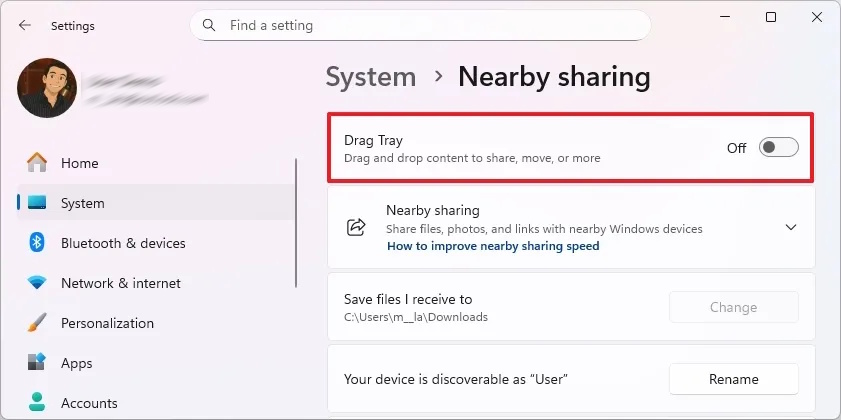
Note, the option in Settings to disable file drag and drop will be available starting with the December 2025 security update for Windows 11.
Turn off Drag Tray on Windows 11 via Registry
Step 1
Open the Registry on your computer and then access the link below.
HKEY_LOCAL_MACHINESYSTEMControlSet001ControlFeatureManagementOverrides
Right- click on Overrides > New > Key and enter 14 to create a new key. Continue to right-click on key 14 , select New > Key .
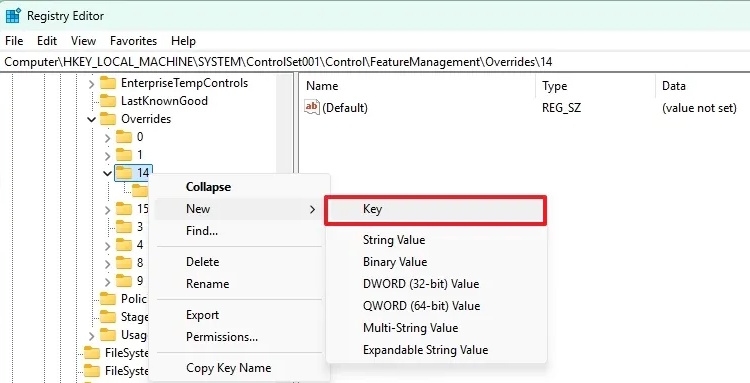
Here you enter the key name 3895955085 . Click on the key and look to the right, right-click and select New > DWORD (32-bit) Value to add a new value. Name the value EnabledState .
Step 2
Right- click on the newly created key , select New > DWORD (32-bit) Value and enter the new name EnabledStateOptions .
Double click on EnabledState entry and change the value from 0 to 1 .
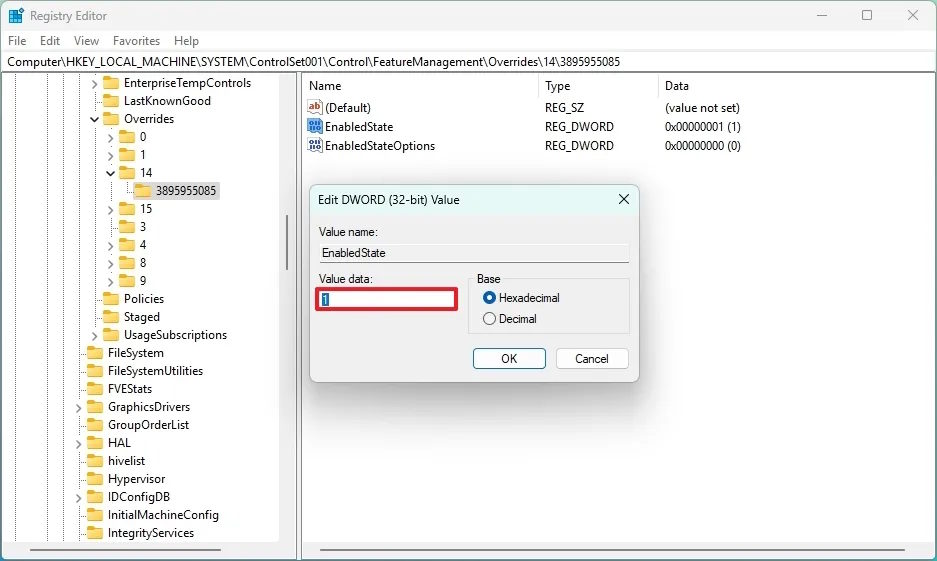
Double click on EnabledStateOptions entry and make sure the value is 0 .
Finally restart your computer. In case you want to use it again, just delete key 14.
Final Thoughts
Understanding instructions to turn off file drag and drop on windows 11 makes it easier to evaluate the information and apply the most relevant recommendations. Focus on the key points above and verify details that may change over time.
FAQ
What is instructions to turn off file drag and drop on windows 11?
Explore instructions to turn off file drag and drop on Windows 11.
What key points does this article cover?
The article focuses on How to turn off file drag and drop in Windows Settings, Turn off Drag Tray on Windows 11 via Registry, Step 1, with practical explanations and examples.
How can you use this information in practice?
Use the explanations to compare options, verify important details, and make a more informed decision. Apply the recommendations that best match your goals and situation.
Related Articles
 Instructions on Enabling Drag-and-drop File Functionality in Windows 115 minutes read
 How to Set the Default Drag and Drop File Behavior on Windows 105 minutes read
 How to Bring File Drag and Drop - Drag and Drop Back to3 minutes read
 Steps to Fix the Error Can't Drag and Drop in Windows 108 minutes read
 How to Drag and Drop: Step-by-Step Guide6 minutes read
 How to Drag and Drop Files on iOS 154 minutes read
Reader Comments 0
Sign in with email or Google to join the discussion.