Table of Contents
Connect an external MCP server to an ElevenLabs agent when it needs tools or data supplied by that server. The setup has three parts: enable MCP for the workspace, configure the server connection, and attach it to the intended agent with appropriate tool approvals.
This is different from connecting an AI client to ElevenLabs' hosted MCP server to manage agents. Check the direction of the integration before following setup instructions.
Before connecting a server
Identify who operates the server, what data it receives, and which tools can read, change, share, or delete information. ElevenLabs supplies the integration mechanism; you remain responsible for the third-party service you connect.
Check the current integration reference for account availability, supported transports, and restrictions such as Zero Retention Mode or HIPAA-related configurations. Do not assume that changing a workspace flag overrides an eligibility restriction.
1. Enable MCP for the workspace
Open the MCP integrations dashboard and begin adding a server. If a terms dialog appears, review it before accepting. Enabling MCP affects the workspace, rather than only one agent; attaching a server to an agent is a separate step.
For API-managed deployments, the workspace setting is can_use_mcp_servers. Use the SDK method and credentials appropriate to your installed version. Setting the flag to false disables agent use while retaining existing integration configurations.
Avoid changing this setting casually in a shared workspace. Confirm which existing agents depend on it and who can access each server resource.
2. Add the server connection
Choose Add Custom MCP Server in the integration dashboard.
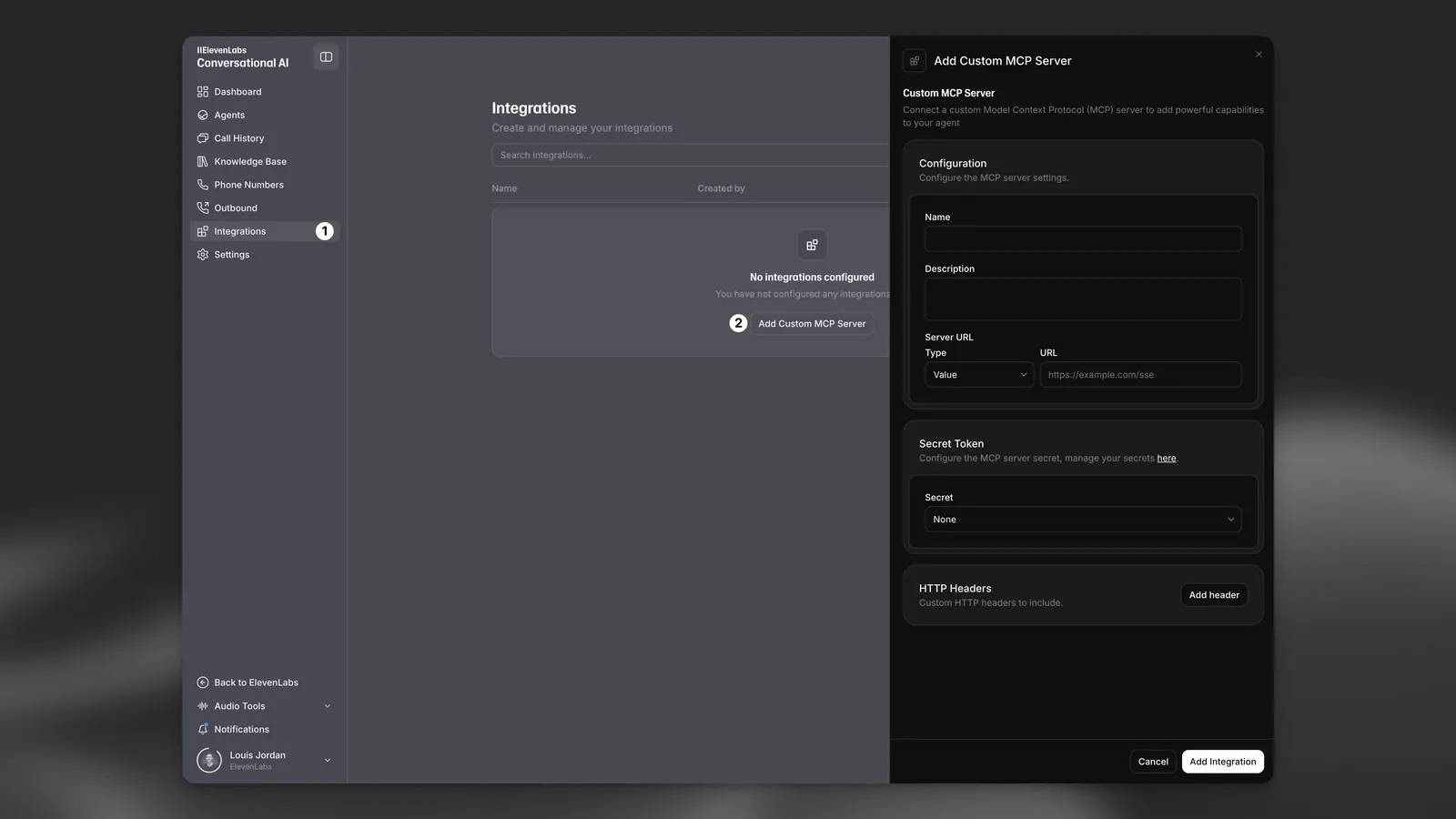
Enter a descriptive name, a short explanation of the server's purpose, and the endpoint URL supplied by its operator. Select the supported transport expected by that endpoint. Configure its required authentication and headers.
If an endpoint URL includes a secret token, treat the whole URL as a credential. Do not paste it into public documents, screenshots, agent instructions, or chat transcripts. Use the platform's secret-storage options where applicable.
Choose Add Integration, then check that the connection succeeds and the expected tools are listed.
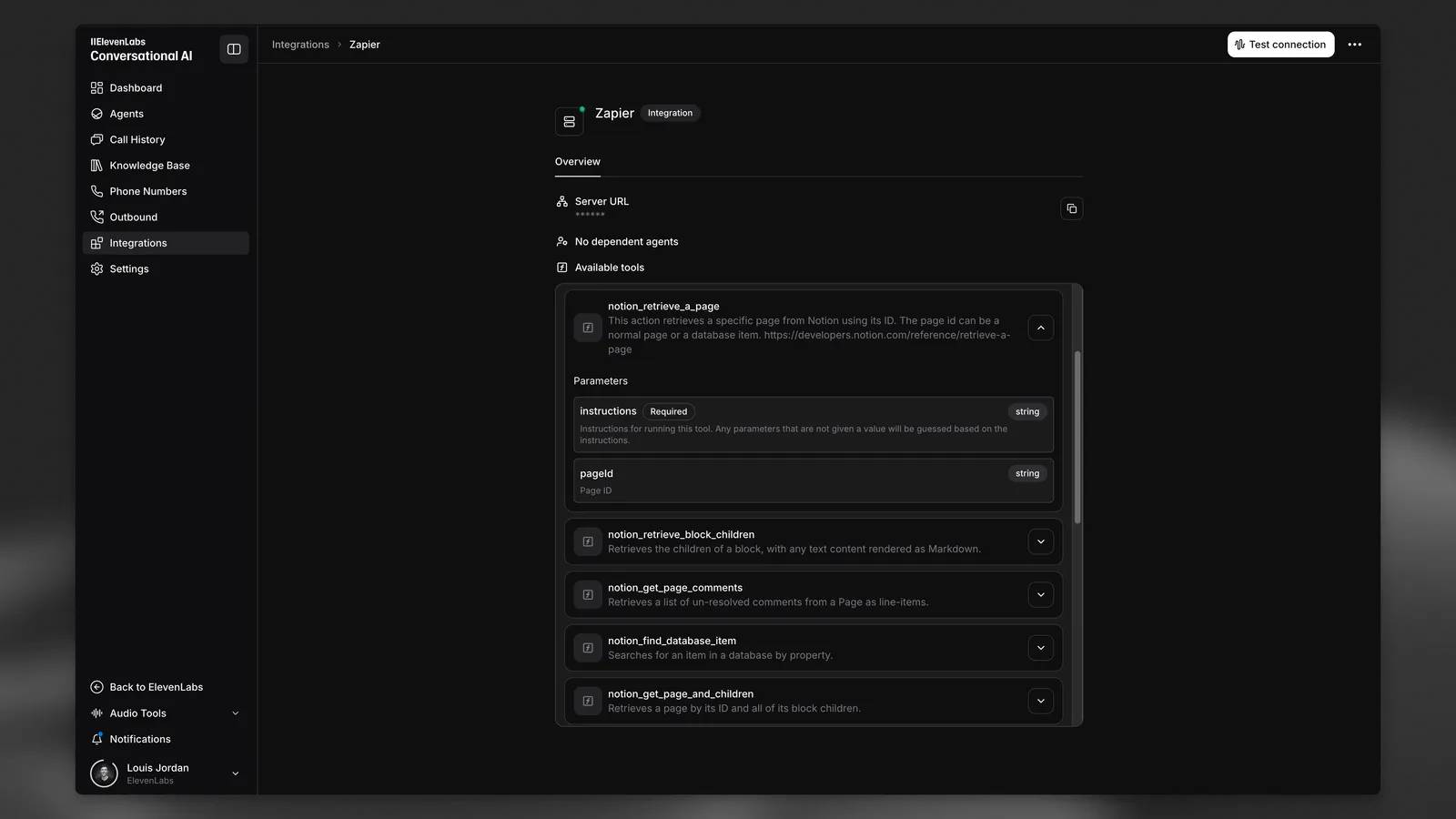
3. Attach the server to the intended agent
Open the target agent's configuration and add the MCP server. Double-check the agent name and workspace before saving, especially if you maintain several similar agents.
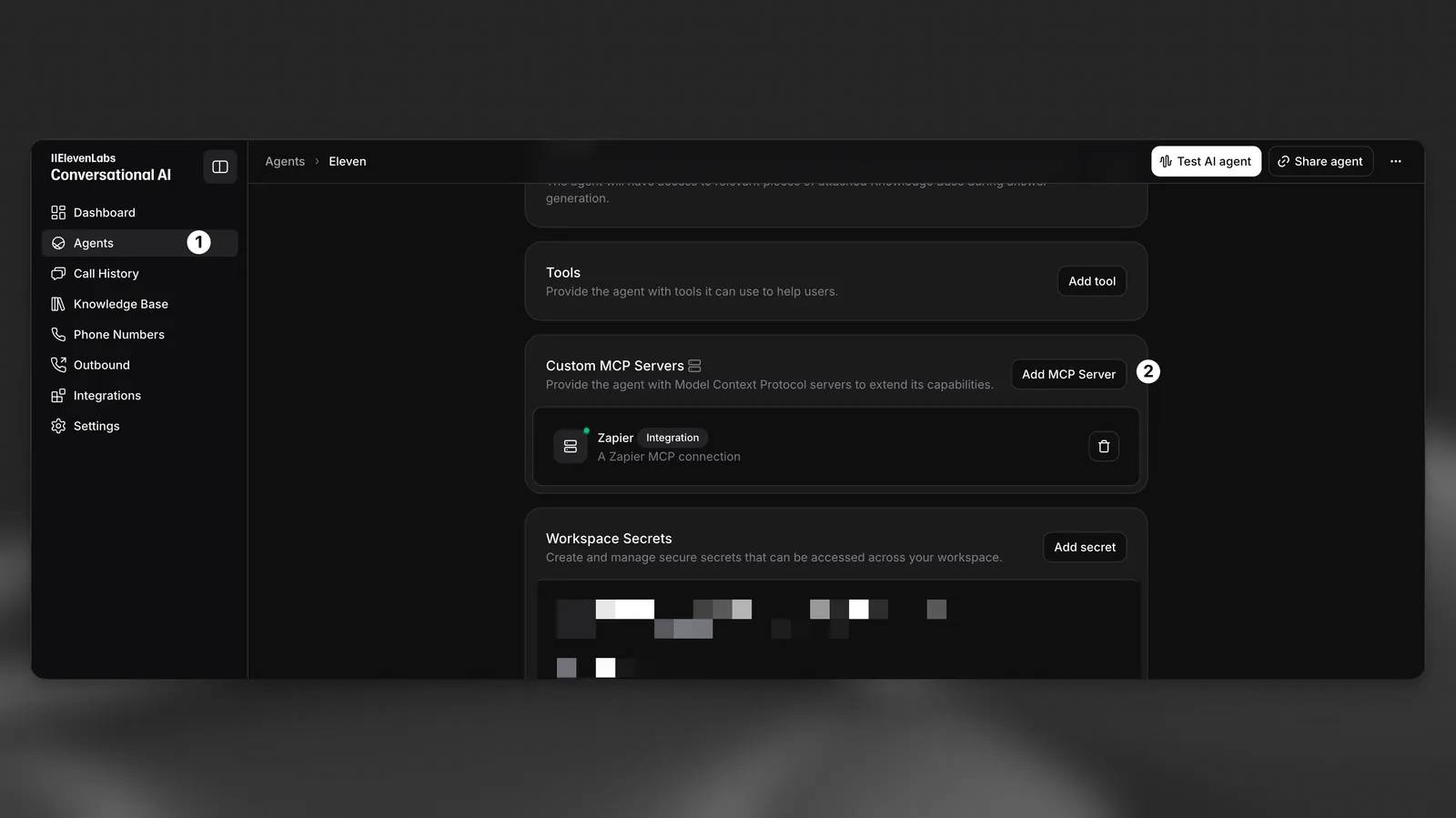
Adding a server resource does not by itself prove that a particular agent can use it. Test a conversation and inspect whether the agent selects the expected tool with the correct arguments.
4. Configure tool approvals
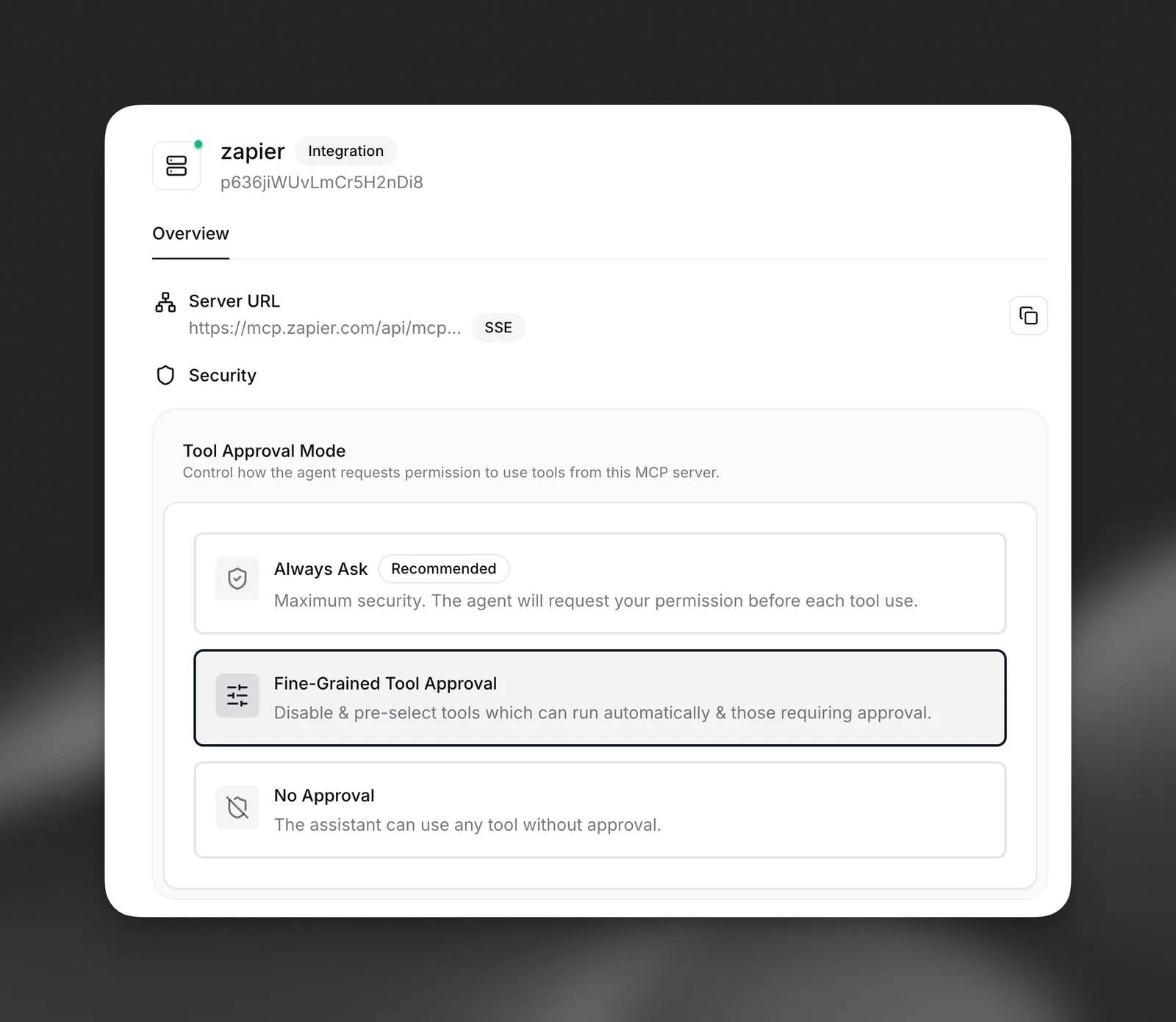
| Mode | Behavior | When to consider it |
|---|---|---|
| Always Ask | Requires approval for each tool use. | Initial testing or operations requiring review. |
| Fine-Grained Tool Approval | Controls approval separately for each tool. | Allowing selected low-risk reads while reviewing changes. |
| No Approval | Allows tool use without individual approval prompts. | Only a thoroughly reviewed server and workflow with suitable restrictions. |
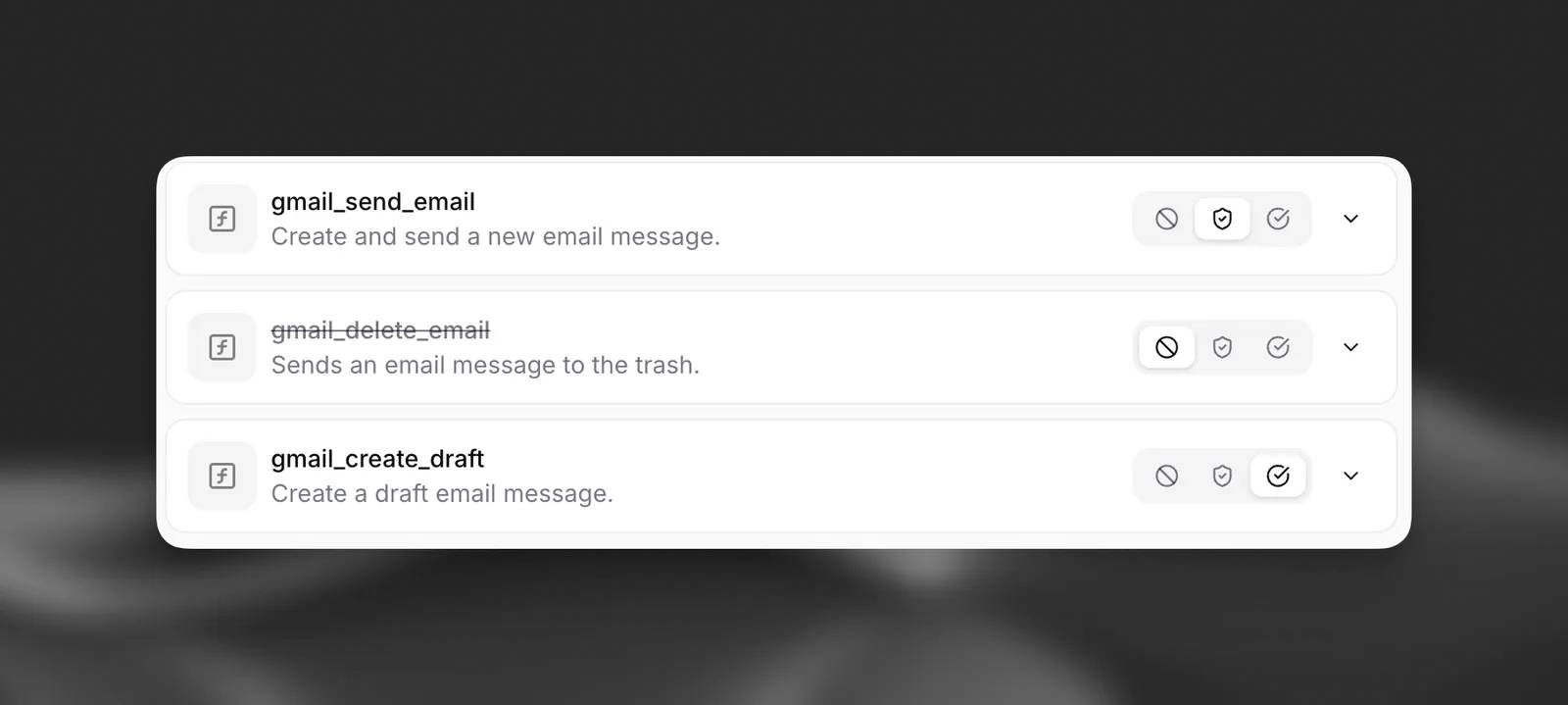
In fine-grained mode, inspect each tool and choose auto-approved, approval-required, or disabled as appropriate. Disable tools the agent does not need. A read-only label does not by itself establish what data a tool will transmit or whether its implementation is trustworthy.
Approval controls are one layer of protection. Also restrict the connected account's permissions and review ElevenLabs' MCP security guidance.
Automate setup through the API carefully
For scripted deployments, create the MCP server resource, record its returned ID, then update the intended agent to reference it. Use the actual endpoint from your provider and your own agent ID; a sample URL ending in a dot or an agent ID copied from an article is not a usable configuration.
Check current API enum values rather than copying interface labels into requests. For example, the server configuration endpoint documents approval-policy values including require_approval_all. SDK property names may differ between Python and TypeScript.
Test the complete workflow
- Use a non-sensitive test record and a focused request.
- Confirm that the expected tool is discovered and selected.
- Inspect arguments and verify that required approvals appear.
- Compare the returned result with the source system.
- Test an unavailable record, an authentication failure, and a request for a disabled operation.
If discovery fails, check the endpoint, transport, authentication, and server availability. If the tool is listed but unused, review its description and the agent's instructions. If a write is attempted unexpectedly, disable that tool while investigating.
For a separate MCP client example, see connecting a GitHub MCP server to Cursor. For terminology, see common AI terms.
Related Articles
 Copilot Studio Knowledge Sources: Complete Guide10 minutes read
 minutes read
 How to Import Images from External Sources into Wordpress5 minutes read
 Instructions on How to Fix 'This Workbook Contains Links to One or More External4 minutes read
 Add Public Website Knowledge in Copilot Studio8 minutes read
 How Will AI Agents Change the Field of Data Science?9 minutes read
Reader Comments 0
Sign in with email or Google to join the discussion.