Table of Contents
Windows 11 offers a lot of features that are not installed by default on your computer. And you can also remove the default installed features if that feature affects your work performance.
Windows 11 offers many features, and many features like Windows Subsystem for Linux and language packs are not installed by default on the computer. Besides, You can also remove default installed features if they affect work performance. Below are instructions for installing and removing optional features in Windows 11.
How to install Windows 11 optional features
Step 1:
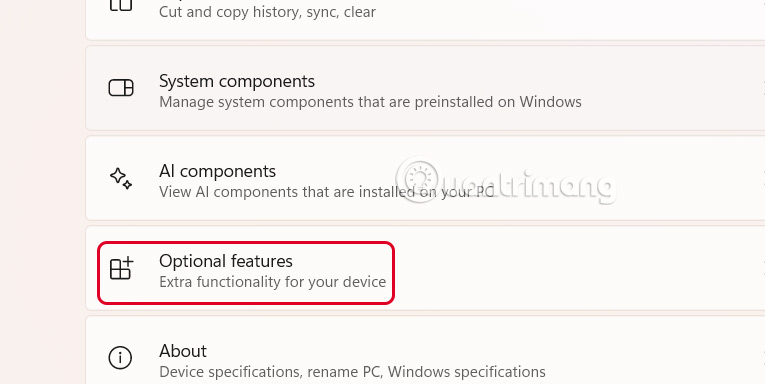
Open Settings On your computer, then click on System And then click on Optional Features In the next interface to proceed to access.
Step 2:
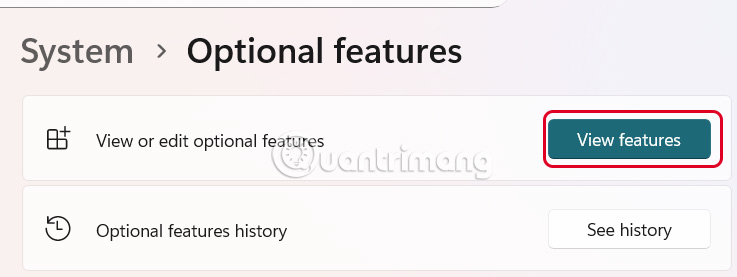
Switch to the new interface, click on View Features To see the features.
Step 3:
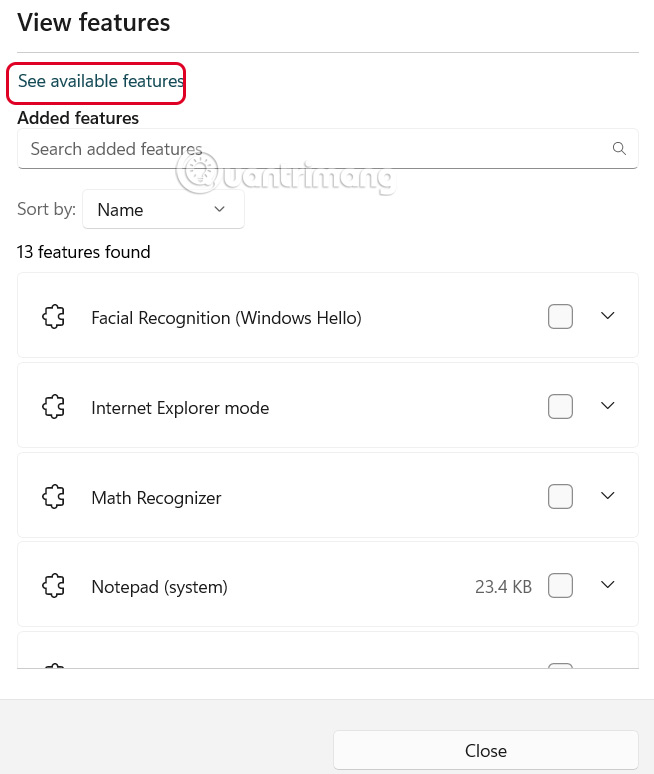
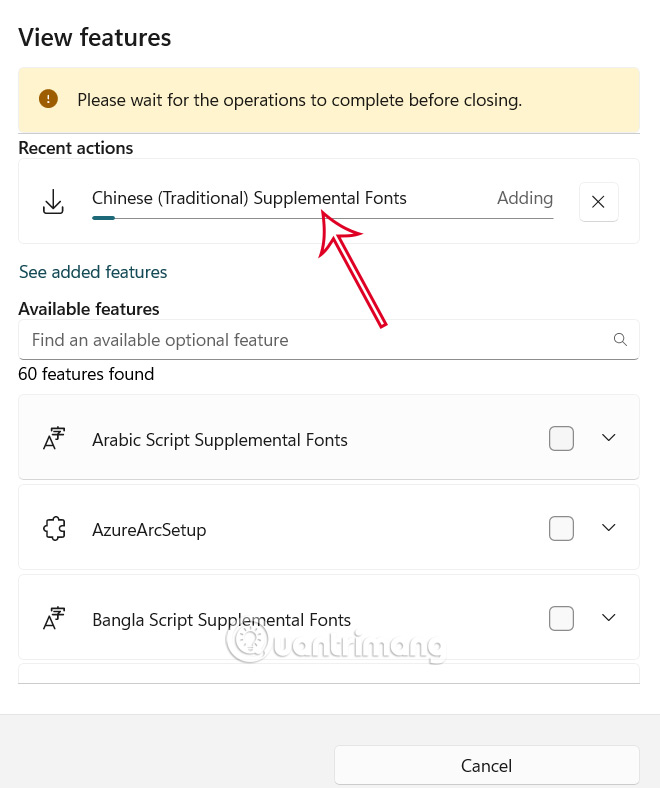
You'll then see a pop-up menu listing the features installed by default. Now Tap See Available Features To switch the list to features you can install but don't have yet.
Next to each feature is a square box for you To select to use , then Click Add Below to continue.
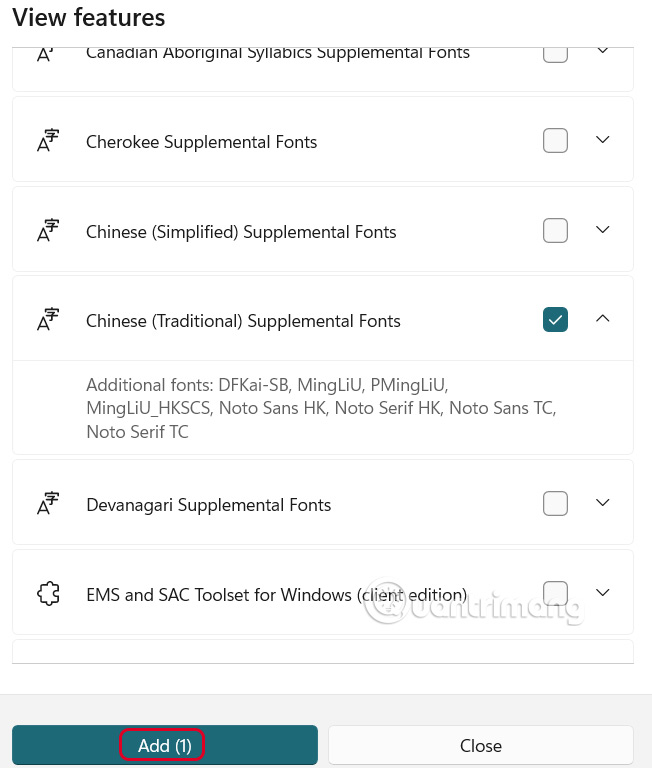
If you don't find the feature you want in the list, you can use the search bar at the top of the pop-up window to search by name.
The customization feature installation process will start immediately. While this process is going on, you should not close the interface. Once the installation is complete, you will see the new features added to the See added features list to use.
How to remove Windows 11 optional features
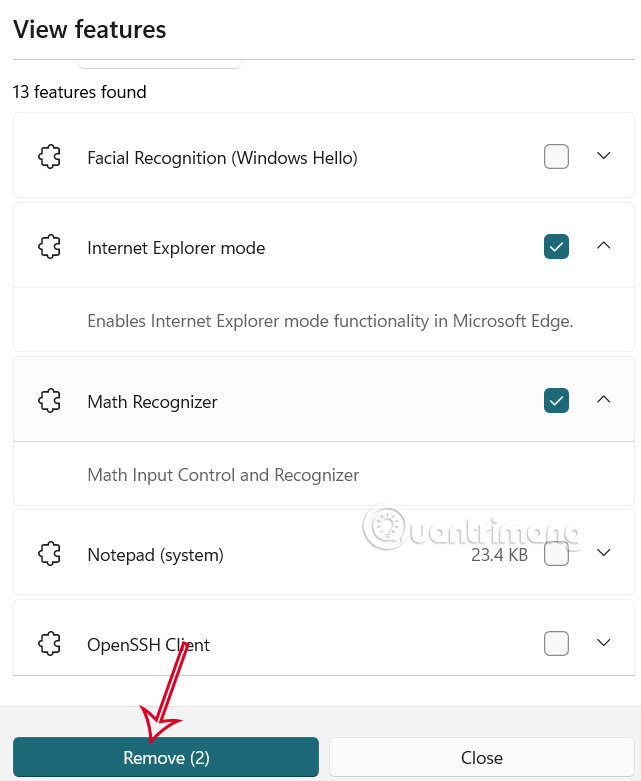
You can also remove unwanted features from the Optional Features menu.
We select the features we want to delete and then Click Remove Below.
FAQ
How do you install and remove optional features in Windows 11?
In practical terms, Windows 11 offers a lot of features that are not installed by default on your computer. And you can also remove the default installed features if that feature affects your work performance.
What should you check before getting started?
Review the requirements, compatible device or software version, and any warnings described in the guide before making changes.
What should you do if the steps do not work?
Repeat the steps in order, confirm that your app or system is up to date, and review the troubleshooting details provided above.
Related Articles
 How to Install and Remove Optional Features in Windows 114 minutes read
 What Are the Features of Windows 10 Windows Features?13 minutes read
 Paint and Wordpad Will Become Optional Features on Windows 103 minutes read
 Installing, Updating Software Will Become Easier in Windows 103 minutes read
 What Are Screensavers: How to Installing Screensavers on Windows6 minutes read
 Windows 10 Now Allows Users to Update Drivers for More4 minutes read
Reader Comments 0
Sign in with email or Google to join the discussion.