Table of Contents
The simplest way to play Tan Thien Long Mobile on a Windows computer is to use the official PC download provided by VNGGames. An Android emulator remains an alternative if you specifically want to run the mobile build or the PC client does not work on your system.
Option 1: Install the official PC version
- Open the official Tan Thien Long Mobile website and select the PC download.
- Save the installer, open it, and follow the installation prompts. Only use the publisher's site; avoid repackaged installers from unofficial download pages.
- Launch the game and allow it to download any required updates.
- Sign in with the account method you normally use for the game. If you already play on a phone, use the same linked account rather than starting as a guest.
The official client is generally the better choice because it does not need to emulate Android. It may use less memory, offers desktop-oriented controls, and avoids differences between the game and a virtual Android device.
Option 2: Install the Android version with BlueStacks
Use this method when you need the Google Play version. Before starting, make sure the computer has enough free storage for BlueStacks, the game, and subsequent resource downloads. If your computer struggles with the emulator, compare the options in this guide to lightweight Android emulators for PC.
The screenshots below show an older BlueStacks interface. The button names and layout may look different in a current release, but the underlying process is the same.
1. Open Google Play in BlueStacks
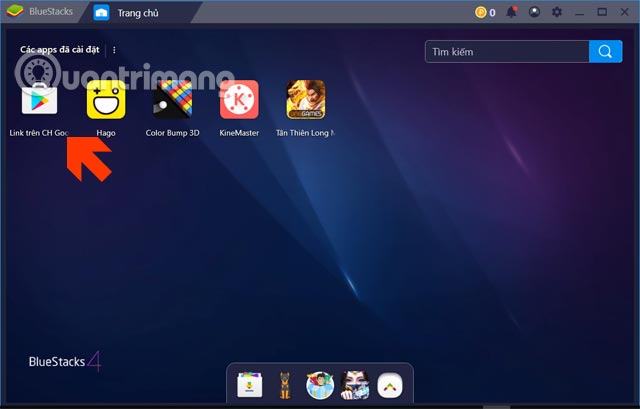
Install BlueStacks from its official website, start the emulator, and open Google Play. Sign in with a Google account only inside the official Play Store screen.
2. Search for the game
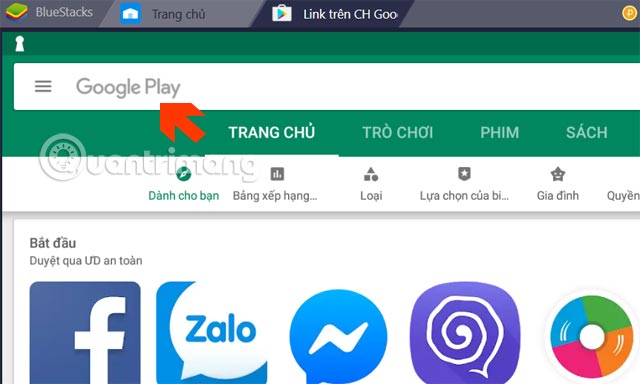
Select the Play Store search box and enter Tan Thien Long Mobile.
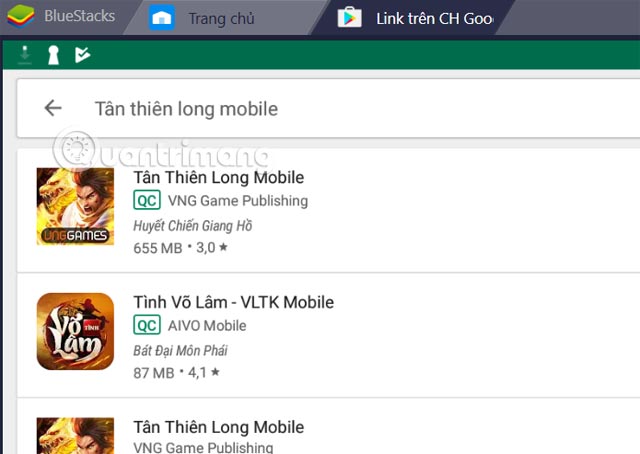
Check that the listing identifies VNGGames as the publisher. This helps you avoid similarly named or unofficial apps.
3. Install the game
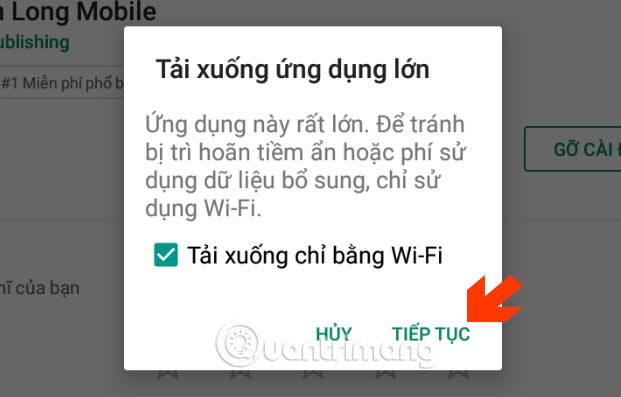
Open the correct listing and choose Install. The size shown in these legacy screenshots is not a reliable current requirement; leave additional free space for updates and game data.
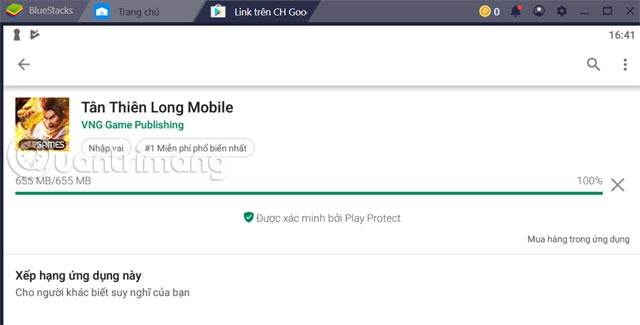
Keep BlueStacks open while Google Play downloads the application. The time required depends on your connection and storage speed.
4. Start the game and review permissions
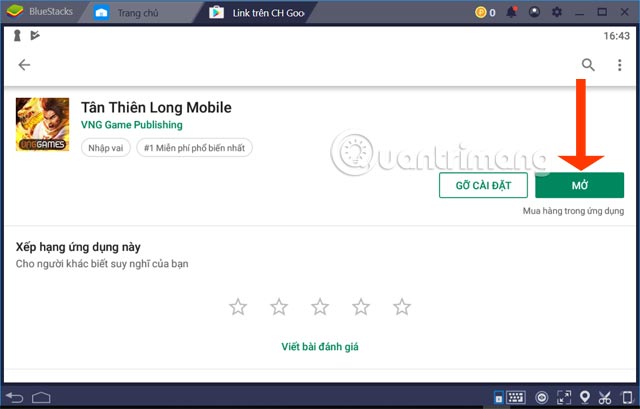
When installation finishes, choose Open or launch the game from the BlueStacks home screen.

Read each permission request instead of accepting automatically. A permission may be needed to save game files or screenshots, but its wording depends on the Android version used by the emulator.
Set up controls and improve performance
- Use BlueStacks' key-mapping tool to assign movement and commonly used skills to the keyboard.
- Enable virtualization in the computer's firmware settings if BlueStacks reports that it is disabled.
- Close other memory-intensive programs before launching the game.
- Lower the emulator resolution or frame-rate target if gameplay stutters.
- Do not run the same account simultaneously on the PC client, emulator, and phone unless the publisher explicitly supports it.
If the game does not appear in Google Play
First check the official PC client. A missing Play Store listing can result from device compatibility, account region, or the Android version presented by the emulator. Update BlueStacks and create a newer Android instance before considering an APK. If you use an APK, obtain it only from the publisher's official site; do not disable Windows security controls to install an unknown package.
Related Articles
 Tips to Overcome the Milestones in Tan Thien Long Mobile4 minutes read
 How to Recharge Tan Thien Long Mobile4 minutes read
 Some Playing Experiences and Terminology to Know in Tan Thien Long Mobile6 minutes read
 Dem Coc - the Latest Faction Is Causing a Stir in Tan Thien7 minutes read
 How to Enter Giftcode Game Ma Pedal Thien Quan4 minutes read
 How Did the Rich Kid Nearly Ten Years Ago Burn Money Into6 minutes read
Reader Comments 0
Sign in with email or Google to join the discussion.