Table of Contents
Gemini can draft Google Apps Script that creates a Google Forms quiz and processes its responses in Google Sheets. This is useful when a teacher has a long question structure or custom marking rules, but generated code must be reviewed and tested before students use it.
For a conventional multiple-choice quiz, first consider Google Forms' built-in quiz mode. It already supports answer keys, points, feedback, and immediate or delayed grade release. Apps Script is most valuable when you need to generate many items, validate a special response format, calculate custom section scores, or apply spreadsheet formatting.
1. Prepare a clean exam specification
Before prompting Gemini, create a compact specification containing:
- the form title and instructions;
- the required identification fields, using only the minimum student data needed;
- section names and question types;
- choices and answer keys;
- points per question or section;
- validation rules for numeric or short-text answers;
- whether grades should be released immediately or after review.
Do not paste real student names, email addresses, grades, or response sheets into Gemini. A generic schema is sufficient for generating the code.
Example prompt:
Create Google Apps Script that builds a Google Forms quiz titled “Grade 9 History Review.” Add required fields for student name, class, and a numeric student number from 1 to 50. Create three sections from the question schema below. Use multiple-choice items for Sections 1 and 2 and validated numeric text items for Section 3. Set point values and answer keys where Google Forms supports automatic grading. Return commented code and list every Google permission the script requires. Do not collect data beyond the fields specified.
2. Review the generated script
Read the code before running it. Confirm that it creates or opens only the intended form and spreadsheet, does not email or share data unexpectedly, and does not add unknown editors. Check the form title, question count, choices, answer keys, point totals, and validation ranges against the exam specification.
Google's Apps Script Forms service documentation lists the supported objects and methods. Use it to verify unfamiliar calls rather than assuming generated code is correct.
3. Create and run the Apps Script project
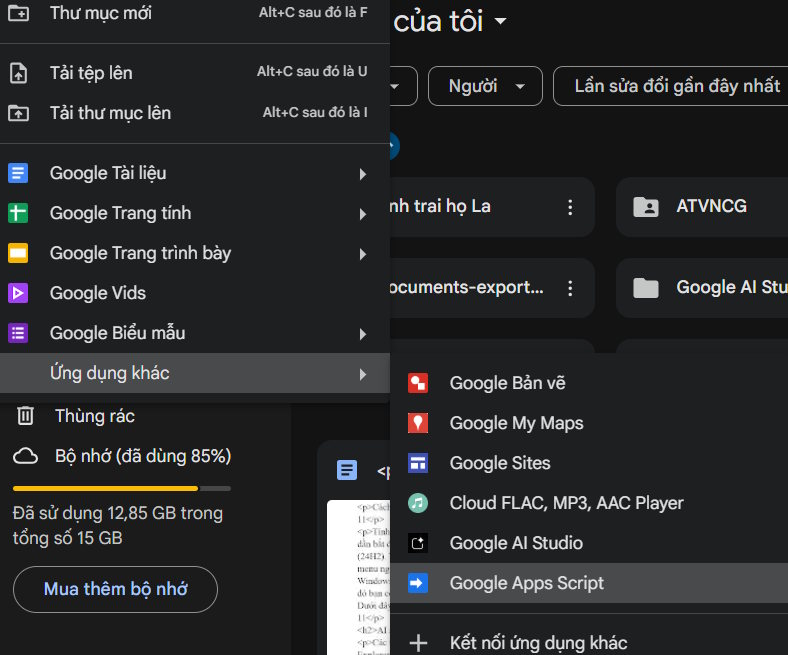
From Google Drive, create a new Apps Script project, name it clearly, and replace the sample function only after saving a copy of the generated code for review.
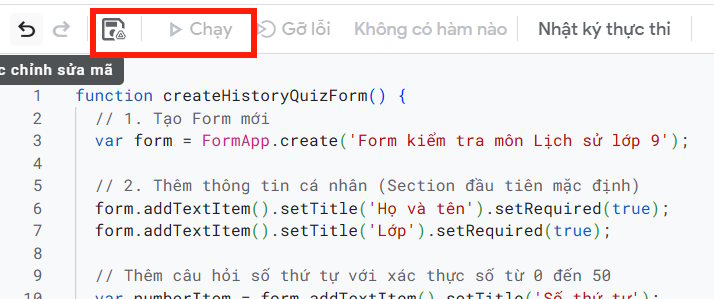
Run the setup function once. Google will display the permissions requested by the script. Grant only permissions that match the code's purpose. Stop if it asks for unrelated access, such as Gmail, external connections, or broad Drive operations that the quiz does not need.

After a successful run, check the execution log for the form's edit URL and response URL, or locate the new form in Drive.

4. Configure the form as a quiz
Open the form and verify its quiz settings, required fields, response restrictions, and grade-release choice. Google's Google Forms quiz guide explains how to release grades immediately or wait until manual review.
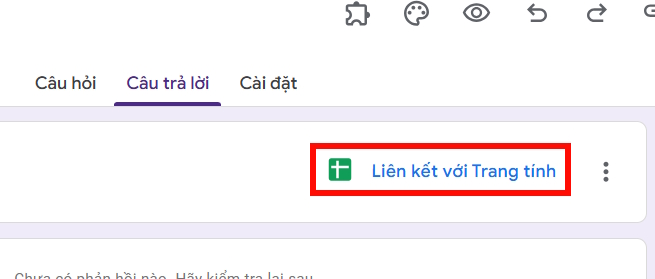
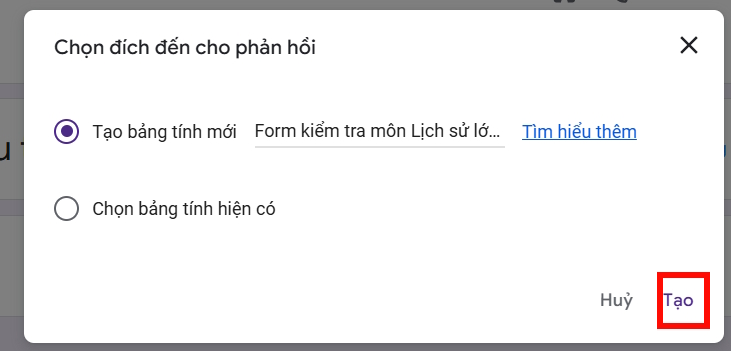
In the Responses tab, link the form to a spreadsheet. Choose a new spreadsheet unless an existing file was explicitly prepared for this form.
5. Add custom grading only when needed
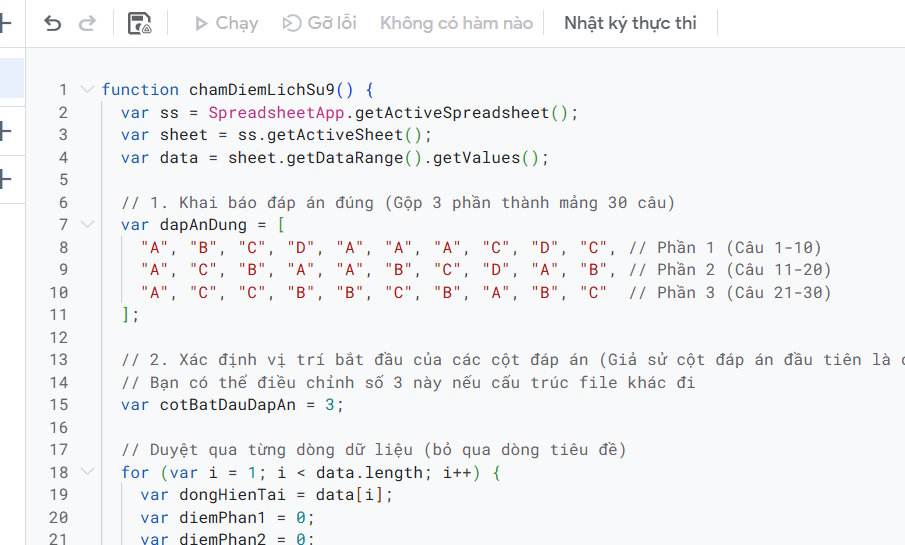
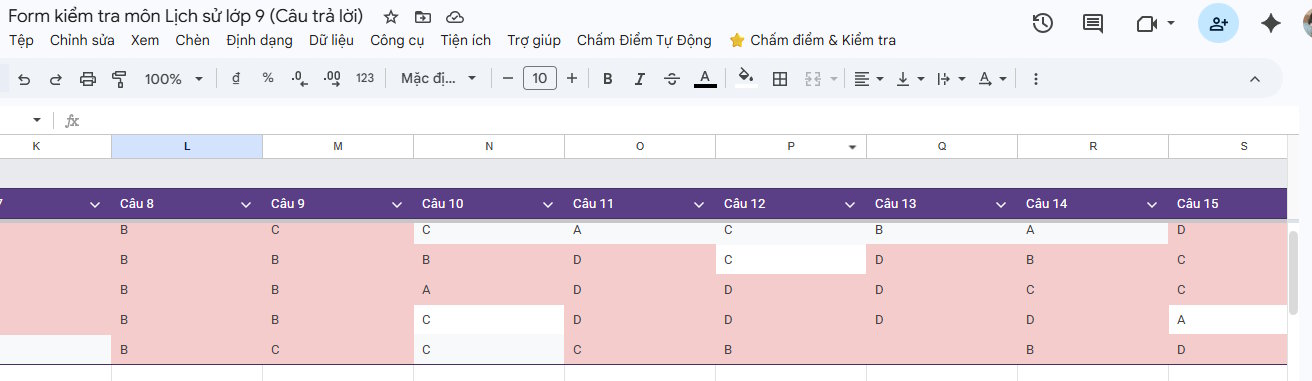
If Forms can grade every question correctly, a second script is unnecessary. For custom section weights, numeric tolerances, or highlighting incorrect spreadsheet cells, ask Gemini for a separate grading function based on the exact response-sheet headers.

A safer prompt template is:
Create a Google Apps Script function for a spreadsheet linked to a Google Forms quiz. Match response columns by their exact header text, not fixed column numbers. Store the answer key and point values in clearly named constants. Write a total score to a new “Score” column and apply a red background only to incorrect answer cells. Do not modify timestamps, student identifiers, form responses, or existing sheets. Include a dry-run function that reports proposed changes without writing them.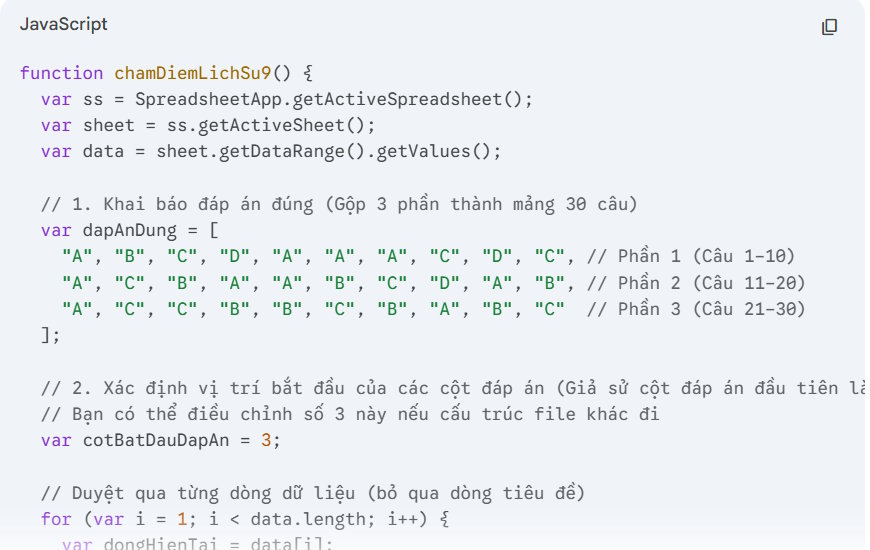
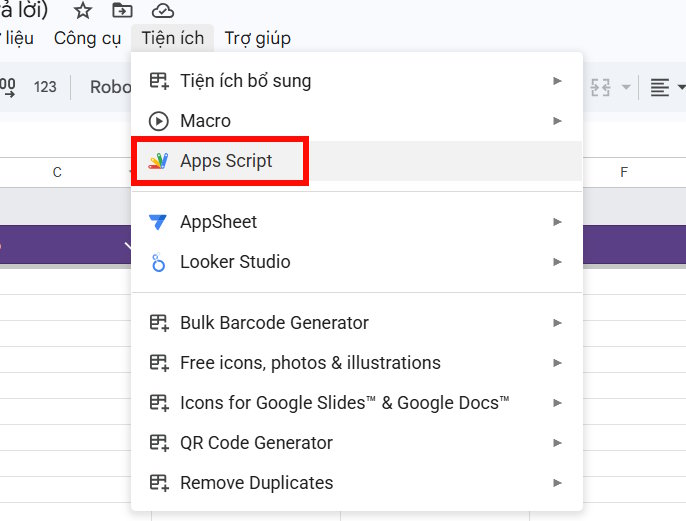
Open the linked spreadsheet, choose Extensions > Apps Script, and add the reviewed grading code to that spreadsheet's project.
6. Test before sending the quiz
- Submit at least one completely correct test response.
- Submit a response with wrong, blank, and invalid-format answers.
- Confirm that the total equals the intended maximum score.
- Check each section weight and any decimal tolerance.
- Verify that re-running the script does not duplicate score columns or overwrite responses.
- Use dummy accounts or test data—not real student records—during validation.
After testing, remove dummy responses and make a protected backup of the answer key and script. Then publish the form to the intended class and monitor the first few submissions for unexpected behavior.
Protect student data
Limit access to the form, response spreadsheet, and script project to staff who need it. Avoid exposing the answer key in a file shared with students. Follow the school's rules for student records, retention, and approved AI services. Generated code can speed up setup, but the teacher remains responsible for the exam's accuracy, permissions, and final grades.
Related Articles
 Instructions on Using Gemini to Create Images in Sheets: Explained5 minutes read
 Tips for Quickly Creating Automated Tests on Gemini4 minutes read
 Guide to Creating Exam Matrices Using Gemini and ChatGPT4 minutes read
 minutes read
 How to Add Gemini to Improve the Google Sheets Experience10 minutes read
 Gemini Can Do More Than You Think in Google Sheets: Complete Guide6 minutes read
Reader Comments 0
Sign in with email or Google to join the discussion.