Table of Contents
This practical guide explains how to Use Night Light to Reduce Eye Strain through clear, ordered steps. It also covers useful settings, common mistakes, and checks that can improve the final result.
In this day and age, using a computer screen for long periods of time is almost unavoidable. However, it can also cause eye strain and fatigue. Fortunately, Windows has a built-in feature that can help alleviate this problem.
What Is Night Light?
Night Light is a feature in Windows 10 and 11 designed to reduce the blue light emitted from screens. Blue light, while beneficial during the day, can cause eye strain and disrupt your sleep cycle when exposed in the evening.
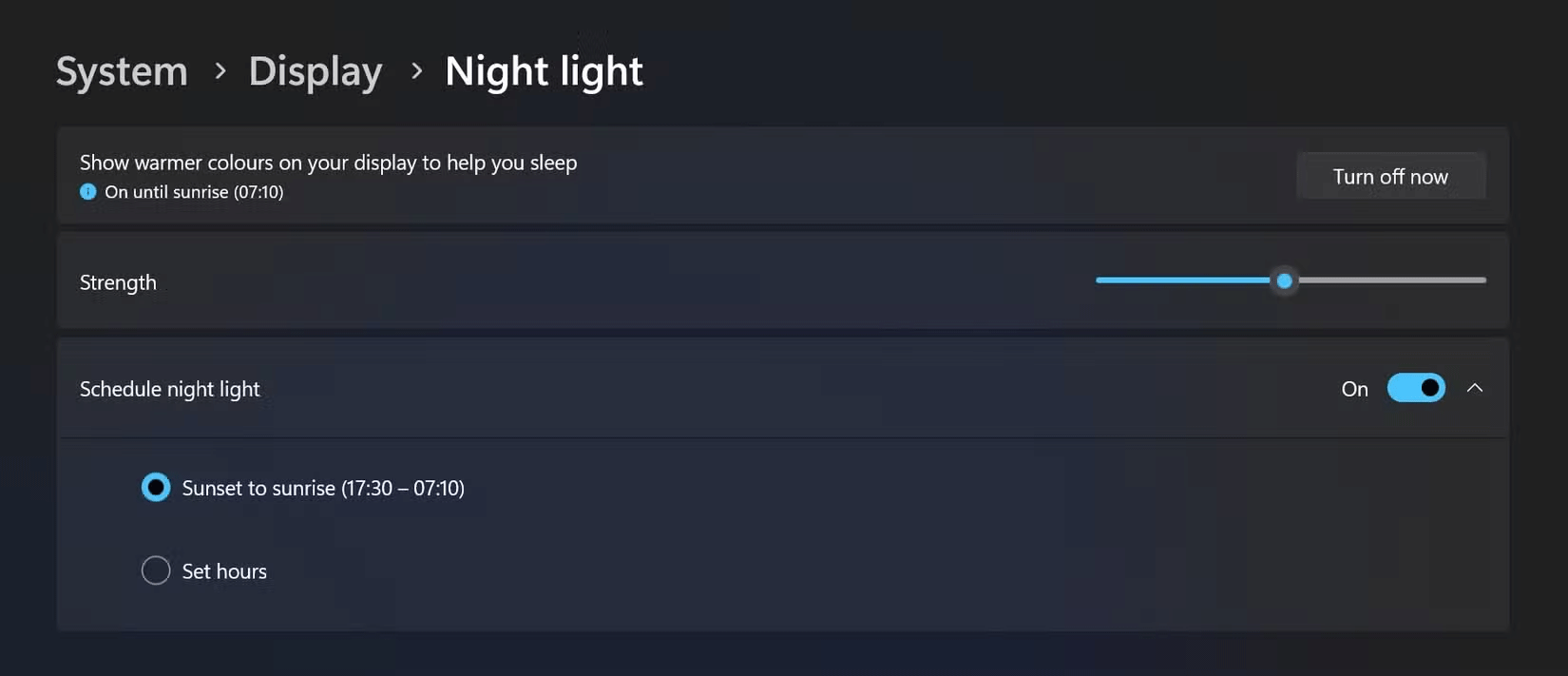
Open Settings, click System On the left panel, then click Display On the right. Under Brightness & color , turn Night Light On or off. You can also click the control panel to customize more options to suit your preferences.
You can schedule Night Light by setting specific times for Night Light to turn on and off automatically, such as from dusk to dawn. You can also control the intensity of the warm color, making it as subtle or as strong as you like. Warm colors are more effective at reducing eye strain, but you should experiment to see what feels most comfortable.
By configuring Night Light, you can significantly reduce the amount of blue light from your display, helping to reduce eye strain and improve overall comfort during long periods of screen use.
How Does Night Light Work?
Higher color temperatures emit more blue light and look cooler, like daylight. Lower color temperatures emit less blue light and look warmer, like candlelight. Night Light works by adjusting the color temperature of your screen to warmer tones, which are easier on your eyes and less likely to affect your sleep.
Night Light shifts the color temperature of your display toward the lower (red) end of the color spectrum, reducing the amount of blue light emitted and creating a more comfortable, soothing viewing experience. Essentially, Windows applies a color filter that effectively 'blocks' some of the blue light.
The operating system does this by manipulating the RGB (red, green, blue) values of the pixels being displayed - reducing the blue component while slightly increasing the red component to achieve a warmer tone.
This feature is especially beneficial when using your computer in the evening or at night. Warmer colors are easier on the eyes, especially in low light conditions. Additionally, blue light can suppress the production of melatonin, a hormone that regulates sleep. Night Light helps minimize this disruption.
Note : Night Light does not completely eliminate blue light. It simply reduces the intensity of the light to a level that is more comfortable for your eyes, especially in the evening.
Night Light is a simple yet effective feature in Windows that can significantly reduce eye strain, help you sleep better, and improve your overall viewing experience. Try it out and see for yourself the benefits it brings!
FAQ
How do I Use Night Light to Reduce Eye Strain?
Follow the steps in this guide in order, verify each setting before continuing, and check the result after every major change.
What should I prepare before I Use Night Light to Reduce Eye Strain?
Confirm compatibility, install current updates, save important work, and back up data before changing system or application settings.
What can I do if use Night Light to Reduce Eye Strain does not work?
Review permissions and requirements, restart the relevant device or app, repeat the steps carefully, and use official support resources when the issue continues.
Related Articles
 How to Use Night Light in Windows 115 minutes read
 How to Turn on Night Light Mode on Windows 106 minutes read
 Blue Light Filter, Application to Prevent Eye Strain When Using4 minutes read
 Turn on Word Dark Background Mode to Reduce Eye Strain4 minutes read
 How to Reduce iPhone Screen Brightness to Lower Than the iOS Limit5 minutes read
 How to Use the Night Light Feature on Google Pixel4 minutes read
Reader Comments 0
Sign in with email or Google to join the discussion.