Table of Contents
Gemini can check a video for SynthID, an invisible watermark used by Google's AI tools. A detected watermark supports the conclusion that some part of the video was generated or edited with Google AI. No detected watermark does not prove that the video is authentic or that another AI tool was not used.
Keep that distinction in mind before treating an AI assistant's response as a verdict about a video.
Upload a video for verification
- Obtain the video file from its creator or a source where you are allowed to download it. Keep the original copy when possible.
- Sign in at Gemini or open the updated Gemini app.
- Select Add files or the plus button and upload one video.
- Ask: Was this video created or edited using Google AI? Check for SynthID and explain what evidence you found.
- Read the complete response, including whether the evidence concerns audio, visuals, or only a segment.
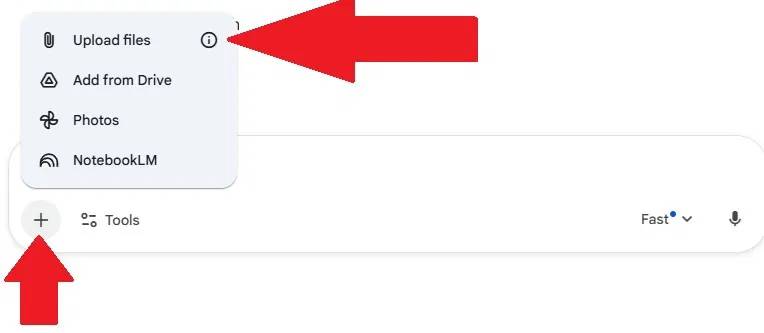
The verification file must be 100 MB or less and the video under 90 seconds, according to Google's current verification requirements. Both limits apply. If you check an excerpt from a longer video, the result only concerns that excerpt.
Understand the result
| Result | What you can conclude |
|---|---|
| SynthID detected | Some or all of the checked content was generated or edited with Google AI. Read which track or segment was identified. |
| No SynthID detected | The check found no Google watermark. This does not establish a real camera recording or exclude other AI systems. |
| Inconclusive or insufficient detail | The tool could not establish the origin from the available evidence. Keep the status uncertain. |
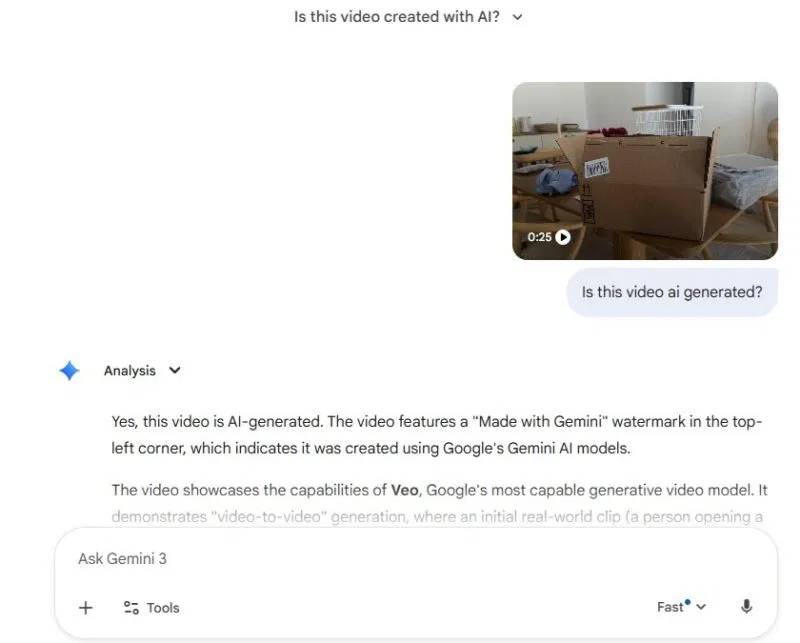
Google's video-verification announcement describes separate checks of the visual and audio tracks. AI-generated narration can appear over real footage, and generated visuals can accompany ordinary recorded sound. A positive result need not mean the entire video is synthetic.
Do not describe SynthID as impossible to lose. Google's guidance says the watermark often survives common edits, but repeated alterations or very small edits can limit detection.
Separate watermark evidence from visual guesses
Gemini may also comment on unusual movement, text, lighting, or anatomy. Those observations can suggest what to inspect, but they are weaker evidence than a detected watermark or a documented production history. Real footage can contain compression artifacts and editing effects; generated footage can look convincing.
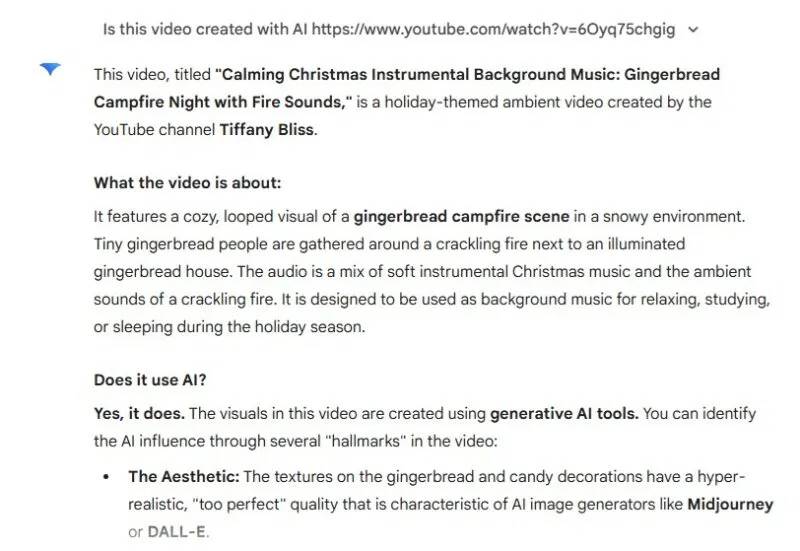
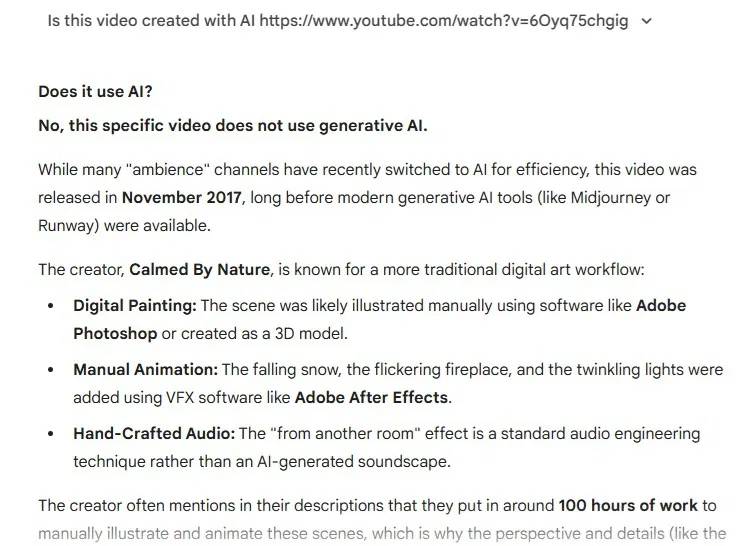
A pasted video link is also different from uploading the actual file. If Gemini describes the wrong video, stop using that answer as evidence. Confirm the file or source it analyzed rather than repeatedly asking until it gives the result you expect.
Check origin and context as well
Where supported, Gemini can also read Content Credentials describing a file's signed origin and editing history. These records provide context; their absence does not prove deception, and their presence does not verify every claim made in a caption.
- Find the earliest available upload and check what the original publisher says.
- Search a distinctive frame with reverse image search.
- Use the video source-finding workflow to locate older or fuller copies.
- Compare the claimed place, date, and event with independent records.
The same caution applies when you upload an image for verification: a Google watermark identifies a particular creation or editing process, while the truth of the scene or accompanying story requires separate evidence.
Related Articles
 6 Signs the Video You're Watching Is AI-Generated11 minutes read
 AI Content Checker: 4 Reasons Your Article Markup Is AI-Generated6 minutes read
 How to Designing Ideas and Structuring Outlines Using Gemini3 minutes read
 Claude vs Gemini Free Plans: Real-World Comparison14 minutes read
 How to Use Google Gemini to Create Stranger Things 5 Fan Art That's Gone Viral on Social Media8 minutes read
 Gemini 3.1 Pro or Gemini 3 Pro: Better?8 minutes read
Reader Comments 0
Sign in with email or Google to join the discussion.