Table of Contents
To connect the YouTube node in a self-hosted n8n instance, enable the YouTube Data API in Google Cloud, create a Web application OAuth client, register the exact callback URL shown by n8n, and authorize the Google account that owns or manages the channel.
Do not use an API key for uploads or private channel data. Those actions require user authorization through OAuth 2.0. A service account is also not a general replacement for a normal YouTube channel login.
This guide uses a custom OAuth client, which is the path documented for self-hosted n8n. If your n8n plan presents a managed Google connection that supports the required YouTube operation, follow the credential screen shown in your instance.
Before you begin
- Confirm that the Google account can access the intended YouTube channel.
- Make sure your n8n editor has a stable URL. A public HTTPS URL is recommended for a server deployment.
- Decide which YouTube actions the workflow needs. Request the narrowest permissions that support them.
- Protect the n8n credential store and encryption key before storing OAuth tokens.
The official n8n Google OAuth credential guide and YouTube OAuth guide are the authoritative references if menu labels change.
1. Create a dedicated Google Cloud project
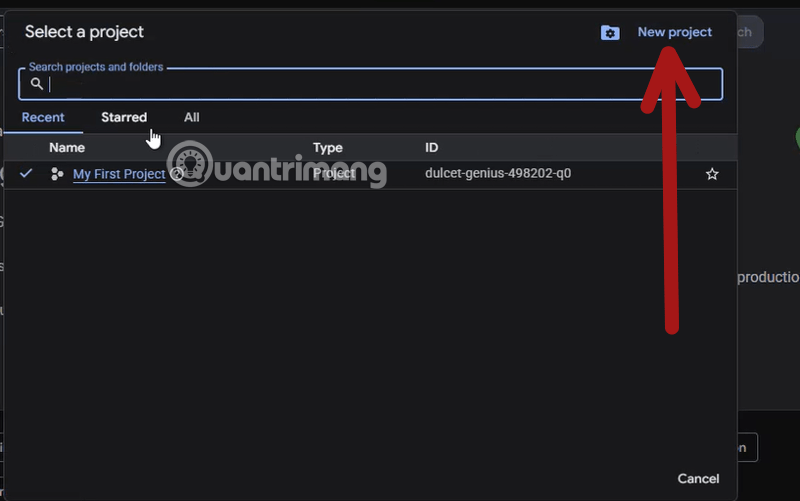
Open Google Cloud Console, sign in, and use the project selector in the top bar. Choose New project.
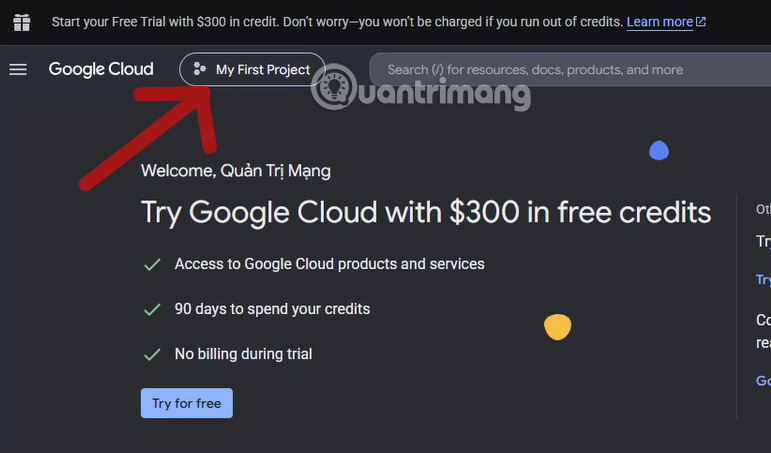
A dedicated project keeps OAuth clients, API quotas, owners, and audit settings separate from unrelated applications.
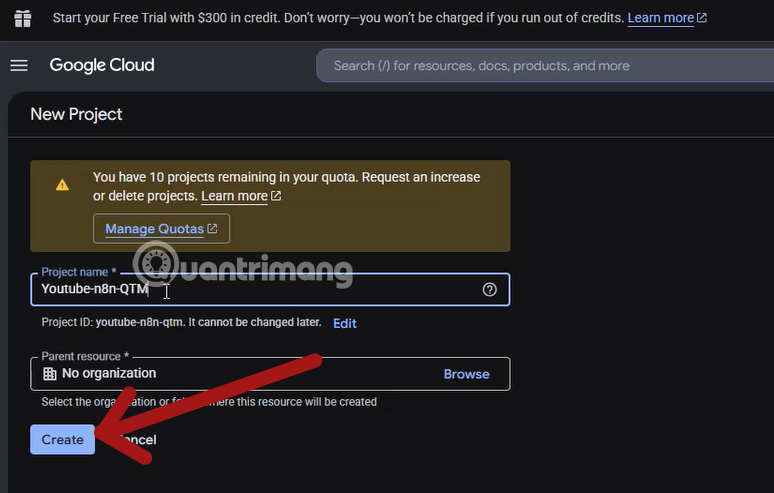
Enter a recognizable project name, select the correct organization or folder if your company uses one, and choose Create. Google generates the project ID; treat that ID as permanent.
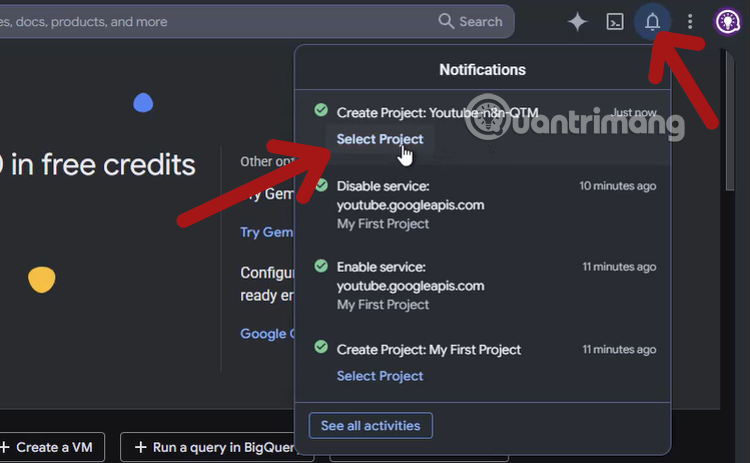
Wait for project creation to complete, then select the new project before configuring anything else.
2. Enable YouTube Data API v3
Open APIs & Services and search the API Library for YouTube Data API v3.
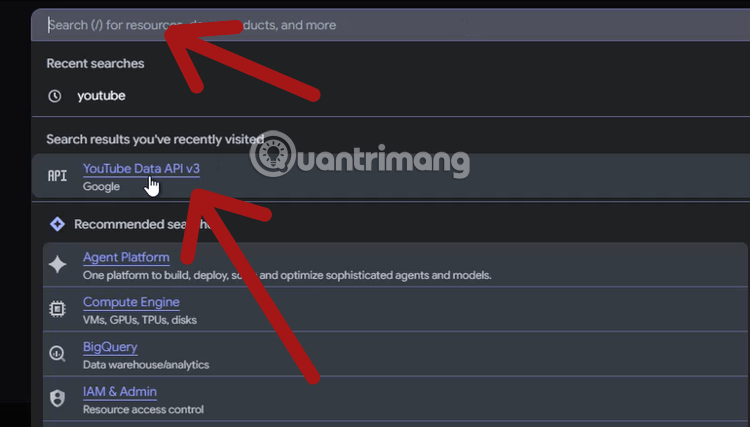
Select the official API result from Google.
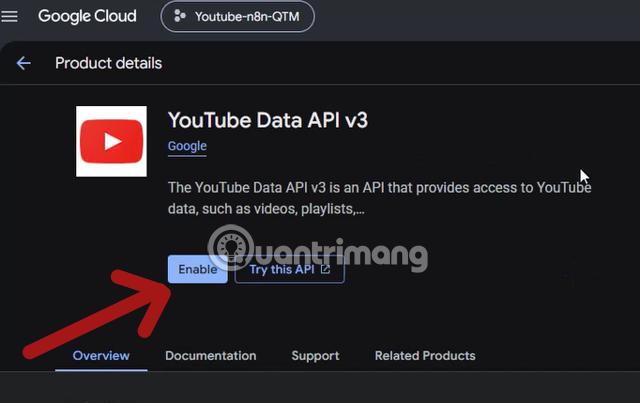
Check the project name at the top of the page, then choose Enable. API calls will fail even with valid OAuth credentials if the API is disabled in that project.
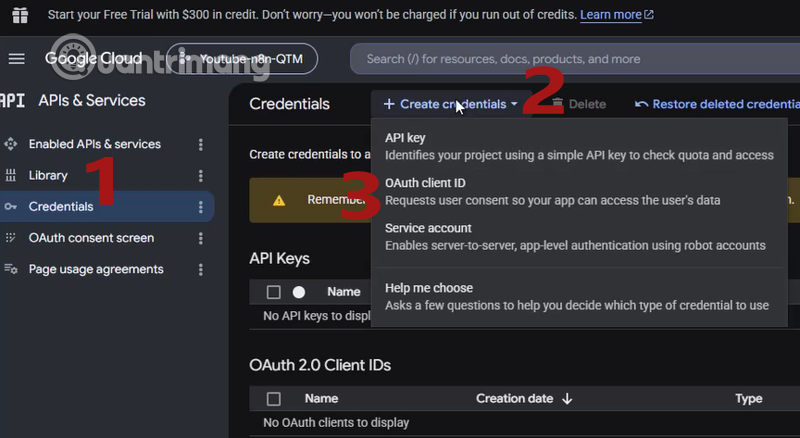
3. Configure the Google Auth Platform
Open the Google Auth Platform or the OAuth consent-screen section. Current Google Cloud layouts group the setup into areas such as Branding, Audience, Data Access, and Clients. Older layouts may show a consent-screen wizard.
Choose Create credentials and select OAuth client ID. If Google says the consent screen is not configured, open the configuration first.
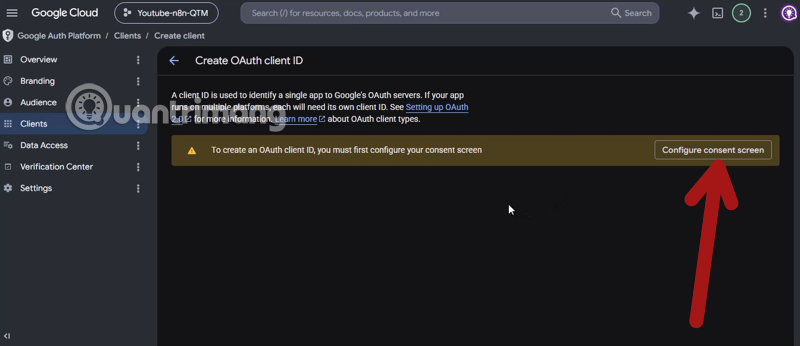
Add app information
Enter an application name users will recognize, choose a support email, and provide developer contact information. If Google requests authorized domains, a home page, or a privacy-policy URL for the publishing status you choose, use domains you control.
Choose the audience
Use Internal only when the project belongs to a Google Workspace or Cloud Identity organization and every intended user is inside that organization. Otherwise use External.
For a personal or development connection, leave an external app in Testing and add only the accounts that will test it. Testing apps display an unverified-app warning, have a user cap, and can have limited refresh-token lifetime. Production use with sensitive scopes may require Google verification.
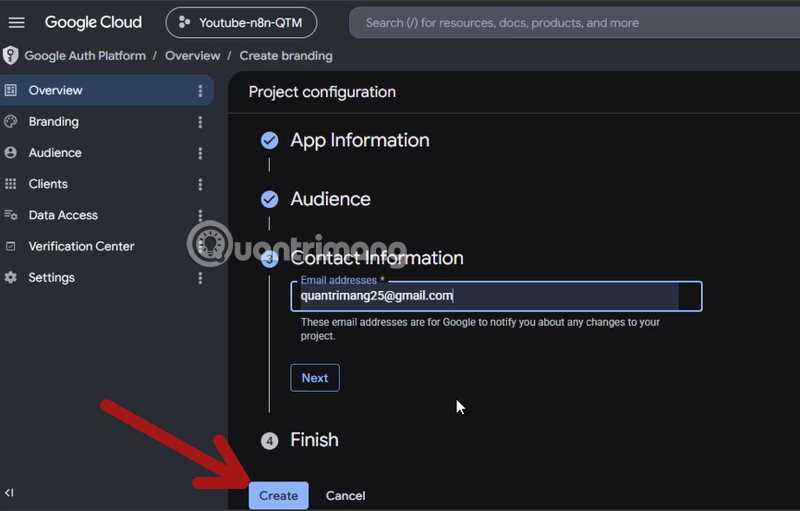
Add developer contact information
Enter an actively monitored address. Google uses it for policy and project notifications; it does not have to be the same account that owns the YouTube channel.
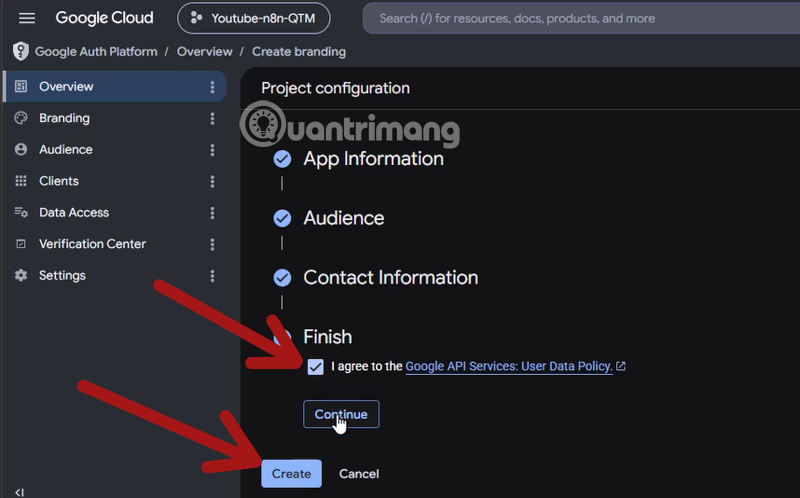
Review the configuration and create or save it.
4. Start a Web application OAuth client
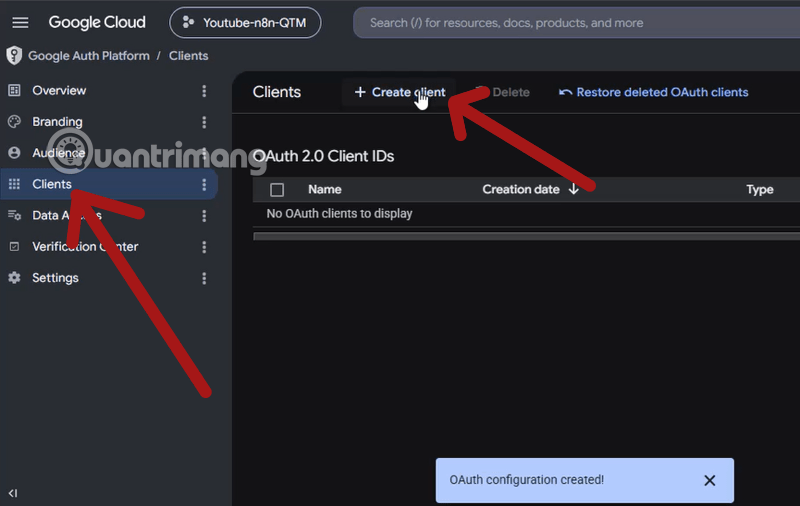
Open Clients and choose Create client.
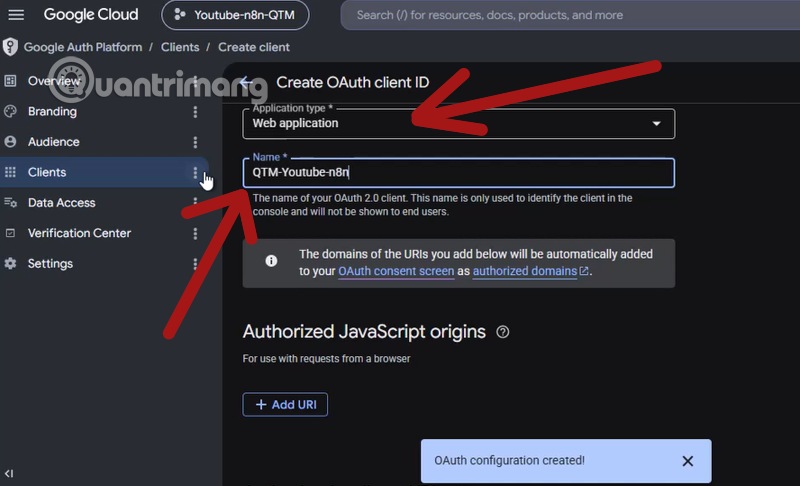
Set Application type to Web application and give the client a clear name such as “n8n YouTube production.” Do not choose Desktop app for a normal n8n server callback.
5. Copy the callback URL from n8n
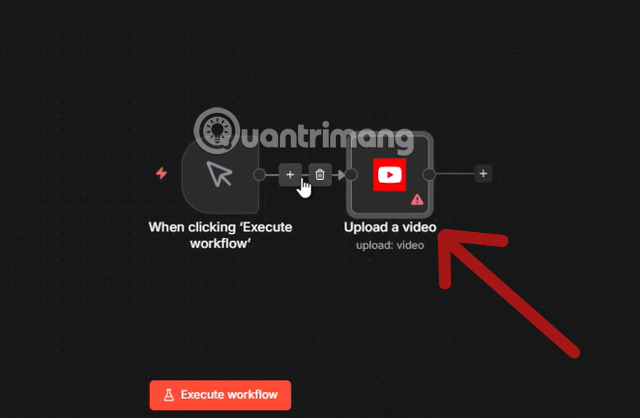
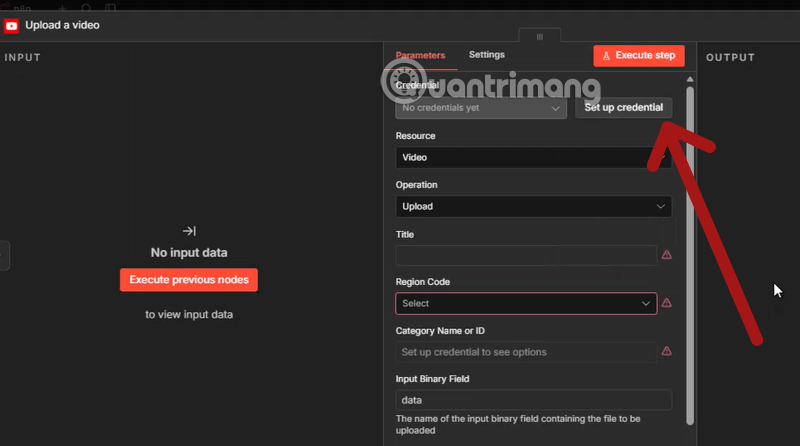
In n8n, create or open a workflow and add the YouTube node. In its credential selector, choose Create new credential for YouTube OAuth2.
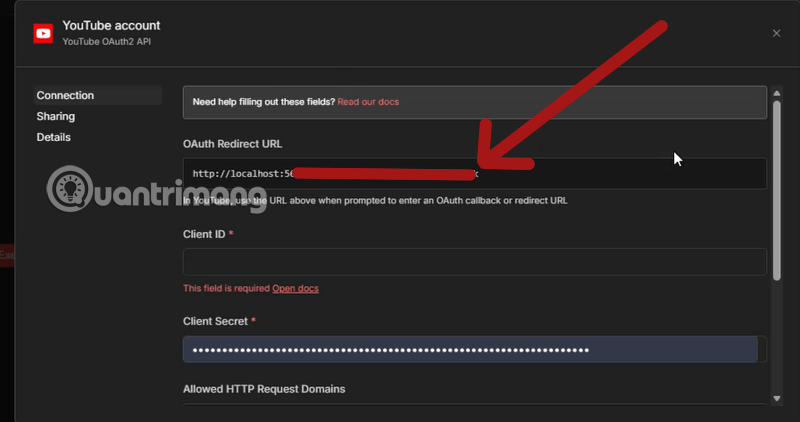
Copy the OAuth Redirect URL displayed by n8n. Do not reconstruct it from memory. The host, protocol, port, path, and trailing slash must match Google’s registered URI exactly.
A local installation often shows a URL resembling:
http://localhost:5678/rest/oauth2-credential/callback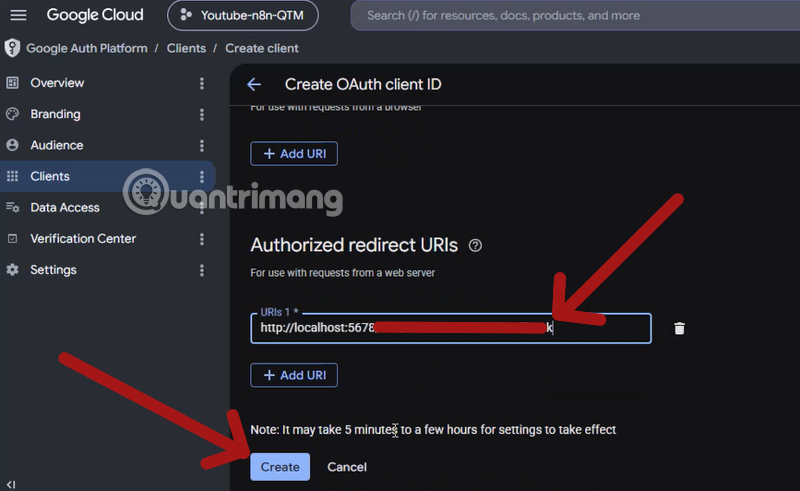
A hosted instance should normally show its public HTTPS domain. If a self-hosted server incorrectly shows localhost or an internal address, fix n8n’s public editor or webhook URL configuration before creating the client. Do not register a callback that the browser cannot reach.
6. Register the redirect URI and create the client
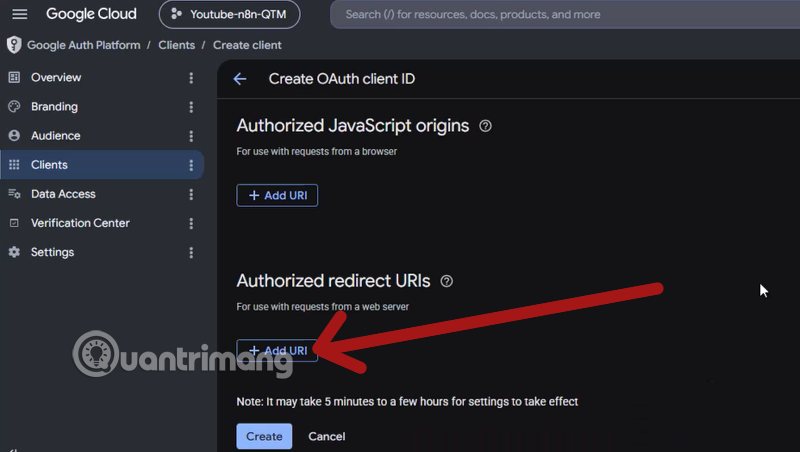
Return to the Google OAuth client page. Under Authorized redirect URIs, choose Add URI and paste the exact value from n8n. Authorized JavaScript origins are not a substitute for redirect URIs.
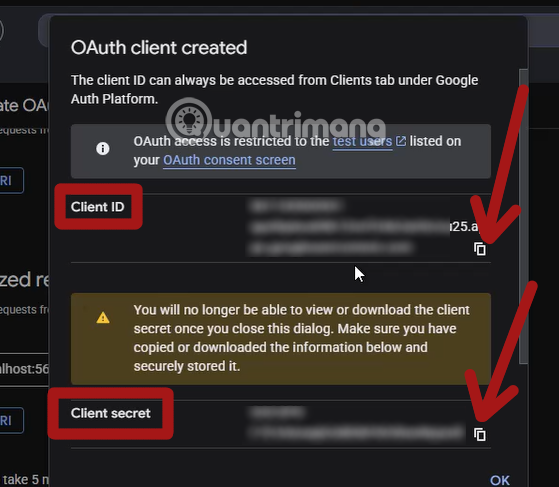
Create the client. Google displays a client ID and client secret.
Treat the client secret as a credential:
- paste it directly into n8n rather than a chat, ticket, or shared document;
- never commit it to a workflow export or source repository;
- limit who can view credentials and executions in n8n; and
- rotate the secret if it is exposed.
7. Add test users when the app is in Testing
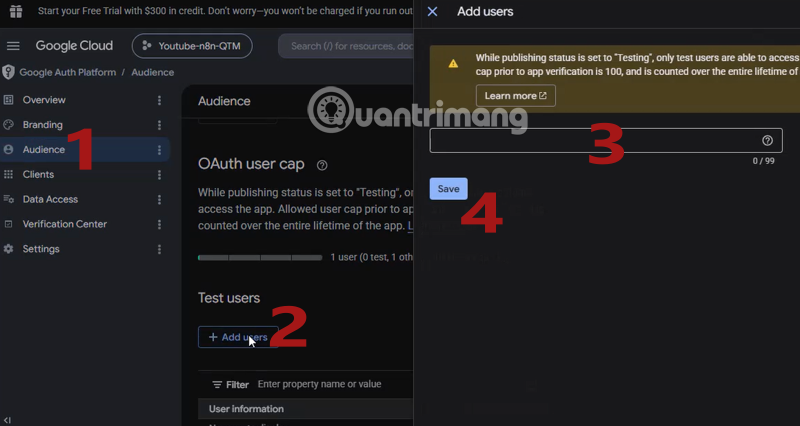
Open Audience, find Test users, and add the exact Google account that will authorize the YouTube channel. A Workspace administrator may also need to permit the OAuth app.
Google documents a 100-user cap for unverified external apps. More importantly for an automation, a Testing app can issue refresh tokens with limited lifetime, which can force periodic reconnection. Do not move to Production merely to bypass a warning; review Google’s verification and app-status rules first.
8. Enter the client credentials in n8n
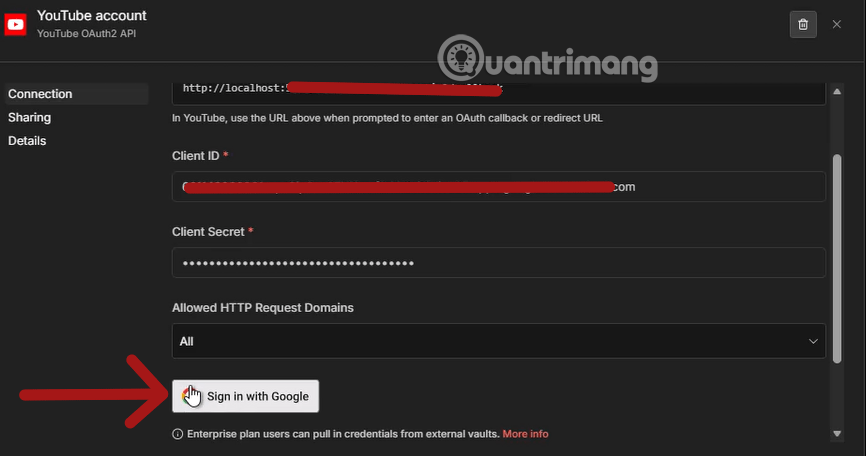
Return to the YouTube OAuth2 credential in n8n and paste the client ID and client secret. Keep any allowed-domain setting at its secure default unless you understand why the workflow needs a change.
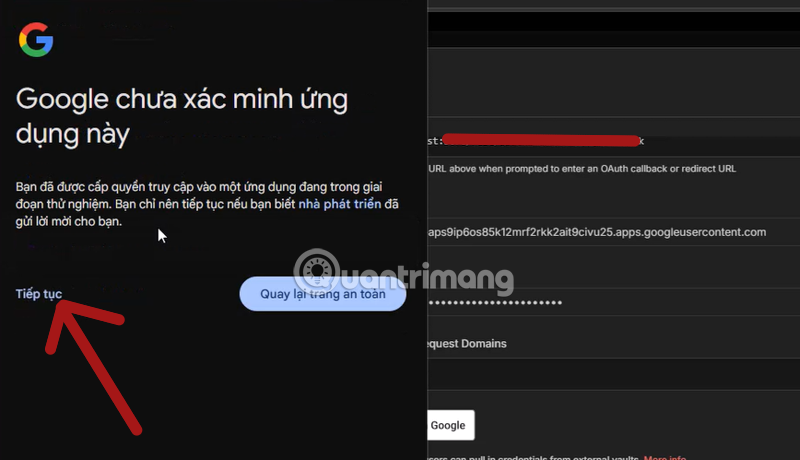
Choose Sign in with Google. Select the test user or internal account that owns or manages the required channel.
If Google shows an unverified-app warning for your own development project, verify that the displayed app name, Cloud project, developer, requested permissions, and selected account are all yours before continuing. Never teach users to click through that warning for an unfamiliar application.
9. Review permissions and complete authorization
Google lists the scopes requested by n8n. Read them individually. Uploading, editing, deleting, reading, and managing a channel are different levels of access.
Do not select every permission automatically. Google requires applications to request the minimum scopes necessary. Grant only what the chosen n8n operation requires. If the credential asks for broader access than your workflow needs, review the node and credential configuration before proceeding.
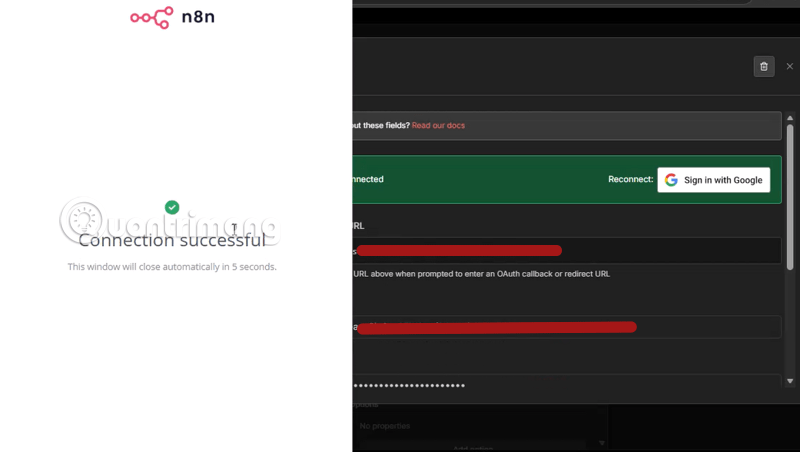
After consent, n8n should display a connected state.
10. Test with a low-risk YouTube operation
Do not begin by publishing a public video or editing production metadata in bulk. First, configure the YouTube node for a read-only operation supported by the current n8n YouTube node, run the node manually, and confirm that it accesses the intended channel.
For upload testing, use a small file and set visibility to private or draft-like behavior where the node supports it. Confirm the title, description, audience setting, playlist, and channel before allowing scheduled execution.
Common errors
redirect_uri_mismatch
Copy the redirect URL from the credential screen again and compare it character by character with the authorized redirect URI in Google Cloud. Common causes are HTTP versus HTTPS, localhost versus a public hostname, a changed reverse-proxy URL, a different port, or an extra slash.
Error 403 or access blocked
Confirm that YouTube Data API v3 is enabled in the same project that owns the OAuth client. If the app is in Testing, add the selected Google account as a test user. For managed Workspace accounts, ask the administrator whether third-party OAuth access is restricted.
Google has not verified this app
This is expected for some development and Testing projects, but it is not a general safety guarantee. Continue only when you control the Cloud project and recognize the exact application and scopes. Public distribution may require brand and sensitive-scope verification.
The credential disconnects after several days
Testing-status refresh tokens can have a limited lifetime. Check the app’s publishing status and Google’s current requirements. A revoked grant, changed password, administrator policy, disabled API, or rotated client secret can also invalidate access.
The connection works but an operation fails
The credential may lack the required scope, the account may not have permission for the selected channel, the API quota may be exhausted, or the node may not support that operation. Inspect the execution’s HTTP status and error body before reconnecting blindly.
Security and operating checklist
- Use a dedicated Cloud project with at least two appropriate owners for business workflows.
- Store the n8n encryption key and database backups securely.
- Grant the credential only to workflows and editors that need it.
- Keep uploaded videos private until validation passes.
- Add a human approval step before public publishing, deletion, or bulk metadata changes.
- Log execution results without storing access tokens or client secrets.
- Monitor API quota and repeated failures.
- Revoke unused grants in the Google Account security settings and delete abandoned OAuth clients.
Once authentication is stable, an n8n workflow can collect a rendered file from Google Drive or Dropbox, validate metadata, upload the video privately, and notify a reviewer. Keep publishing as a separate approved step so a malformed file or incorrect channel selection cannot become public automatically.
The same OAuth pattern applies to other Google service nodes, though each API and scope set is different. TipsMake’s Google Docs and n8n connection guide shows the shared Cloud-project concepts, while the n8n HTTP Request node guide is useful when a supported node does not expose a required API method.
After the credential is connected, save a test workflow, export only a secret-free copy for version control, and document the Cloud project, client owner, scopes, callback URL, and revocation procedure.
Related Articles
 Schema Validation in Node.js Using Joi9 minutes read
 Installing Node.js Internally: Instructions for Installing4 minutes read
 Programming Event Driven in Node.js: Event Loop in Node.js6 minutes read
 The Eventemitter Class in Node.js: Event Emitter in Node.js7 minutes read
 What Is Node. Js? Overview of Node. Js5 minutes read
 Node. What Is Js? Download Node Js for Computers and Laptops8 minutes read
Reader Comments 0
Sign in with email or Google to join the discussion.