Table of Contents
You can run the Qwen3.5-397B-A17B GGUF with llama.cpp on one NVIDIA GPU by keeping part of the model in system RAM. The example here uses one H200-class GPU and substantial host memory on a Linux machine. If you rent that machine, inference runs on the remote host; an SSH tunnel makes its web UI and API available at 127.0.0.1 on your laptop. This is self-hosted inference, not execution on the laptop’s hardware.
Check memory, disk, and software first
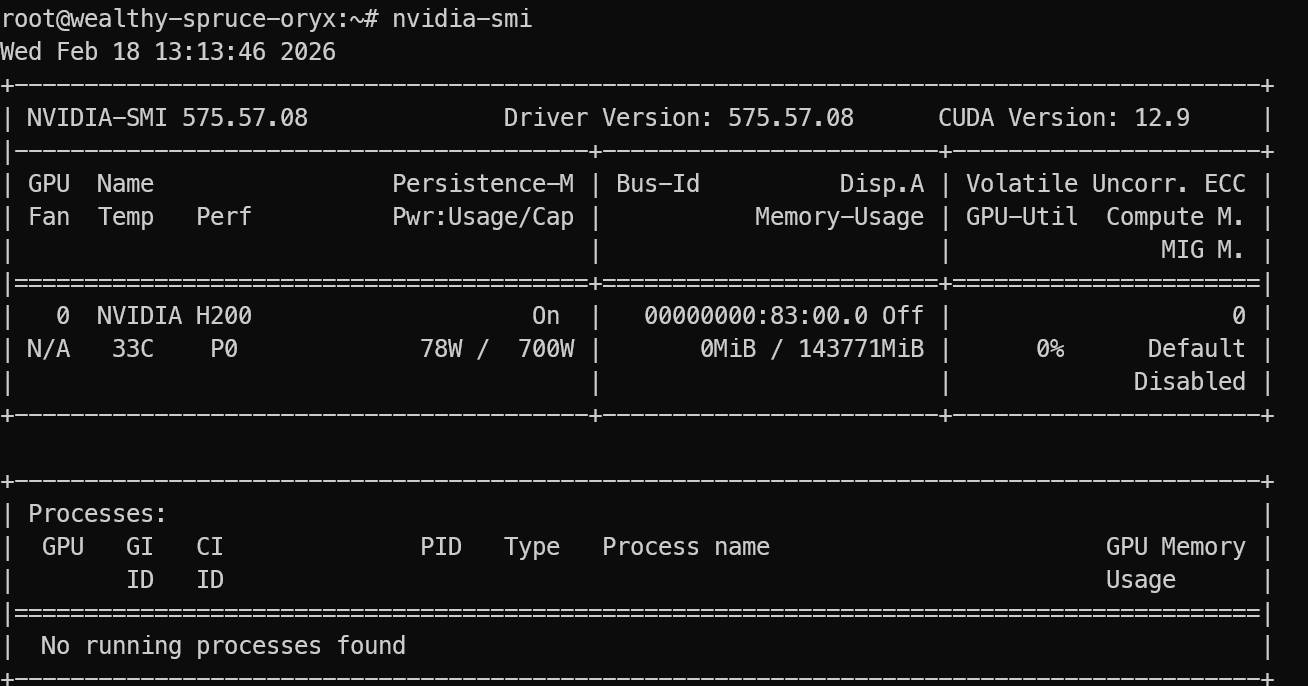
The Unsloth MXFP4_MOE GGUF is roughly 237 GB on disk and comes in six shards. Plan for more free storage than the download size and enough combined GPU and system memory for weights, runtime buffers, and the context cache. A single H200 with around 141 GB of VRAM and a host with roughly 240 GB of RAM is the example configuration, not a guaranteed minimum: speed and memory use vary with offloading and context. If your machine is smaller, consider a smaller Qwen3.5 variant instead of assuming SSD swap will make the 397B model practical.
Use a Linux host with a working NVIDIA driver, CUDA development tools, CMake, a C++ compiler, Git, and Python. Confirm CUDA availability with nvidia-smi and nvcc --version before building. Review the Unsloth Qwen3.5 guide and the llama.cpp build instructions if your driver or build environment differs.
1. Connect to the GPU host
On a local workstation with adequate hardware, work directly in its terminal. For a rented Linux VM, choose a single-GPU instance with enough RAM and disk, add your SSH public key, and note its actual user name and IP address. The screenshots below show one provider’s setup; its prices and availability can change.
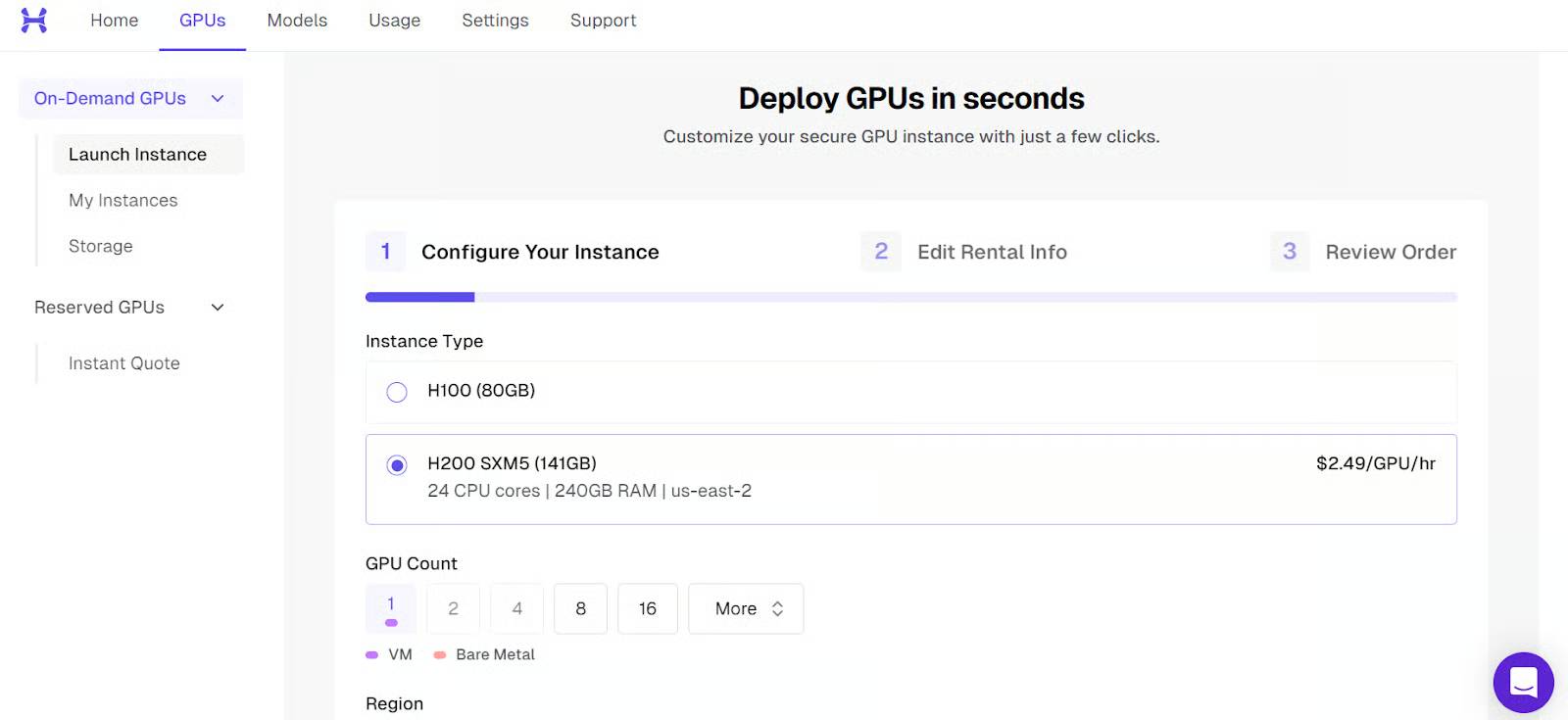
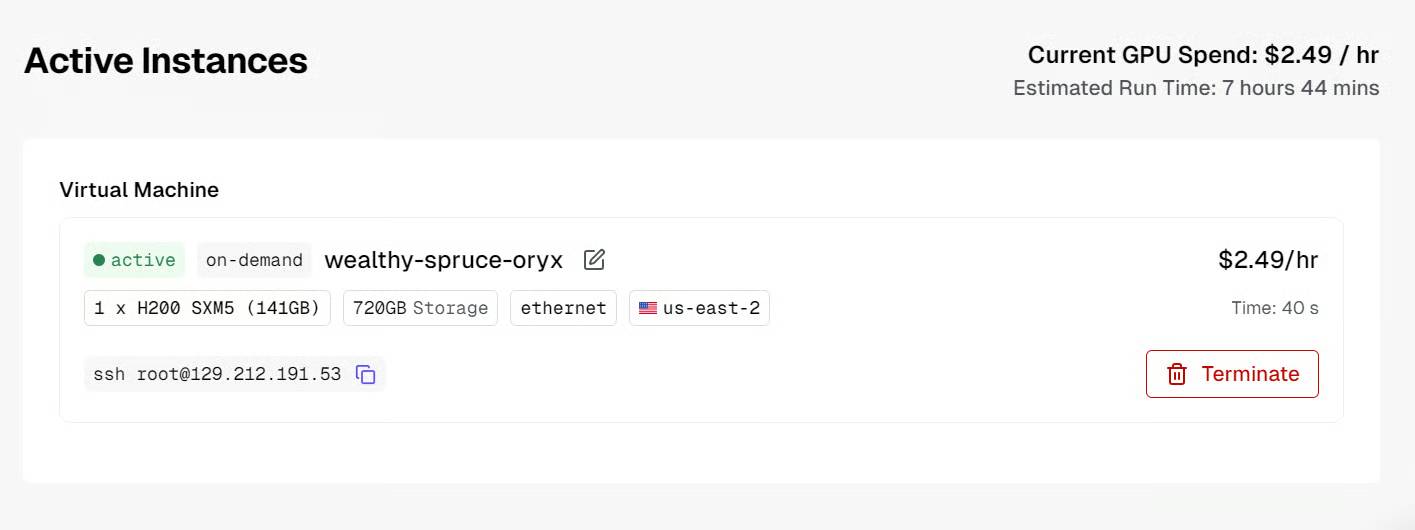
From your computer, connect with an SSH tunnel. Replace the placeholders with the credentials for your machine:
ssh -L 8080:127.0.0.1:8080 USER@SERVER_IPVerify the server’s SSH host key before accepting a first connection. Keep this session open while you use the forwarded UI.
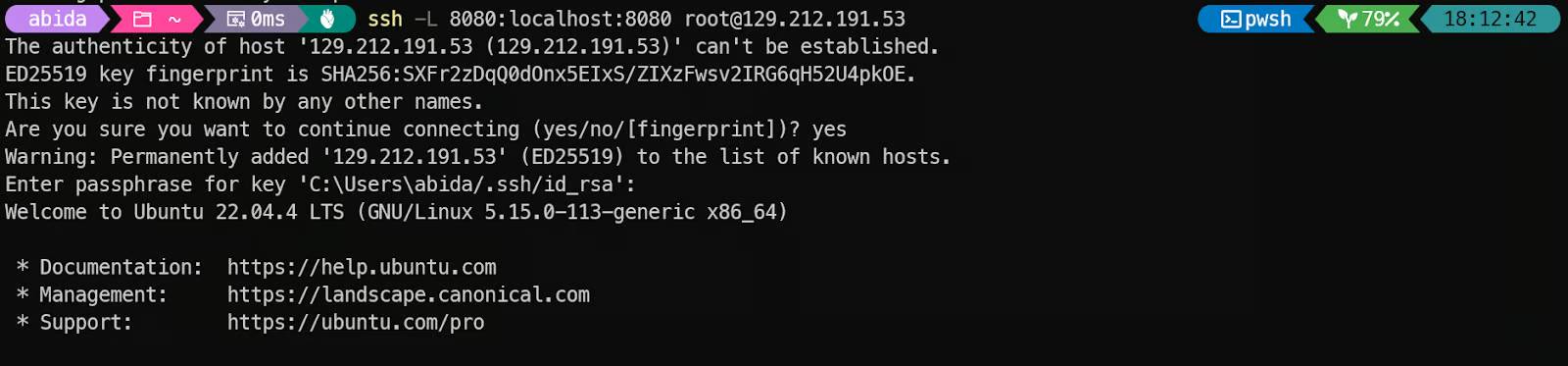
On the VM, check the GPU:
nvidia-smi
nvcc --version
If nvcc is unavailable, install a compatible CUDA Toolkit for that host before compiling the CUDA backend.
2. Build llama.cpp with CUDA
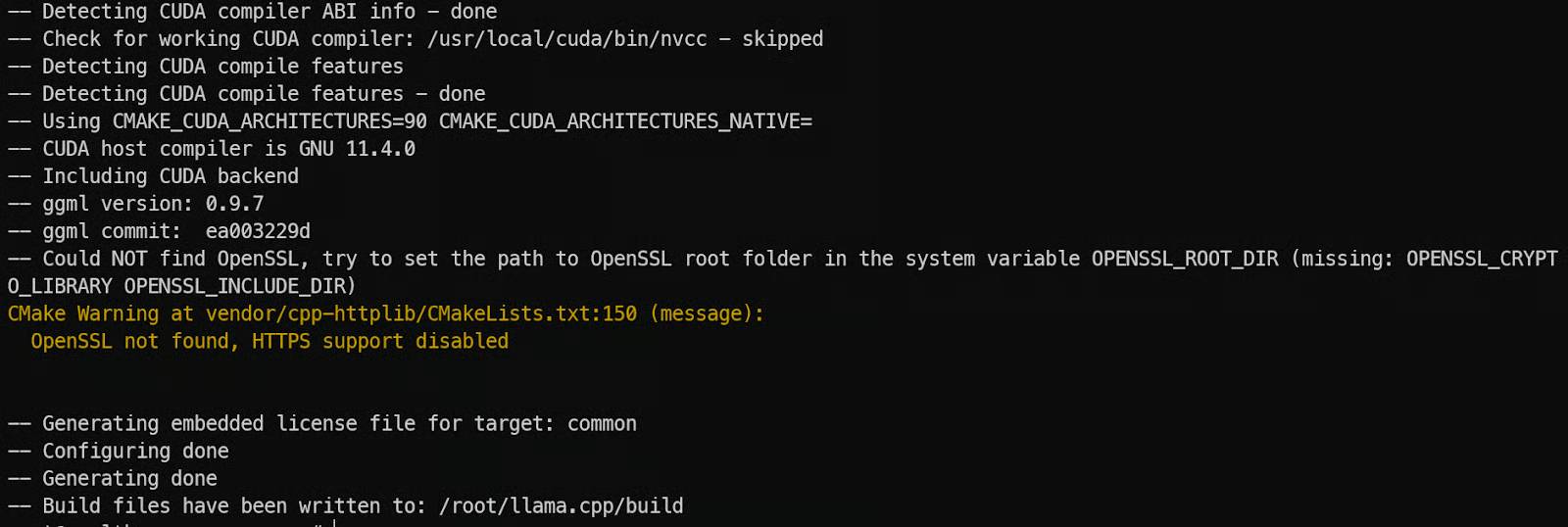
On an Ubuntu-like host, install basic build and download tools, clone the current repository, and compile llama-server. Run each command separately; the source instructions had two package commands accidentally joined together.
sudo apt update
sudo apt install -y git build-essential cmake curl libcurl4-openssl-dev python3-venv
git clone https://github.com/ggml-org/llama.cpp
cmake -S llama.cpp -B llama.cpp/build -DGGML_CUDA=ON -DCMAKE_BUILD_TYPE=Release
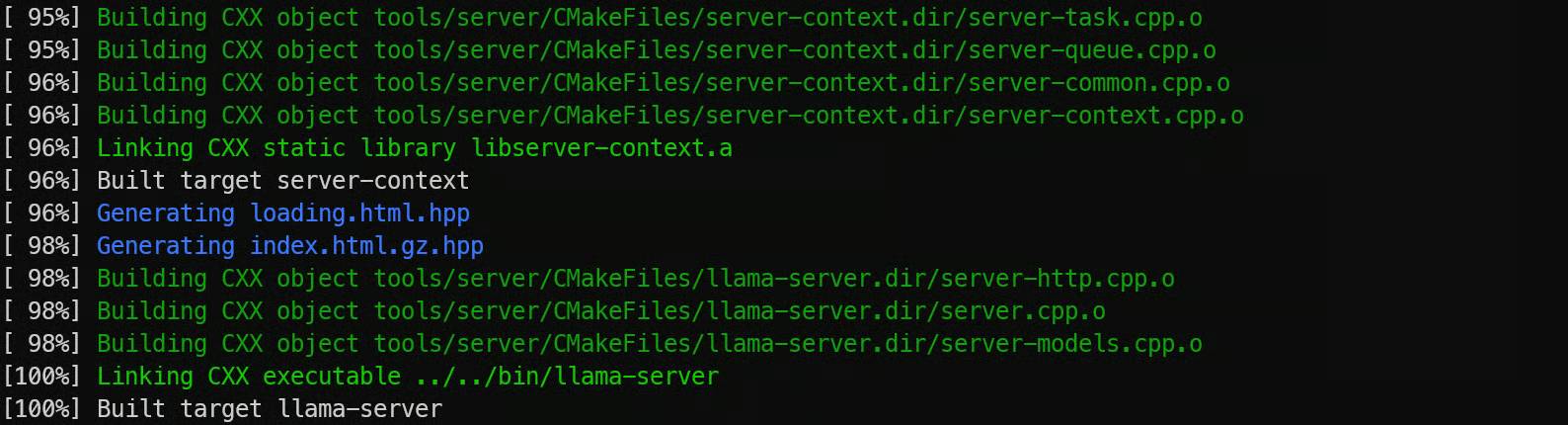
cmake --build llama.cpp/build --config Release -j --target llama-server
CMake can select the attached GPU’s architecture; specify CMAKE_CUDA_ARCHITECTURES only when your build requires it. The binary stays at llama.cpp/build/bin/llama-server, so there is no need to copy files into the source tree.
3. Download every shard of the chosen GGUF
Install the Hugging Face CLI in a Python virtual environment on the GPU host, then download only the MXFP4_MOE files into a predictable directory:
python3 -m venv ~/hf-tools
~/hf-tools/bin/python -m pip install -U huggingface_hub
~/hf-tools/bin/hf download unsloth/Qwen3.5-397B-A17B-GGUF --local-dir models/Qwen3.5 --include "MXFP4_MOE/*"
Check that all six .gguf shards are present in models/Qwen3.5/MXFP4_MOE/. The first shard is the model path you pass to the server; llama.cpp reads the other shards from the same directory. The download consumes storage on the host, not GPU VRAM.

4. Start the server and test the tunnel
Run this on the GPU host from the directory containing llama.cpp and models. Bind to loopback so the unauthenticated server is reachable through SSH rather than from the public internet:
./llama.cpp/build/bin/llama-server --model models/Qwen3.5/MXFP4_MOE/Qwen3.5-397B-A17B-MXFP4_MOE-00001-of-00006.gguf --alias Qwen3.5 --host 127.0.0.1 --port 8080 --fit on --ctx-size 8192 --jinja--fit on asks llama.cpp to adjust unspecified parameters to available device memory; it does not create RAM or make an undersized host fast. A larger context consumes more memory. If loading fails, check the downloaded shards, current build support, free RAM/VRAM, and server log before changing offload or context settings. If you later need image input, download the matching mmproj file and pass it with --mmproj; the text-only test below does not need it.

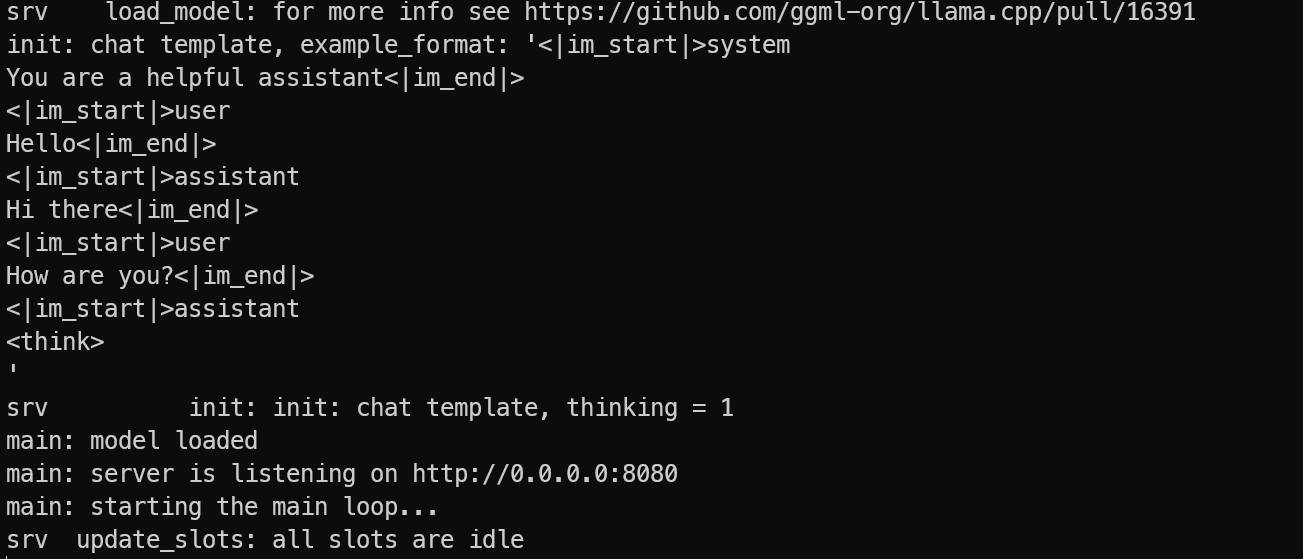
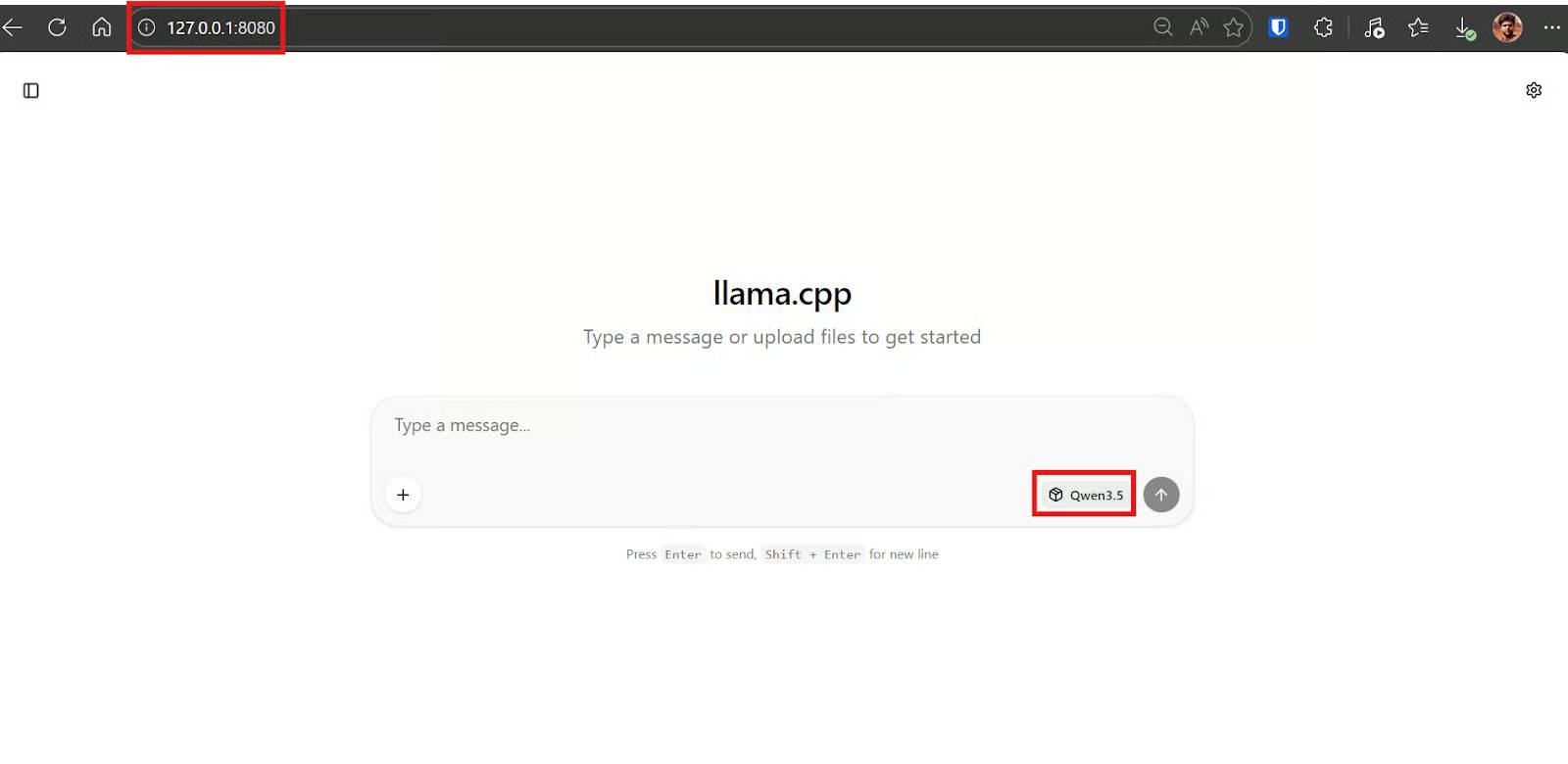
Keep the server and SSH tunnel running. On your laptop, open http://127.0.0.1:8080 for the web UI or test the API in another terminal:
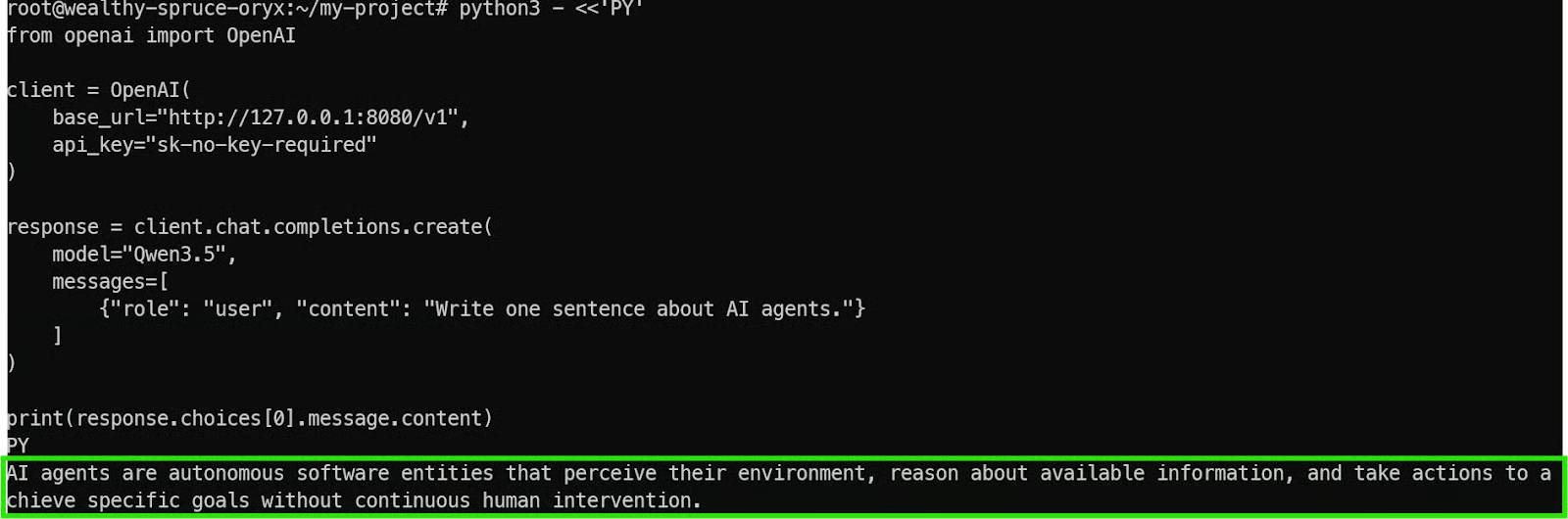
curl -s http://127.0.0.1:8080/v1/modelsSeeing the Qwen3.5 alias confirms that the local tunnel reaches the server. To test generation, send a small request:
curl -s http://127.0.0.1:8080/v1/chat/completions -H 'Content-Type: application/json' -d '{"model":"Qwen3.5","messages":[{"role":"user","content":"Write one sentence about AI agents."}]}'Wait for a response before assuming the model is ready; a listed model alone does not prove that generation succeeds. Other clients that support this style of chat endpoint can point to http://127.0.0.1:8080/v1.

5. Try the web UI with a small application prompt
The built-in UI lets you test the model without client code. The following screenshots show a prompt for a Python terminal stock screener and its generated output. Treat this as a code-generation exercise, not as validated financial analysis. Ask the model to define its inputs, data source, scoring rule, and output file; review the generated code and test it on sample data before installing packages or running it.
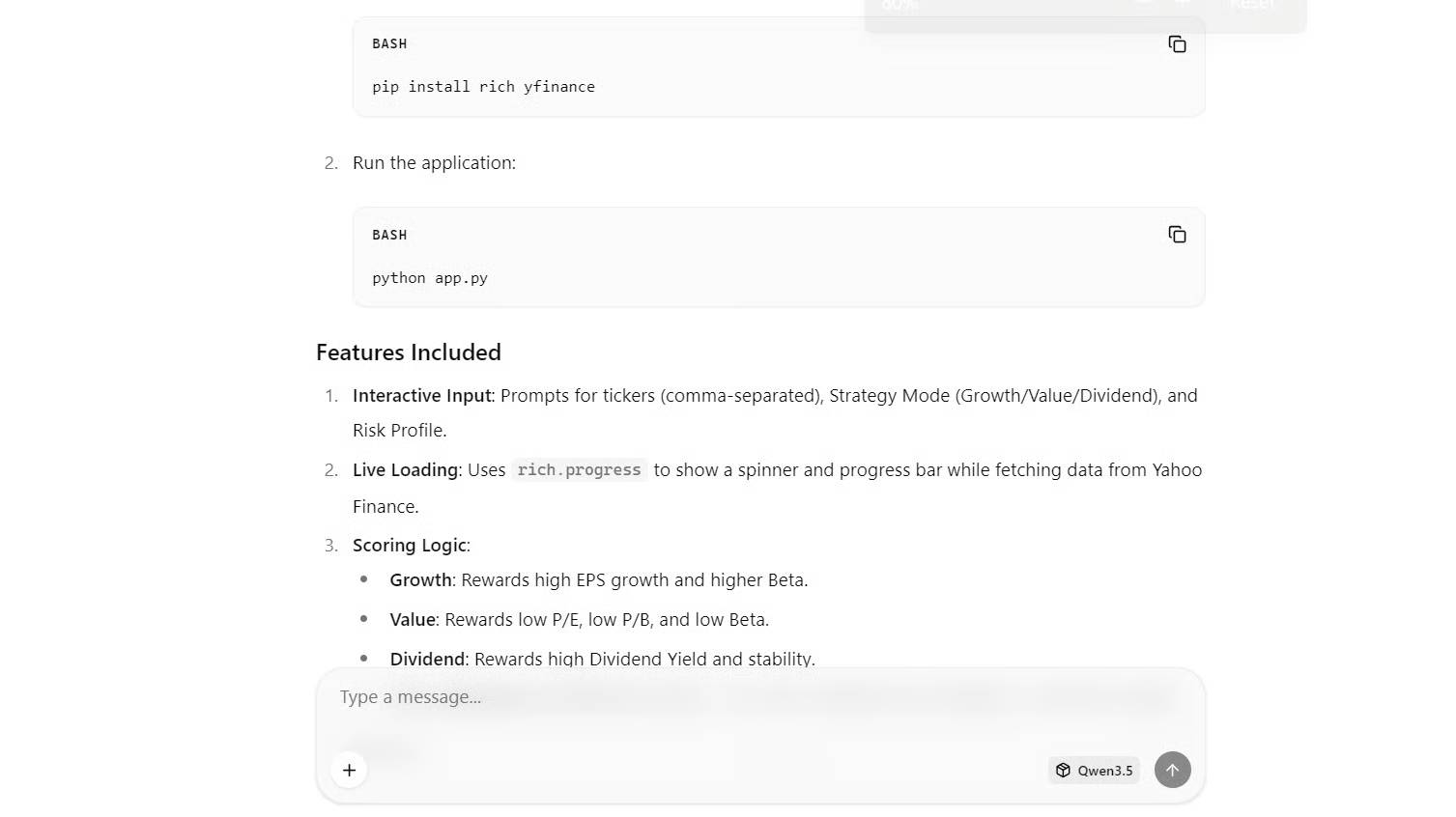
The example uses Python libraries such as Rich for a terminal interface and yfinance for public market data. Data fields and provider availability can change. Inspect network calls, errors, missing data, and CSV output, and never assume a generated ranking is suitable for an investment decision.
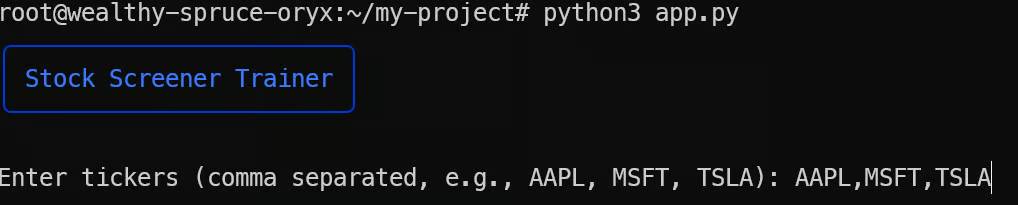
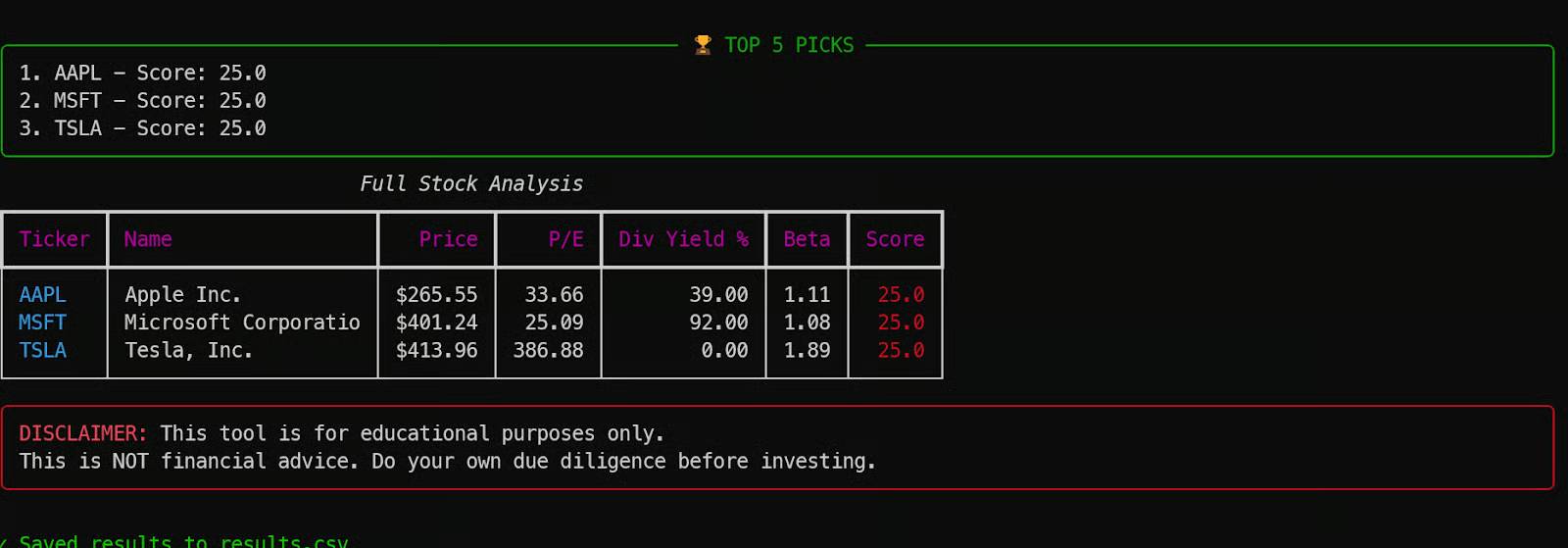
For a lighter local setup, see the smaller Qwen 3 Ollama guide. If you prefer a desktop interface for compatible GGUF models, read the LM Studio setup guide.
Related Articles
 How to Setup and Run Qwen 3 Locally with Ollama9 minutes read
 Comparing the Performance of Qwen 3.5 and Gemma 413 minutes read
 Dont Complain About Why Youre Single, This Is the Answer for You6 minutes read
 Is It Possible to Run AI Chatbots Locally on Legacy Hardware?7 minutes read
 3 Local Llms That Can Run on a Phone8 minutes read
 Do These 10 Things as Soon as You're Single6 minutes read
Reader Comments 0
Sign in with email or Google to join the discussion.