Table of Contents
This updated guide explains how to make Google chrome a beautiful and minimalist browser with clear steps, practical tips, and useful context. One of the things people dislike most about Google Chrome is how it slows down and becomes a cluttered mess on the screen, with tabs, extensions, and visual elements competing for space.
Extensions Help Strip Chrome Down to the Essentials
Distractions in your browser aren't just annoying, they're also productivity killers. Bright colors, notifications, and distracting elements constantly compete for attention when you're trying to focus. Your concentration drops dramatically when your browser resembles Times Square, with flashing ads and pop-ups demanding your attention.
After testing a bunch of extensions, there's a set of extensions that can turn Chrome into a quiet workspace. First, install Hide Fixed Elements, which removes all the distracting parts of the websites you visit frequently. No more those nagging "subscribe now" banners and floating social media icons.
To manage your bookmarks and tabs, turn to Toby. It organizes everything into collections, rather than a chaotic row of small, indistinguishable tabs spread across the top of your browser. It also turns the new tab page into a visual bookmark organizer.
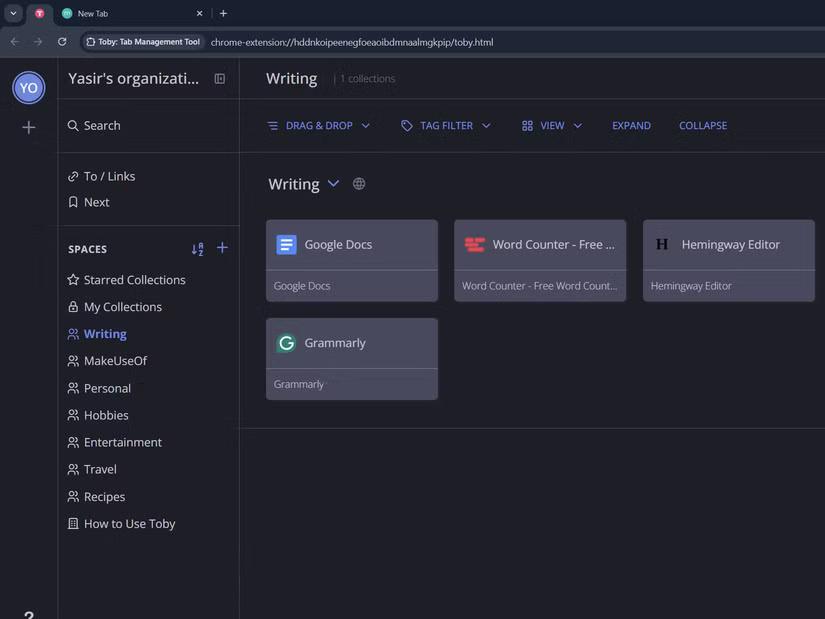
Instead of hiding your frequently visited sites in drop-down menus in folders on your bookmarks bar, you can now organize them by project or category. Create specific collections in Toby for different aspects of your work. The 'Writing' collection contains all the tools you use most often. When you're ready to write, choose the Open tabs icon and it will launch everything you need at once.
Note: There are also a ton of other great tab management Chrome extensions to try. It is best to experiment with a few to find the option that feels most intuitive to how you naturally organize your online workflow.
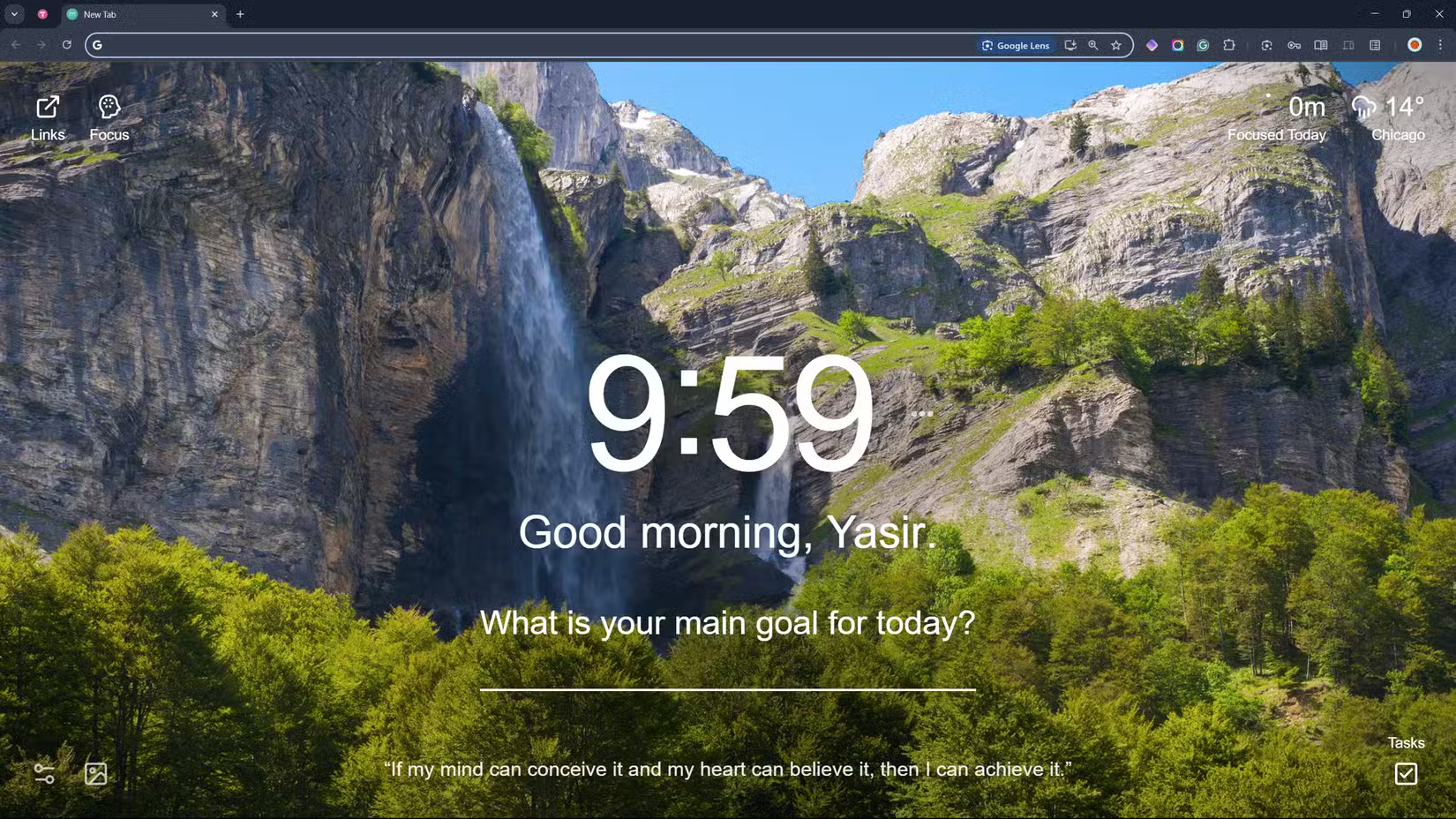
Speaking of new tab pages, try replacing Chrome's default with Momentum. It shows a landscape photo, a simple greeting, and just one main focus for the day. There are no suggested articles or recently visited sites to distract you—just a clean, purposeful starting point for each browsing session.
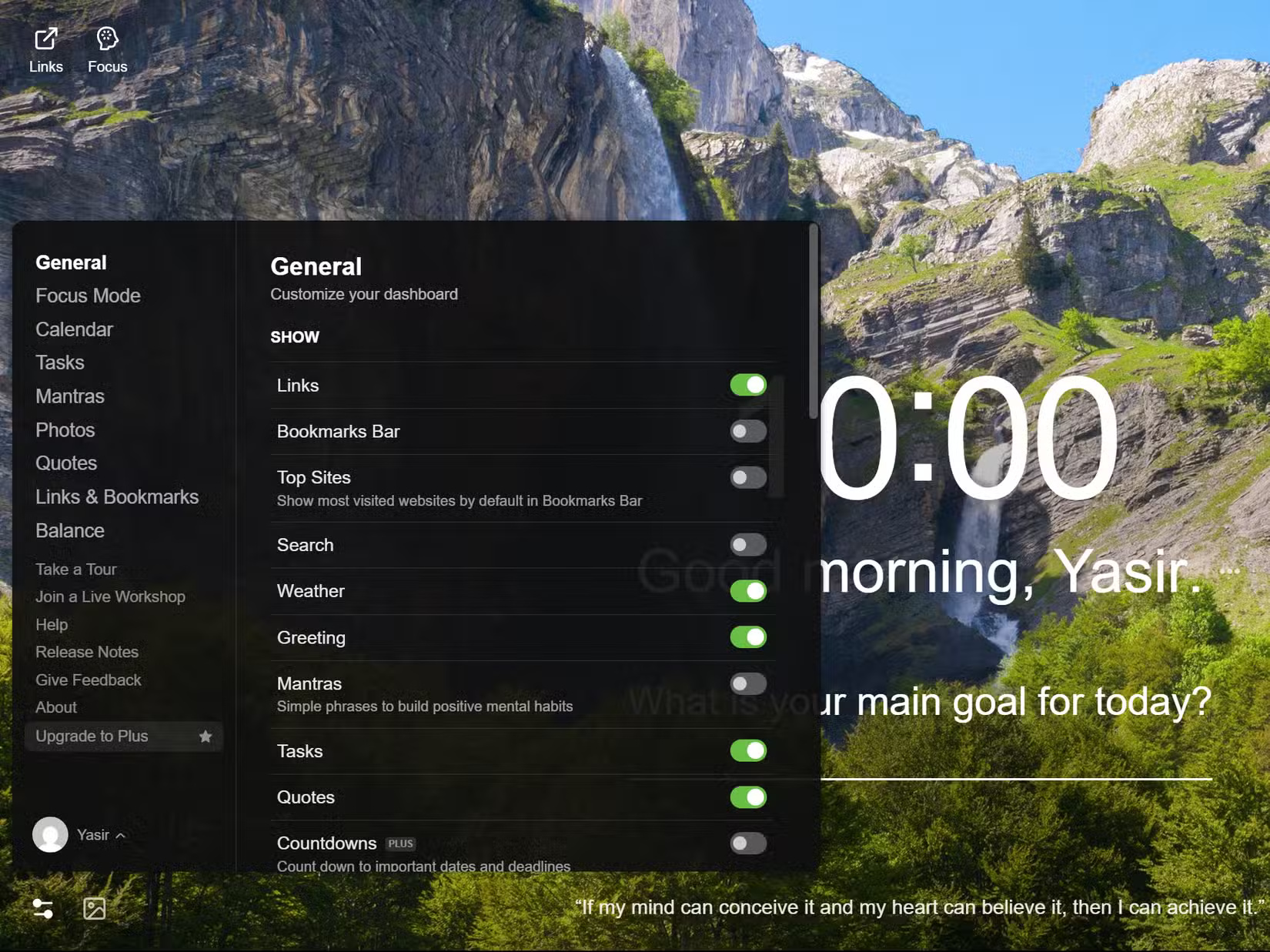
These extensions work together to create a distraction-free experience. Visual consistency between them is important — when your reading mode, tab manager, and theme all share a minimalist philosophy, your brain does not have to constantly readjust to different visual environments.
Adjustments to Make for Chrome
While extensions lay the foundation for a minimalist setup, Chrome's built-in settings also provide ways to clean up your browsing experience. These native tweaks complement the extension options for a truly distraction-free environment.
First, add a minimalist theme to Chrome. Customize the Chrome interface from the side panel to match your device's color scheme and theme. This replaces the thick tabs and slightly bright headers with soft colors.
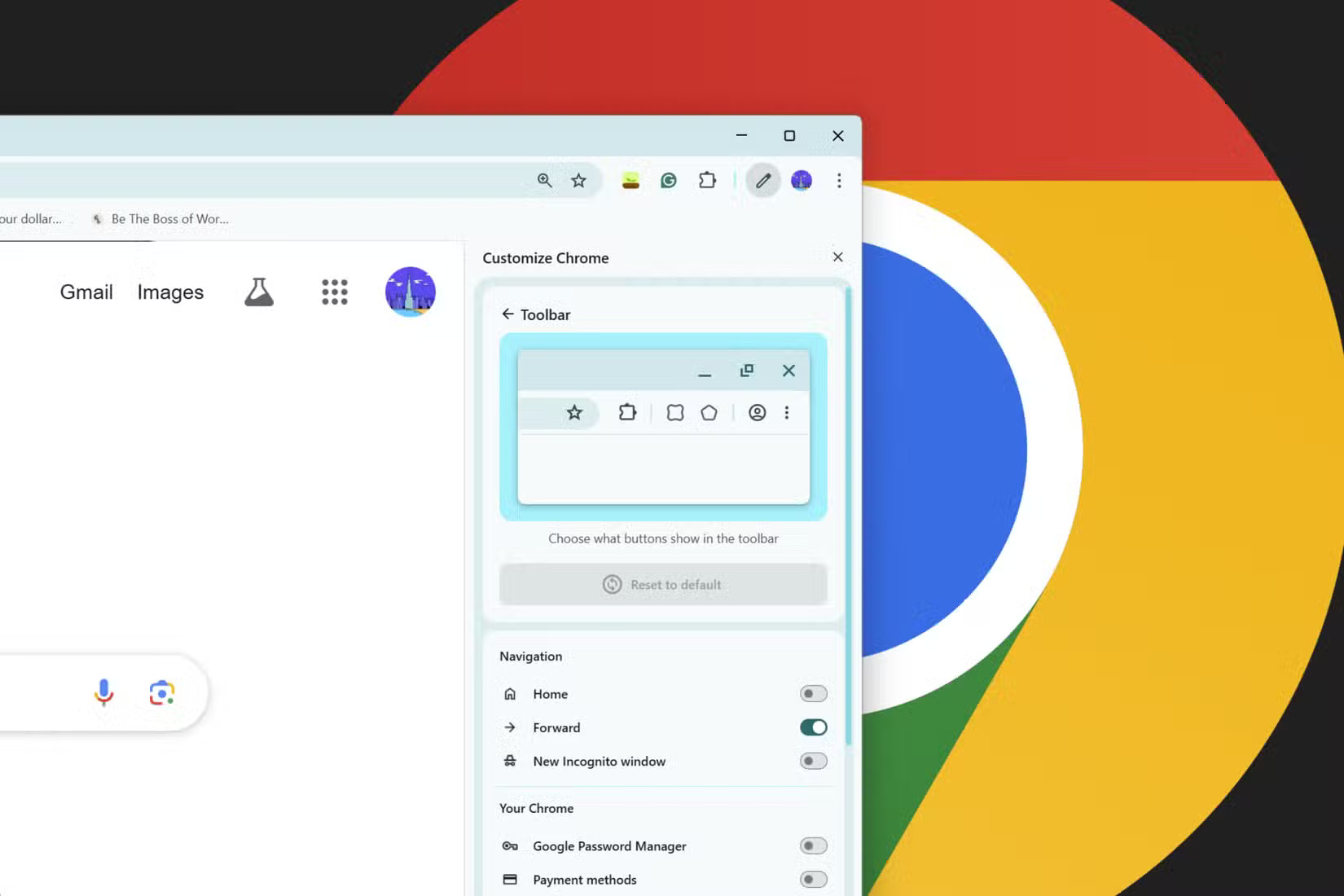
Next, prioritize the essential Google Chrome toolbar buttons you actually use. To read articles, rely on Chrome's Reader View. This mode removes sidebars, ads, and other distracting elements, leaving only the text. It also offers customization options for font size, line spacing, and background color.
Reading Mode and Reading List are common features for saving articles to read later. Hiding the bookmarks bar also frees up some vertical space, since Toby handles that function better anyway. Still, to access saved bookmarks, you can use Chrome's Ctrl + Shift + B shortcut to temporarily show or hide the bar as needed.
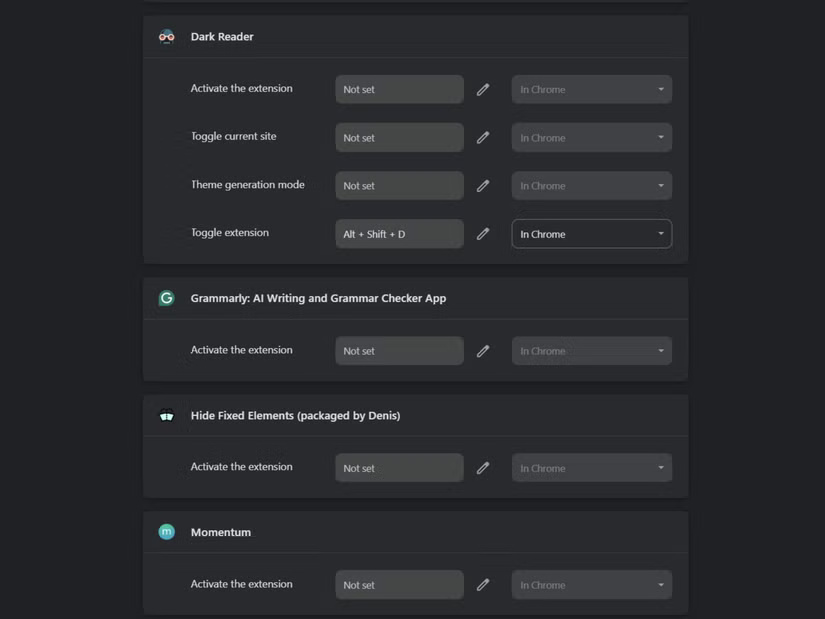
Custom keyboard shortcuts are also useful as an alternative to clicking buttons if you do not have some extensions pinned. Chrome://extensions/shortcuts lets you set custom key combinations for any extension action. for instance, map Ctrl + T to open the Toby panel.
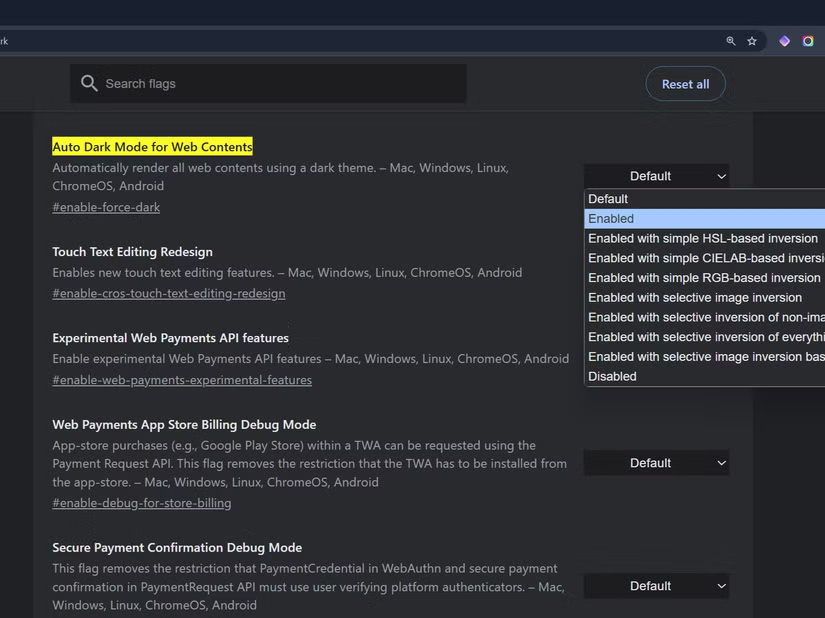
Dark mode is important for comfort when browsing the web at night. Along with Chrome's built-in dark theme toggle, there is an additional hidden dark mode feature in Google Chrome. Enable force dark is a Google Chrome flag, meaning it is an experimental option that can be removed at any time. Still, this particular flag was first introduced around 2019 and has been active ever since. The same flag also works with Google Chrome on Android.
Search for "dark mode" in chrome://flags/ and enable Auto Dark Mode for Web Contents from experimental features. This feature applies dark mode even to websites without a native dark theme and creates consistent lighting throughout the browsing experience.
Tip: We recommend using the same text spacing across your system via Accessibility settings. While not a Chrome-specific tweak, setting Windows Display Scale to the recommended percentage can make everything in your browser easier to read.
Minimalist Chrome Setup Isn't Perfect
While you'll be thrilled with your smooth Chrome experience, you'll run into some limitations. Like any customization project, there are trade-offs. You'll spend hours tweaking settings and testing extensions, and some sites will still break in the minimalist setup, forcing you to temporarily disable parts of your system.
Dark mode creates the most common compatibility issues. When using Chrome's experimental forced dark mode, some websites display unreadable text or strangely inverted images. Some websites often display dark text on the new dark background, making information almost invisible. To change that, you can try the Chrome extension Dark Reader.
The performance impact is surprising. While removing visual elements should theoretically improve Chrome's speed, extensions add processing overhead that counteracts these benefits. You can optimize Google Chrome for super-fast startup if you experience slowdowns after implementing similar tweaks, but it is a balancing act.
Keyboard shortcuts sometimes break too. Websites that implement unique shortcuts can override your mapped Chrome commands. This creates inconsistencies where Ctrl + T sometimes triggers a completely different action depending on the website you're on.
Despite these annoyances, the benefits of a minimalist Chrome setup outweigh the drawbacks. The occasional compatibility issue or extra troubleshooting step is a small price to pay for the improved focus and reduced visual clutter you'll encounter most of your browsing time.
FAQ
What should I prepare before I make google chrome a beautiful and minimalist browser?
Review the requirements and options in the guide first. Having the correct device, app version, account access, or materials ready helps prevent avoidable errors.
How long does it take to make google chrome a beautiful and minimalist browser?
The time depends on the task and your setup. Most basic steps can be completed quickly, while downloads, updates, scans, or troubleshooting may take longer.
What should I do if the steps do not work?
Repeat the instructions in order, confirm that your software or device is supported, and check permissions, connectivity, and available updates before trying again.
Related Articles
 5 Best Minimalist Chrome Themes to Customize Google Chrome Browser4 minutes read
 Google Chrome Is Now 23% Faster, Have You Tried It?3 minutes read
 How to Change the New Look on the Beautiful Google Chrome iOS Browser4 minutes read
 Download Now Set of Wallpapers with Minimalist Themes2 minutes read
 Google Put a Hand on the Tool Bar on Chrome3 minutes read
 How to Optimize Google Chrome for Super Fast Startup8 minutes read
Reader Comments 0
Sign in with email or Google to join the discussion.