Table of Contents
Learning how to install and use BTRoblox on Google Chrome doesn't have to be complicated. This updated guide presents a clear workflow, practical checks, and troubleshooting advice you can use while completing the process.
Key Takeaways
- Understand what is BTRoblox.
- Follow the steps to install and use BTRoblox on Google Chrome.
- Follow the recommended steps in order to avoid common mistakes with install and use BTRoblox on Google Chrome.
1. What Is BTRoblox?
BTRoblox is a Google Chrome browser extension designed to improve the player experience using the Roblox website. Some of the outstanding features of BTRoblox include: - Customize the Roblox website interface to your liking. - Advanced search feature makes it easy to find and discover new games on Roblox. - Support for previewing how to use items. - Display the number of players in each Roblox game - Convert Robux value to currency units.
2. How to Install and Use BTRoblox on Google Chrome
Step 1: Access the download link for BTRoblox for PC here => Click [Link File 1]. Step 2: Select Add to Chrome.

Step 3: Click Add extension to install BTRoblox on Google Chrome.

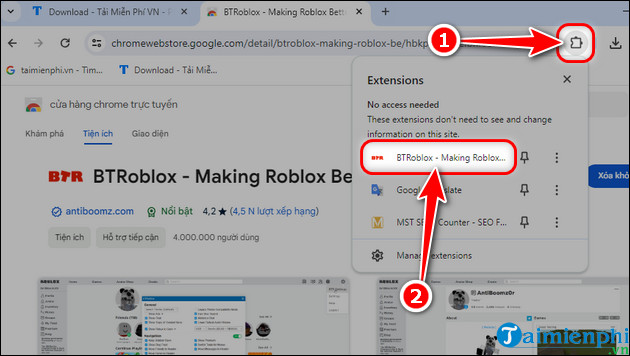
Step 4: Click the Utility icon => Select BTRoblox to launch the utility. - Now the Roblox homepage will open with the BTRoblox interface editing utility.
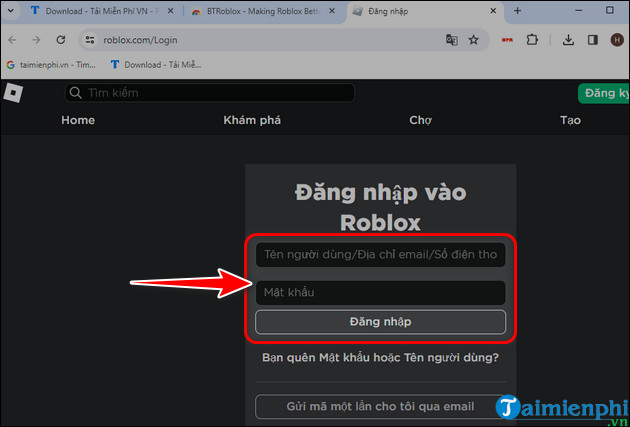
Step 5: You log in to Roblox and use BTRoblox. - In case you don't remember your login information, retrieve your Roblox account according to the instructions that Free Download introduced earlier.
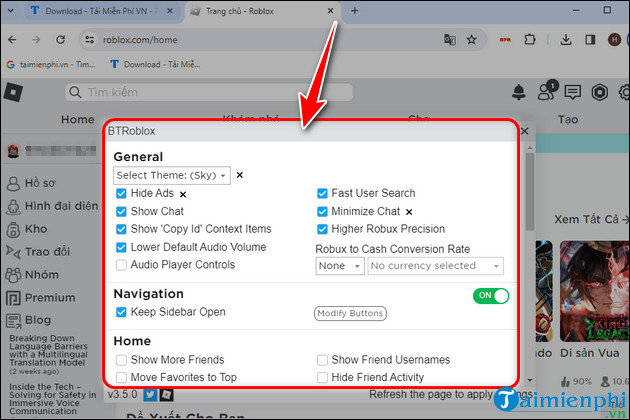
Step 6: The BTRoblox window will appear with interface options for you to set up. - General: Change general settings such as interface color, hide ads, show chat,. - Navigation: Customize the navigation bar. - Home: Change the Home tab interface. - Profile: Customize the Profile tab interface. - Groups: Customize group notifications. - Game Details: Change the display of detailed information about games on Roblox. - Item Details: Customize information about item details. - Advanced: Advanced editing attribute options.
- The properties you have just changed will have an (x) next to them for your convenience.
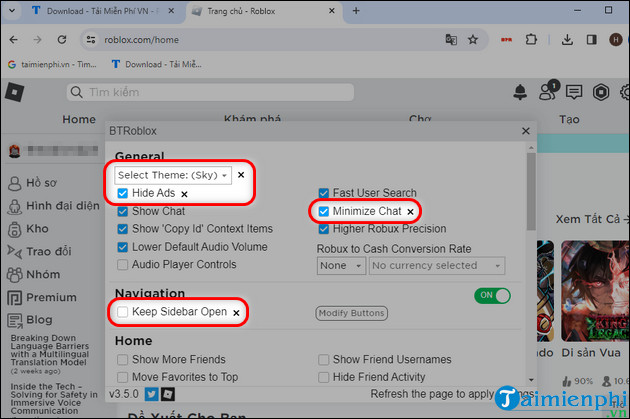
Step 7: Press F5 to reload the page to apply the settings you just selected. - For instance: Free Download wants to hide the navigation bar, uncheck the Keep Sidebar Open attribute in the Navigation section. + As a result, the navigation bar will be hidden and replaced by the three horizontal menu icon in the left corner of the screen.
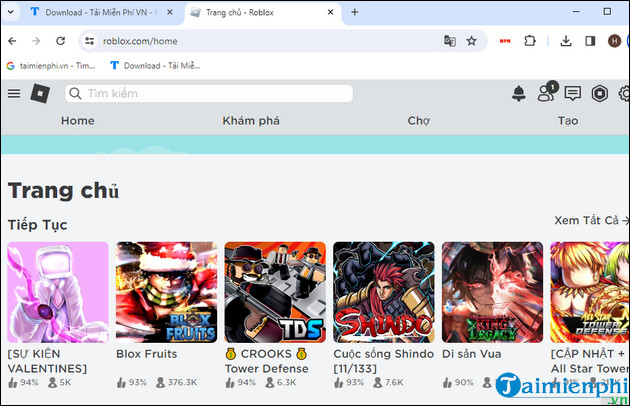
Above are instructions for installing and using BTRoblox on Google Chrome, helping you improve your experience using Roblox on the browser in the simplest and most effective way. Refresh the interface, expand game features and exchange the latest Roblox codes, discover Roblox's HOT games right away.
Final Thoughts
The most reliable way to handle install and use BTRoblox on Google Chrome is to follow the process in order, verify each important setting, and test the result before moving on. Use the guidance above as a practical reference, then adjust the details for your device, software version, or specific goal.
FAQ
What should I check before I install and use BTRoblox on Google Chrome?
Use the latest available software, confirm that your device meets the requirements, and make sure you have the necessary permissions, account access, or backup before changing anything.
Why might I be unable to install and use BTRoblox on Google Chrome?
Common causes include outdated software, missing permissions, incompatible settings, incomplete setup steps, or a temporary network problem. Recheck the process from the beginning and restart the app or device if needed.
Is it safe to install and use BTRoblox on Google Chrome?
It is generally safe when you use official tools, review every permission, and back up important data before making system-level or account-level changes.
Related Articles
 How to Download and Install Google Chrome on Your Computer8 minutes read
 Google Chrome Temporarily Prevents Sideload of Extensions3 minutes read
 How to Install Google Chrome on Linux Mint3 minutes read
 How to Install a Theme, Change the Interface for Google2 minutes read
 How to Add Idm to Chrome, Install Idm for Chrome4 minutes read
 Instructions for Installing Google Chrome on Ubuntu Operating System7 minutes read
Reader Comments 0
Sign in with email or Google to join the discussion.