Table of Contents
This practical guide explains how to fix Microsoft family safety blocking Google Chrome on Windows. Follow the steps in order, review the requirements first, and use the troubleshooting notes when a setting or option does not work as expected.
Adjust Microsoft Family Safety settings
The most reliable fix is to adjust the settings. Here's what to do:
Launch the Microsoft Family Safety app on your PC and sign in. Select your child's profile.
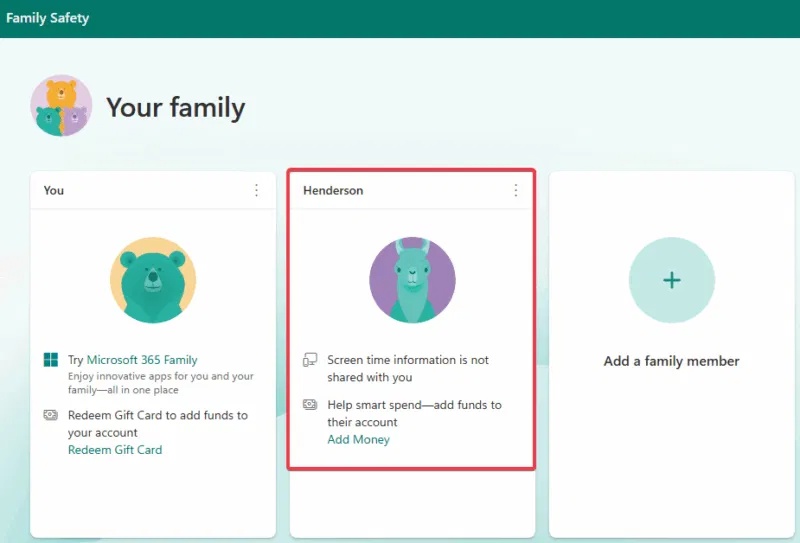
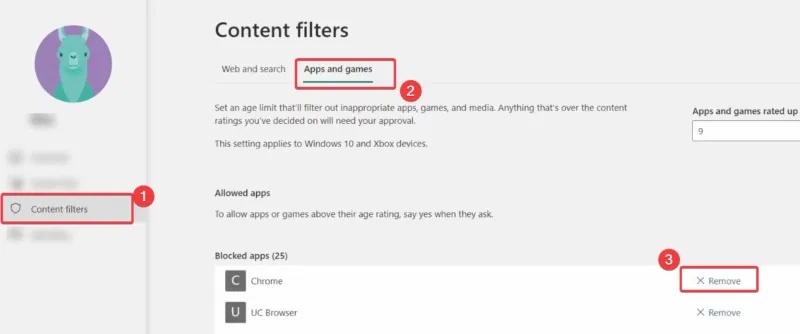
Click Content Filters and select Apps and Games. Find Google Chrome in the Blocked Apps list and click Remove to unblock it.
If that doesn't work, you can turn off the Filter inappropriate websites and searches option.
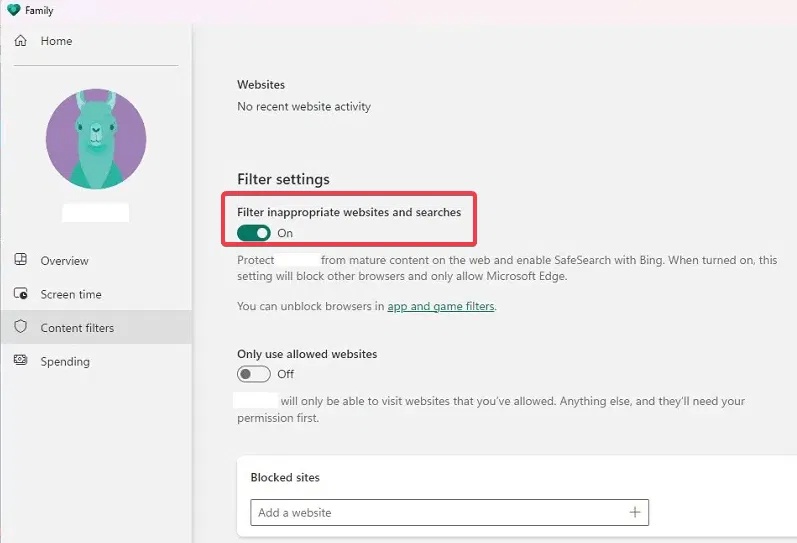
Note : This will turn off content restrictions, so you'll need to turn them back on later to be safe.
This method is supported by Microsoft and Google, so it should fix the problem. You can also keep Chrome safer after unblocking by enabling Chrome's Enhanced Protection feature.
Rename Chrome executable file
If you have any trouble adjusting the settings, you can try this quick workaround.
Open File Explorer and go to the following path: 'C:Program FilesGoogleChromeApplication'
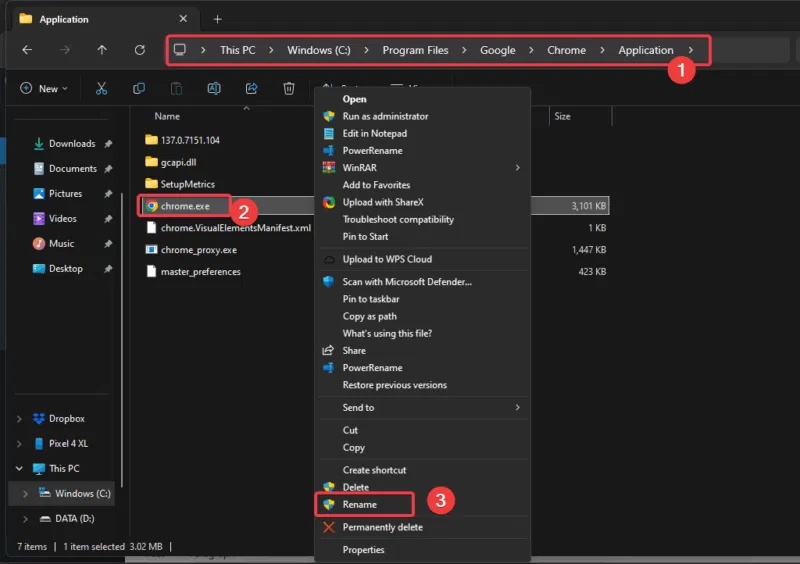
Locate Chrome.exe , right-click it, select Rename and change it to Chrome1.exe. Then, double-click the renamed file to launch Chrome.
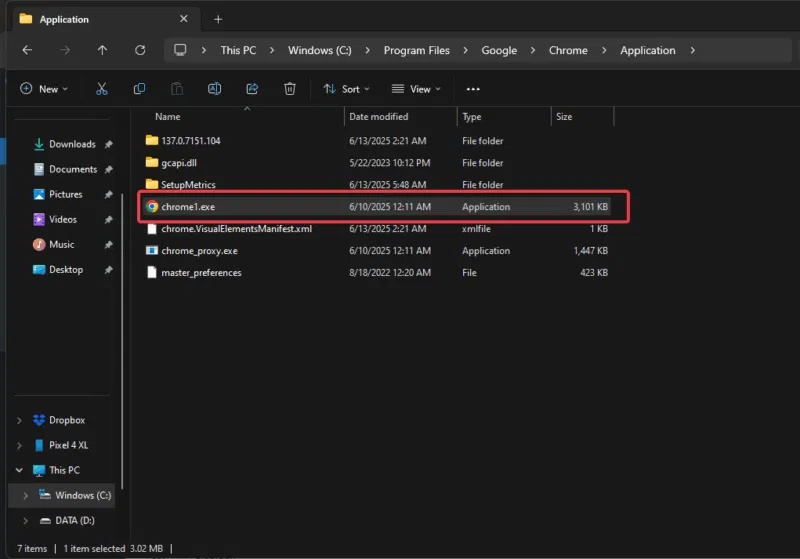
This is a temporary fix to bypass the Microsoft Family Safety block on Chrome. You can learn how to protect Chrome from Rust malware and other malware to prevent more problems when you finally get Chrome running.
What to do if the problem persists?
If none of the solutions work, although highly unlikely, try these steps:
- Consider switching to other unaffected Chromium browsers like Brave, Edge or Firefox temporarily.
- Reinstall an older version of Chrome.
- Contact Microsoft Support for help with persistent issues.
Additionally, you can improve Google Chrome security by adjusting these security settings.
The issue of Microsoft Family Safety blocking Chrome is annoying, but tweaking the settings or renaming the chrome.exe file should fix the problem. Try these tweaks now and keep an eye out for an official patch from Microsoft. If you have another tweak or are still stuck, leave a comment below!
FAQ
What should you know about adjust Microsoft Family Safety settings?
The most reliable fix is to adjust the settings. Here's what to do:
What should you know about rename Chrome executable file?
If you have any trouble adjusting the settings, you can try this quick workaround.
What to do if the problem persists?
If none of the solutions work, although highly unlikely, try these steps:
Related Articles
 How to Turn Off Microsoft Family Safety on Windows3 minutes read
 Windows 11 Suddenly Blocks Google Chrome Due to Microsoft Security3 minutes read
 How to Use Microsoft Family Safety for Screen Time7 minutes read
 Google Chrome Blocks Ads with Tools Available from February 153 minutes read
 How to Block Adult Websites and Set Up Parental Controls on Google Chrome14 minutes read
 Microsoft Released a Preview of the Family Protection3 minutes read
Reader Comments 0
Sign in with email or Google to join the discussion.