Table of Contents
Before you install a VPN, check who runs it, what it collects, and whether its app protects your connection on the devices you use. A VPN routes traffic through another provider and can hide your home IP address from sites. Signed-in accounts and tracking cookies can still identify you. The Electronic Frontier Foundation’s VPN guide explains when a VPN is useful.
1. The logging policy is vague
Look for explicit answers about browsing activity, DNS requests, source IP addresses, connection timestamps, and retention periods. If the company cites an audit, check its date and scope. A security review of the app may say little about what the servers log.
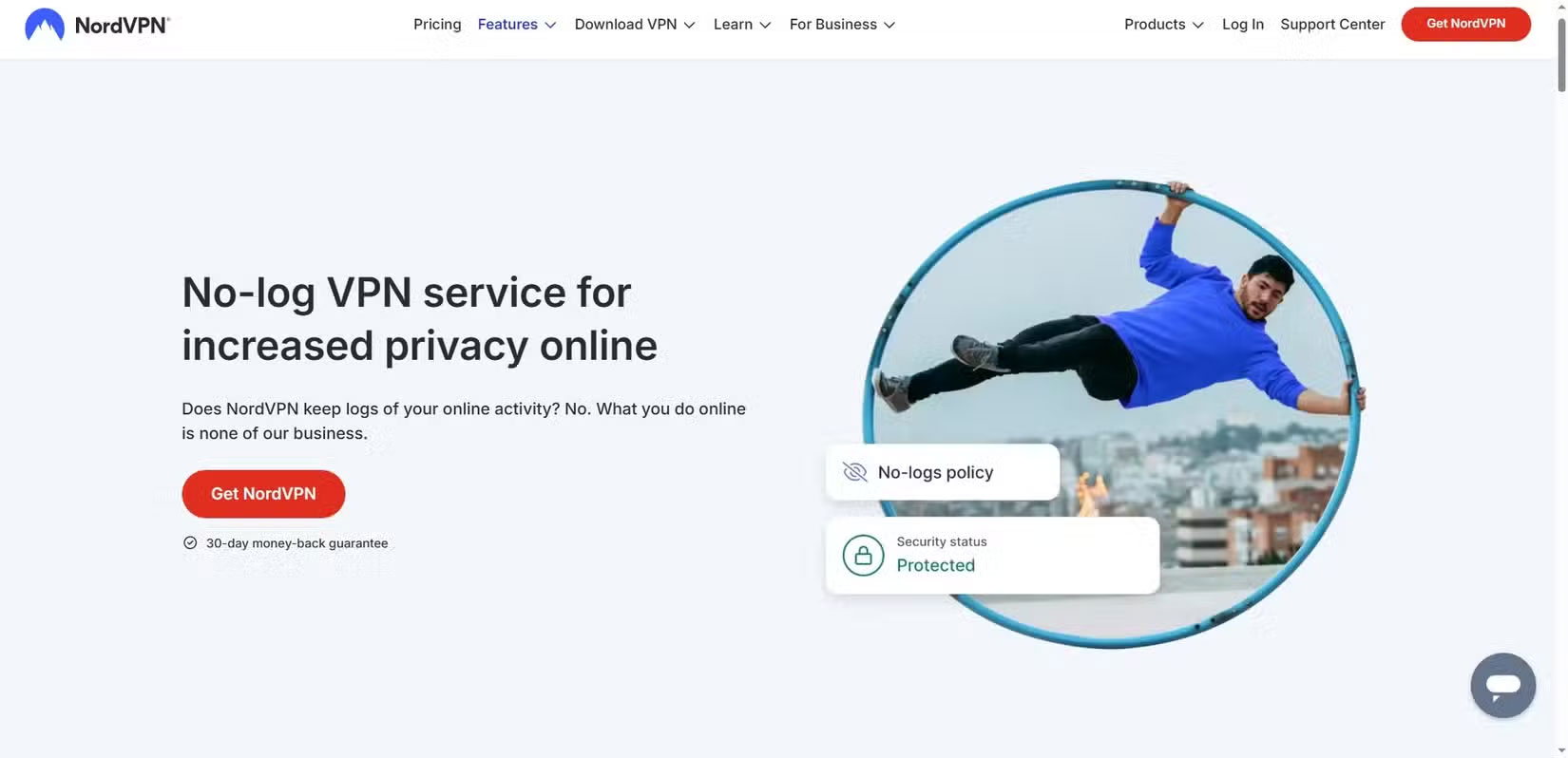
2. It’s hard to tell who runs the service
Match the app store publisher to the legal entity in the privacy policy and terms. Look for a parent company, a contact channel, and a record of how it handles security disclosures. If the names differ, find out how those companies are related before installing.
3. The provider is unclear about which laws apply
Check where the company is registered and what it says about responding to lawful requests. Consider that alongside what it retains and for how long. A country or alliance label alone tells you little about what records the company actually holds.
4. A kill switch is missing on your device
A kill switch can block traffic outside the tunnel if the connection drops. Check whether it works on your particular platform and whether you need to enable it. Test with an ordinary page and no sensitive apps running while reconnecting Wi-Fi.
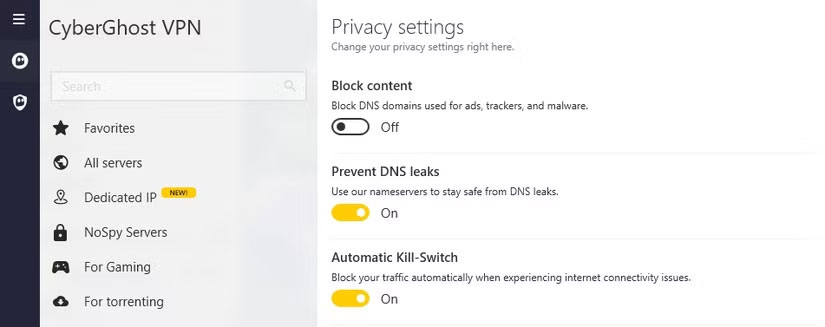
5. There’s no clear DNS or IPv6 policy
Check whether the app routes DNS and IPv6 through the tunnel or blocks traffic it cannot protect. Compare your public IP before and after connecting, then run a DNS leak test. A third-party resolver can be intentional. Compare the result with the provider’s documentation and your browser’s secure DNS or split-tunneling configuration.
6. You can’t verify performance where you’ll connect
Server count alone says little about speed. Look for a nearby location you can test, and try it around the time you usually use the service. Note whether video calls stay connected and whether performance drops noticeably compared with your normal connection.
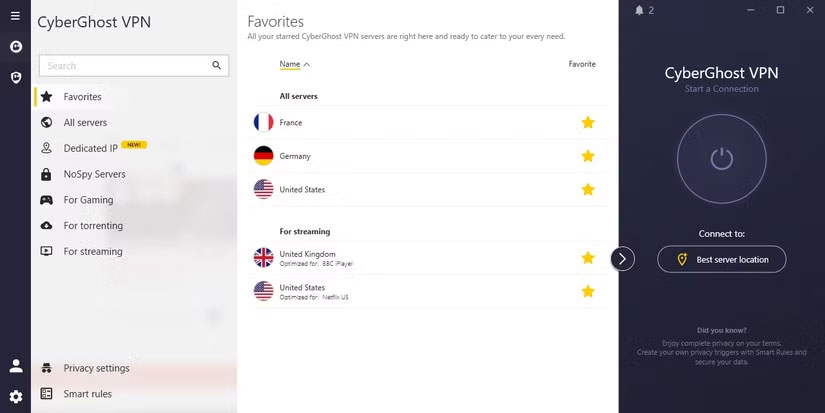
7. A lifetime offer has unclear terms
Read what “lifetime” means in the contract. Check which devices and regions are covered, whether the plan can change, and how refunds work. Consider starting with a monthly plan or trial so you can check the privacy settings and performance yourself.
8. It relies on obsolete or undocumented protocols
Choose an app that documents the protocols it supports. WireGuard, OpenVPN, and IKEv2/IPsec are common options. If the service only offers PPTP or won’t identify what protocol it uses, you have little basis for trusting the connection.
Related Articles
 If your body has these 12 signs, you are eating too much sugar!
 Your 10 kidney warning signs are having problems
 Eye changes may signal cancer, diabetes and high blood pressure
 7 warning signs your body is 'calling for help'
 10 signs appear on the body of health warning you should not be ignored
 10 investment scam warning signs you need to know
Reader Comments 0
Sign in with email or Google to join the discussion.