Table of Contents
This updated guide examines How to Enable Rcs Messaging on Android and organizes the essential facts, background, and practical takeaways in clear American English.
The reliance of RCS (also known as SMS +) on carriers is preventing this advanced messaging feature from being available to users worldwide. Thankfully, that has changed a bit, and if you own a compatible device, you can get RCS messaging on your Android device.
Even if your mobile carrier doesn't support this feature, there is a workaround that can help you enable RCS. Let TipsMake.com see how you can enable RCS on your Android device through the following article!
How to enable RCS Chat on Android devices
As promised, Google will deploy RCS in a number of countries around the globe. Unfortunately, what prevents RCS from reaching its full potential is not the limitations of this feature itself, but the lack of a simple implementation policy. A typical case, in many parts of the world including the United States, Android device users must choose a carrier that supports RCS Universal Profile like Google Fi.
Although the search engine 'giant' is offering live (slightly slower) RCS Chat for Android users in some countries (such as the United Kingdom and France), for now, The direct implementation of this advanced messaging system across the globe seems to be far off. Anyway, whether you have an Android phone with or without RCS support, it is not necessarily out of hope.
Enabling RCS Chat in Google Mesenges on supported Android phones
1. Launch Google Messages (free) on Android phones.

2. Now, tap on the 3 dots in the upper right corner and select Settings.

3. Next, click on General and then on Chat Features.

Note : In some 1-SIM devices (or dual-SIM devices where you only use one SIM card), the 'Chat features' option is displayed right inside the 'Settings' page . In those cases, you won't need to go into any general options.
4. Now, the application will automatically verify your phone number for RCS and activate the feature after it is approved. In dual SIM devices, you may be asked to enter your number.

All operations are completed! Now, wait a few seconds until Google Messages has verified your phone number. When done, the status will change from Setting up to Connected.
Enable RCS messaging on all Android phones regardless of network
As mentioned above, even without a compatible device, you can still use RCS Chat thanks to a Reddit user group. But before proceeding, be sure to fulfill these requirements first.
These requirements need to be guaranteed
- Be sure to have the beta version of the Google Messages app.
- Make sure you have the Activity Launcher app installed on your device. If not, download it now from the Google Play Store.
- If the Messages app is running in the background, make sure to force quit it.
- Go to system settings on the phone and then locate Carrier Services . Then delete the stored data.
- Remember to turn off WiFi.
Operations
1. Open Activity Launcher on Android devices.

2. Now, click Recent Activities and select All Activities .

3. Next, scroll down the list to find 'Android Messages' and click on it. Then choose Set RCS Flags .
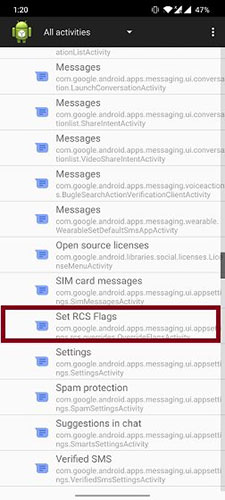
4. Right in the ACS URL section, select 'http:///rcs-acs-prod-us.sandbox google.com/'. Then click on Apply.

5. Now, launch the Messages app on your Android device. Setting up RCS Chat is waiting for you. Now, you can set it up in minutes (about 3 minutes). Completing the setup is that you will be able to chat using a lot of impressive features. As mentioned above, you can enjoy sharing 'rich message' with anyone with an Android device.
Note : If this procedure doesn't work for you, delete the Carrier Services data from the Settings app and then force Android Message to stop . Then repeat steps 1 - 3. Next, select OTP Pattern and click YoursMessengersverificationscodesissG- (d {6} in the menu. After completing the process, you can go to Settings> Chat Features> Status to check If it has been activated successfully, the status will appear as 'Connected'.
What are the advantages of RCS Chat?
Billed as an advanced messaging feature, RCS Chat seems to be the true successor of SMS / MMS. As part of the broader IP multimedia subsystem, this is an efficient text messaging system. In addition, RCS is very versatile, can transmit multimedia in the call and also provides Phonebook Polling (designed to explore the service).
Other noteworthy features include sending in real time, reading receipts and being able to receive cues when someone else is typing a message. But what makes people want to use this new text messaging system is the ability to attach large video files and high quality photos. If you like sharing photos and clips with your friends and loved ones, you will find this feature worth noting.
If Google succeeds, Android will eventually have a messaging system that provides a unified and seamless experience that can compete with iMessage - the 'brand' of the Apple ecosystem for years.
What are the disadvantages of RCS Chat?
Despite being hailed as the next-generation SMS protocol, RCS still lacks the ability to secure messages. Given that security and privacy have become a mandatory subject that every app - from WhatsApp to Telegram - wants to capture (at least on paper), it's hard to understand when RCS Chat doesn't offer it. end-level encryption feature.
It doesn't make much sense to own an advanced messaging system, but it can't protect the privacy and keep sensitive user information safe, right? For many, the things that make iMessage stand out from the rest are not a myriad of "eye-catching" features as well as an intuitive interface, but the ability to provide a consistent experience with the system. The best possible protection against prying eyes. Unless and until RCS adds top-level end-to-end encryption, the goal of providing a messaging system that can beat Apple's tool will still be a far-off concept.
Not to mention, RCS also doesn't support dual SIM phones, if you're using both SIM slots. In a world where most Android phones come with dual SIMs, the RCS messaging feature can be a bit difficult to gain a foothold. Another major flaw (as mentioned above) that seems to be slowing down RCS Chat is due to over-reliance on carriers. And unless all carriers support RCS wholeheartedly, Android users will hardly have a unified messaging experience.
That's how you can enable RCS messaging on Android devices. While it's unclear how long Google will take to implement this feature, it is certainly possible that this trick could temporarily remove the barriers that prevent users from experiencing SMS +. Until Google comes up with a simpler solution, make the most of it to see what the future of text messaging will be like!
Hope you are succesful.
FAQ
What is How to Enable Rcs Messaging on Android about?
It provides a structured overview of RCS, explains the main context, and highlights practical takeaways for readers.
Why does this topic matter?
Understanding the main concepts helps readers evaluate the issue, avoid common mistakes, and make better-informed decisions.
How should readers use this information?
Use the guidance as a practical starting point, confirm details that may have changed, and follow current product, safety, or security recommendations.
Related Articles
 How to Set the Default Messaging Application on Android5 minutes read
 Chat, Google's All-new Messaging App That Replaces Android Message and SMS4 minutes read
 8 Top Messaging Apps for Android and iOS: Best Options Compared8 minutes read
 RCS Messaging on Android Explained: How It Works and Key Features9 minutes read
 Enable Multi Window on Android 6.04 minutes read
 How to Enable Android System WebView: Step-by-Step Guide3 minutes read
Reader Comments 0
Sign in with email or Google to join the discussion.