Table of Contents
Windows 11 features advanced Hardware Accelerated GPU Scheduling, which boosts gaming and video performance using your computer's GPU.
Both Windows 10 and Windows 11 feature advanced Hardware Accelerated GPU Scheduling, which enhances gaming and video performance using your computer's GPU. When you enable Hardware Accelerated GPU Scheduling on your phone, the GPU's scheduling processor and memory (VRAM) take on the same task and run it in batches to render frames. This allows the GPU to offload the CPU and improve latency, making your computer run faster. Here's how to enable Hardware Accelerated GPU Scheduling on Windows 11.
How to enable Hardware Accelerated GPU Scheduling Windows 11
Step 1:
Open Settings on your computer, then Click on System , look to the right, and Select Display .
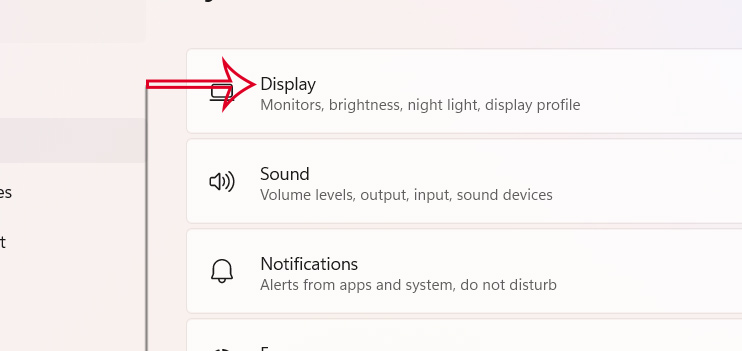
Step 2:
Switch to the new interface, scroll down to The Related Settings section , then click on Graphics To make adjustments.

Step 3:
Then Click on Advanced Graphics Settings And Turn on Hardware-Accelerated GPU Scheduling To enable this setting on your computer.
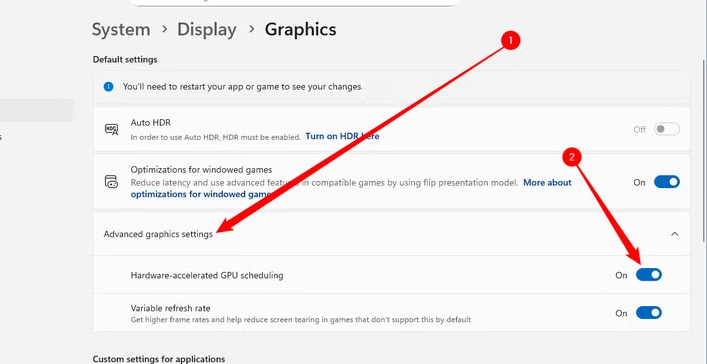
Restart your computer for the settings to take effect. You can check if this feature improves your gaming and application experience on your Windows 11 PC.
FAQ
How do you enable hardware accelerated GPU scheduling Windows 11?
In practical terms, Windows 11 features advanced Hardware Accelerated GPU Scheduling, which boosts gaming and video performance using your computer's GPU.
What should you check before getting started?
Review the requirements, compatible device or software version, and any warnings described in the guide before making changes.
What should you do if the steps do not work?
Repeat the steps in order, confirm that your app or system is up to date, and review the troubleshooting details provided above.
Related Articles
 Disable // Enable Hardware Accelerated GPU Scheduling in Windows3 minutes read
 How to Enable Hardware Accelerated GPU Scheduling in Windows4 minutes read
 Windows 10 2004 Has a New Feature That Makes Gaming Smoother3 minutes read
 If You Want VLC to Consume Less Battery, Just Enable Hardware5 minutes read
 What Is Amp (Accelerated Mobile Pages)?8 minutes read
 How to Schedule Messages on Instagram3 minutes read
Reader Comments 0
Sign in with email or Google to join the discussion.