Table of Contents
Gamma Imagine is a full-canvas AI graphics tool for generating and editing images, posters, logos, diagrams, invitations, and other visual assets. You can begin with a text prompt, choose a style or upload reference images, create up to three variations, refine a selected result, and add it to a Gamma presentation or document.
Image generation and AI editing use Gamma credits. The cost can depend on the model and operation, so rely on the amount shown in the interface rather than an older fixed-credit figure. Free and paid plan allowances can also change.
The screenshots below show the layout available when this tutorial was captured. Gamma has since expanded Imagine, so labels and menu placement may differ.
1. Open the AI Images dashboard
Sign in to Gamma and choose AI Images from the dashboard or sidebar. If the option is missing, confirm that AI features are enabled for the workspace and that the account has a compatible plan.
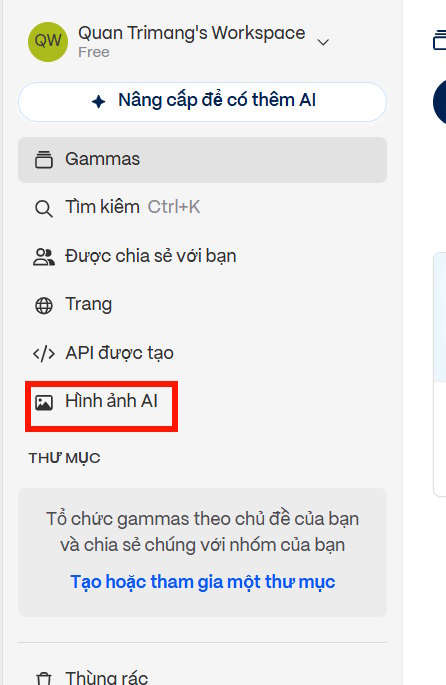
Existing images in your Gamma library may also have an Edit or Advanced editing command that opens them directly in Imagine.
2. Start a new graphic
Select Create Image or the current control for a new Imagine canvas.
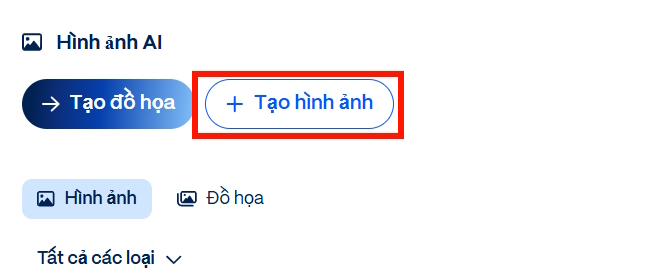
Before generating, decide where the image will be used. A presentation hero image, square social post, product diagram, and printed invitation need different composition, dimensions, text density, and detail.
3. Write a useful image prompt
Describe the subject, setting, composition, visual medium, lighting or palette, aspect ratio, and important exclusions. Put the most important requirement first and avoid stacking contradictory styles.
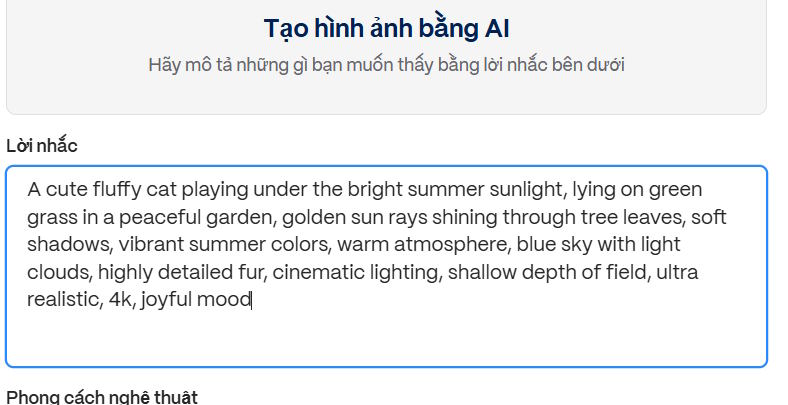
A practical prompt formula is:
[Asset and purpose] showing [main subject and action].
Composition: [camera angle, placement, empty space].
Style: [medium, palette, lighting].
Output: [orientation or aspect ratio].
Include: [essential details].
Exclude: [unwanted text, logos, clutter, or objects].
For example:
Editorial hero illustration for a presentation about secure teamwork.
Three colleagues review a privacy checklist beside a laptop.
Wide composition, people on the right, clean negative space on the left for a title.
Flat geometric illustration, navy and teal palette, soft natural light.
16:9 landscape. No visible brand logos, watermarks, or embedded text.
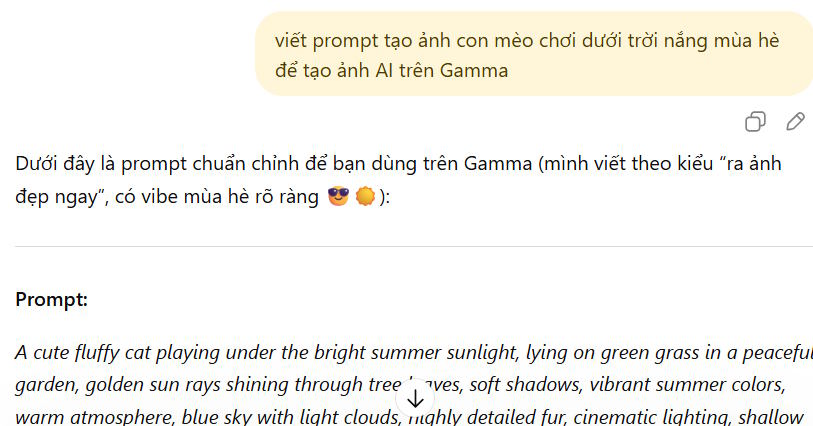
You do not need another chatbot to write the prompt. Start with the information you know, generate one small set, and use the result to identify a specific change. If you want examples from public prompt galleries, see how to study and adapt AI image prompts on Lexica without assuming that every prompt or image is free to reuse.
4. Choose a style or add references
Select a preset style when it closely matches the intended use, or describe the visual treatment in words. A style reference can guide color, texture, composition, or mood more directly.
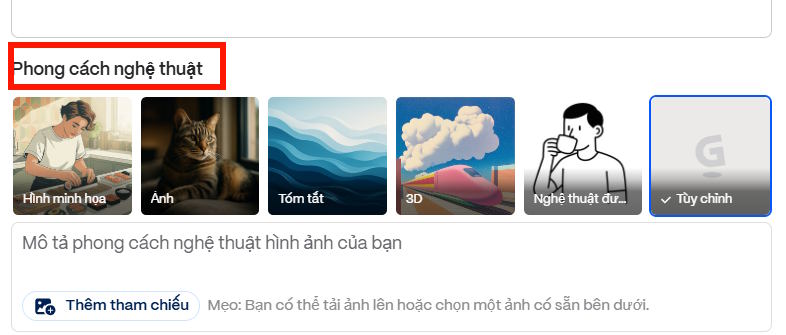
Gamma currently allows up to four reference images for Imagine style guidance. Use only files you are entitled to upload, and avoid references containing confidential information, recognizable people without an appropriate basis, or protected brand assets you cannot use.
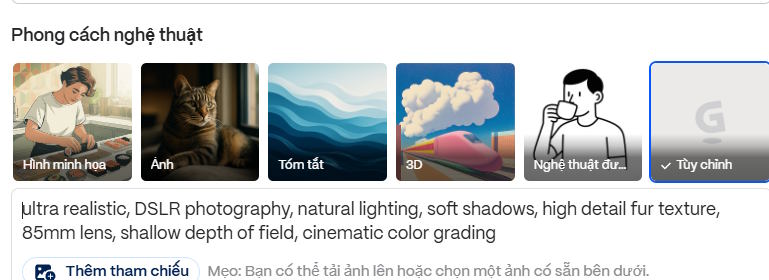
A style reference does not guarantee an exact result. Inspect the output for unintended logos, copied-looking elements, incorrect text, or misleading similarities.
5. Set the size, variations, and model
Choose an aspect ratio that matches the destination. A 16:9 image usually fits a presentation card, 1:1 suits many square layouts, and a portrait ratio works better for posters or vertical posts.
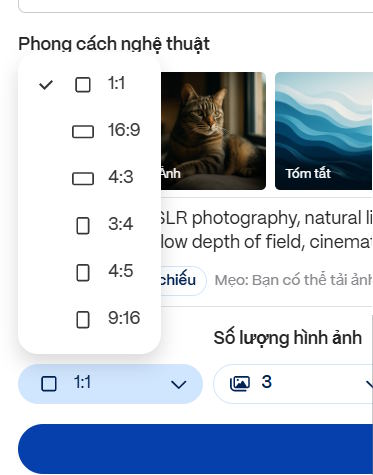
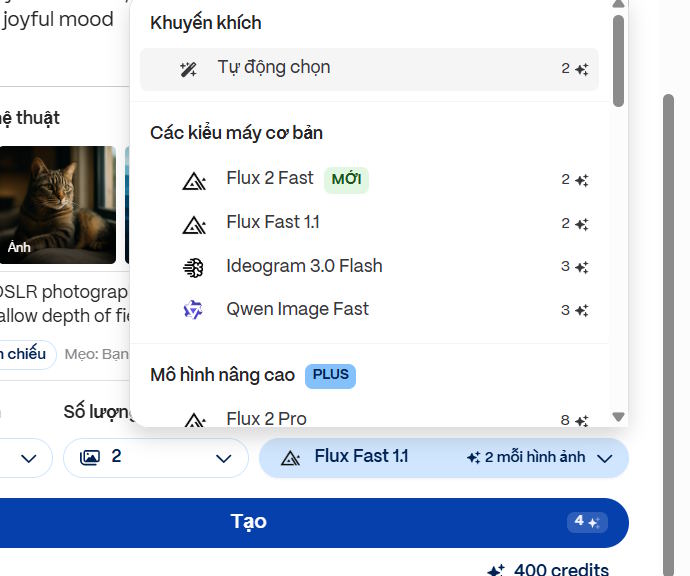
Select how many variations to create; Gamma documents support for up to three at a time. More variations spend more credits, so begin with one when testing a new prompt. Then choose an available image model based on the cost and capability shown in the interface.
Gamma's plan and model catalog changes. Check its current pricing page and the credit estimate beside the action before generating. Do not rely on a claim that every image costs two credits or that every free account starts with a specific balance.
6. Generate and compare the results
Select Create. When the images appear, compare them at full size. Check hands and faces, perspective, object count, lighting, brand marks, small text, diagram logic, and whether enough empty space remains for the surrounding layout.
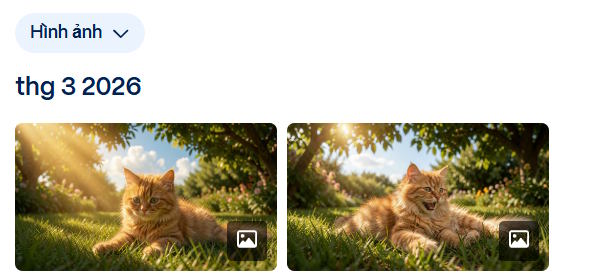
Choose the composition closest to the goal; do not automatically pick the most detailed image. For a slide or article, clarity at the final display size matters more than detail visible only while zoomed in.
7. Make targeted edits
Open the selected image in Imagine. Current editing options can include generating variations, freeform prompt edits, restyling, cropping, erasing, removing a background, expanding the canvas, and other agent-guided changes.
Ask for one controlled revision at a time:
- Remove the extra object from the lower-right corner.
- Keep the characters unchanged and extend the background to 16:9.
- Replace only the wall color with a muted blue.
- Preserve the layout but increase contrast between the subject and background.
- Remove the generated lettering; text will be added in Gamma.
Imagine keeps editing sessions or history according to Gamma's current product behavior. Review the official Imagine editing guide for supported formats and the latest cleanup or retention details.
8. Download or add the image to a Gamma project
Use the image's menu to preview, zoom, download, or add the graphic to a presentation or document. Gamma says finished Imagine graphics can be inserted into any Gamma document as an image.
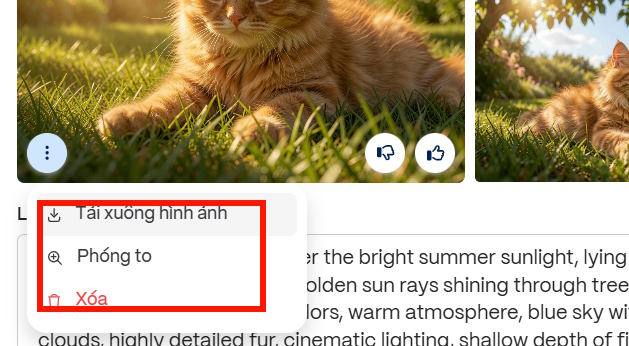
If the graphic will be placed in a shared project, set the appropriate view, comment, or edit permission. The guide to sharing and collaborating in Gamma explains how to limit access before sending a link.
Examples and what to inspect
The following generated samples demonstrate different compositions. Treat them as examples, not as proof that the same prompt will always return the same result.


Before publishing an image, ask:
- Does it support the nearby message, or is it only decoration?
- Are any words, numbers, maps, diagrams, or product details incorrect?
- Could the image be mistaken for documentary evidence or a real event?
- Are recognizable people or protected brands depicted appropriately?
- Is the image legible and properly cropped in the final layout?
- Does it need disclosure, attribution, or provenance information?
- Is its filename meaningful and its alt text concise?
For alternative services, compare the strengths and limitations in this list of AI tools that create images from text. “Free” access and commercial-use terms can change, so verify the current plan and license for any tool you choose.
Troubleshooting Gamma Imagine
The AI Images option is missing
Check the workspace's AI settings, account plan, and whether you are in a compatible desktop or mobile interface. Gamma's mobile app may not expose every desktop feature.
The image does not follow the prompt
Reduce conflicting requirements, specify the central subject and composition first, and make one follow-up edit. Add a suitable style reference if words alone are not communicating the art direction.
Generated text is wrong
Remove the text from the image and add editable typography in Gamma. This produces more reliable spelling, accessibility, and layout control.
The background removal or edit is rough
Start from the highest-quality version, zoom in, make a smaller selection, and use one edit at a time. Preserve the original so you can return to it if repeated generation degrades the subject.
Credits are being used too quickly
Create one variation at first, use a lower-cost model for exploration, and reserve expensive models or high-resolution operations for the final candidate. Confirm the displayed credit cost before every generation or AI edit.
Gamma Imagine is most efficient when the workflow is deliberate: define the destination, write a concrete prompt, generate a small set, choose the best composition, and make targeted edits. That approach improves control while reducing unnecessary credit use.
Related Articles
 minutes read
 What Is Gamma-ray Burst: Gamma Rays13 minutes read
 Graphic Design Using Gamma Imagine AI Is Incredibly Beautiful5 minutes read
 How to Use Gamma AI to Create Stunning Presentations8 minutes read
 Design Infographics on Gamma AI with Just Voice Commands3 minutes read
 World - leading Research Reveals How Lightning Produces Gamma Rays5 minutes read
Reader Comments 0
Sign in with email or Google to join the discussion.