Table of Contents
There is no single best settings setup for every player. In Grand Theft Auto VI, start with the options that affect comfort and readability—such as motion effects, camera movement, subtitles, and navigation—then adjust combat assistance to match how much help you want. Open the pause menu, choose Settings, and revisit the options as needed; the game lets you change them after the initial setup.

Reduce visual motion if it bothers you
Lower Motion Blur under Display if fast turns or driving make the image feel smeared. If camera movement is uncomfortable, reduce Camera Shake or Camera Bob in the camera comfort options. These are preference settings: try a small change, play for a few minutes, and adjust again rather than assuming every effect should be disabled.
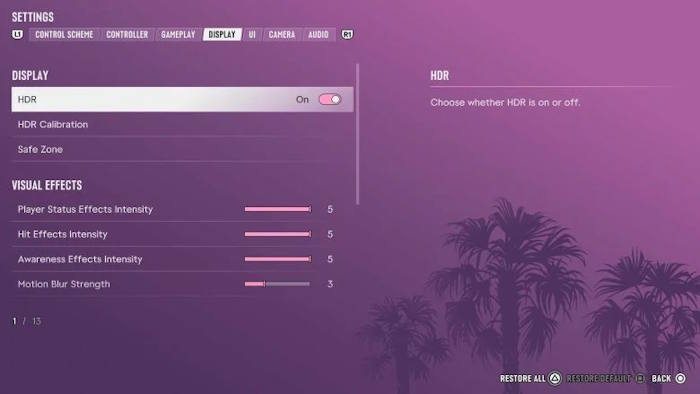
Choose aiming assistance for your play style
Combat settings include targeting options, aim-assist strength, Shooting Assist, and Drive-By Assist. If you want the game to help track nearby threats, keep more assistance enabled. If you prefer manual control, reduce the assist strength or choose a less assisted targeting mode. There is no universally correct choice; try it during regular play and change it if aiming feels too automatic or too demanding.
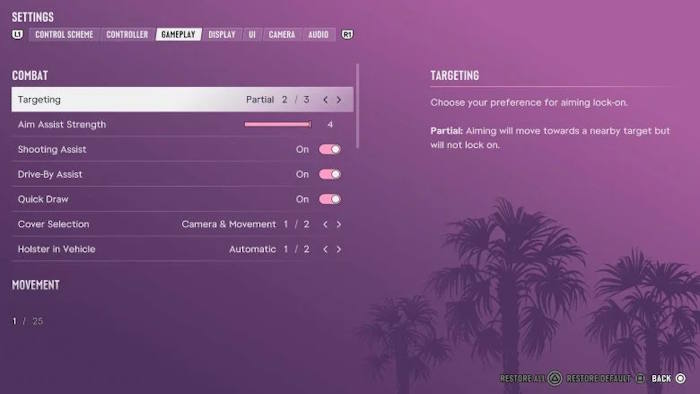
Adjust camera comfort and combat accessibility
Camera settings let you adjust follow behavior and movement effects. Gameplay accessibility options include controls for combat difficulty, vehicle damage, minigames, and input actions. Use these options to make repeated inputs or hectic encounters more manageable; changing them is a normal way to tailor the game to your needs.
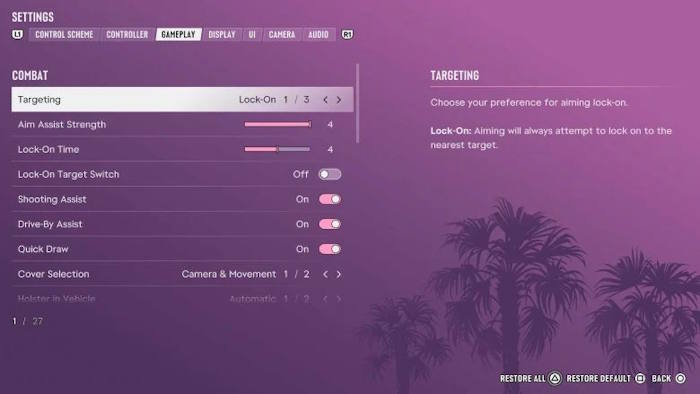
Set movement and controller options
If movement feels slow or a control is uncomfortable, review the movement and controller settings. The game offers alternate control schemes, sensitivity and deadzone adjustments, and options for vibration and adaptive triggers on supported PlayStation controllers. Try the default layout first, then change only the controls that feel awkward.
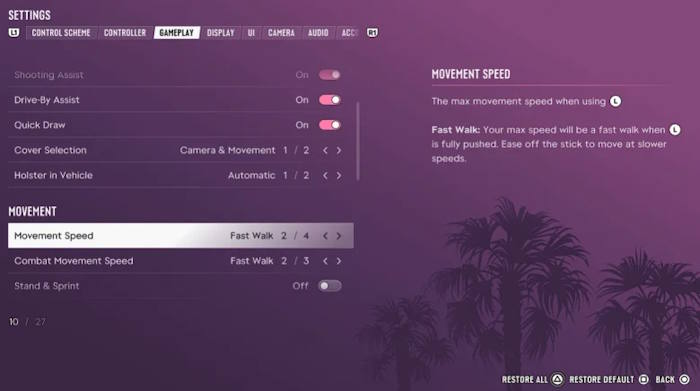
Make navigation and on-screen text easier to follow
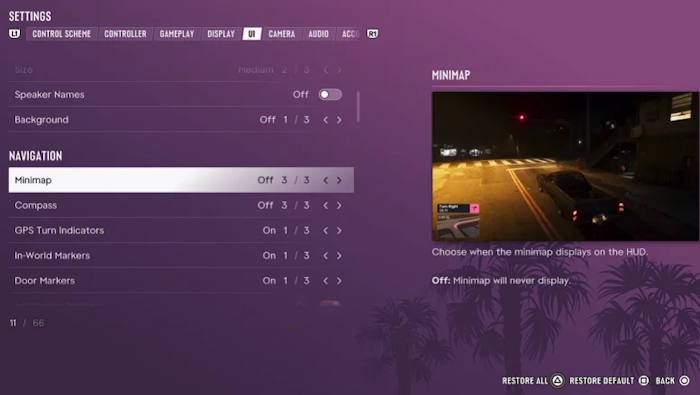
In the UI settings, adjust minimap and compass visibility, HUD elements, text size, and markers to suit the way you play. An always-visible map can help if you often lose your route; a more minimal HUD keeps the screen less crowded. You can also adjust the reticle and high-contrast options for better visibility.
Turn on subtitles and tune audio
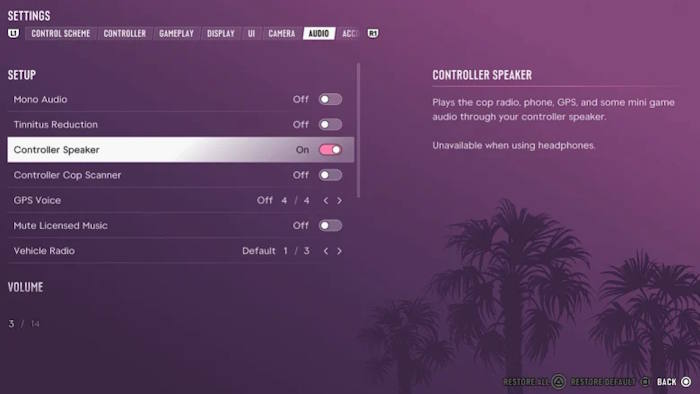
Enable subtitles if you want to follow dialogue in vehicles, during missions, or while other sounds are playing. You can adjust subtitle size and background, and show speaker names. Audio settings also let you balance dialogue and other sound categories, choose mono output, and enable tinnitus reduction for flashbang effects.
Quick setup to try first
- For motion comfort: lower motion blur and camera shake until movement feels comfortable.
- For easier combat: increase aim assistance or enable accessible combat options.
- For less screen clutter: hide HUD elements you do not use and adjust minimap visibility.
- For clearer dialogue: enable subtitles, increase their size, and add a background if needed.
Settings names and availability can differ by platform or change in updates. Rockstar's Settings menu and accessibility guide are the reliable references for the options included in your version. Changes to HDR, audio output, or display modes on the console or television are separate from the in-game settings.
Related Articles
 6 Samsung One UI 7 Settings Worth Checking
 How to Configure TCP/IP Settings in Windows 11
 6 iPhone Settings Worth Reviewing for Calls, Privacy, and Messaging
 How to sync settings on Windows 10
 How to search for settings options in the Settings menu on Android
 How to change advanced settings hidden in the browser
Reader Comments 0
Sign in with email or Google to join the discussion.