Table of Contents
Android can keep a history of dismissed notifications, share a Wi-Fi network as a QR code, and expand short phrases while you type. Menu names vary by phone. The paths below use Samsung Galaxy as the main example, with Pixel differences where relevant.
1. Recover dismissed notifications
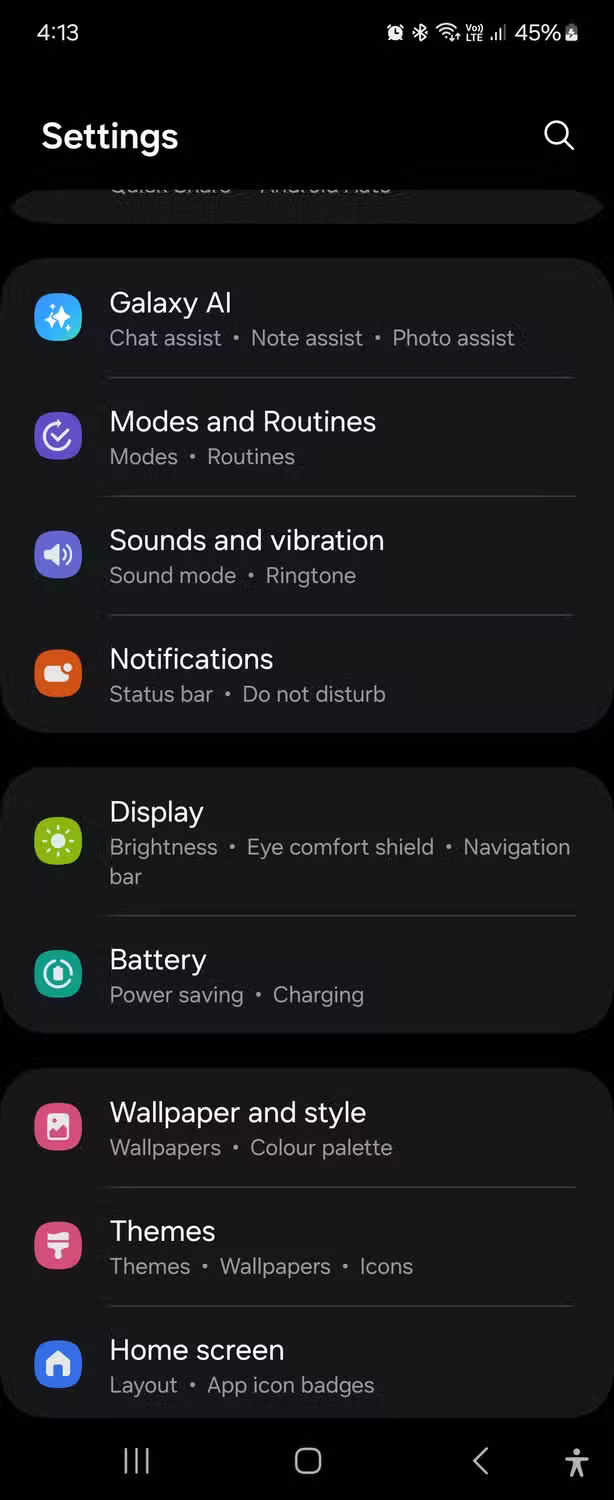
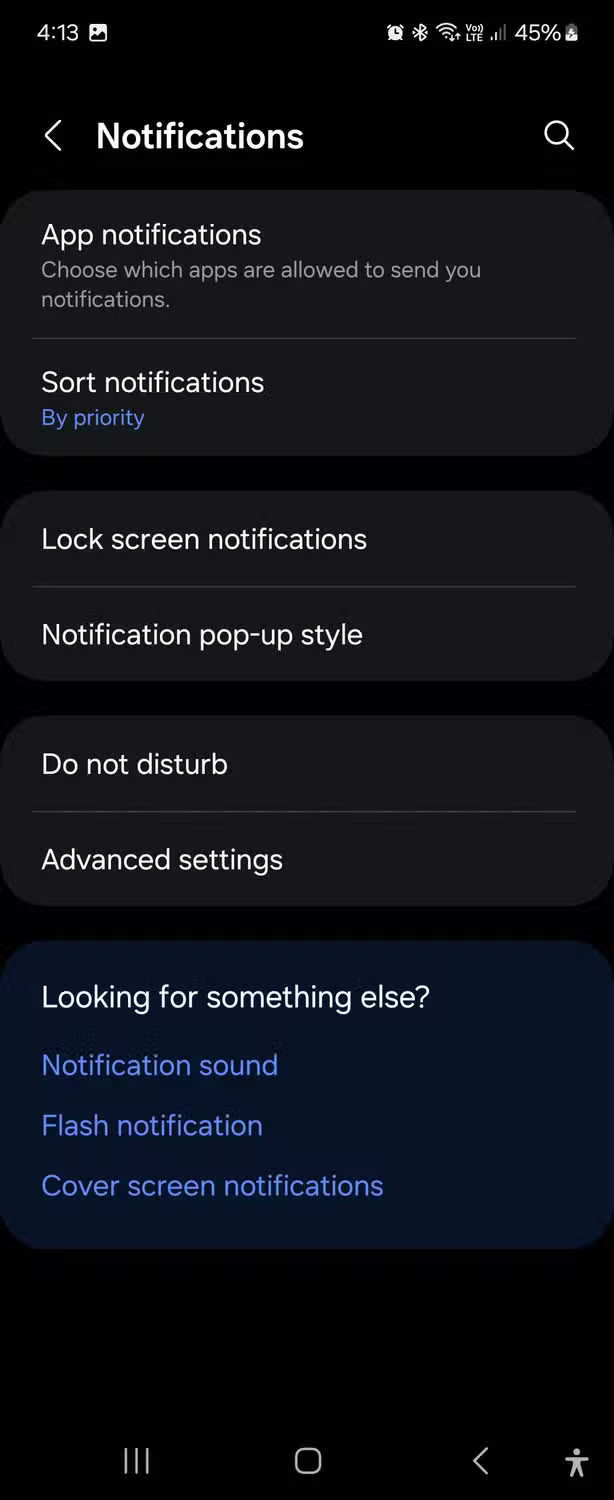
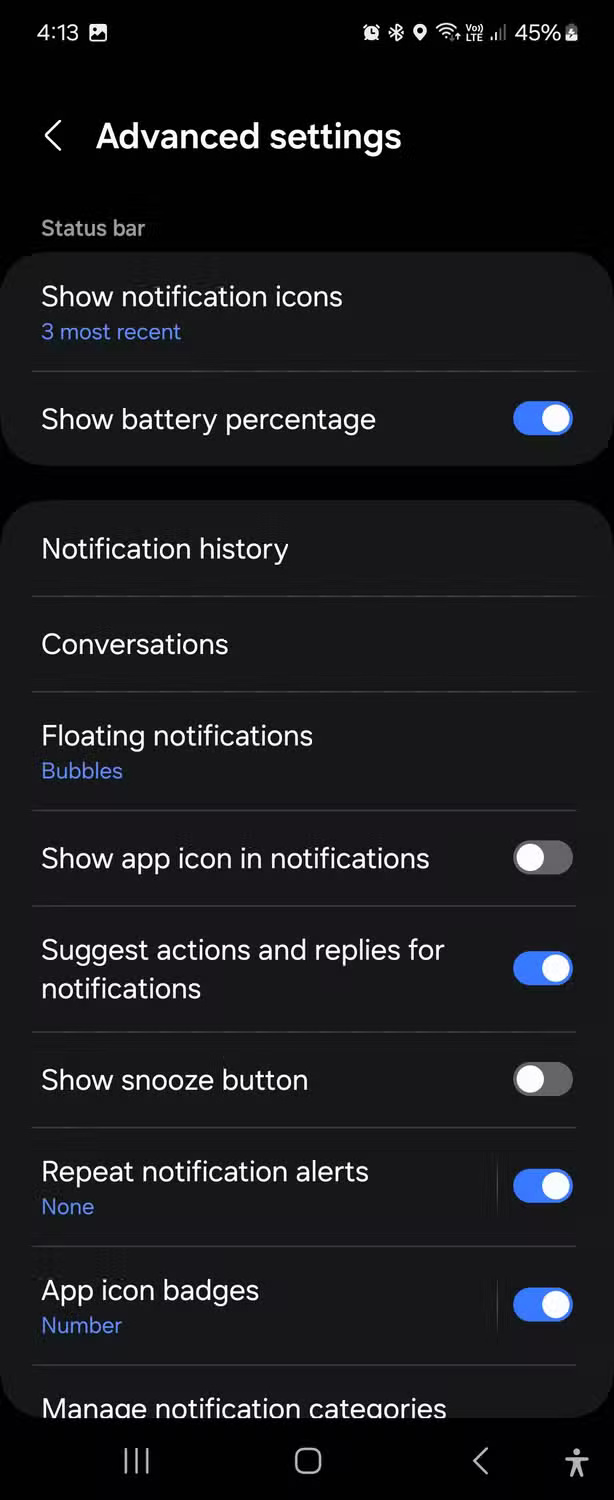
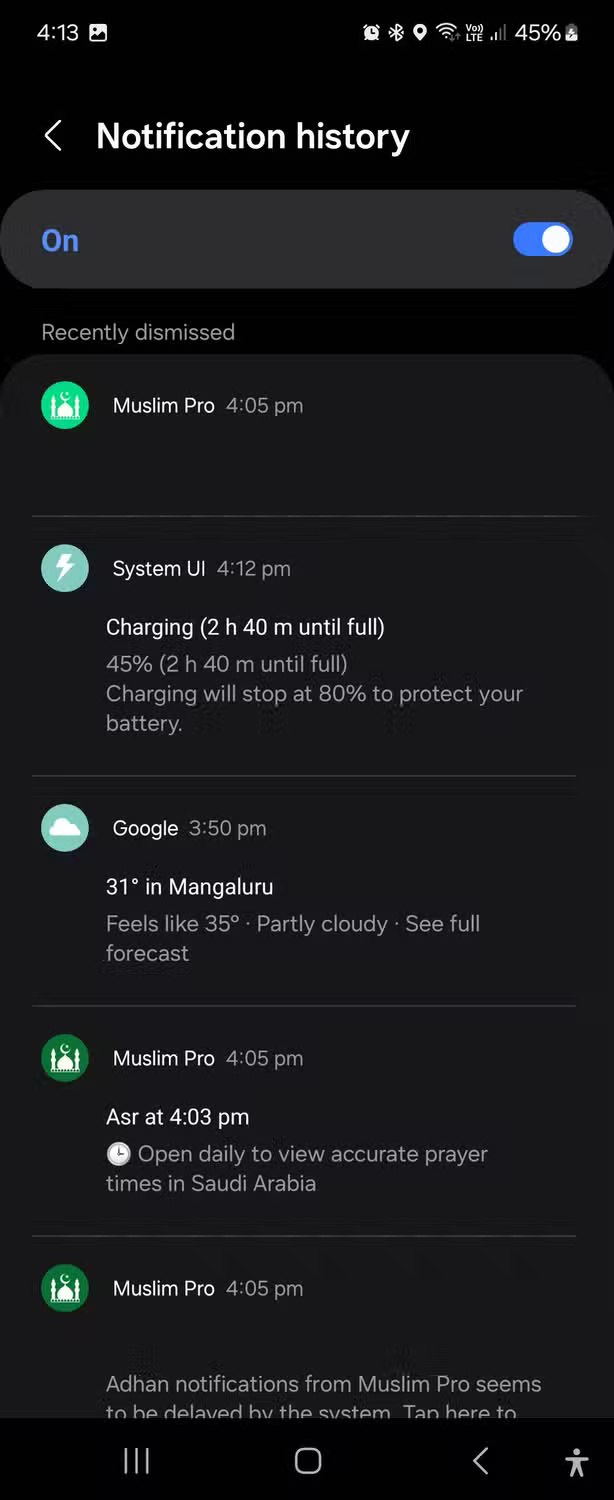
On Galaxy, go to Settings → Notifications → Advanced settings → Notification history and turn it on. On Pixel, look under Settings → Notifications → Notification history. It only records alerts after you enable it. See how to review Android notification history for more detail.
2. Decide when your phone can stay unlocked
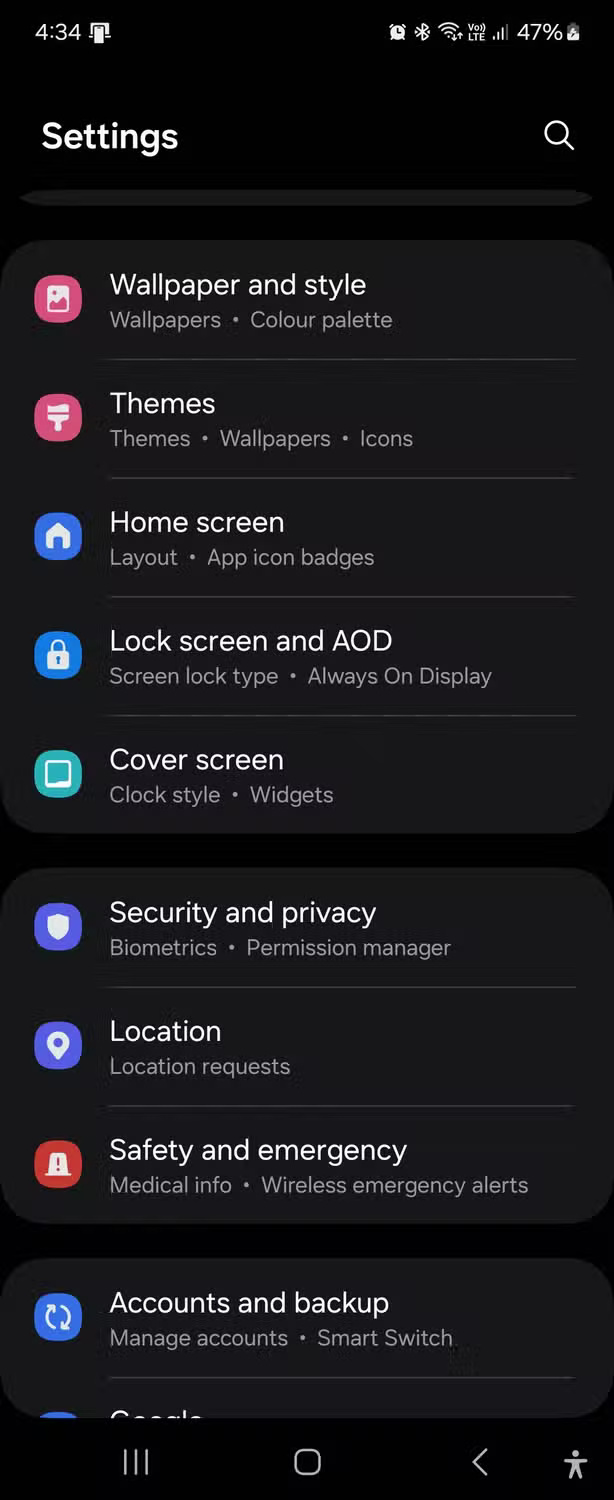
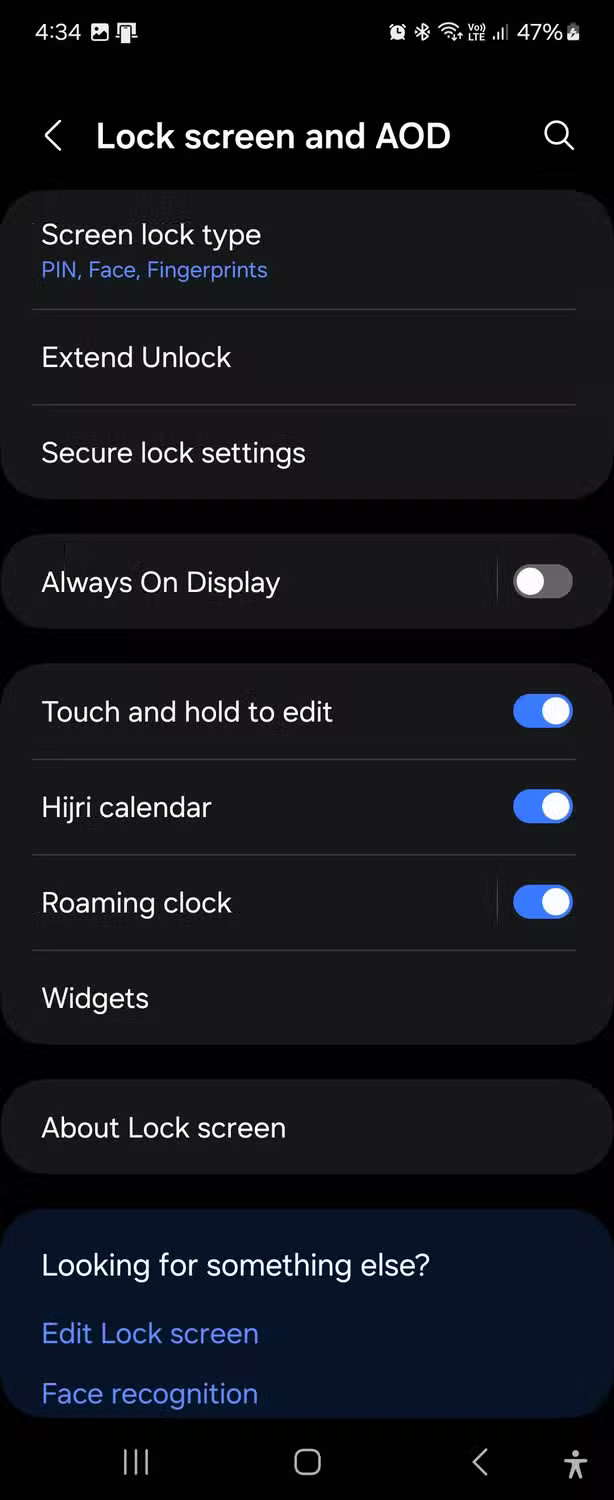
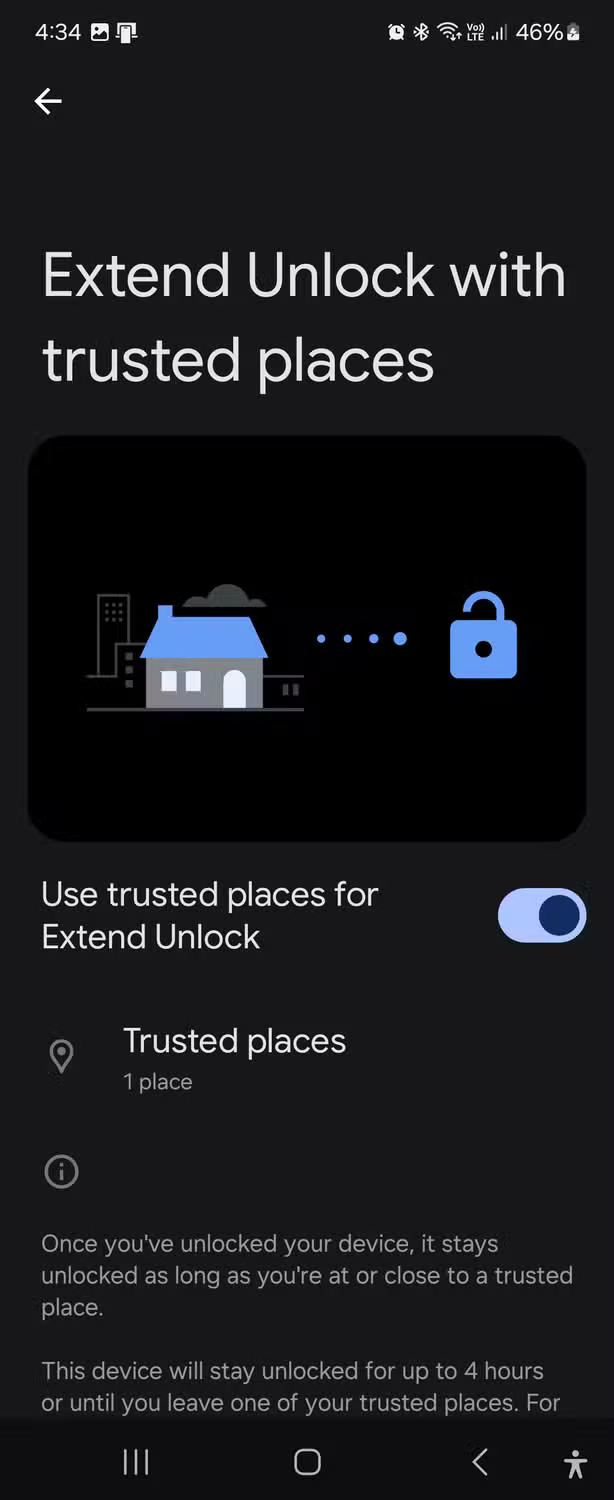
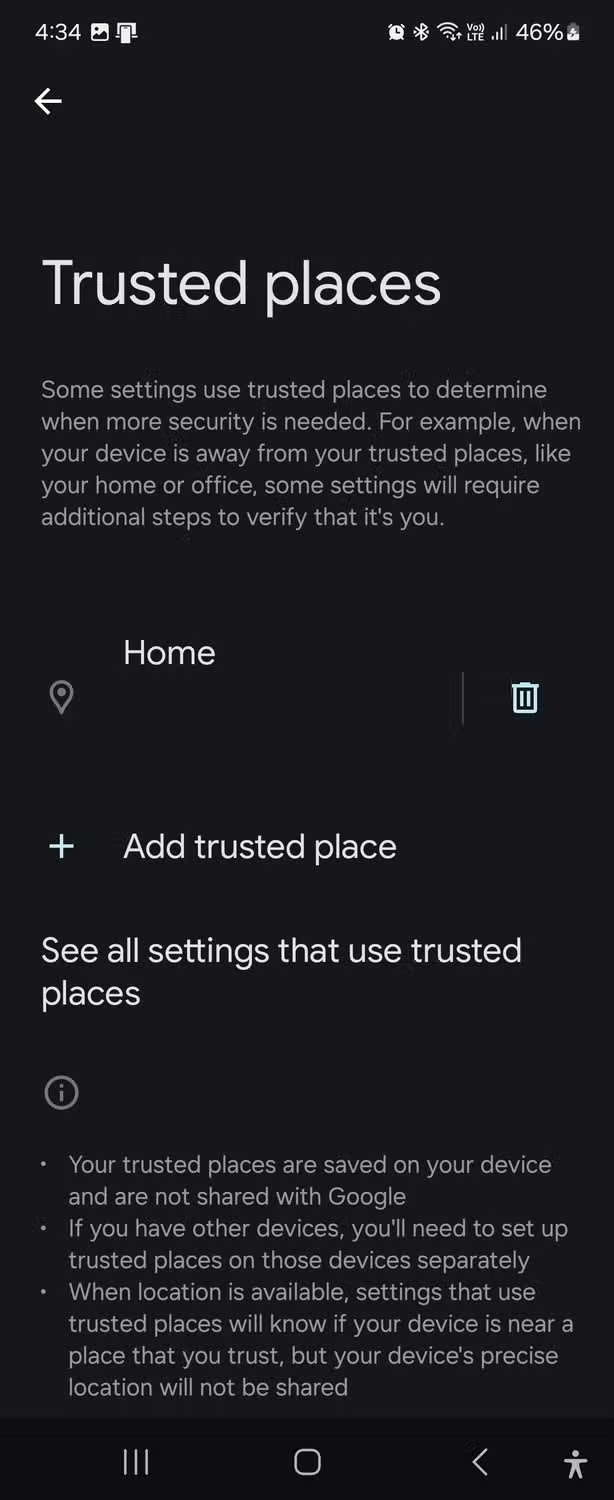
Search Settings for Extend Unlock or Extended Unlock. Supported phones can remain unlocked after you enter your PIN while a chosen condition applies, such as a connection to a trusted Bluetooth device. Anyone holding your phone while it stays unlocked can access what you normally can. Keep the feature off if you share space with people you don’t trust.
3. Turn short codes into repeated phrases
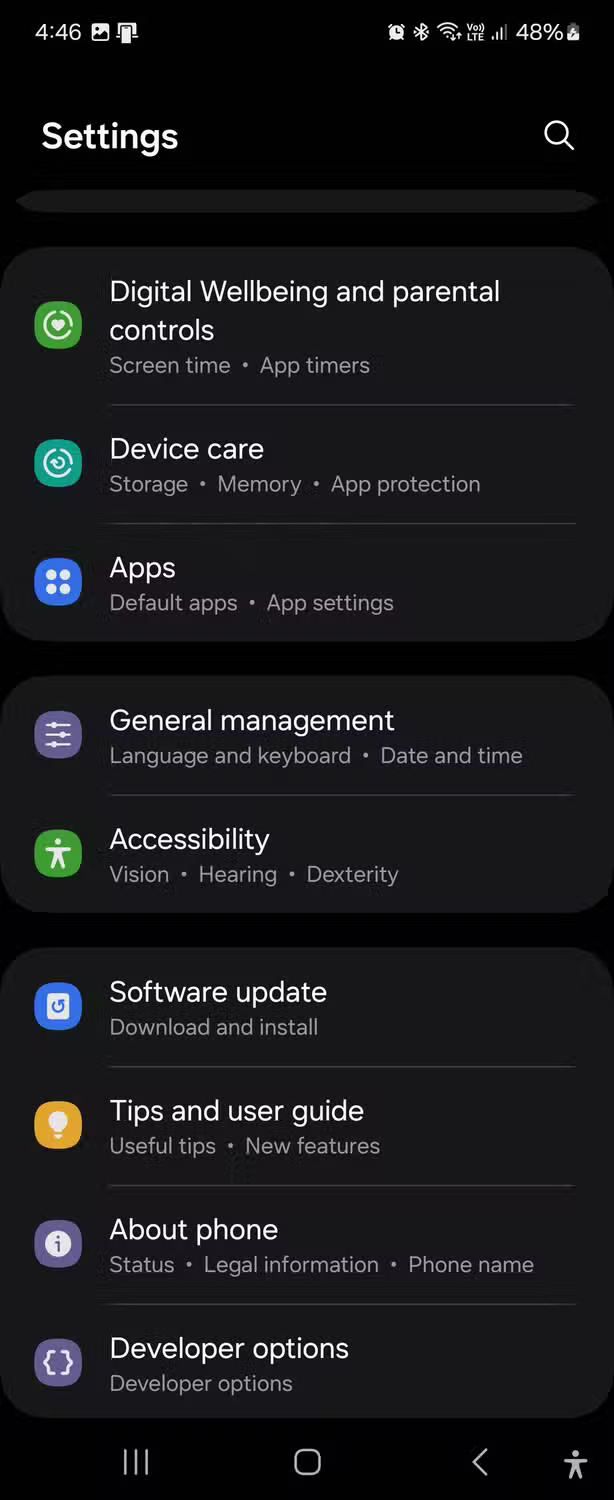
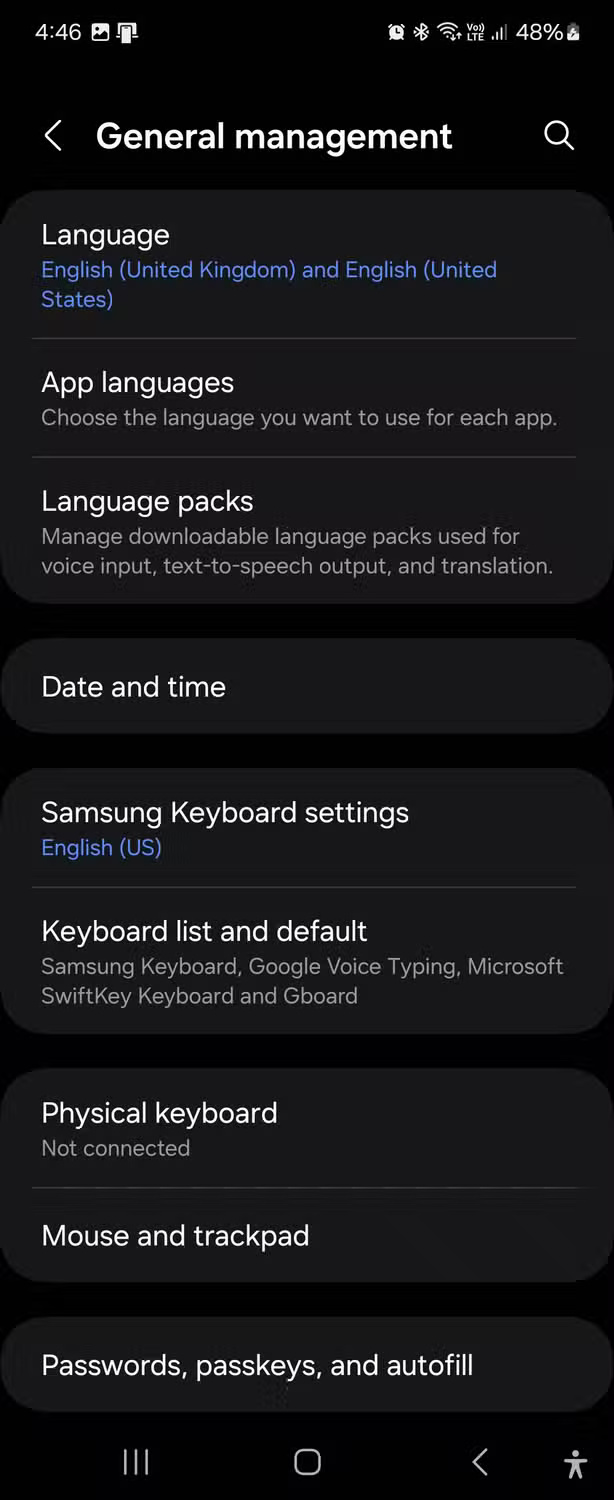
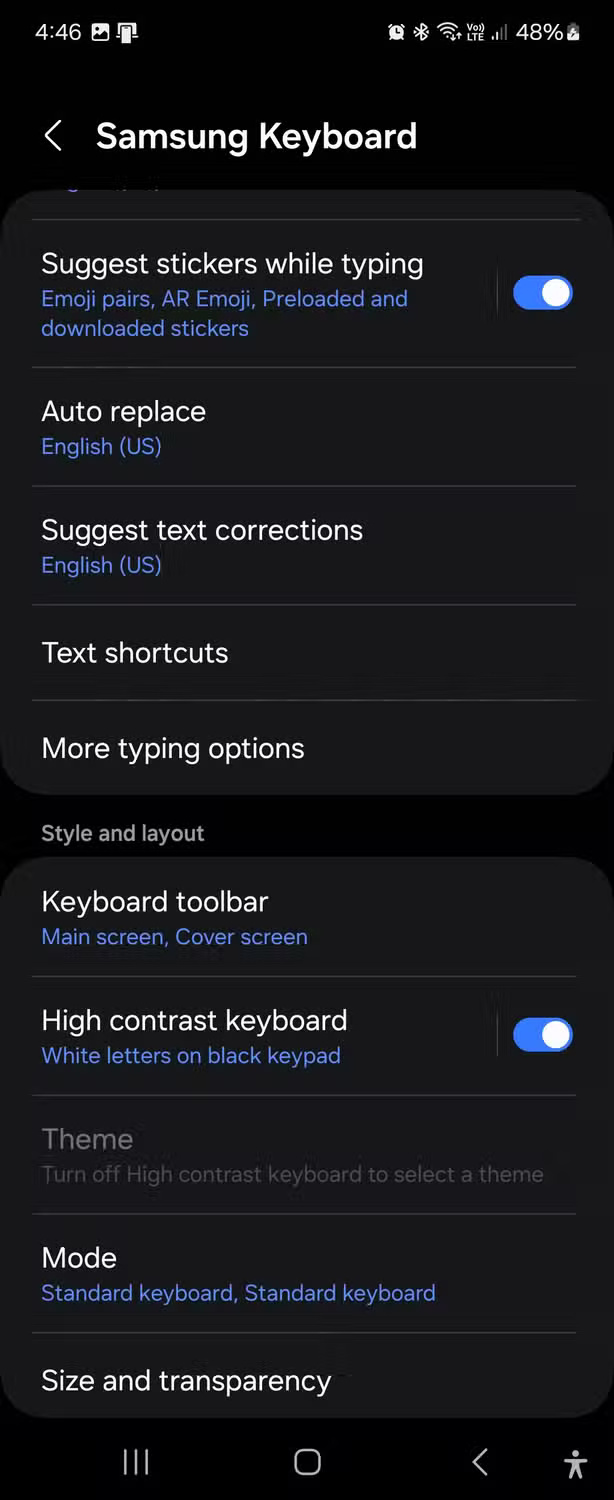
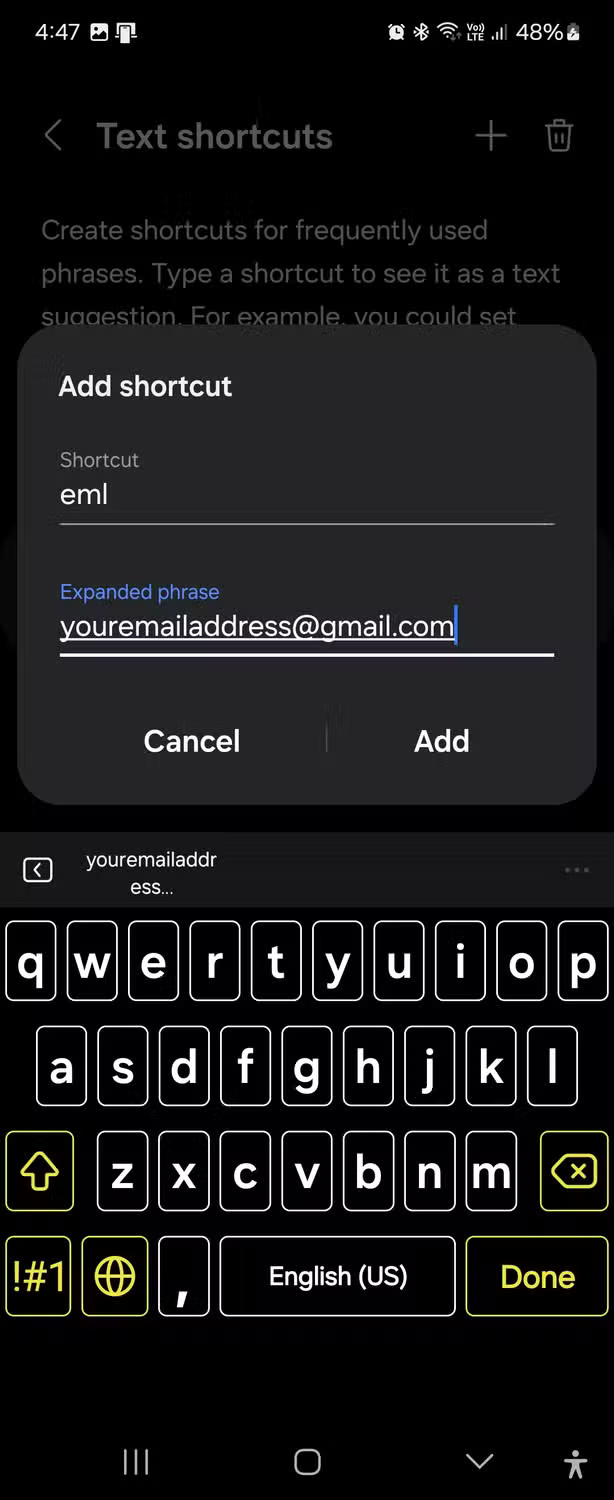
Open Samsung Keyboard settings → Text shortcuts and add a shortcut and its expanded phrase. In Gboard, look for Dictionary → Personal dictionary in keyboard settings. Use this for phrases like “I’ll send the file this afternoon.” Avoid storing passwords or payment information as shortcuts.
4. Move the text cursor with the space bar
In Gboard, slide a finger left or right across the space bar. Samsung Keyboard may require choosing Cursor control as its touch-and-hold space-bar action. Use it to fix one letter without dragging the cursor handle across the screen.
5. Share Wi-Fi with a QR code
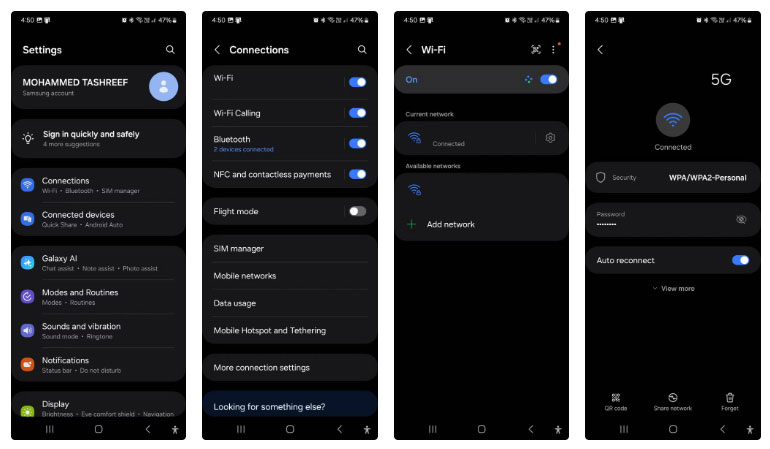
On Galaxy, open Settings → Connections → Wi-Fi, tap the gear beside the connected network, and choose QR code. On Pixel, look for Share in the current network’s details. Give trusted guests the code to scan, preferably for a guest network. Treat a screenshot of the code like a copy of the Wi-Fi password.
6. Find Developer options
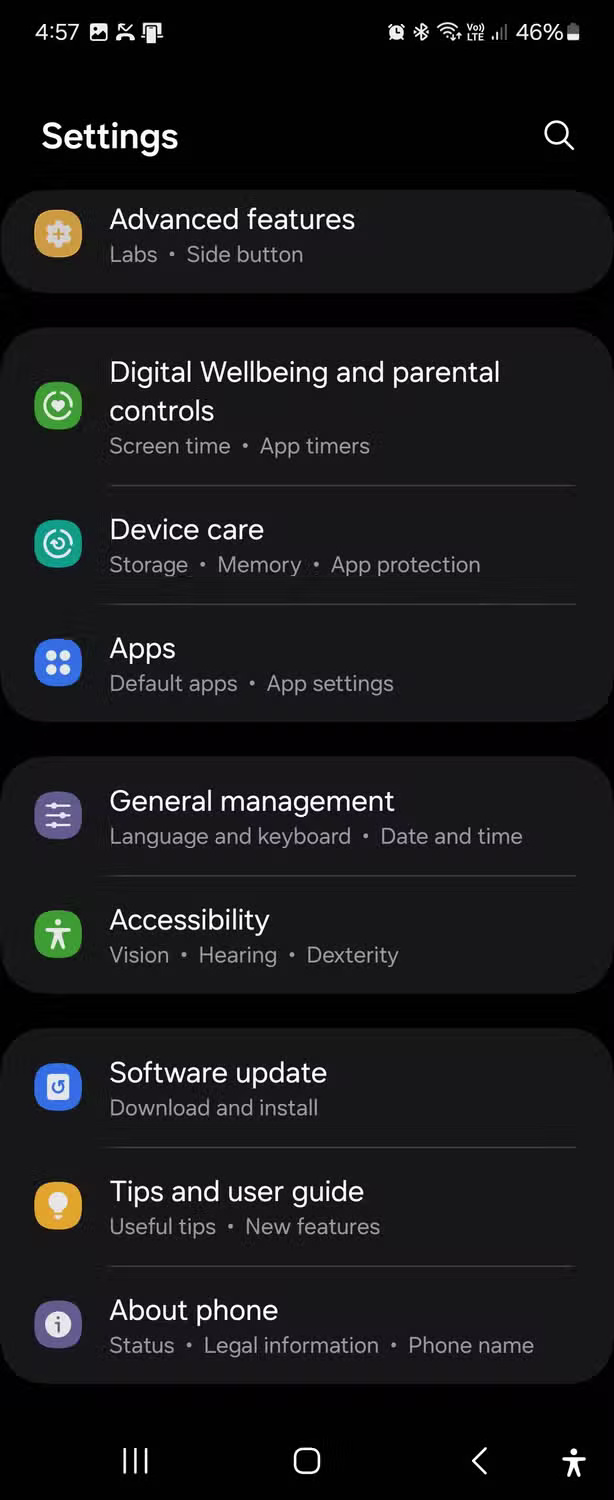
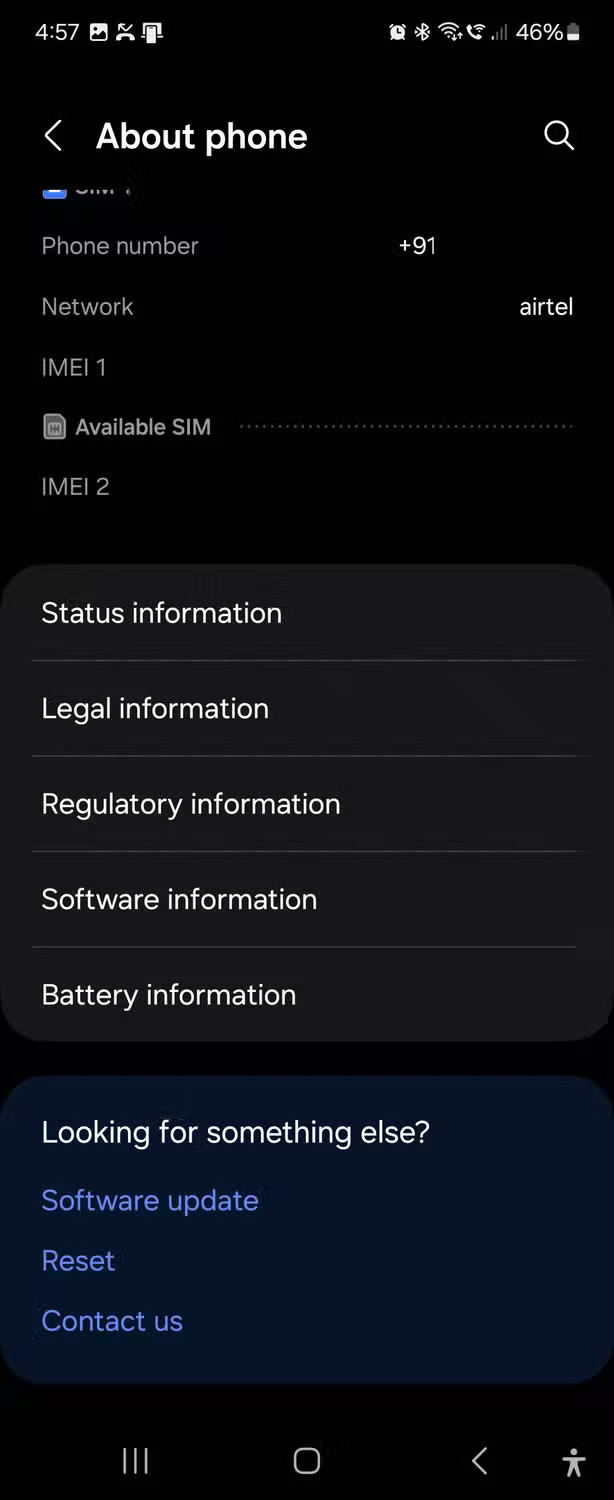
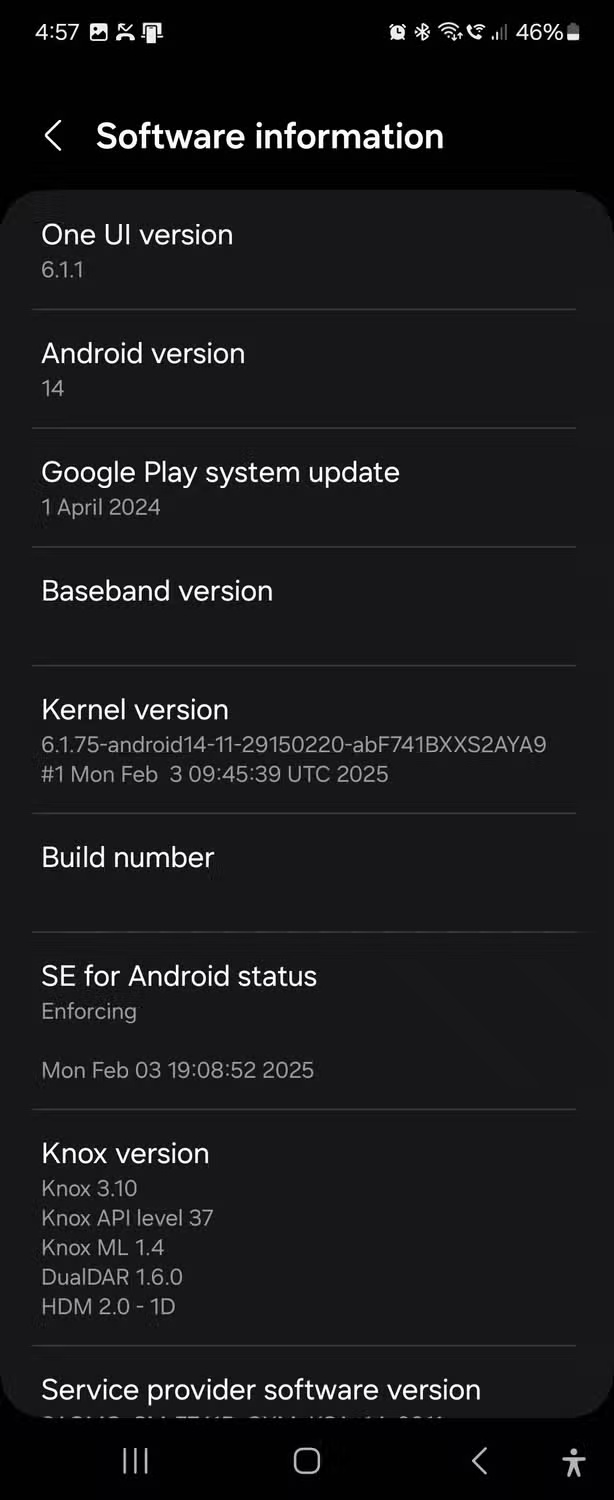
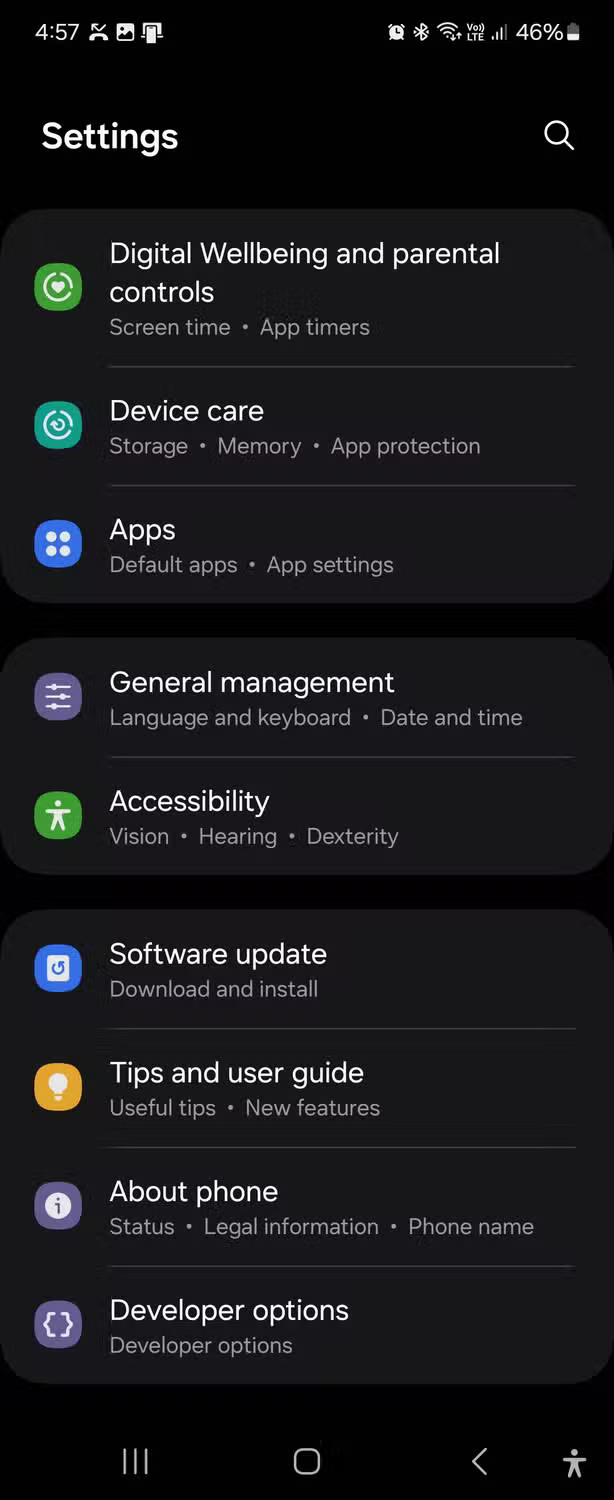
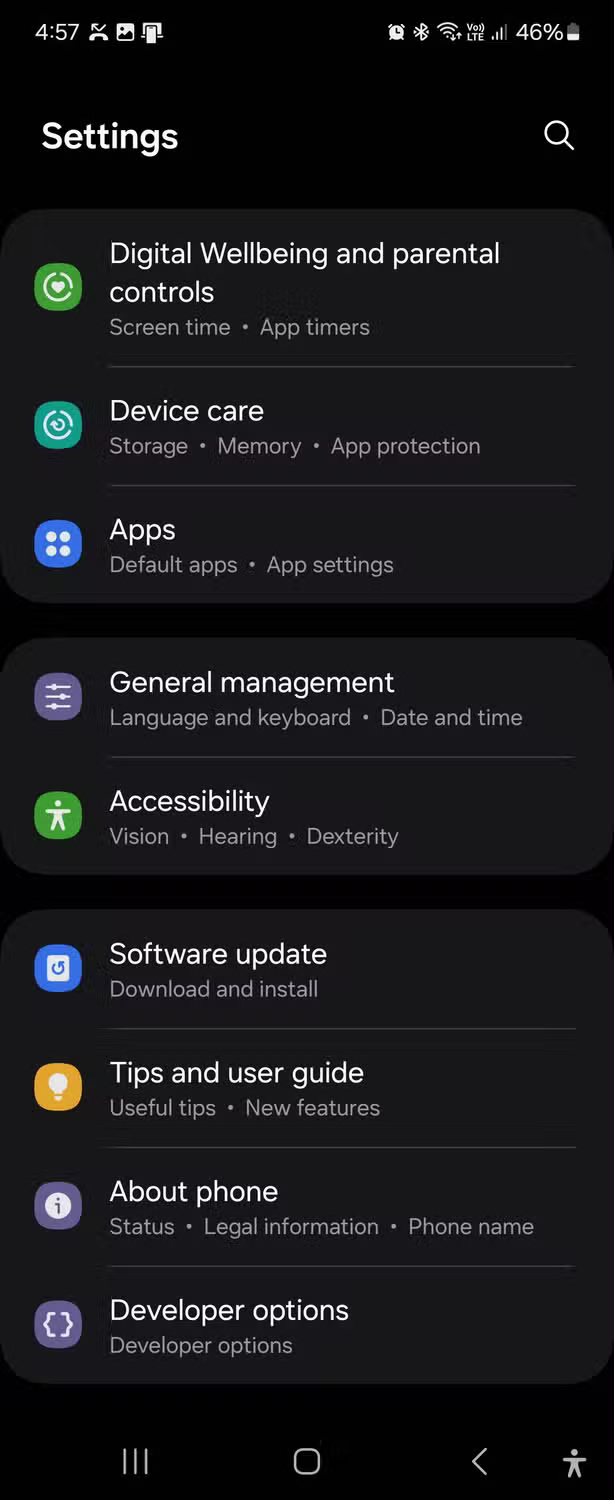
On Galaxy, open Settings → About phone → Software information and tap Build number seven times. Return to Settings and look for Developer options. One practical option is keeping the display awake while charging. Leave unrelated settings such as USB debugging off unless you need them.
7. Shorten or reduce animations
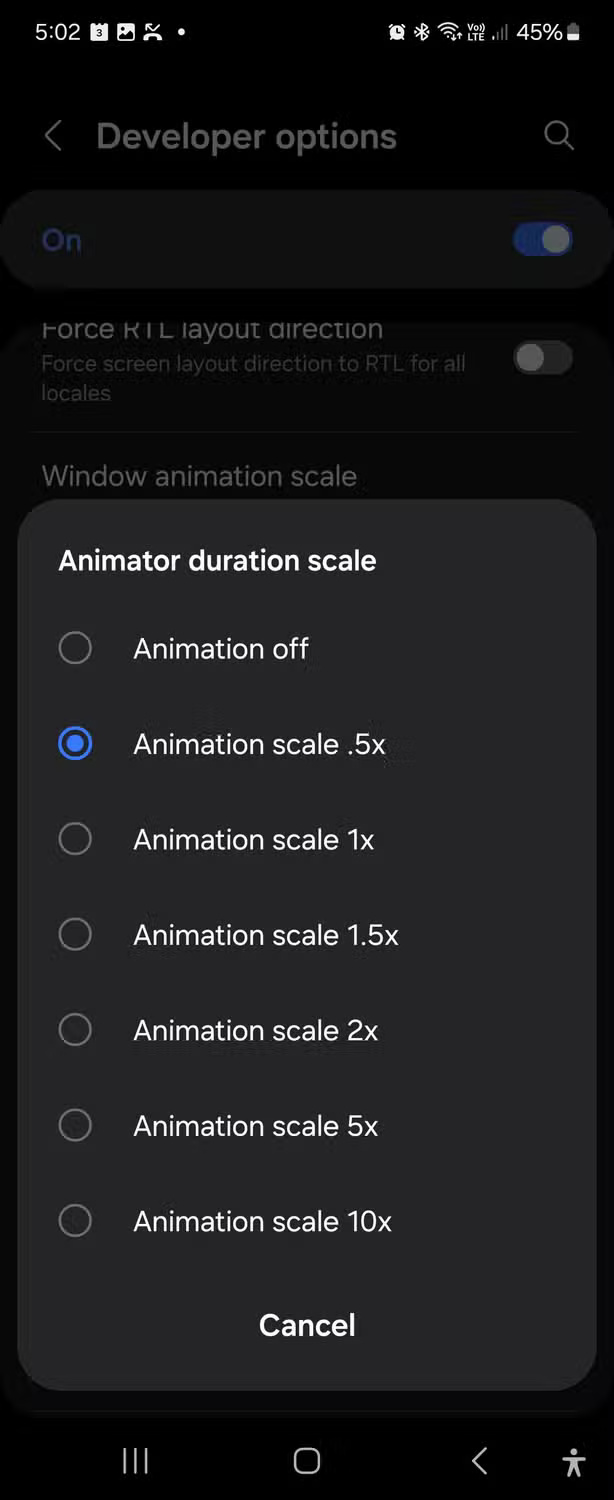
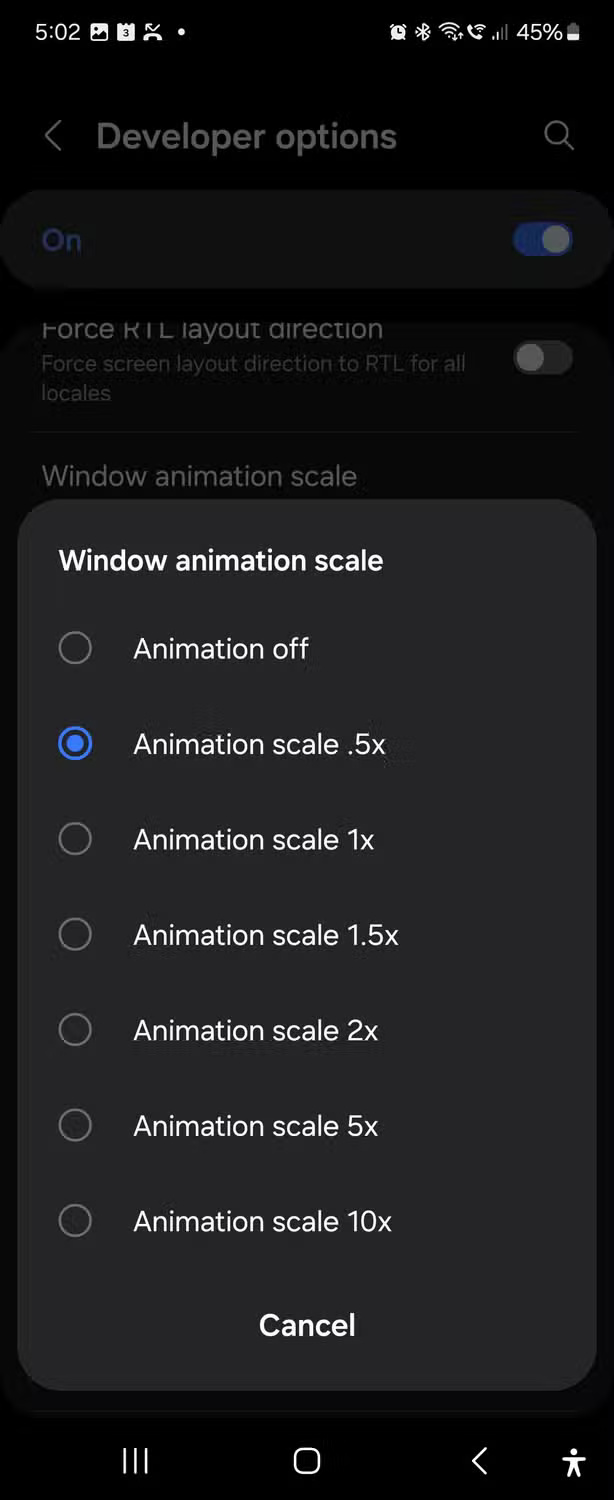
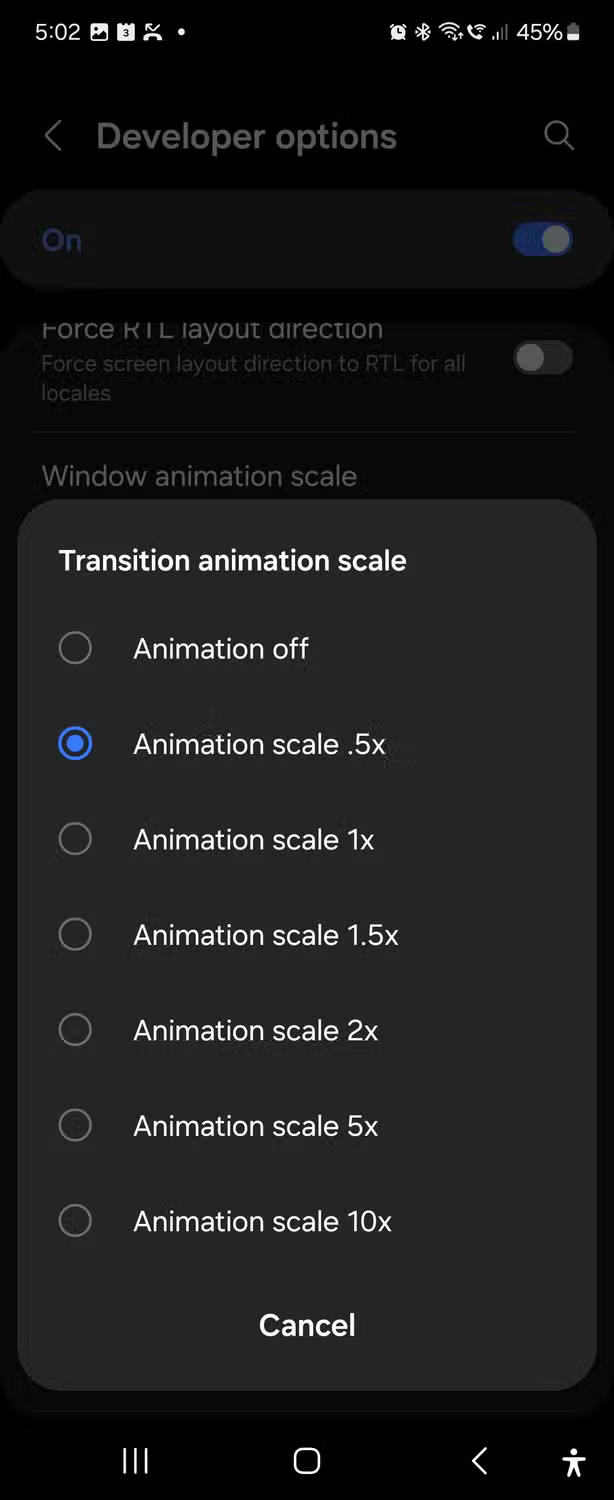
Look for Reduce animations or Remove animations under Accessibility. For finer control, Developer options has separate settings for window, transition, and animator duration scales. Try 0.5× if you prefer shorter transitions. It changes the animation, not the time the app needs to process a task.
8. Top up earbuds with reverse wireless charging
On supported Galaxy phones, open Quick Settings and tap Wireless power sharing. Put a compatible earbud case or phone against the center of the back, then adjust its position until charging starts. If the setting is missing or turns off, check your model’s support, battery limit, and case thickness.
Related Articles
 8 Windows Features You Wish You Knew About Sooner
 Tips to play Sky: Children of the Light gamers need to know
 9 Underrated Android Features You Probably Aren't Taking Full Advantage Of
 Learn new features of Android Q (Android 10)
 Features Android 11 R has known so far
 6 new features on iOS 16 that Android has had for a long time
Reader Comments 0
Sign in with email or Google to join the discussion.