Table of Contents
Luckily, there are plenty of free applications that give you the full power of FFmpeg without having to memorize complex syntax.
Fortunately, there are plenty of free applications that give you the full power of FFmpeg without having to memorize complicated syntax. From simple drag-and-drop interfaces to advanced batch processing, there's a tool to suit every workflow, platform, and skill level.
5. QWinFF
Easy conversion with drag and drop tool
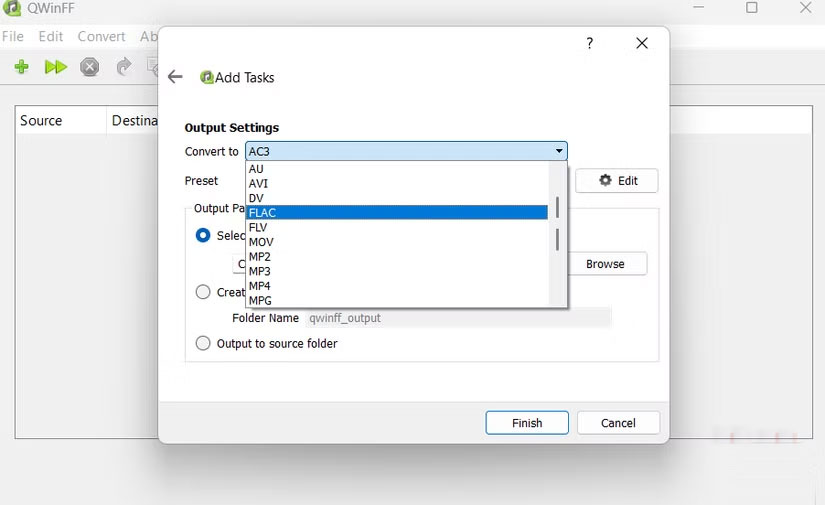
To keep things simple, QWinFF is a simple, lightweight graphical frontend for FFmpeg that makes converting video and audio a breeze. It works on Windows and Linux, so you can tap into the full power of FFmpeg without ever having to use the command line.
The software lets you drag and drop files, choose from multiple output formats, and adjust settings like codec, bitrate, resolution, and frame rate. It even supports preset settings, so if you frequently convert for the same device or platform, you can save time with just one click.
4. FFmpeg Batch AV Converter
Batch media conversion made easy
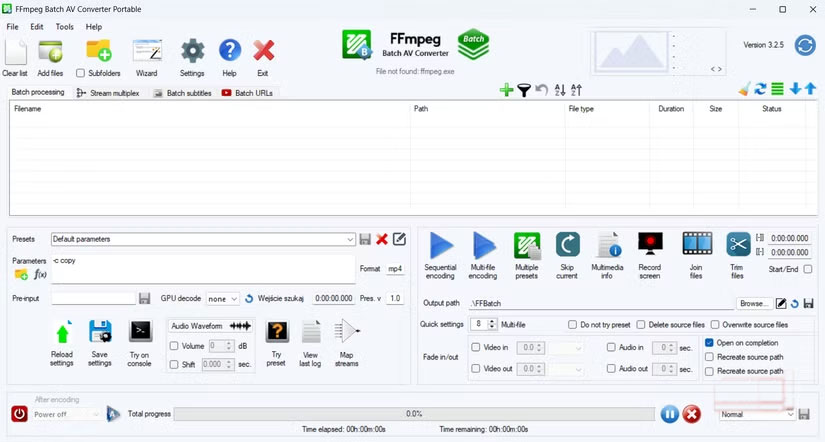
FFmpeg Batch AV Converter is another tool that offers a simple, no-frills experience. As the name suggests, it is designed to handle batch video and audio conversions with minimal effort.
You can load dozens of files at once, choose the output format— MP4, AVI, MKV, MP3, WAV, etc.—and let the program handle everything automatically. It's perfect for anyone who needs to convert a large media library without having to click on each file individually.
3. StaxRip
Power and automation for video conversion on Windows
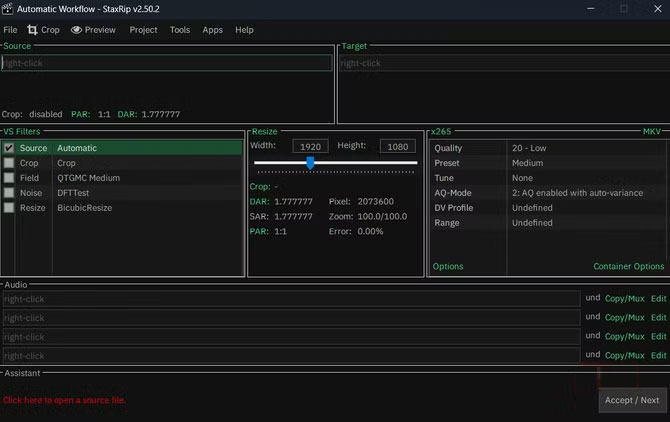
Unlike the other FFmpeg-enabled apps on this list, StaxRip is only available for Windows. It supports a wide range of formats, from MP4 and MKV to AVI and more. You can convert videos for any purpose – streaming, editing with your favorite software, or simply archiving them in top quality.
For automation enthusiasts, StaxRip lets you create automated tasks using PowerShell. And if you're new to FFmpeg tools, its Assistant Feature will guide you through the conversion process step by step.
2. Shotcut
More than just an editor, a versatile converter
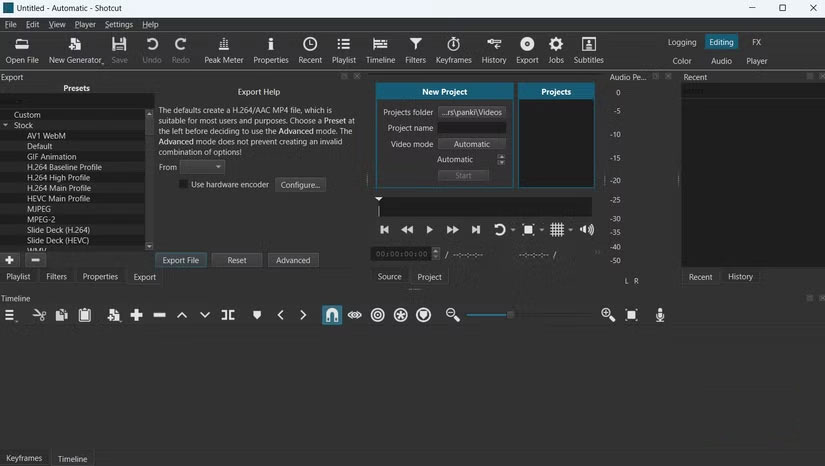
Shotcut is essentially an open-source video editor that uses FFmpeg to encode, decode, and manipulate video and audio. If you've used any video editor before, you'll be familiar with Shotcut. While many people think of Shotcut as just a video editor, its file conversion capabilities are just as impressive.
The export panel is simple. Choose the desired format, adjust the settings if necessary, and hit export. Your file will be ready to use in seconds.
1. Shutter Encoder
Fast, precise conversions with presets and control
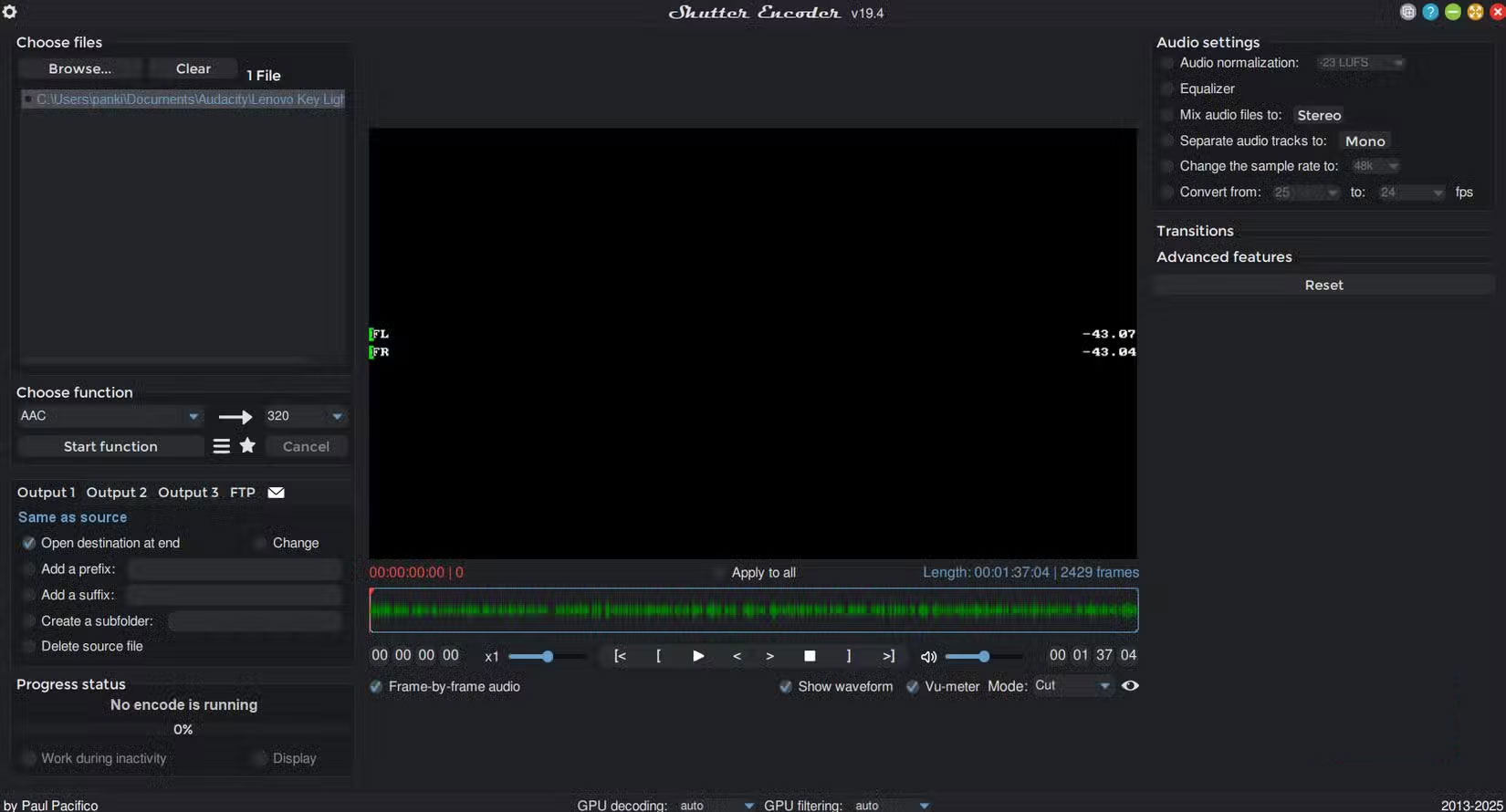
Shutter Encoder is an FFmpeg-powered tool, available for Windows, Mac, and Linux, built specifically for fast and reliable media conversion. You can add video, audio, or entire folders and convert them to almost any format you need.
You can queue multiple files, apply the same output settings, and let Shutter Encoder process them automatically. It also includes multiple presets for web, mobile, or archiving, so you can convert files quickly without having to manually adjust each parameter.
FAQ
What should you know about the options in this guide?
In practical terms, luckily, there are plenty of free applications that give you the full power of FFmpeg without having to memorize complex syntax.
Which option is the best choice?
The best choice depends on your priorities, compatibility, budget, and the specific features discussed in the comparison.
What should you compare before deciding?
Compare core features, limitations, ease of use, compatibility, and long-term value before making a decision.
Related Articles
 File: How to Convert Media with Ffmpeg13 minutes read
 Click: How to Install Ffmpeg on Windows6 minutes read
 How to Use the Ffmpeg Command to Process Audio and Video on Linux11 minutes read
 How to Install Ffmpeg on Windows7 minutes read
 How to Install and Add FFmpeg to the Path in Windows 10/8/75 minutes read
 8 Apps Cost VND 550,000 Being Free for iOS6 minutes read
Reader Comments 0
Sign in with email or Google to join the discussion.